by George Sruthin | Aug 2, 2026 | Backup, Howtos, Servers, Storages
Data is one of the most valuable assets a business owns. Yet many organizations invest in backup solutions without following the best practices needed to ensure those backups are actually recoverable.
Whether it's a ransomware attack, hardware failure, accidental deletion, or natural disaster, a poorly designed backup strategy can lead to extended downtime, financial loss, and damaged customer trust.
Here are the 10 most common backup mistakes that businesses make—and how to avoid them.
1. Having Only One Backup Copy
Keeping a single backup is a major risk. If that backup becomes corrupted, encrypted, or accidentally deleted, recovery may be impossible. Therefore, maintaining multiple backup copies is essential.
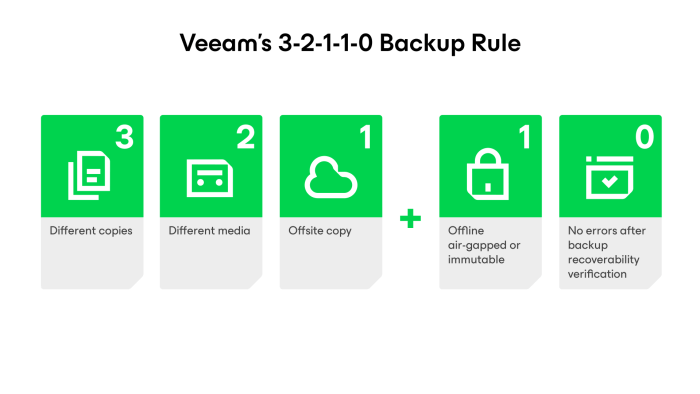
Best Practice: Follow the 3-2-1-1-0 backup strategy by maintaining multiple copies of your data across different storage locations.
2. Never Testing Backup Restores
Many organizations assume their backups are working because backup jobs complete successfully. Unfortunately, a successful backup doesn't always guarantee a successful restore.
Best Practice: Schedule regular restore tests to verify backup integrity and ensure recovery procedures work as expected.
3. Not Using Immutable Backups
Modern ransomware specifically targets backup repositories. As a result, organizations that don't use immutable storage risk losing both production data and backup copies. If attackers can delete or encrypt your backups, your recovery options become extremely limited.
Best Practice: Store at least one backup copy in an immutable repository where backup files cannot be modified or deleted during the retention period.
4. Storing All Backups in One Location
Keeping every backup in the same building exposes your business to risks such as fire, flooding, theft, or power failures. For this reason, at least one backup copy should always be stored offsite.
Best Practice: Maintain at least one offsite backup copy or use secure cloud storage for disaster recovery.
5. Using the Same Administrator Credentials Everywhere
If backup infrastructure shares the same administrator credentials as production systems, attackers can compromise everything with a single account.
Best Practice: Use dedicated administrator accounts, enable Multi-Factor Authentication (MFA), and apply the principle of least privilege.
6. Ignoring Backup Monitoring
Failed backup jobs often go unnoticed until recovery is needed.
Best Practice: Monitor backup jobs daily and configure alerts for failed or missed backups.
7. Keeping Backup Servers on the Production Network
If ransomware spreads through the production environment, backup servers connected to the same network may also be compromised.
Best Practice: Isolate backup infrastructure using network segmentation and dedicated management access.
8. Poor Backup Retention Policies
Very short retention periods may leave you without a clean recovery point if ransomware remains undetected for several weeks.
Best Practice: Review your retention policies regularly and align them with your business and compliance requirements.
9. Delaying Software Updates
Outdated backup software and operating systems may contain vulnerabilities that attackers can exploit.
Best Practice: Keep backup applications, operating systems, and firmware updated with the latest security patches.
10. Having No Disaster Recovery Plan
Backups alone are not enough. Without documented recovery procedures, restoring critical systems can take far longer than expected.
Best Practice: Develop a disaster recovery plan, document recovery priorities, and conduct periodic recovery drills with your IT team.
A reliable backup strategy is more than just scheduling backup jobs—it's about ensuring your business can recover quickly when disaster strikes.
By avoiding these common mistakes and following industry best practices such as the 3-2-1-1-0 backup strategy, immutable storage, offsite backups, and regular restore testing, organizations can significantly reduce the impact of ransomware, hardware failures, and other unexpected events.
Whether you're using Veeam Backup & Replication or another enterprise backup solution, the principles remain the same: secure your backups, verify them regularly, and always be prepared to restore when it matters most.
by George Sruthin | Aug 2, 2026 | Backup, Servers, Storages
Ransomware attacks have become more sophisticated than ever. Today's attackers don't just encrypt production servers—they also target backup repositories, making recovery nearly impossible if your backups aren't properly protected.
That's why organizations are adopting the 3-2-1-1-0 backup strategy, combined with immutable backup repositories, to ensure they can recover quickly without paying a ransom.
In this article, I'll explain these backup best practices using Veeam Backup & Replication as a practical example. While the concepts discussed apply to any modern backup solution that supports immutable storage and secure backup architectures, Veeam provides an excellent reference for demonstrating how these best practices can be implemented in a real-world environment.
The 3-2-1-1-0 rule is considered the gold standard for backup protection.
| Rule |
Meaning |
| 3 |
Keep three copies of your data (production + two backups). |
|
2
|
Store backups on two different types of storage. |
| 1 |
Keep one backup copy offsite. |
| 0 |
Keep one backup copy immutable or offline. |
| 0 |
Regularly verify backups to ensure zero restore errors. |
Following this strategy helps protect your business from hardware failures, accidental deletion, and ransomware attacks.
Why Traditional Backups Are No Longer Enough
Many organizations still rely on Windows file shares or NAS devices as backup repositories. While convenient, these repositories are often accessible to attackers if they compromise administrator credentials.
If ransomware can access your backup repository, it may encrypt or delete your backup files before attacking production systems.
This is why backup security is just as important as endpoint and network security.
What is an Immutable Backup?
An immutable backup cannot be modified or deleted until its retention period expires—even by an administrator.
This means that even if ransomware gains access to your backup server, your backup files remain protected.
Modern backup solutions like Veeam Backup & Replication support immutable repositories hosted on Linux, making them an excellent choice for ransomware protection.
Why Use a Linux Immutable Repository?
Linux repositories have become the preferred option for secure backups because they offer:
- Better protection against ransomware
- Lower attack surface than Windows
- Native support for immutable backup files
- High performance with filesystems like XFS
For Veeam users, a dedicated Linux repository is considered a best practice for protecting backup data.
Immutable Backup vs Air-Gapped Backup
Although often used together, they serve different purposes.
| Immutable Backup |
Air-Gapped Backup |
| Always connected to the network |
Completely disconnected from the network |
| Backup files cannot be modified or deleted |
Backup media is physically isolated |
| Fast recovery |
Maximum protection against cyberattacks |
For the best protection, maintain both an immutable backup repository for daily recovery and an air-gapped copy for disaster recovery.
Backup Best Practices
To build a ransomware-resilient backup environment:
- Follow the 3-2-1-1-0 backup rule
- Use a dedicated Linux immutable repository
- Keep one backup copy offsite
- Enable multi-factor authentication (MFA)
- Use separate administrator accounts for backup infrastructure
- Regularly test backup restores
- Monitor backup jobs and resolve failures promptly
- Keep your backup software and operating systems up to date
Final Thoughts
No security solution can guarantee complete protection from ransomware. However, a well-designed backup strategy ensures your business can recover quickly without paying a ransom.
By combining the 3-2-1-1-0 backup rule, Veeam immutable repositories, and air-gapped backups, organizations can significantly improve their cyber resilience and minimize downtime during an attack.
Investing in secure backups today is one of the smartest decisions you can make to protect your business tomorrow.
by George Sruthin | Sep 21, 2020 | Howtos, Servers, Storages, Windows
When ever you got alert on your PC that Hard drive didn't have much space left, first thing we all do is clearing temp, uninstalling unwanted application or Using third party application like CCleaner or even running disk clean up from windows, but in most cases you are not fully aware where the space has been consumed.
TreeSize Free is a utility that scans your hard drive and shows where your disk space has gone, there are 3 versions available Free, Personal and Professional. for a home user free version is sufficient,
for TreeSize edition comparison use this link
Scan your volumes in seconds and see the size of all folders including all subfolders and break it down to file level.
With the integrated Windows Explorer context menu and the usual keyboard shortcuts you can quickly get rid of unwanted stuff.
See the distribution of the used disk space at a glance with our customizable treemap chart.
TreeSize
Free- Filters scan results according to different criteria
- Breaks down scan results according to owner, file type, 100 largest files, etc.
- Versatile file search with duplicate finder and deduplication
- Export to Excel, HTML and Email
- Automation support and command line options
- Runs on Windows Server 2008 R2 and higher
TreeSize
Personal- Filters scan results according to different criteria
- Breaks down scan results according to owner, file type, 100 largest files, etc.
- Versatile file search with duplicate finder and deduplication
- Export to Excel, HTML and Email
- Automation support and command line options
- Runs on Windows Server 2008 R2 and higher
TreeSize
Professional- Filters scan results according to different criteria
- Breaks down scan results according to owner, file type, 100 largest files, etc.
- Versatile file search with duplicate finder and deduplication
- Export to Excel, HTML and Email
- Automation support and command line options
- Runs on Windows Server 2008 R2 and higher
by Teffin Varghese | Jul 16, 2020 | Howtos, Networking, News, OS, Security, Servers, Storages, Troubleshooting

Step 1: Identify the Adapter model
===========================
You can use the lspci command to view the details of the Adapter.
[root@localhost ~]# lspci | grep Mellanox
a1:00.0 Infiniband controller: Mellanox Technologies MT28908 Family [ConnectX-6]
Here our Adapter is Mellanox Technologies MT28908 Family [ConnectX-6]
Step 2: Download the OFED driver for the Adapter.
===================================================================================
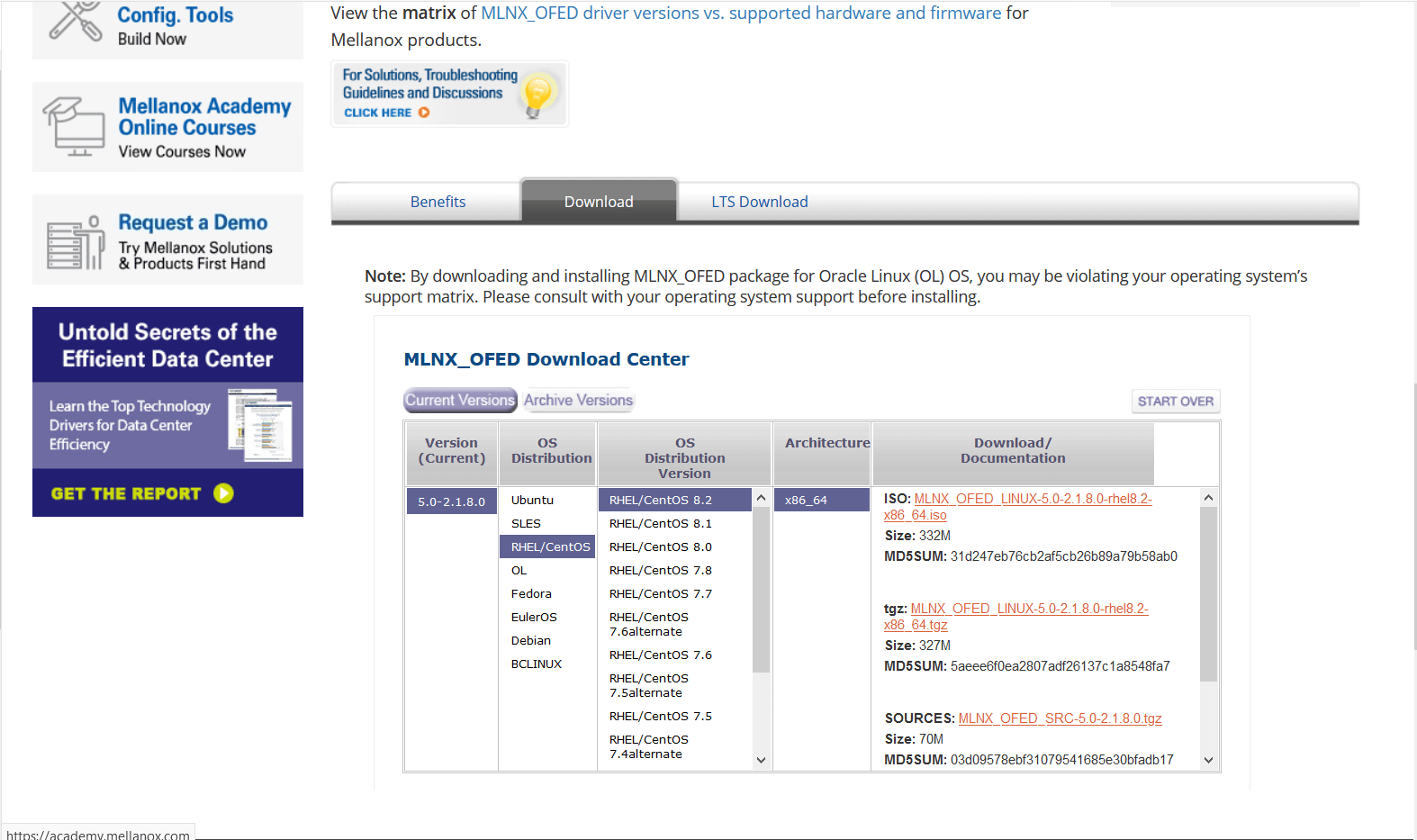
You can download the OFED driver from the below link and choose the OS and select the tar file for download.
https://www.mellanox.com/products/infiniband-drivers/linux/mlnx_ofed
https://www.mellanox.com/products/infiniband-drivers/linux/mlnx_ofed
You can use wget command to download the driver.
Example: wget http://content.mellanox.com/ofed/MLNX_OFED-5.0-2.1.8.0/MLNX_OFED_LINUX-5.0-2.1.8.0-rhel8.2-x86_64.tgz
http://content.mellanox.com/ofed/MLNX_OFED-5.0-2.1.8.0/MLNX_OFED_LINUX-5.0-2.1.8.0-rhel8.2-x86_64.tgz
Step 3: Extract the zip file.
============================================
Untar the zip file you have just downloaded
Example: tar -xvf MLNX_OFED_LINUX-5.0-2.1.8.0-rhel8.2-x86_64.tgz
Step 4: Navigate to the extracted directory.
======================================================================
Once you have extracted the tar file you can view a directory with the same name, navigate to the directory
by cd command
Example: cd MLNX_OFED_LINUX-5.0-2.1.8.0-rhel8.2-x86_64
Once you are in the directory please list the contents on the directory using a ls command.
and from the output you can view a script file name “mlnxofedinstall”
Step 5: Run the script file.
==========================================
You can run the script file using “./mlnxofedinstall”
Once you run the script the driver will be installed and once it is completed reload the driver or reboot the machine.
Note: The server must have Perl, python and GCC compilers for completing the driver installation.
If the installation run failed due to any unmet dependencies, please install the packages and libraries mentioned on the failed message.
Firmware upgrade.
————————–
Once the OFED driver is successfully installed then you can go with the firmware upgrade.
We are using the tool MSTFLINT for performing the firmware upgrade.
Step 1: First we need to identify the PCI bus ID of the adapter.
===========================================================================
Run “lspci | grep Mellanox” to determine the PCI bus ID
Example: [root@localhost ~]# lspci | grep Mellanox
a1:00.0 Infiniband controller: Mellanox Technologies MT28908 Family [ConnectX-6]
Here “a1:00.0” is our PCI bus ID.
Step 2: Download and unzip the Firmware Zip file.
=============================================================
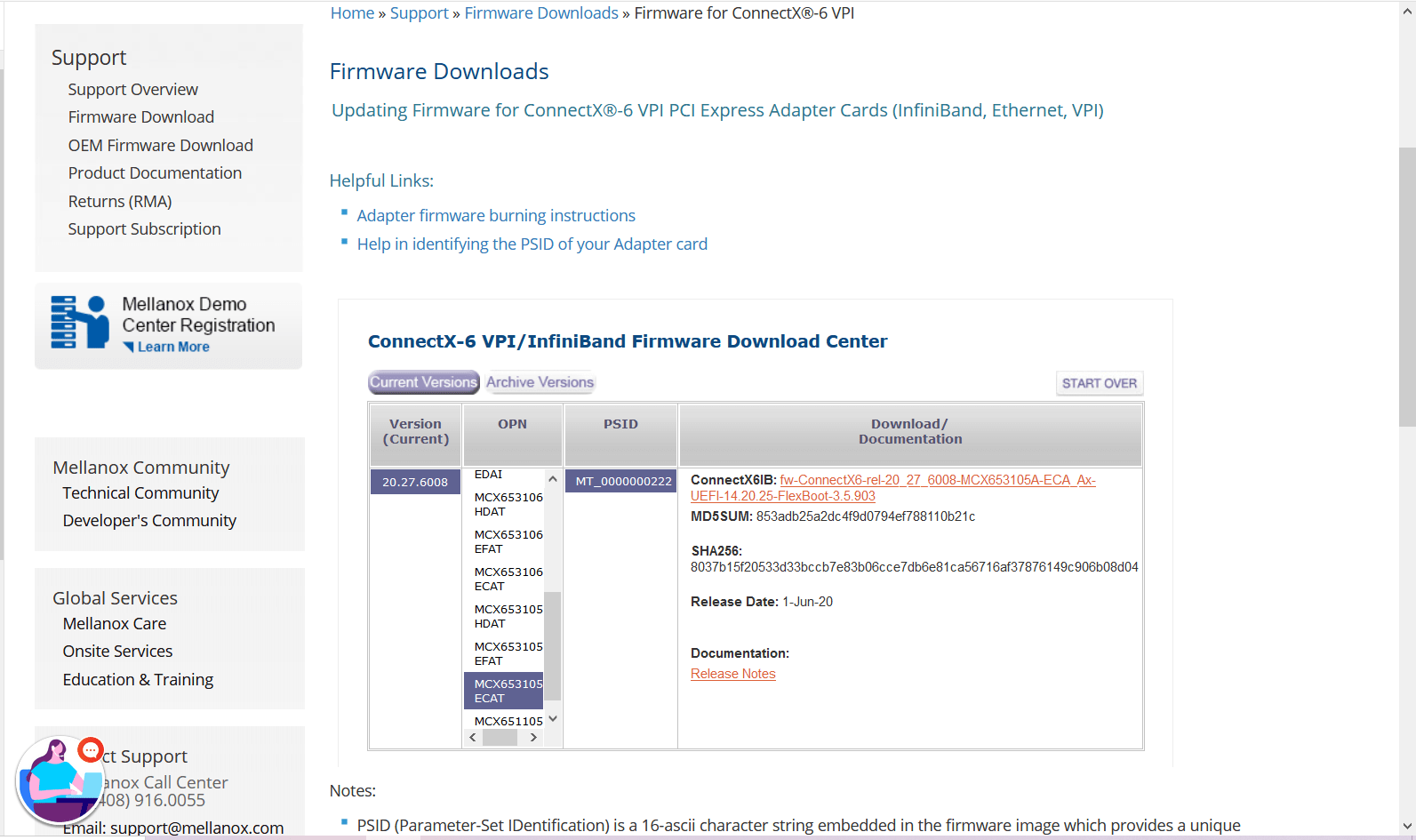
You can download the firmware from the official Mellanox website.
Link: https://www.mellanox.com/support/firmware/connectx6ib
https://www.mellanox.com/support/firmware/connectx6ib
Please download the firmware using “wget”
Example: wget http://www.mellanox.com/downloads/firmware/fw-ConnectX6-rel-20_27_6008-MCX653105A-ECA_Ax-UEFI-14.20.25-FlexBoot-3.5.903.bin.zip
http://www.mellanox.com/downloads/firmware/fw-ConnectX6-rel-20_27_6008-MCX653105A-ECA_Ax-UEFI-14.20.25-FlexBoot-3.5.903.bin.zip
Once it is downloaded unzip it by using the command “unzip”
Example: unzip fw-ConnectX6-rel-20_27_6008-MCX653105A-ECA_Ax-UEFI-14.20.25-FlexBoot-3.5.903.bin.zip
Once you unzip the file you can view a .bin file which is our firmware.
Example: fw-ConnectX6-rel-20_27_6008-MCX653105A-ECA_Ax-UEFI-14.20.25-FlexBoot-3.5.903.bin
Step3: Burn the firmware to the NIC.
============================================
You need the mstflint utility to update the firmware. You can download mstflint from the OpenFabrics site at mstflint_SW for Linux.
NOTE: If OFED is installed on your machine, then mstflint is already installed.
For burning the new firmware run
the command in the same directory as the firmware file, run “mstflint –d <PCI bus ID, i.e. 05:00.0> -i <.bin file> b”
Example: mstflint -d a1:00.0 -i fw-ConnectX6-rel-20_27_6008-MCX653105A-ECA_Ax-UEFI-14.20.25-FlexBoot-3.5.903.bin b
To load new FW run mstfwreset or reboot machine and check.
Example: [root@localhost ~]# ethtool -i ib0
driver: mlx5_core[ib_ipoib]
version: 5.0-2.1.8
firmware-version: 20.27.6008 (MT_0000000222)
expansion-rom-version:
bus-info: 0000:a1:00.0
supports-statistics: yes
supports-test: yes
supports-eeprom-access: no
supports-register-dump: no
supports-priv-flags: yes
Here “ib0” is our interface name, yours maybe different.
Please refer Mellanox documentation if you need any further details.
https://www.mellanox.com/products/adapter-software/firmware-tools https://www.mellanox.com/support/firmware/update-instructions
by Teffin Varghese | Jul 7, 2020 | Howtos, Linux, Networking, OS, Python, Security, Servers, Storages, Troubleshooting, Uncategorized, VMware Esxi, Workstation
How to upgrade 10G Intel NIC driver in Linux.
Step 1: Identify the NIC adapter on the server/machine.
For upgrading the NIC driver, First you need to identify the NIC model for that you can use “lspci” command.
Use the command “lspci | grep -i net” to list the PCIe devices. (Usually 10G NIC’s are plugged into the PCIe slots on the Motherboard)
Command: lspci | grep -i net
Sample Output:
04:00.0 Ethernet controller: Intel Corporation 82599ES 10-Gigabit SFI/SFP+ Network Connection (rev 01)
04:00.1 Ethernet controller: Intel Corporation 82599ES 10-Gigabit SFI/SFP+ Network Connection (rev 01)
06:00.0 Ethernet controller: Intel Corporation 82576 Gigabit Network Connection (rev 01)
06:00.1 Ethernet controller: Intel Corporation 82576 Gigabit Network Connection (rev 01)
Here our 10G adapter is Ethernet controller: Intel Corporation 82599ES 10-Gigabit SFI/SFP+ Network Connection (rev 01)
Step 2: Identify the active interface in the OS.
For identify the active interface just type “ip a” on the terminal, this will display the interfaces on the OS and from the list identify the active interface name.
Command: ip a
Sample Output:
1: lo: <LOOPBACK,UP,LOWER_UP> mtu 65536 qdisc noqueue state UNKNOWN
link/loopback 00:00:00:00:00:00 brd 00:00:00:00:00:00
inet 127.0.0.1/8 scope host lo
inet6 ::1/128 scope host
valid_lft forever preferred_lft forever
2: eth0: <BROADCAST,MULTICAST,UP,LOWER_UP> mtu 1500 qdisc pfifo_fast state UP qlen 1000
link/ether 32:36:65:64:66:34 brd ff:ff:ff:ff:ff:ff
inet x.x.x.x/x brd 50.7.126.127 scope global eth0
inet6 x:x:x::x/64 scope global
valid_lft forever preferred_lft forever
inet6 x::x:x:x:x/64 scope link
valid_lft forever preferred_lft forever
Step 3: Check the current driver version of the NIC.
For identifying the driver version use the command “ethtool -i <interface name>” Eg: ethool -i eth0
From the results you can view the current driver version. The output will be something like this.
Command: ethtool -i <interface name>
Sample Output:
driver: ixgbe
version: 4.2.1-k
firmware-version: 0x80000208
bus-info: 0000:04:00.0
supports-statistics: yes
supports-test: yes
supports-eeprom-access: yes
supports-register-dump: yes
supports-priv-flags: no
Here the “version: 4.2.1-k” indicates the current driver version of the NIC.
Step 4: Download the latest available driver from Intel.
Go to https://downloadcenter.intel.com/product/32609/Intel-82599-10-Gigabit-Ethernet-Controller
to download the required driver.
https://downloadcenter.intel.com/product/32609/Intel-82599-10-Gigabit-Ethernet-Controller
For Linux: https://downloadcenter.intel.com/download/14687/Ethernet-Intel-Network-Adapter-Driver-for-PCIe-Intel-10-Gigabit-Ethernet-Network-Connections-Under-Linux-?product=32609
https://downloadcenter.intel.com/download/14687/Ethernet-Intel-Network-Adapter-Driver-for-PCIe-Intel-10-Gigabit-Ethernet-Network-Connections-Under-Linux-?product=32609
Download the latest available driver from the above link.
Step 5: Install/upgrade the Driver.
To manually build the driver
—————————-
1. Move the base driver tar file to the directory of your choice.
For example, use ‘/home/username/ixgbe’ or ‘/usr/local/src/ixgbe’.
2. Untar/unzip the archive, where <x.x.x> is the version number for the
driver tar file:
# tar zxf ixgbe-<x.x.x>.tar.gz
3. Change to the driver src directory, where <x.x.x> is the version number
for the driver tar:
# cd ixgbe-<x.x.x>/src/
4. Compile the driver module:
# make install
The binary will be installed as:
/lib/modules/<KERNEL VER>/updates/drivers/net/ethernet/intel/ixgbe/ixgbe.ko
The install location listed above is the default location. This may differ
for various Linux distributions.
5. Load the module using the modprobe command.
To check the version of the driver and then load it:
# modinfo ixgbe
# modprobe ixgbe [parameter=port1_value,port2_value]
Alternately, make sure that any older ixgbe drivers are removed from the
kernel before loading the new module:
# rmmod ixgbe; modprobe ixgbe
Note: For certain distributions like (but not limited to) Red Hat Enterprise
Linux 7 and Ubuntu, once the driver is installed, you may need to update the
initrd/initramfs file to prevent the OS loading old versions of the ixgbe
driver.
Use the dracut utility on Red Hat distributions:
# dracut –force
For Ubuntu:
# update-initramfs -u
Step 6: Check and verify the new driver version.
Use the same command we used before “ethtool -i <interface name>” to view the driver version
Command: ethtool -i <interface name>
Sample Output:
driver: ixgbe
version: 5.7.1-k
firmware-version: 0x80000208
bus-info: 0000:04:00.0
supports-statistics: yes
supports-test: yes
supports-eeprom-access: yes
supports-register-dump: yes
supports-priv-flags: no
Note: Please read the read me file available from Intel before proceeding.
That’s all for now. CHEERS!!!