by George Sruthin | Apr 4, 2022 | HCI, Servers, Troubleshooting, VMware Esxi
I recently faced this issue when downgrading HPE Simplivity Node, we were using Center v7 U2, and we have to shut down everything for this host downgrade.
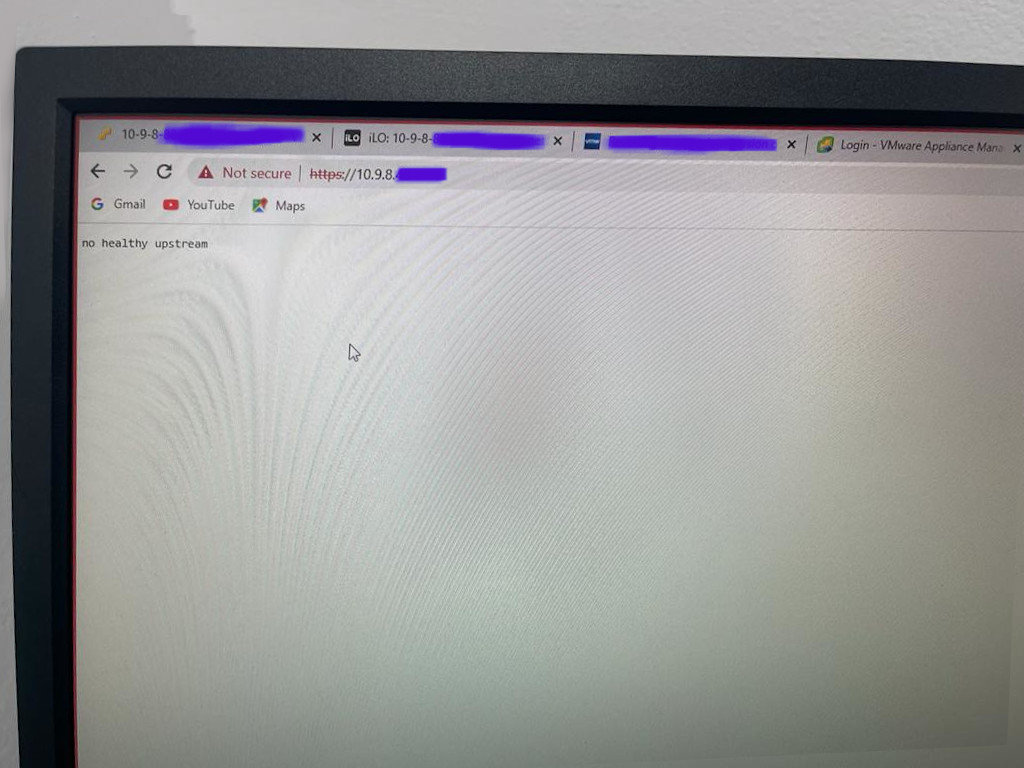
after the downgrade and adding additional SimpliVity node deployment was done, we tried to turn on vCenter but we cannot see GUI it says "no healthy upstream" and it looks like vpxd service not starting.
we tried to ssh to vCenter and try to restart "vmware-vpxd" several times, later we logged a case with VMware, immediately they called us and taken server remotely. and add esxi server IP to hosfile, I dont know why he did that. may be he wants vCenter to communicate with Esxi host properly kindly check this link for reference
later he relogged in to vCenter through ssh and tried to stop and restart all service and on another ssh he watch which service is up and running with in minutes issue got fixed. i will be pasting logs below for your reference.
SSH Connection 1
root@localhost [ /etc ]# vi hosts
root@localhost [ /etc ]# cat hosts
# Begin /etc/hosts (network card version)
10.9.8.120
127.0.0.1 localhost.localdomain
127.0.0.1 localhost
# End /etc/hosts (network card version)
root@localhost [ /etc ]# service-control --stop --all && service-control --start --all
Operation not cancellable. Please wait for it to finish...
Performing stop operation on service observability...
Successfully stopped service observability
Performing stop operation on service vmware-pod...
Successfully stopped service vmware-pod
Performing stop operation on service vmware-vdtc...
Successfully stopped service vmware-vdtc
Performing stop operation on profile: ALL...
Successfully stopped service vmware-vmon
Successfully stopped profile: ALL.
Performing stop operation on service vmcad...
Successfully stopped service vmcad
Performing stop operation on service vmdird...
Successfully stopped service vmdird
Performing stop operation on service vmafdd...
Successfully stopped service vmafdd
Performing stop operation on service lwsmd...
Successfully stopped service lwsmd
Operation not cancellable. Please wait for it to finish...
Performing start operation on service lwsmd...
Successfully started service lwsmd
Performing start operation on service vmafdd...
Successfully started service vmafdd
Performing start operation on service vmdird...
Successfully started service vmdird
Performing start operation on service vmcad...
Successfully started service vmcad
Performing start operation on profile: ALL...
Successfully started service vmware-vmon
Successfully started profile: ALL.
Performing start operation on service observability...
Successfully started service observability
Performing start operation on service vmware-vdtc...
Successfully started service vmware-vdtc
Performing start operation on service vmware-pod...
Successfully started service vmware-pod
root@localhost [ /etc ]#
SSH Connection 2
root@localhost [ ~ ]# watch service-control --status
Every 2.0s: service-control --status localhost: Thu Mar 31 16:17:48 2022
Running:
applmgmt lookupsvc lwsmd observability observability-vapi pschealth vlcm vmafdd vmcad vmdird vmonapi vmware-analytics vmware-certificateauthority vmware-certificatemanagement vmware-cis-license vm
ware-content-library vmware-eam vmware-envoy vmware-hvc vmware-infraprofile vmware-perfcharts vmware-pod vmware-postgres-archiver vmware-rhttpproxy vmware-sca vmware-sps vmware-statsmonitor vmware-
stsd vmware-topologysvc vmware-trustmanagement vmware-updatemgr vmware-vapi-endpoint vmware-vdtc vmware-vmon vmware-vpostgres vmware-vpxd vmware-vpxd-svcs vmware-vsan-health vmware-vsm vsphere-ui v
stats vtsdb wcp
Stopped:
vmcam vmware-imagebuilder vmware-netdumper vmware-rbd-watchdog vmware-vcha
Kudos to VMware team who fixed this issue, this way all of the services required for vCenter to start is up and running,
it is weird that some of the community members and blog post recommended to reset Bios time of Esxi node is correct and synchronized with vCenter, for us we already corrected Bios and (HPE) Intelligent provisioning time to same one because in future we may face issue with logs time stamp.
I Hope using above method might have fix your issue, or if you have any opinion about any good method let me know.
by Teffin Varghese | Jul 7, 2020 | Howtos, Linux, Networking, OS, Python, Security, Servers, Storages, Troubleshooting, Uncategorized, VMware Esxi, Workstation
How to upgrade 10G Intel NIC driver in Linux.
Step 1: Identify the NIC adapter on the server/machine.
For upgrading the NIC driver, First you need to identify the NIC model for that you can use “lspci” command.
Use the command “lspci | grep -i net” to list the PCIe devices. (Usually 10G NIC’s are plugged into the PCIe slots on the Motherboard)
Command: lspci | grep -i net
Sample Output:
04:00.0 Ethernet controller: Intel Corporation 82599ES 10-Gigabit SFI/SFP+ Network Connection (rev 01)
04:00.1 Ethernet controller: Intel Corporation 82599ES 10-Gigabit SFI/SFP+ Network Connection (rev 01)
06:00.0 Ethernet controller: Intel Corporation 82576 Gigabit Network Connection (rev 01)
06:00.1 Ethernet controller: Intel Corporation 82576 Gigabit Network Connection (rev 01)
Here our 10G adapter is Ethernet controller: Intel Corporation 82599ES 10-Gigabit SFI/SFP+ Network Connection (rev 01)
Step 2: Identify the active interface in the OS.
For identify the active interface just type “ip a” on the terminal, this will display the interfaces on the OS and from the list identify the active interface name.
Command: ip a
Sample Output:
1: lo: <LOOPBACK,UP,LOWER_UP> mtu 65536 qdisc noqueue state UNKNOWN
link/loopback 00:00:00:00:00:00 brd 00:00:00:00:00:00
inet 127.0.0.1/8 scope host lo
inet6 ::1/128 scope host
valid_lft forever preferred_lft forever
2: eth0: <BROADCAST,MULTICAST,UP,LOWER_UP> mtu 1500 qdisc pfifo_fast state UP qlen 1000
link/ether 32:36:65:64:66:34 brd ff:ff:ff:ff:ff:ff
inet x.x.x.x/x brd 50.7.126.127 scope global eth0
inet6 x:x:x::x/64 scope global
valid_lft forever preferred_lft forever
inet6 x::x:x:x:x/64 scope link
valid_lft forever preferred_lft forever
Step 3: Check the current driver version of the NIC.
For identifying the driver version use the command “ethtool -i <interface name>” Eg: ethool -i eth0
From the results you can view the current driver version. The output will be something like this.
Command: ethtool -i <interface name>
Sample Output:
driver: ixgbe
version: 4.2.1-k
firmware-version: 0x80000208
bus-info: 0000:04:00.0
supports-statistics: yes
supports-test: yes
supports-eeprom-access: yes
supports-register-dump: yes
supports-priv-flags: no
Here the “version: 4.2.1-k” indicates the current driver version of the NIC.
Step 4: Download the latest available driver from Intel.
Go to https://downloadcenter.intel.com/product/32609/Intel-82599-10-Gigabit-Ethernet-Controller
to download the required driver.
https://downloadcenter.intel.com/product/32609/Intel-82599-10-Gigabit-Ethernet-Controller
For Linux: https://downloadcenter.intel.com/download/14687/Ethernet-Intel-Network-Adapter-Driver-for-PCIe-Intel-10-Gigabit-Ethernet-Network-Connections-Under-Linux-?product=32609
https://downloadcenter.intel.com/download/14687/Ethernet-Intel-Network-Adapter-Driver-for-PCIe-Intel-10-Gigabit-Ethernet-Network-Connections-Under-Linux-?product=32609
Download the latest available driver from the above link.
Step 5: Install/upgrade the Driver.
To manually build the driver
—————————-
1. Move the base driver tar file to the directory of your choice.
For example, use ‘/home/username/ixgbe’ or ‘/usr/local/src/ixgbe’.
2. Untar/unzip the archive, where <x.x.x> is the version number for the
driver tar file:
# tar zxf ixgbe-<x.x.x>.tar.gz
3. Change to the driver src directory, where <x.x.x> is the version number
for the driver tar:
# cd ixgbe-<x.x.x>/src/
4. Compile the driver module:
# make install
The binary will be installed as:
/lib/modules/<KERNEL VER>/updates/drivers/net/ethernet/intel/ixgbe/ixgbe.ko
The install location listed above is the default location. This may differ
for various Linux distributions.
5. Load the module using the modprobe command.
To check the version of the driver and then load it:
# modinfo ixgbe
# modprobe ixgbe [parameter=port1_value,port2_value]
Alternately, make sure that any older ixgbe drivers are removed from the
kernel before loading the new module:
# rmmod ixgbe; modprobe ixgbe
Note: For certain distributions like (but not limited to) Red Hat Enterprise
Linux 7 and Ubuntu, once the driver is installed, you may need to update the
initrd/initramfs file to prevent the OS loading old versions of the ixgbe
driver.
Use the dracut utility on Red Hat distributions:
# dracut –force
For Ubuntu:
# update-initramfs -u
Step 6: Check and verify the new driver version.
Use the same command we used before “ethtool -i <interface name>” to view the driver version
Command: ethtool -i <interface name>
Sample Output:
driver: ixgbe
version: 5.7.1-k
firmware-version: 0x80000208
bus-info: 0000:04:00.0
supports-statistics: yes
supports-test: yes
supports-eeprom-access: yes
supports-register-dump: yes
supports-priv-flags: no
Note: Please read the read me file available from Intel before proceeding.
That’s all for now. CHEERS!!!
by Teffin Varghese | Dec 13, 2019 | Hosting, Linux, Networking, Review, Servers, VMware Esxi, Windows
What is Cloud Computing?

Cloud computing is an on demand delivery of IT resources via the internet with pay as you go pricing instead of buying and owning and maintaining physical data-centers and servers. You access technology service such as computing power,storage and databases on as needed basis from a cloud provider like AWS,AZURE,Google Cloud etc.
Organizations of every type and size industry are using the cloud for a wide verity of use-cases such as data backup, disaster recovery,email,virtual desktops,Software development and testing,big data analytics and customer facing web applications. For example the health care companies are using the cloud to develop more personalize treatment for patients. Financial services companies are using the cloud to power real time fraud detection and prevention and video-game makers are using the cloud to deliver online games to millions of players around the globe.
With cloud computing your business can be more agile,reduce cost,instantly scaled and deployed globally in minutes. Cloud computing provides you instant access to broad range of technologies that you can innovate-faster and build nearly anything like infrastructure services to compute,storage and databases to IoT to machine learning,data analytics and much more.
You can deploy technology services in a matter of minutes and get from idea to implementation several orders of magnitude faster than before. This gives you the freedom to experiment and test new ideas to differentiate customer experience and transform your business,Such as adding machine learning and intelligence to your applications in order to personalize your experience to your customers and improve their engagement.
You don’t need to make large upfront investments in hardware and overpay for capacity you don’t use, Instead you can use trade capital expense for variable expense and only pay for IT when you consumes it. With cloud computing you access resource from the cloud in real-time as they needed. You can scale these new resources up and down to grow and shrink capacity instantly as your business changed. Cloud computing also make it easy to expand to new regions and apply globally in minutes. For example AWS has infrastructure all around the world.Putting applications to closer proximity to end users reduced latency and improve their experiences.
No matter your location, size and industry the cloud frees you managing infrastructure and data-centers, So you can focus on what matters the most to your business.
by George Sruthin | Apr 2, 2019 | Howtos, VMware Esxi
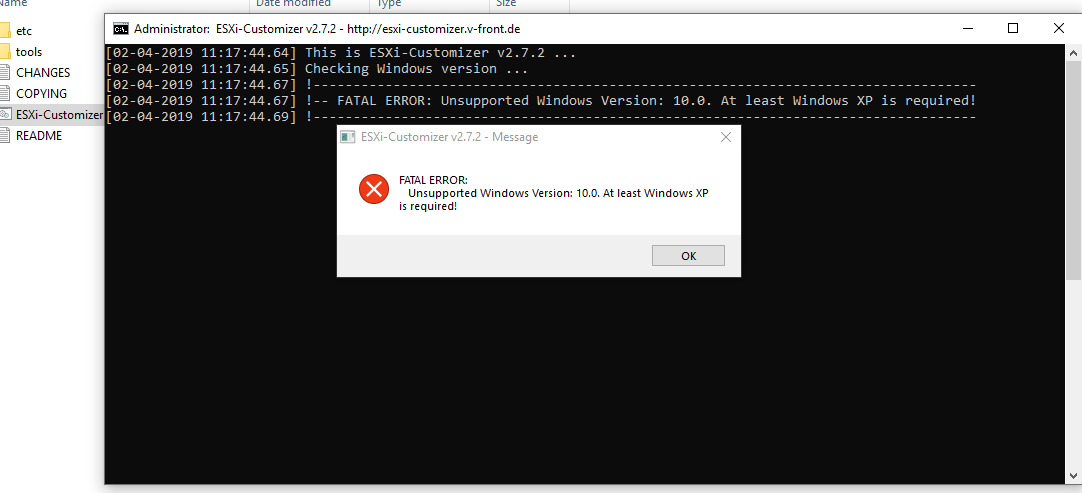
You may face this issue when running ESXi-Customizer in Windows 10, to fix this you need to follow this instruction.
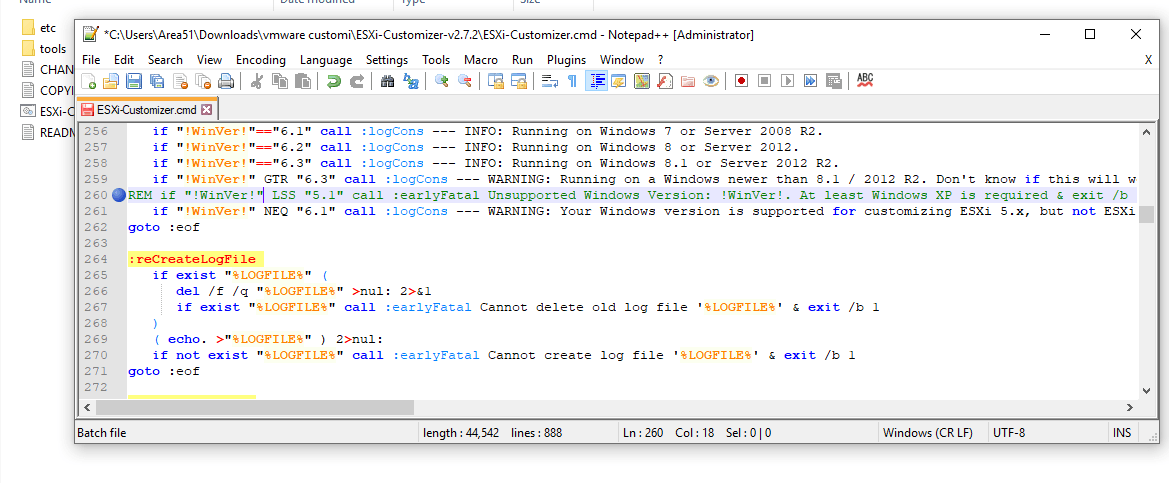
Open ESXi-Customizer.cmd file in Notepad++, and goto line 260 then add "REM" in the begin of the line
if "!WinVer!" LSS "5.1" call :earlyFatal Unsupported Windows Version: !WinVer!. At least Windows XP is required & exit /b 1
REM if "!WinVer!" LSS "5.1" call :earlyFatal Unsupported Windows Version: !WinVer!. At least Windows XP is required & exit /b 1
by Teffin Varghese | Aug 14, 2017 | Howtos, Linux, Networking, OS, Servers, Troubleshooting, VMware Esxi, Workstation
IPv6 [Internet Protocol version 6]

Introduction.
Internet Protocol Version 6 (IPv6) is a network layer protocol that enables data communications over a packet switched network.
Packet switching involves the sending and receiving of data in packets between two nodes in a network. The working standard for the IPv6 protocol was published by the Internet Engineering Task Force (IETF) in 1998.
The IETF specification for IPv6 is RFC 2460. IPv6 was intended to replace the widely used Internet Protocol Version 4 (IPv4) that is considered the backbone of the modern Internet.
IPv4 currently supports a maximum of approximately 4.3 billion unique IP addresses. IPv6 supports a theoretical maximum of 2128 addresses (340,282,366,920,938,463,463,374,607,431,768,211,456 to be exact!).
IPv6 and IPv4 share a similar architecture. The majority of transport layer protocols that function with IPv4 will also function with the IPv6 protocol. Most application layer protocols are expected to be interoperable with IPv6 as well, with the notable exception of File Transfer Protocol (FTP)
An IPv6 address consists of eight groups of four hexadecimal digits. If a group consists of four zeros, the notation can be shortened using a colon to replace the zeros.
A main advantage of IPv6 is increased address space. The 128-bit length of IPv6 addresses is a significant gain over the 32-bit length of IPv4 addresses, allowing for an almost limitless number of unique IP addresses.

IPv6 features
—————-
* Supports source and destination addresses that are 128 bits (16 bytes) long.
* Requires IPSec support.
* Uses Flow Label field to identify packet flow for QoS handling by router.
* Allows the host to send fragments packets but not routers.
* Doesn’t include a checksum in the header.
* Uses a link-local scope all-nodes multicast address.
* Does not require manual configuration or DHCP.
* Uses host address (AAAA) resource records in DNS to map host names to IPv6 addresses.
* Uses pointer (PTR) resource records in the IP6.ARPA DNS domain to map IPv6 addresses to host names.
* Supports a 1280-byte packet size (without fragmentation).
* Moves optional data to IPv6 extension headers.
* Uses Multicast Neighbor Solicitation messages to resolve IP addresses to link-layer addresses.
* Uses Multicast Listener Discovery (MLD) messages to manage membership in local subnet groups.
* Uses ICMPv6 Router Solicitation and Router Advertisement messages to determine the IP address of the best default gateway.
Adding a Temporary IPv6 Address on Linux.
=================================
Using “IP”
———-
/sbin/ip -6 addr add <ipv6address>/<prefixlength> dev <interface>
eg: /sbin/ip -6 addr add 2001:49f0:2920::a2/64 dev eth0
Using “ifconfig”
——————
/sbin/ifconfig <interface> inet6 add <ipv6address>/<prefixlength>
eg: /sbin/ifconfig eth0 inet6 add 2001:49f0:2920::a2/64
Add an IPv6 route through a gateway
============================
Using “ip”
———–
/sbin/ip -6 route add <ipv6network>/<prefixlength> via <ipv6address>
¬ [dev <device>]
eg: /sbin/ip -6 route add default via 2001:49f0:2920::1
Using “route”
—————
/sbin/route -A inet6 add <ipv6network>/<prefixlength> gw
¬ <ipv6address> [dev <device>]
eg: /sbin/route -A inet6 add default gw 2001:49f0:2920::1
Removing an IPv6 address
====================
Using “ip”
————
/sbin/ip -6 addr del <ipv6address>/<prefixlength> dev <interface>
eg: /sbin/ip -6 addr del 2001:49f0:2920::a2/64 dev eth0
Using “ifconfig”
——————
/sbin/ifconfig <interface> inet6 del <ipv6address>/<prefixlength>
eg: /sbin/ifconfig eth0 inet6 del 2001:49f0:2920::a2/64
by George Sruthin | Jan 26, 2015 | Howtos, OS, Servers, VMware Esxi
How to add Custom Drivers to VMware Esxi iso image !
Hi friends once i have try to install VMware Esxi in my old pc . but it failed because absence of network driver in it , so i have to customise Esxi image and add driver to it
For this you will need ESXi-Customizer
Download from this link
used this driver vmware-bootbank-net-r8168.vib
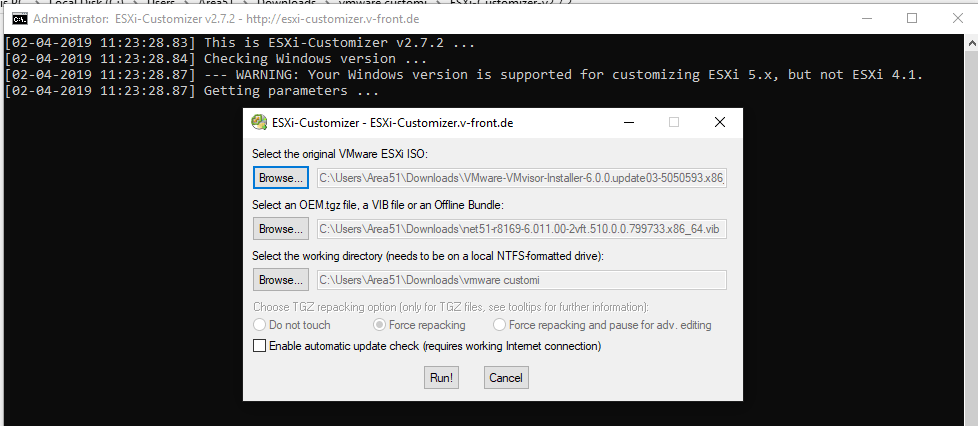
Run ESXi-Customizer-v2.7.2 as Admin
This will extract to a folder open it and run “ESXi-Customizer.cmd ” as Admin
Brwose VMware.iso
Browse Destination
Browse Driver
Browse VMware.iso
Run
Enjoy