Select Page

The Ivory Tower Effect: Why Great Ideas Sometimes Fail in the Real World

Every business is built on decisions. Some are strategic, some are technical, and others shape the future of the entire organization. But even the smartest decisions can fail when they're made too far away from the people who deal with the day-to-day reality.

This is often referred to as the Ivory Tower Effect—a situation where leadership becomes disconnected from frontline teams. It's not about poor leadership or bad intentions; it's about missing the practical context needed to make informed decisions.

When Good Intentions Lead to Bad Outcomes

The Ivory Tower Effect can appear in almost any organization.

For example:

  • A company cuts IT costs, only to experience more downtime and slower support.
  • Leadership approves a new platform without realizing it must integrate with aging legacy systems.
  • Aggressive project deadlines are set without considering testing, security, or resource limitations.
  • Security expectations increase while budgets and staffing are reduced.

On paper, these decisions may seem logical. In practice, they can introduce unnecessary risks, frustrate employees, and reduce the quality of service.

ivory tower before and after

Why Does It Happen?

As organizations grow, leaders naturally focus on business strategy, revenue, growth, and customer expectations. Meanwhile, engineers, IT professionals, support teams, and operational staff focus on keeping systems reliable, secure, and efficient.

Both perspectives are essential. Problems arise when communication between them becomes one-sided.

Without regular feedback from the people closest to the work, decisions are often based on assumptions instead of real-world experience.

The Cost of the Disconnect

The impact isn't always immediate, but over time it becomes visible:

  • Increased technical debt
  • Higher operational costs
  • Employee burnout
  • Security vulnerabilities
  • Delayed projects
  • Poor customer experiences

Ironically, decisions intended to improve efficiency or reduce costs can end up doing the exact opposite.

What Great Leaders Do Differently

The most effective leaders understand that valuable insights don't come from job titles alone—they come from experience.

Instead of making decisions in isolation, they:

  • Listen to technical and operational teams before major changes.
  • Encourage honest feedback, even when it's uncomfortable.
  • Include subject matter experts in planning and decision-making.
  • Balance business goals with technical realities.

Strong leadership isn't about having all the answers. It's about creating an environment where the right people are heard before important decisions are made.

Final Thoughts

The Ivory Tower Effect isn't a leadership flaw—it's a communication gap.

Organizations perform at their best when leadership understands operational challenges and frontline teams understand the business vision. Bridging that gap leads to smarter decisions, stronger collaboration, and better long-term outcomes.

In today's world of cloud computing, cybersecurity, AI, and digital transformation, success depends on more than strategy alone. It depends on listening, collaborating, and ensuring every level of the organization has a voice.

Have you encountered the Ivory Tower Effect in your workplace? How did it impact your team or project? Share your thoughts in the comments.

The Inspiration Behind This Article ⭐

Special thanks to Jake on LinkedIn for the inspiration behind this blog post. Your thoughts on the "Ivory Tower" concept encouraged me to expand on the idea and explore how it impacts leadership, IT, and organizational decision-making.
Top 10 Backup Mistakes That Can Cost Your Business Millions

Data is one of the most valuable assets a business owns. Yet many organizations invest in backup solutions without following the best practices needed to ensure those backups are actually recoverable.

Whether it's a ransomware attack, hardware failure, accidental deletion, or natural disaster, a poorly designed backup strategy can lead to extended downtime, financial loss, and damaged customer trust.

Here are the 10 most common backup mistakes that businesses make—and how to avoid them.

1. Having Only One Backup Copy

Keeping a single backup is a major risk. If that backup becomes corrupted, encrypted, or accidentally deleted, recovery may be impossible. Therefore, maintaining multiple backup copies is essential.

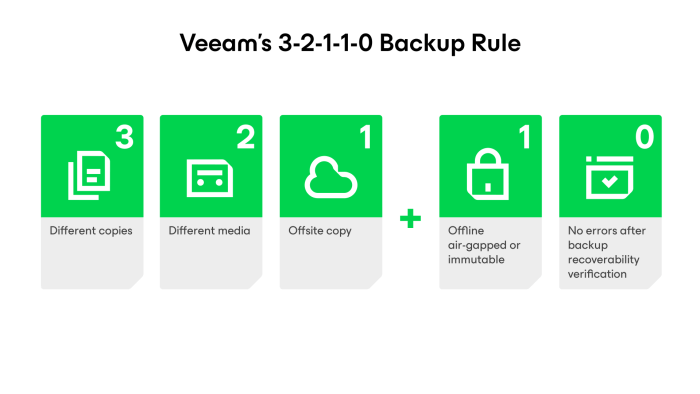
Best Practice: Follow the 3-2-1-1-0 backup strategy by maintaining multiple copies of your data across different storage locations.

2. Never Testing Backup Restores

Many organizations assume their backups are working because backup jobs complete successfully. Unfortunately, a successful backup doesn't always guarantee a successful restore.

Best Practice: Schedule regular restore tests to verify backup integrity and ensure recovery procedures work as expected.

3. Not Using Immutable Backups

Modern ransomware specifically targets backup repositories. As a result, organizations that don't use immutable storage risk losing both production data and backup copies. If attackers can delete or encrypt your backups, your recovery options become extremely limited.

Best Practice: Store at least one backup copy in an immutable repository where backup files cannot be modified or deleted during the retention period.

4. Storing All Backups in One Location

Keeping every backup in the same building exposes your business to risks such as fire, flooding, theft, or power failures. For this reason, at least one backup copy should always be stored offsite.

Best Practice: Maintain at least one offsite backup copy or use secure cloud storage for disaster recovery.

5. Using the Same Administrator Credentials Everywhere

If backup infrastructure shares the same administrator credentials as production systems, attackers can compromise everything with a single account.

Best Practice: Use dedicated administrator accounts, enable Multi-Factor Authentication (MFA), and apply the principle of least privilege.

6. Ignoring Backup Monitoring

Failed backup jobs often go unnoticed until recovery is needed.

Best Practice: Monitor backup jobs daily and configure alerts for failed or missed backups.

7. Keeping Backup Servers on the Production Network

If ransomware spreads through the production environment, backup servers connected to the same network may also be compromised.

Best Practice: Isolate backup infrastructure using network segmentation and dedicated management access.

8. Poor Backup Retention Policies

Very short retention periods may leave you without a clean recovery point if ransomware remains undetected for several weeks.

Best Practice: Review your retention policies regularly and align them with your business and compliance requirements.

9. Delaying Software Updates

Outdated backup software and operating systems may contain vulnerabilities that attackers can exploit.

Best Practice: Keep backup applications, operating systems, and firmware updated with the latest security patches.

10. Having No Disaster Recovery Plan

Backups alone are not enough. Without documented recovery procedures, restoring critical systems can take far longer than expected.

Best Practice: Develop a disaster recovery plan, document recovery priorities, and conduct periodic recovery drills with your IT team.

Final Thoughts

A reliable backup strategy is more than just scheduling backup jobs—it's about ensuring your business can recover quickly when disaster strikes.

By avoiding these common mistakes and following industry best practices such as the 3-2-1-1-0 backup strategy, immutable storage, offsite backups, and regular restore testing, organizations can significantly reduce the impact of ransomware, hardware failures, and other unexpected events.

Whether you're using Veeam Backup & Replication or another enterprise backup solution, the principles remain the same: secure your backups, verify them regularly, and always be prepared to restore when it matters most.

Immutable Backups Explained: The Best Defense Against Ransomware

Ransomware attacks have become more sophisticated than ever. Today's attackers don't just encrypt production servers—they also target backup repositories, making recovery nearly impossible if your backups aren't properly protected.

That's why organizations are adopting the 3-2-1-1-0 backup strategy, combined with immutable backup repositories, to ensure they can recover quickly without paying a ransom.

In this article, I'll explain these backup best practices using Veeam Backup & Replication as a practical example. While the concepts discussed apply to any modern backup solution that supports immutable storage and secure backup architectures, Veeam provides an excellent reference for demonstrating how these best practices can be implemented in a real-world environment.

3-2-1-backup-rule-illustration

What is the 3-2-1-1-0 Backup Rule?

The 3-2-1-1-0 rule is considered the gold standard for backup protection.

Rule Meaning
3 Keep three copies of your data (production + two backups).

2

Store backups on two different types of storage.
1 Keep one backup copy offsite.
0 Keep one backup copy immutable or offline.
0 Regularly verify backups to ensure zero restore errors.


Following this strategy helps protect your business from hardware failures, accidental deletion, and ransomware attacks.

Why Traditional Backups Are No Longer Enough

Many organizations still rely on Windows file shares or NAS devices as backup repositories. While convenient, these repositories are often accessible to attackers if they compromise administrator credentials.

If ransomware can access your backup repository, it may encrypt or delete your backup files before attacking production systems.

This is why backup security is just as important as endpoint and network security.

What is an Immutable Backup?

An immutable backup cannot be modified or deleted until its retention period expires—even by an administrator.

This means that even if ransomware gains access to your backup server, your backup files remain protected.

Modern backup solutions like Veeam Backup & Replication support immutable repositories hosted on Linux, making them an excellent choice for ransomware protection.

Why Use a Linux Immutable Repository?

Linux repositories have become the preferred option for secure backups because they offer:

  • Better protection against ransomware
  • Lower attack surface than Windows
  • Native support for immutable backup files
  • High performance with filesystems like XFS

For Veeam users, a dedicated Linux repository is considered a best practice for protecting backup data.

Immutable Backup vs Air-Gapped Backup

Although often used together, they serve different purposes.

Immutable Backup Air-Gapped Backup
Always connected to the network Completely disconnected from the network
Backup files cannot be modified or deleted Backup media is physically isolated
Fast recovery Maximum protection against cyberattacks

For the best protection, maintain both an immutable backup repository for daily recovery and an air-gapped copy for disaster recovery.

Backup Best Practices

To build a ransomware-resilient backup environment:

  • Follow the 3-2-1-1-0 backup rule
  • Use a dedicated Linux immutable repository
  • Keep one backup copy offsite
  • Enable multi-factor authentication (MFA)
  • Use separate administrator accounts for backup infrastructure
  • Regularly test backup restores
  • Monitor backup jobs and resolve failures promptly
  • Keep your backup software and operating systems up to date

Final Thoughts

No security solution can guarantee complete protection from ransomware. However, a well-designed backup strategy ensures your business can recover quickly without paying a ransom.

By combining the 3-2-1-1-0 backup rule, Veeam immutable repositories, and air-gapped backups, organizations can significantly improve their cyber resilience and minimize downtime during an attack.

Investing in secure backups today is one of the smartest decisions you can make to protect your business tomorrow.

How to Reset forgotten Root Password in Suse Enterprise Linux

How to Reset forgotten Root Password in Suse Enterprise Linux

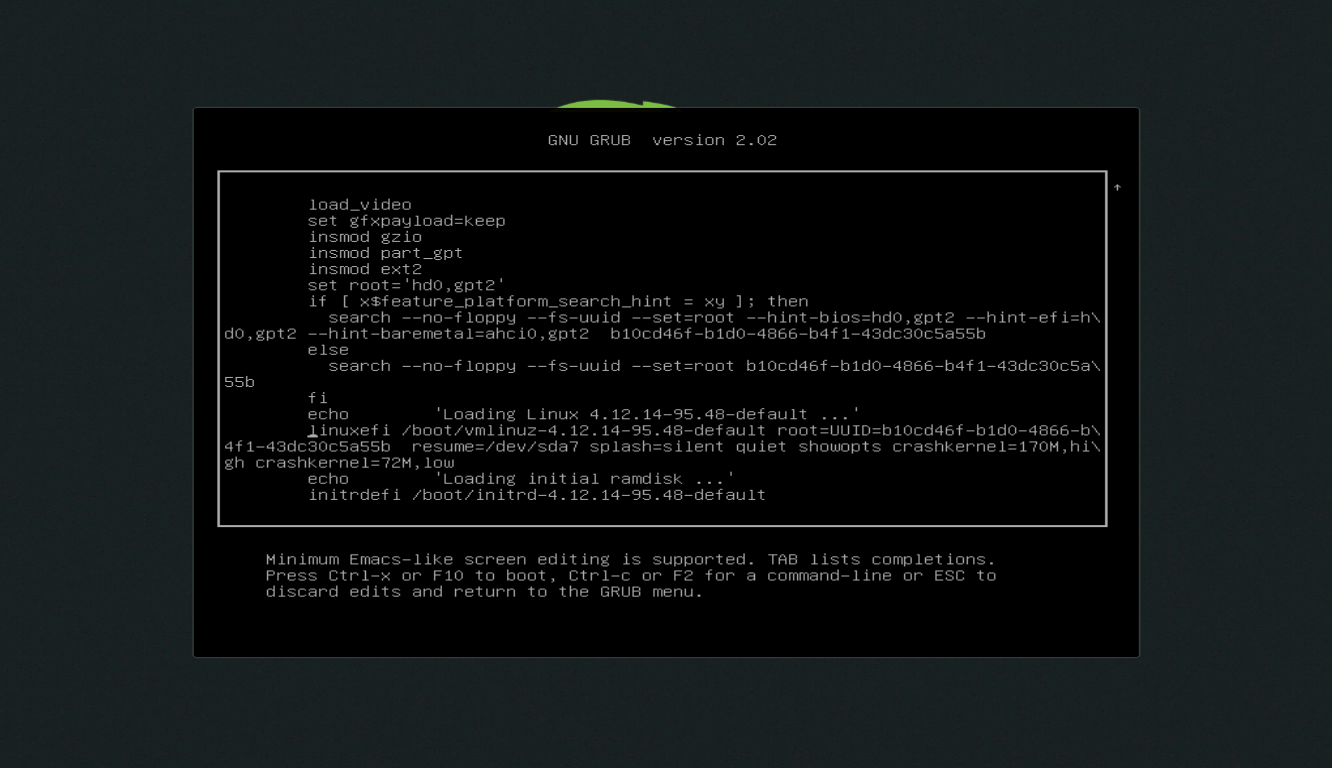
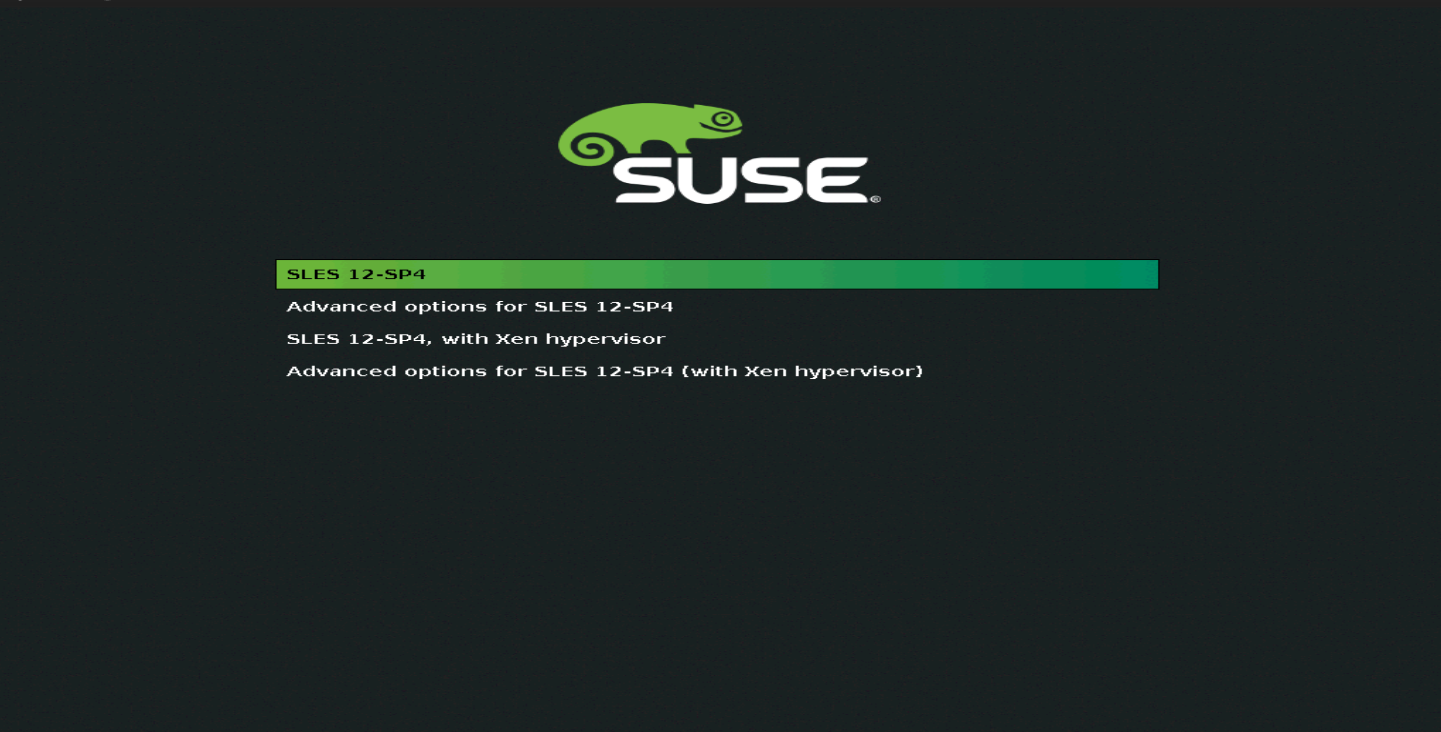
To reset forgotten password hard reboot your affected VM or bare metal server, press arrow key to skip boot timeout from grub, then press “e”

edit suse grub

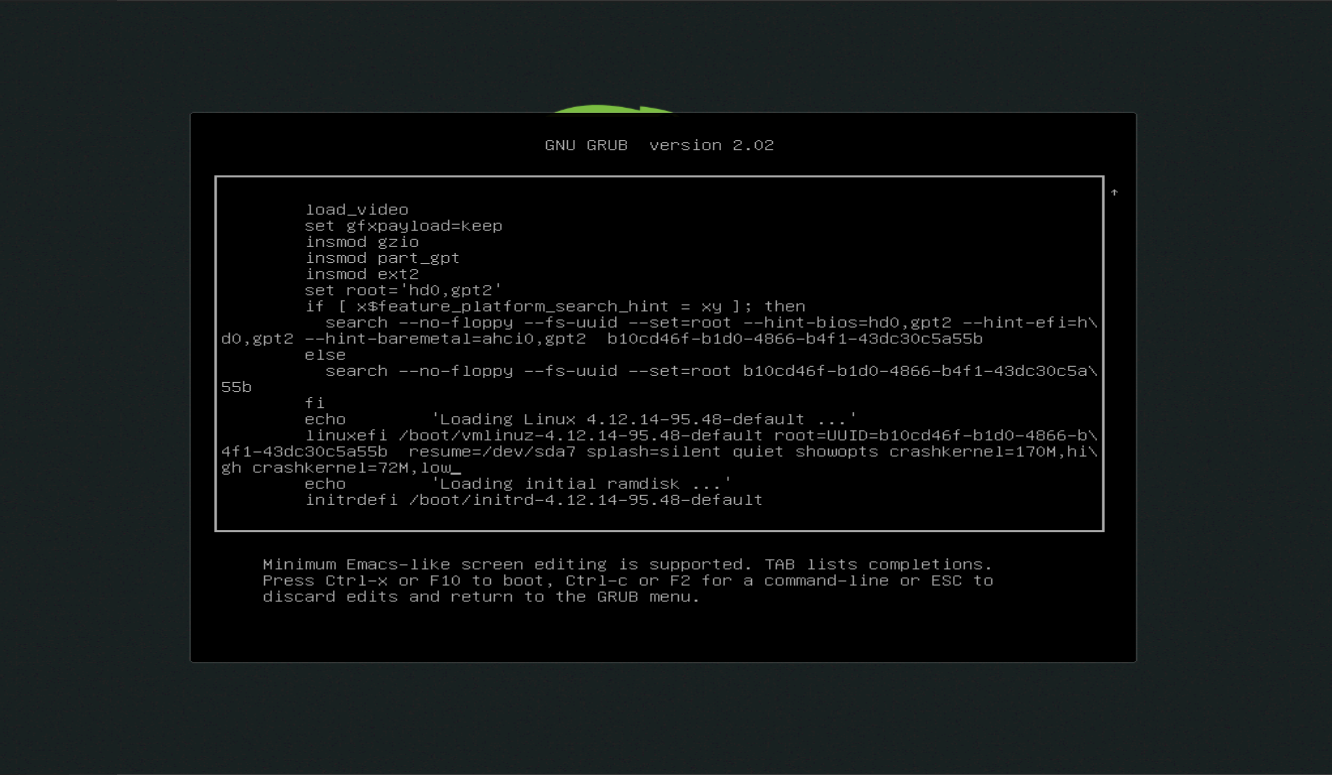
search for line start with “linuxefi” (some time instead of “linuxefi” you can find “linux” or “linux16”) and press “end” button

edit suse grub

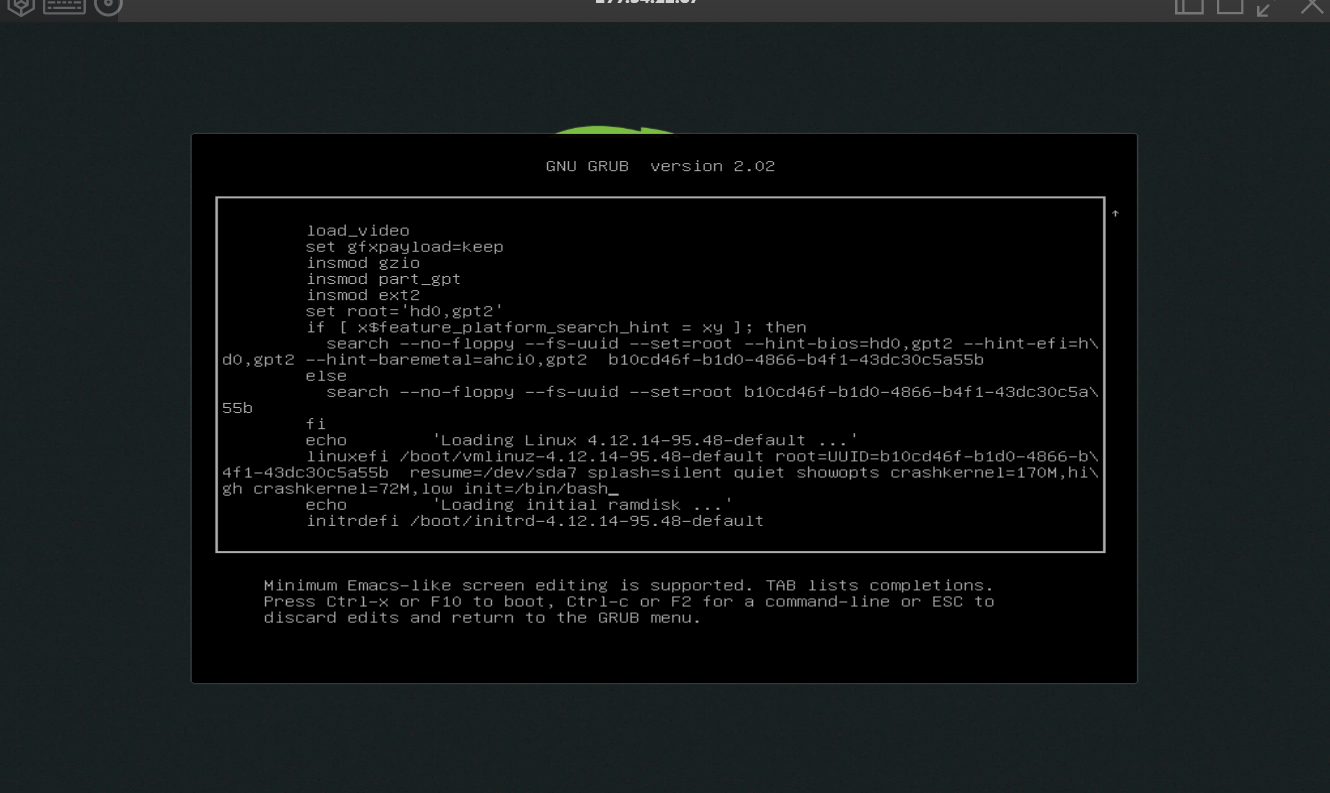
at the end of the line type init=/bin/bash then press F10 or ctrl+x to boot

edit suse grub

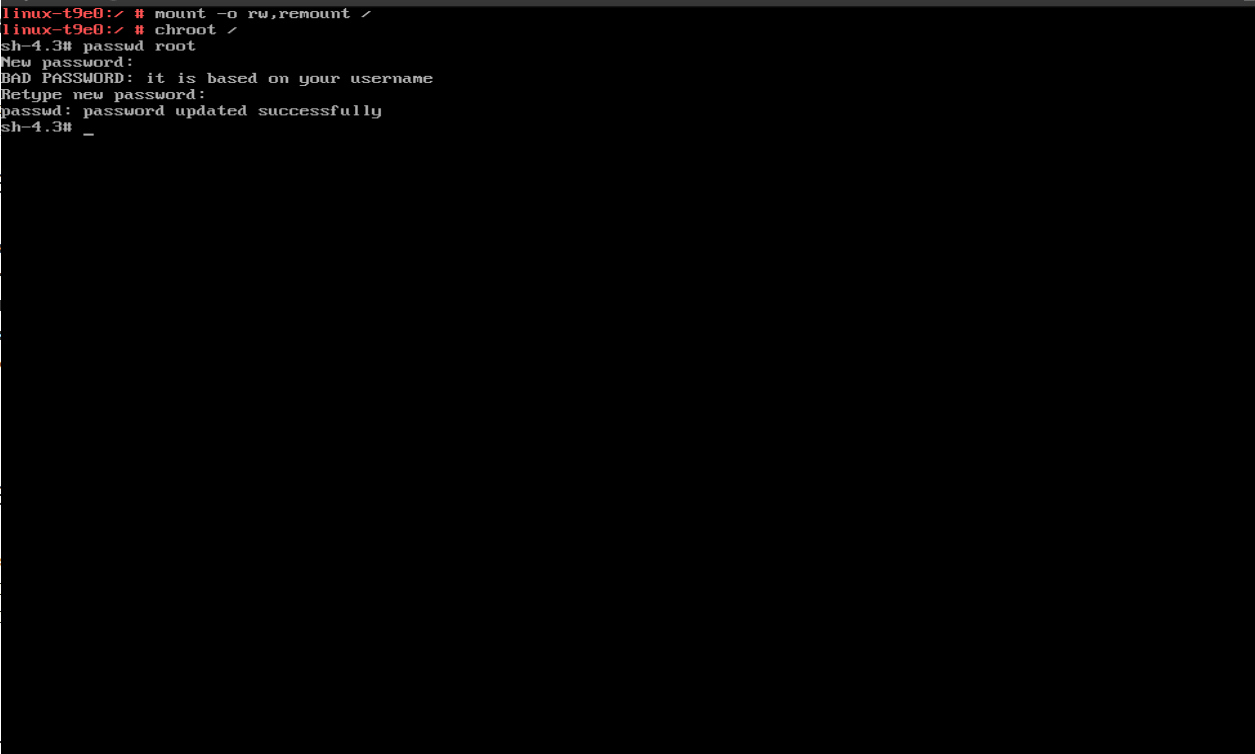
now you can will be booted into shell, but it will in readonly mode, to change to read, write mode type following commands

mount -o rw, remount /

after that type

chroot /

reset suse linux password

to reset password type following command followed by user name.

passwd root

then type exit and
type reboot

Enjoy

How to fix vCenter – no healthy upstream error.

I recently faced this issue when downgrading HPE Simplivity Node, we were using Center v7 U2, and we have to shut down everything for this host downgrade.

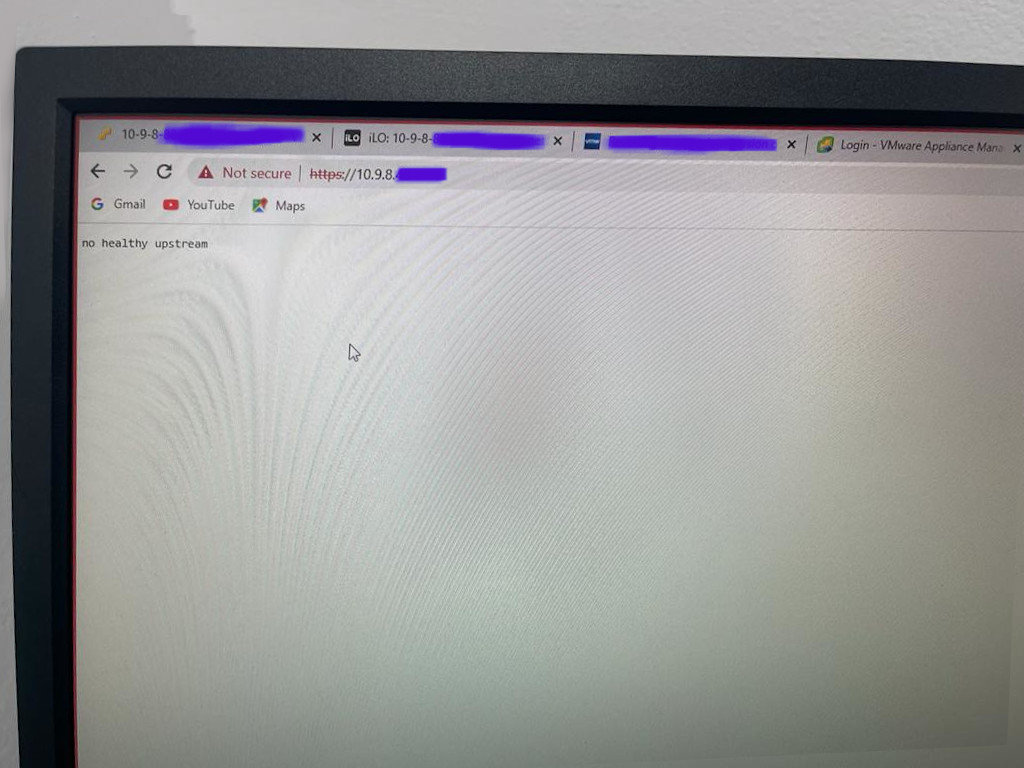
after the downgrade and adding additional SimpliVity node deployment was done, we tried to turn on vCenter but we cannot see GUI it says "no healthy upstream" and it looks like vpxd service not starting.

we tried to ssh to vCenter and try to restart "vmware-vpxd" several times, later we logged a case with VMware, immediately they called us and taken server remotely. and add esxi server IP to hosfile, I dont know why he did that. may be he wants vCenter to communicate with Esxi host properly kindly check this link for reference

later he relogged in to vCenter through ssh and tried to stop and restart all service and on another ssh he watch which service is up and running with in minutes issue got fixed. i will be pasting logs below for your reference.

SSH Connection 1

root@localhost [ /etc ]# vi hosts
root@localhost [ /etc ]# cat hosts
# Begin /etc/hosts (network card version)
10.9.8.120
127.0.0.1 localhost.localdomain
127.0.0.1 localhost
# End /etc/hosts (network card version)
root@localhost [ /etc ]# service-control --stop --all && service-control --start --all
Operation not cancellable. Please wait for it to finish...
Performing stop operation on service observability...
Successfully stopped service observability
Performing stop operation on service vmware-pod...
Successfully stopped service vmware-pod
Performing stop operation on service vmware-vdtc...
Successfully stopped service vmware-vdtc
Performing stop operation on profile: ALL...
Successfully stopped service vmware-vmon
Successfully stopped profile: ALL.
Performing stop operation on service vmcad...
Successfully stopped service vmcad
Performing stop operation on service vmdird...
Successfully stopped service vmdird
Performing stop operation on service vmafdd...
Successfully stopped service vmafdd
Performing stop operation on service lwsmd...
Successfully stopped service lwsmd
Operation not cancellable. Please wait for it to finish...
Performing start operation on service lwsmd...
Successfully started service lwsmd
Performing start operation on service vmafdd...
Successfully started service vmafdd
Performing start operation on service vmdird...
Successfully started service vmdird
Performing start operation on service vmcad...
Successfully started service vmcad
Performing start operation on profile: ALL...
Successfully started service vmware-vmon
Successfully started profile: ALL.
Performing start operation on service observability...
Successfully started service observability
Performing start operation on service vmware-vdtc...
Successfully started service vmware-vdtc
Performing start operation on service vmware-pod...
Successfully started service vmware-pod
root@localhost [ /etc ]#

SSH Connection 2

root@localhost [ ~ ]# watch service-control --status
Every 2.0s: service-control --status localhost: Thu Mar 31 16:17:48 2022

Running:
applmgmt lookupsvc lwsmd observability observability-vapi pschealth vlcm vmafdd vmcad vmdird vmonapi vmware-analytics vmware-certificateauthority vmware-certificatemanagement vmware-cis-license vm
ware-content-library vmware-eam vmware-envoy vmware-hvc vmware-infraprofile vmware-perfcharts vmware-pod vmware-postgres-archiver vmware-rhttpproxy vmware-sca vmware-sps vmware-statsmonitor vmware-
stsd vmware-topologysvc vmware-trustmanagement vmware-updatemgr vmware-vapi-endpoint vmware-vdtc vmware-vmon vmware-vpostgres vmware-vpxd vmware-vpxd-svcs vmware-vsan-health vmware-vsm vsphere-ui v
stats vtsdb wcp
Stopped:
vmcam vmware-imagebuilder vmware-netdumper vmware-rbd-watchdog vmware-vcha

Kudos to VMware team who fixed this issue, this way all of the services required for vCenter to start is up and running,

it is weird that some of the community members and blog post recommended to reset Bios time of Esxi node is correct and synchronized with vCenter, for us we already corrected Bios and (HPE) Intelligent provisioning time to same one because in future we may face issue with logs time stamp.

I Hope using above method might have fix your issue, or if you have any opinion about any good method let me know.

Installing Kali-Linux 64-Bit on Raspberry Pi-4

Installing Kali-Linux (64-bit) in Raspberry Pi-4

For the 64-Bit OS support we need to use Raspberry Pi 4
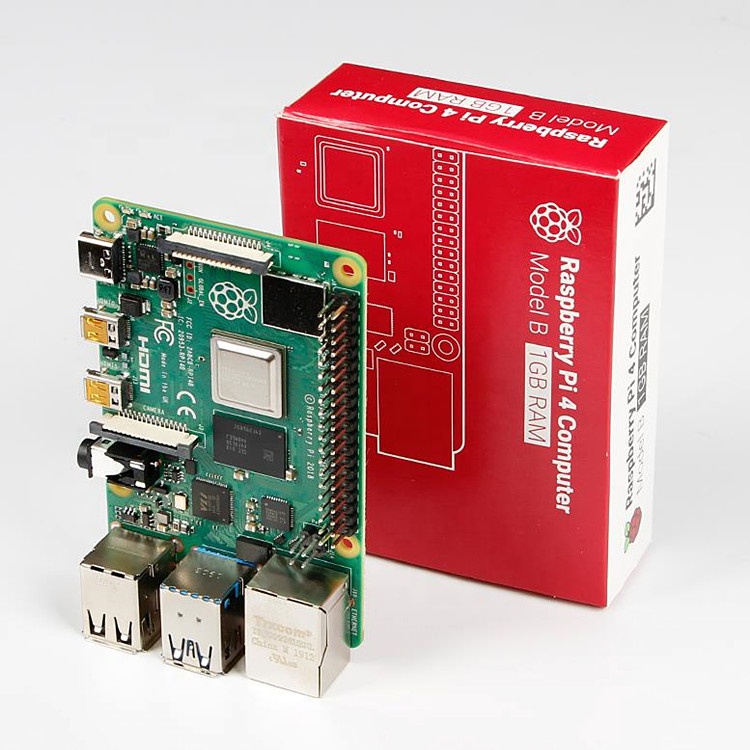
I’m using Raspberry Pi 4 Model-B With * Gigs of RAM, A 4GB RAM model would work just fine.

But First what is Raspberry Pi and what is it used for ?

he Raspberry Pi is a low cost, credit-card sized computer that plugs into a computer monitor or TV, and uses a standard keyboard and mouse.
It is a capable little device that enables people of all ages to explore computing, and to learn how to program in languages like Scratch and Python.
It’s capable of doing everything you’d expect a desktop computer to do, from browsing the internet and playing high-definition video, to making spreadsheets, word-processing, and playing games.

What’s more, the Raspberry Pi has the ability to interact with the outside world, and has been used in a wide array of digital maker projects, from music machines and parent detectors to weather stations and tweeting birdhouses with infra-red cameras.
We want to see the Raspberry Pi being used by kids all over the world to learn to program and understand how computers work.

Now please follow the following steps to install Kali-Linux on a Raspberry Pi 4

  • Step 1

Assemble and enclose the Raspberry Pi, We recommend a case with passive cooling or with a small fan and heat-sinks.
Yes of course you can the Pi without any case or cooling setup, But we recommend to use a cooling case for protection and better performance.

  • Step 2

Download Kali-Linux Image from the official website.
You can get the download link from the below URL.
You need to select ARM image category, then choose the Raspberry Pi 64-bit Image.

  • Step 3

Now you need to write this image to a Micro SD card, Which you are going to use it on your Raspberry Pi.
You can use either Balena Etcher or the official Raspberry Pi imager for this task.

Here we are using the official Raspberry Pi imager. You can download the imager from the following URL.
https://www.raspberrypi.com/software/
Here is the download link for Windows machines
https://downloads.raspberrypi.org/imager/imager_1.6.2.exe

  • Step 4

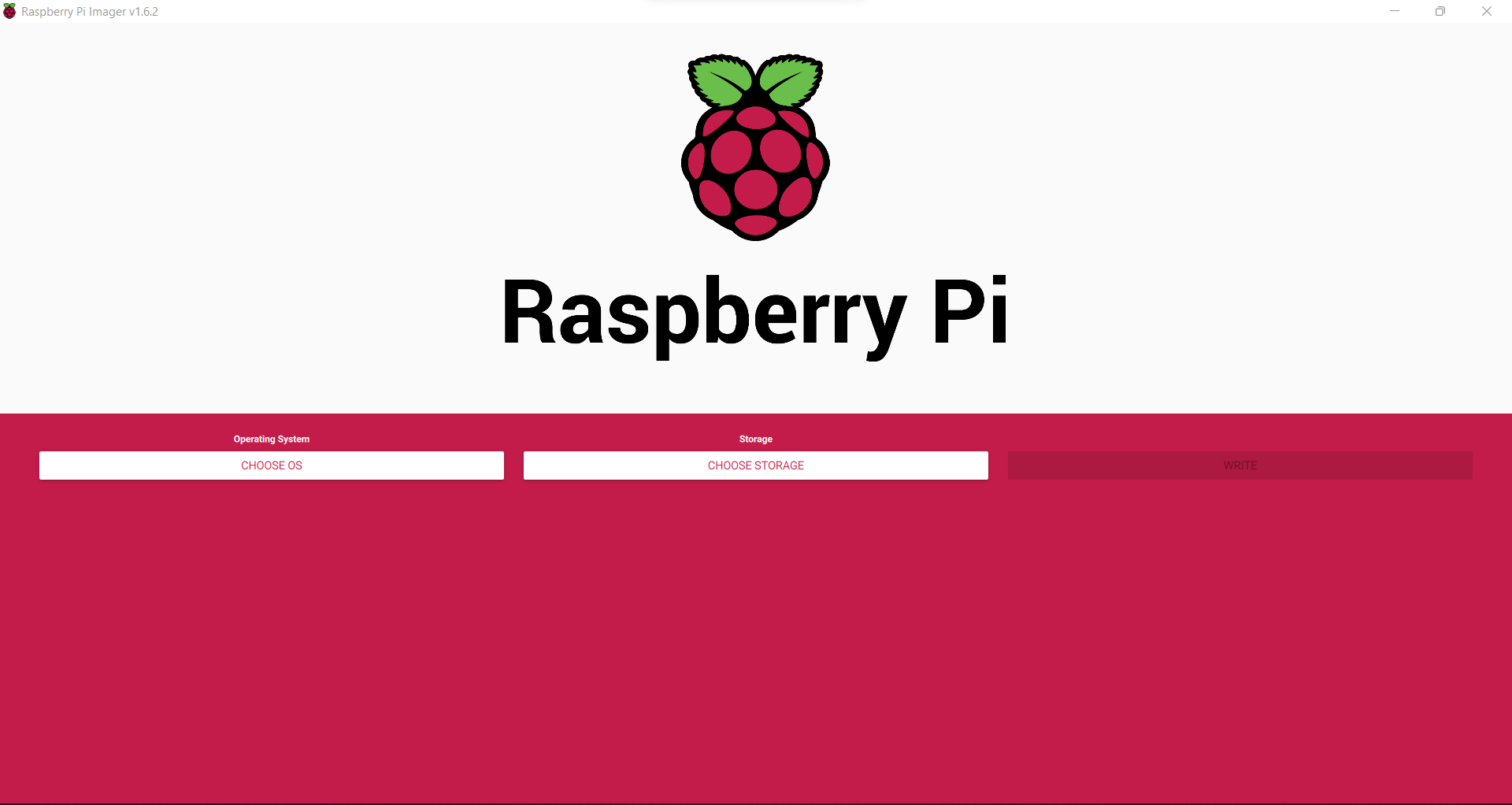
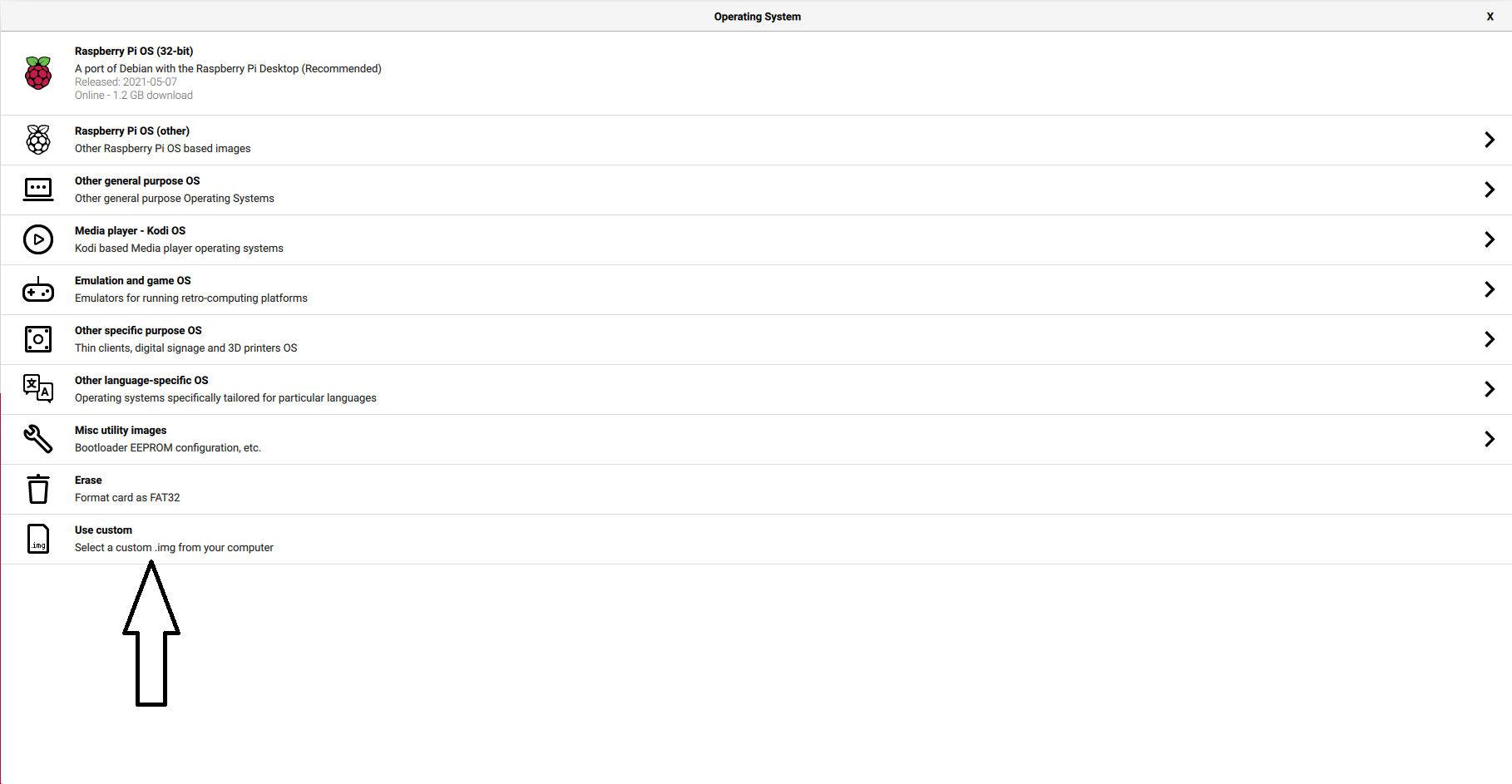
Write Kali-Linux image to the Micro SD-Card. Please follow the following images.

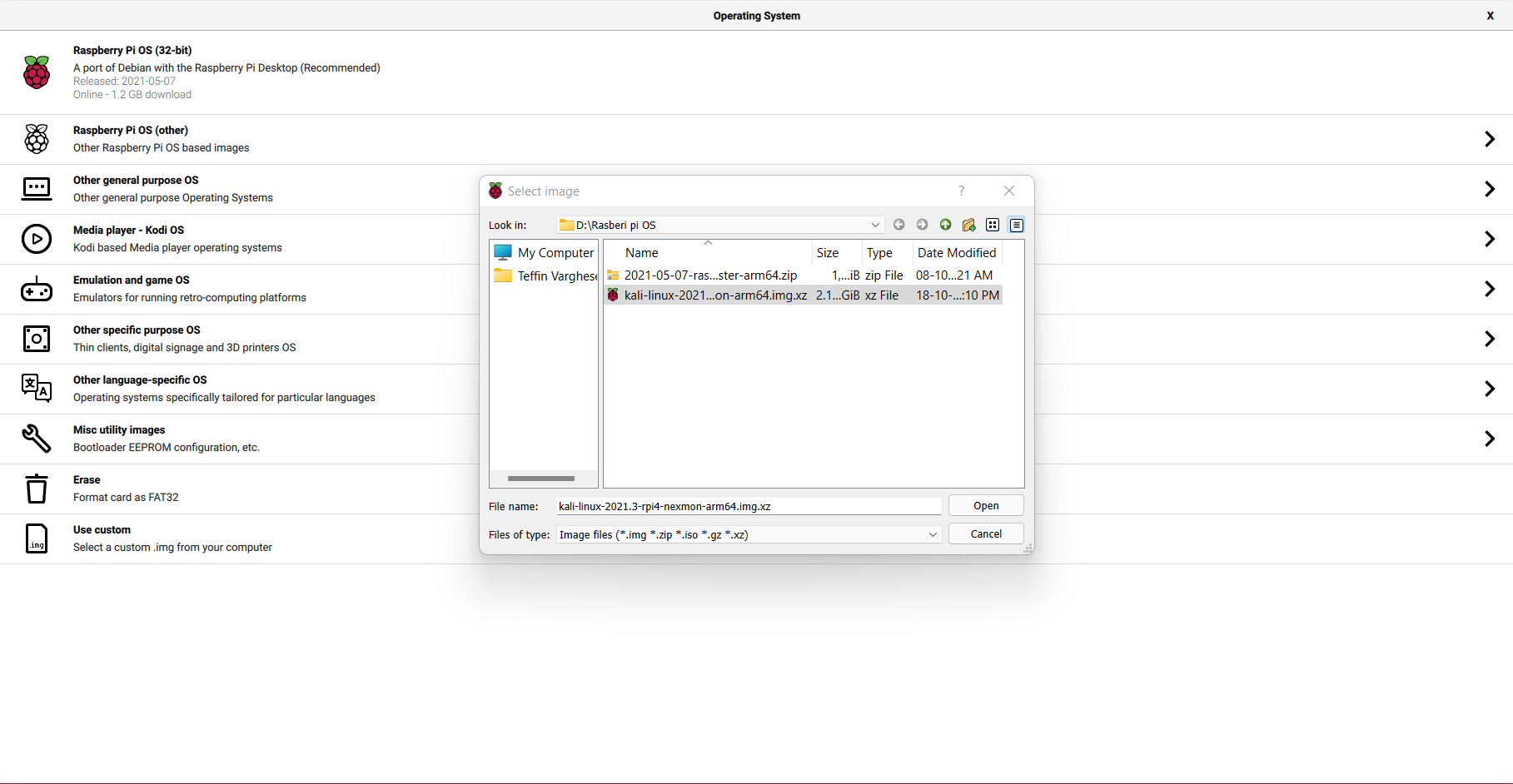
1, Launch the Pi Imager and select Choose OS.

2, Select the option “Use Custome” for our Kali-Linux Image

3, Browse and choose the Kali-Linux Image we have downloaded from our PC.

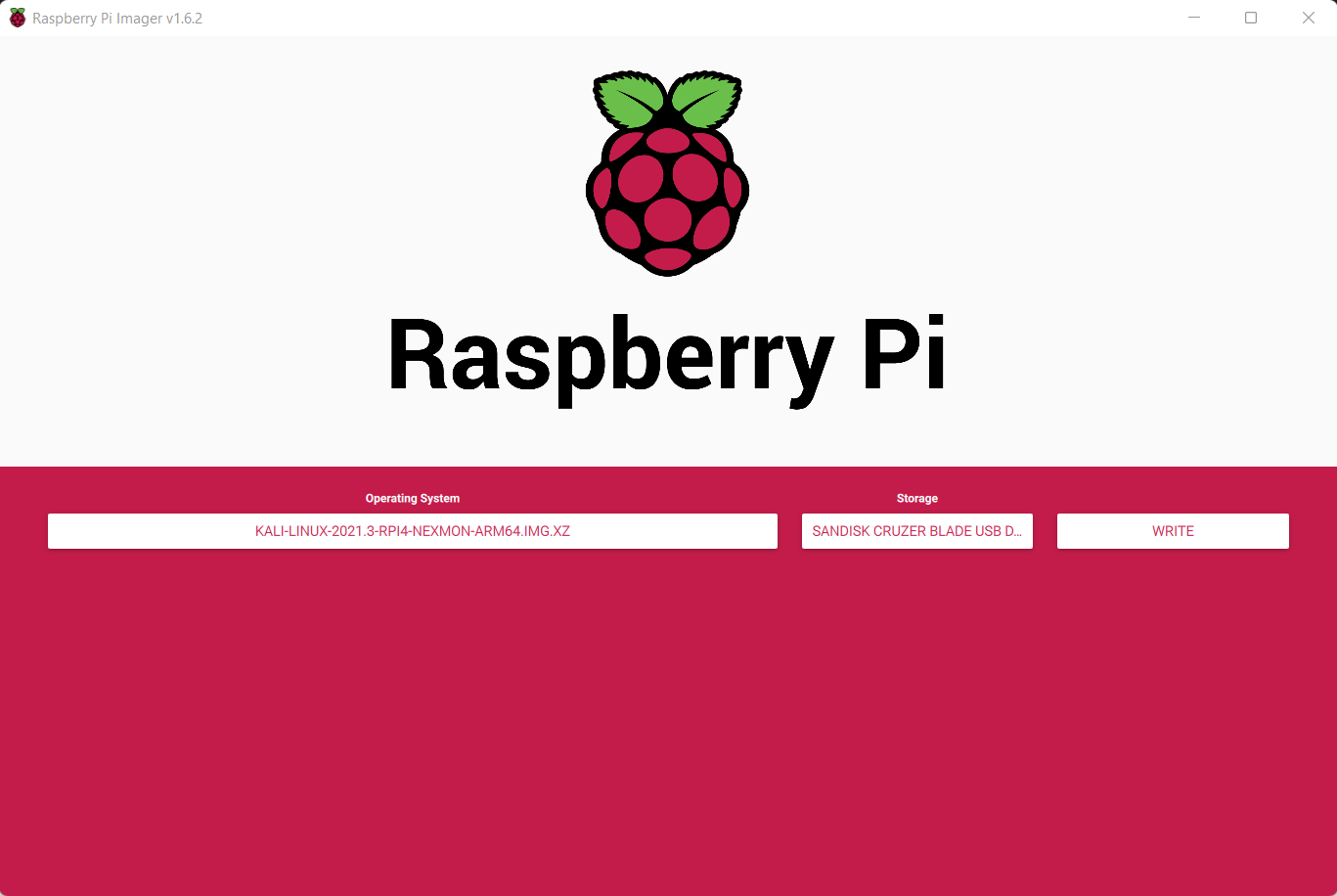
4, Now select storage and choose our micro SD-Card and click write to write the Image.

Note: Please make sure you have selected the correct storage, In our case the SD-Card. If you choose the wrong location the imager will wipe the selected storage location.

  • step 5
    Insert the Micro SD-card to your Raspberry Pi. Plug in your Raspberry Pi Power-Brick to the device and
    connect your Pi to a monitor, also plugin your Mouse and Keyboard as well, Then power-on the power brick.

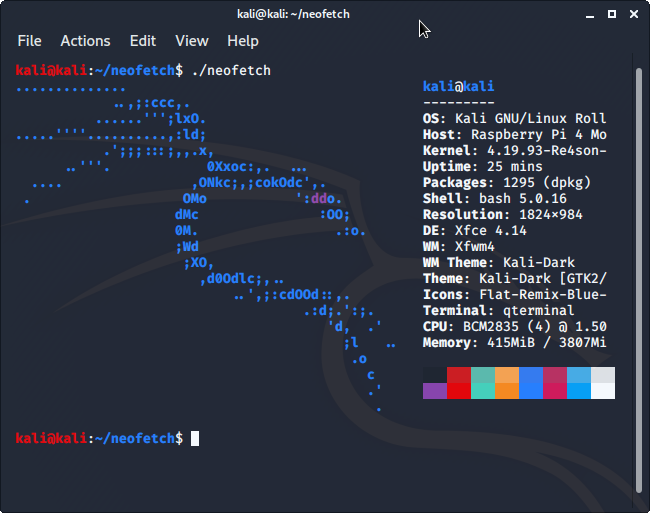
It will take some time for the initial bootup, Wait for it. If everything is perfect your Raspberry Pi will boot into Kali-Linux.

That’s it, Have fun.

Pin It on Pinterest