by Teffin Varghese | Jun 5, 2017 | Howtos, Linux, OS, Servers, Storages, Troubleshooting
Okay, What is RAID 🙂
RAID (Redundant Array of Independent Disks) is a data storage virtualization technology.
It combines multiple inexpensive,small disk drives into an array of disks in order to
provide redundancy, lower latency and maximized the chance to recover data from the hard drives
If they crashes. And there by improving the performance.
The RAID appears to the system as a single drive.
RAID can be implemented via Hardware devices as RAID controllers or via software
controlled by the Linux Kernel.
The most commonly used RAID levels are
RAID 0 [Minimum of 2 Disk]
RAID 1 [Minimum of 2 Disk]
RAID 5 [Minimum of 3 Disk]
RAID 10 [Minimum of 4 Disk]
==============================================
RAID 1
RAID 1 is also known as “disk mirroring.” With RAID 1, data is copied seamlessly and simultaneously from one drive to another, creating an exact copy or mirror.
If one of the disk on raid array fails, the other can work without issues. It’s the simplest way to implement fault tolerance storage. But it slightly drag the performance.
This is useful when read performance or reliability is more important than the resulting data storage capacity.
The advantages of raid 1 are it offers excellent read speed and a write-speed that is comparable to that of a single drive and if a drive fails, data do not have to be rebuild, they just need to be copied to a new replacement drive.
The main disadvantage of RAID 1 is that the effective storage capacity is only half of the total drive capacity
because all data get written twice and software RAID 1 solutions do not always allow a hot swap of a failed drive.
Configuring RAID level 1 using mdadm.
Install mdadm on your server.
You can use the following commands to installmdadm.
For RHEL/CentOS/Fedora:
=======================
# yum install mdadm
And for Debian/Ubuntu:
=======================
#apt-get update
#apt-get install mdadm
The next step is to create a RAID array. For that create the disk partitions (with the same size) that are going to be the array members as RAID partition.
To create partitions you can use the following commands.
#fdisk -l | grep /dev/sd (This command will list the disks on the server.eg: the disks on the server are sdb & sdc)
Then choose one disk eg: sdb
#fdisk /dev/sdb
Then press ‘n’ for creating a new partition in /dev/sdb. Then press ‘p’ for use it as primary partition.
Enter the partition number. You can use the full size by just pressing two times ‘Enter key’.
Then press ‘t’ to choose the partition type. Then choose ‘fd‘ for Linux raid auto and press ‘Enter Key’ to apply it.
Pressing ‘p’ verify that the partition is created as Linux raid auto detect.
Press ‘w’ to save the changes.
Follow the same instructions to create new partition on /dev/sdc drive with the same partition size.
The next step is to create a RAID 1 sdb1,sdc1 array using command mdadm:
# mdadm –create –verbose –level=1 –raid-devices=2 /dev/md0 /dev/sdb1 /dev/sdc1
xxxxxxxxxx
–create–> create a new RAID device.
–verbose–>print information about its operations.
/dev/md0 is the new RAID device that we want to create.
–level–> defines the RAID level; in our case, RAID 1.
–raid-devices –> It specifies how many disks (devices) are going to be used in the creation of the new RAID device.(here 2 — /dev/sdb1 /dev/sdc1)
xxxxxxxxx
You can verify raid status using the following command.
#cat /proc/mdstat
#mdadm -E /dev/sd[b-c]1
# mdadm –detail /dev/md0
The next step is formatting the partition and creating a file system and mount the partition.
#mkfs.ext4 /dev/md0 –> to format the partition
To mount /dev/md0 to /raid1 perform the below steps.
# mkdir /raid1
# mount /dev/md0 /raid1
# df -H –> you can verify it is mounted or not.
To auto-mount RAID1 on system reboot, need to make an entry in ‘/etc/fstab‘ file.
For that add the following line to the fstab.
/dev/md0 /raid1 ext4 defaults 0 0
Then run ‘mount -a‘ to check whether there are any errors on fstab entry.
Now update /etc/mdadm/mdadm.conf or/etc/mdadm.conf file as follows:
ARRAY /dev/md0 devices=/dev/sdb1,/dev/sdc1 level=1num-devices=2 auto=yes
or
# mdadm –detail –scan >> /etc/mdadm.conf
That’s all for now. 🙂
by Teffin Varghese | May 31, 2017 | Howtos, Linux, Troubleshooting
Network interface bonding is a Linux kernel feature which allows to aggregate multiple interfaces (eth0,eth1) into one virtual link such as bond0. Network card bonding is an effective way to increase the available bandwidth. If bonded the interfaces appears as same physical device and they have same MAC address. The other names for network interface bonding are port trunking, NIC teaming channel bonding and link aggregation. The main advantage of bonded network interface is to increase data throughput by load balancing and to provide redundancy by allowing fail over from one component device to another.
## How to create a network interface bond?
Create a file named ifcfg-bondN in the directory /etc/sysconfig/network-scripts, Here "N" is the number of interfaces. Then edit the contents of ifcfg-bondn and make it similar to the configuration settings for an Ethernet interface except that DEVICE is set to bondn instead of ethn.
For example;
DEVICE="bond0"
IPADDR=192.168.1.121
NETMASK=255.255.255.248
NETWORK=192.168.1.0
BROADCAST=192.168.1.255
ONBOOT=yes
BOOTPROTO=none
USERCTL=no
TYPE=Ethernet
BONDING_OPTS="bonding parameters separated by spaces"
For each interface that you want to bond, edit its ifcfg-interface file so that it contains MASTER=bondN and SLAVE entries. An example is given below.
DEVICE="eth0"
NAME="System eth0"
IPADDR=192.168.1.101
NETMASK=255.255.255.0
BROADCAST=192.0.2.255
NM_CONTROLLED="yes"
ONBOOT=yes
USERCTL=no
TYPE=Ethernet
BOOTPROTO=none
DEFROUTE=yes
IPV4_FAILURE_FATAL=yes
IPV6INIT=no
PEERDNS=yes
PEERROUTES=yes
MASTER=bond0
SLAVE
Create the file bonding.conf in the directory/etc/modprobe.d/, so that it contain entry for each bonded interface, for example:
alias bond0 bonding
It ensures that the kernel loads the bonding module is loaded when bring up the bonded interface. All bonded interfaces require entry in this file.
# ip link set eth0 down >> bring interface down
# ip link set eth1 down >> bring interface down
# ip link set bond0 up >> bring interface up
HAPPY BONDING 🙂
by George Sruthin | Apr 19, 2017 | Howtos, Linux
First you need following things :
- generate private key from your hosting site ( i used godaddy cpanel )
- username of cpanel
- password of cpanel
- finally passphrase which you have given when creating private key
Download your private key from your hosting site to your desktop , i have download my key from godaddy cpanel , you can find a file named " newssh " which is a private ssh key * name of private may vary
i have renamed the file " newssh " to " newssh.txt " , i have just changed the file extension , so that it can readable by terminal or you can read it using any text based editor like vim , nano or gedit
now you need to move this file from Desktop to your Home Directory , because when you open your directory it will mount home as the default directory
now you can see the " newssh.txt " file is listed in the terminal home directory
Run the following command to change the file permissions to 600 to secure the key. You can also set them to 400. *This step is required:
To login you need to type the following details in the terminal , which loads the key in file newssh.txt and logs in as user ,to IP your server ip
ssh -i newssh.txt user@yourserverip
then press Enter key , now it will ask you for the passphrase which you have given at the time for private key creation , type the passphrase , Press Enter
Congratulation you have successfully login to your server using ssh
by George Sruthin | Mar 6, 2016 | Howtos, Linux, Programming
In older version NetBeans default uninstall location was /usr/local/netbeansxxxx
but in new versions they have changed installation locations actually, you can decide to which location to install
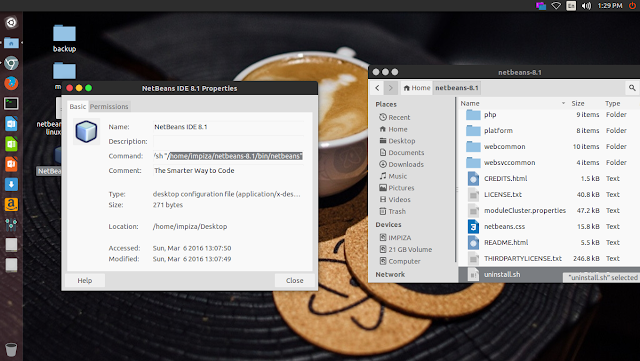
in new versions you can easily find the installed location just right click and checking properties of NetBeans Desktop icon
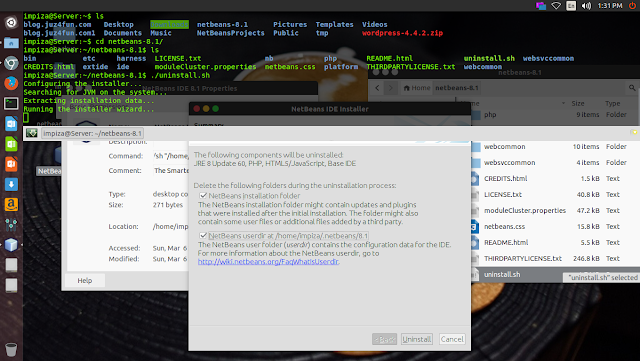
In my case i have installed it in my Home folder, i opened terminal,moved to installation location using cd /installation path
*change installation path to yours
In your terminal it will looks like this
type
press enter
uninstall
Enjoy.
by George Sruthin | Mar 6, 2016 | Howtos, Linux, Programming
First go to netbean download page https://netbeans.org/downloads/
download the netbeans installer .sh file
open terminal go to download location
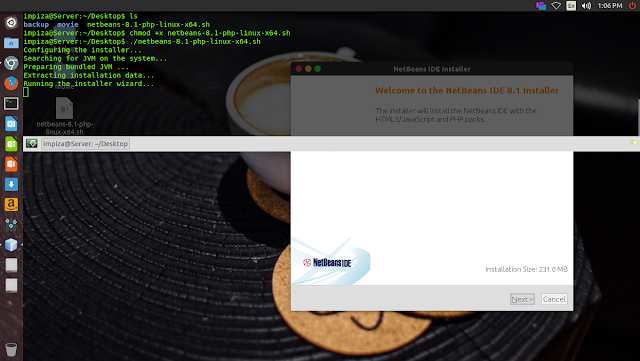
make file executable by using following commands in terminal
chmod +x netbeans-8.1-php-linux-x64.sh
in your case netbeans file name may very
once you make file executable type following commands in terminal
in your case change filename.sh to your file name
it will pop up an installation wizard like this
just follow the instruction to install
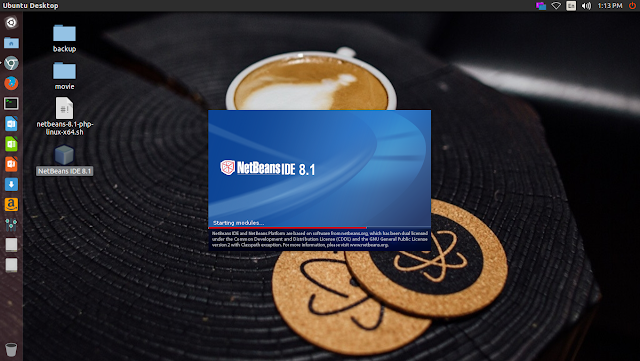
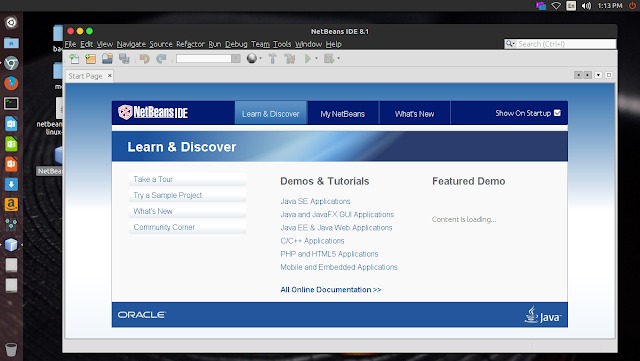
after installation you can find NetBeans IDE icon on your desktop double click it to open the application

 mirroring.” With RAID 1, data is copied seamlessly and simultaneously from one drive to another, creating an exact copy or mirror.