Select Page

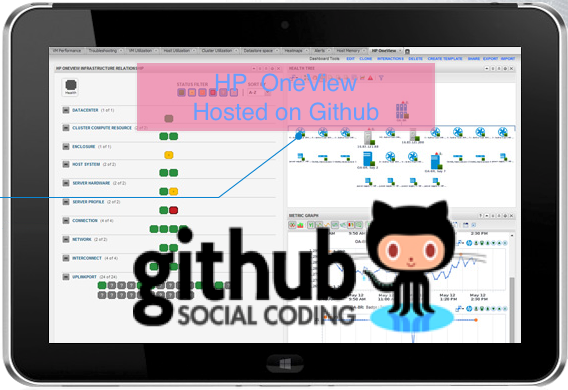
HP OneView PowerShell moves to Github

What is HP OneView 

HP OneView software provides management tools for converged infrastructure and are used by system administrators to provision, control, and manage software-defined data center components. System administrators use one unified interface, HP OneView to automate data center maintenance and management tasks. These data center maintenance and management tasks traditionally required numerous manual steps and multiple management tools.

HP OneView PowerShell Library’s new project home page is http://hewlettpackard.github.io/POSH-HPOneView/HP 
OneView PowerShell library has moved to Github , before it was hosted on CodePlex ! Moving HP OneView to Github will ensure that every one can easily access HP Oneview Project , Here is the HP Github Organization Page https://github.com/HewlettPackard , 

How to Install & configure iLO, HP Integrated Lights Out (iLO) on Android

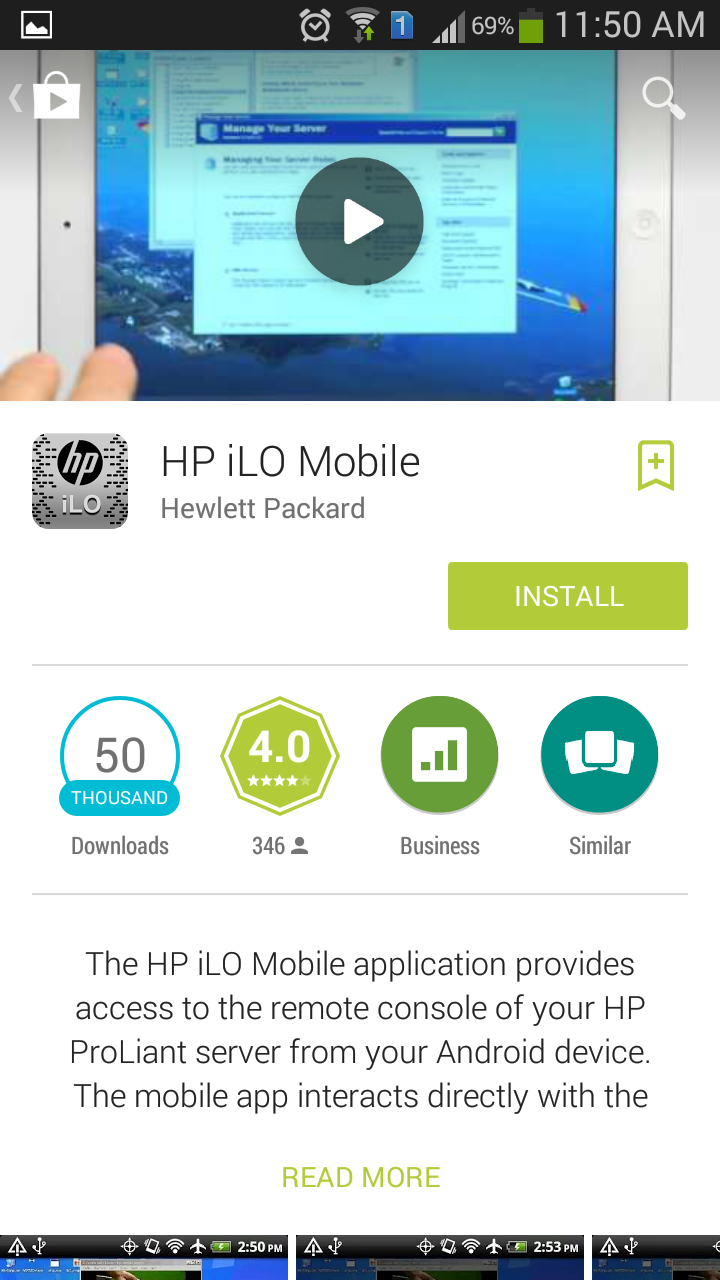
go to Google play and search HP iLO or here is the link to Google Play 

Supported servers

  • HP ProLiant Gen8 Servers
  • HP ProLiant G7 Servers

Supported mobile operating systems

  • Android 2.2 or greater
  • iOS 4.3 or greater

Manage

  • Operate the server power switch
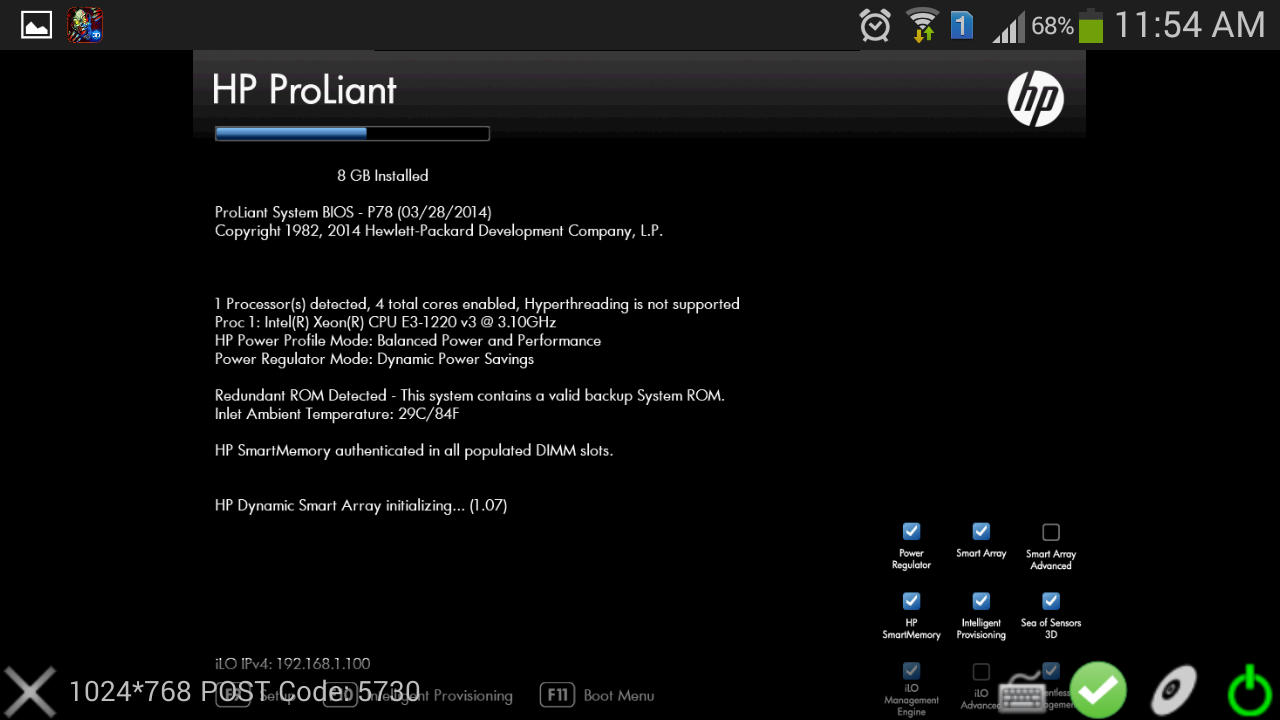
  • Use the Remote Console to interact with the operating system, including BIOS and ROM configuration changes
  • Mount an ISO CD/DVD image. The disk image is available on the server as a USB CD/DVD drive. You can boot from the disk image and deploy an operating system
  • Launch HP iLO scripts and monitor their progress
  • Access the iLO web interface
  • Store the list of servers you want to manage
install it and launch it 


after launching the application click 
configure iLO option
add assigned ip for iLO 
Login name and password


click done after adding the details 
click the iLO ip 
you will get 3 options 
  1. Remote Console
  2. Lauch Script
  3. iLO Web Interface
click Remote Console
 for using iLO


Quick tips

  • Show/Hide menu bar – Tap once with two fingers to show or hide the menu bar in the Remote Console
  • Show/Hide iLO web interface – Tap the server health icon in the Remote Console to show or hide the iLO web interface
  • Ctrl/Alt/Del Command – Tap Ctrl+Alt+backspace to enter the Ctrl+Alt+Del command

Intelligent Provisioning 1.60 breaks 2008 R2 install (will not accept product key during setup)

Intelligent Provisioning 1.60 breaks 2008 R2 install (will not accept product key during setup)

On HP Proliant ML 310e V2 Gen8 / DL380p Gen8 servers to install 2008R2 /2014R2 using IP 1.60.  After the GUI for Windows setup starts, it fails on the autounattend.xml that IP 1.60 generates on the ProductKey.


After the setup fails it drops you back to a command prompt in WinPE

in the command prompt type the following command

notepad c:autounattend.xml 

this will now open up autounattend.xml in notepad


now press ctrl + f and search for the string ProductKey


just below this string insert a new line contains the string “only the tags”
now save the file
then type the command to begin the installation process

x:WindowsHpssbem.exe 


installation will end fine 🙂

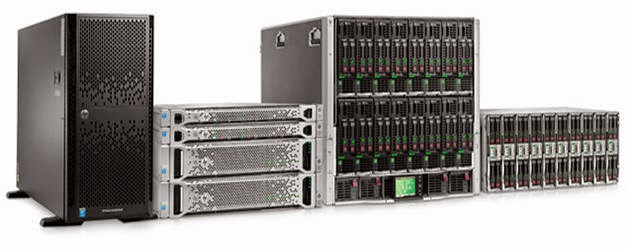
HP Releases the Next Generation Gen9 Proliant Servers

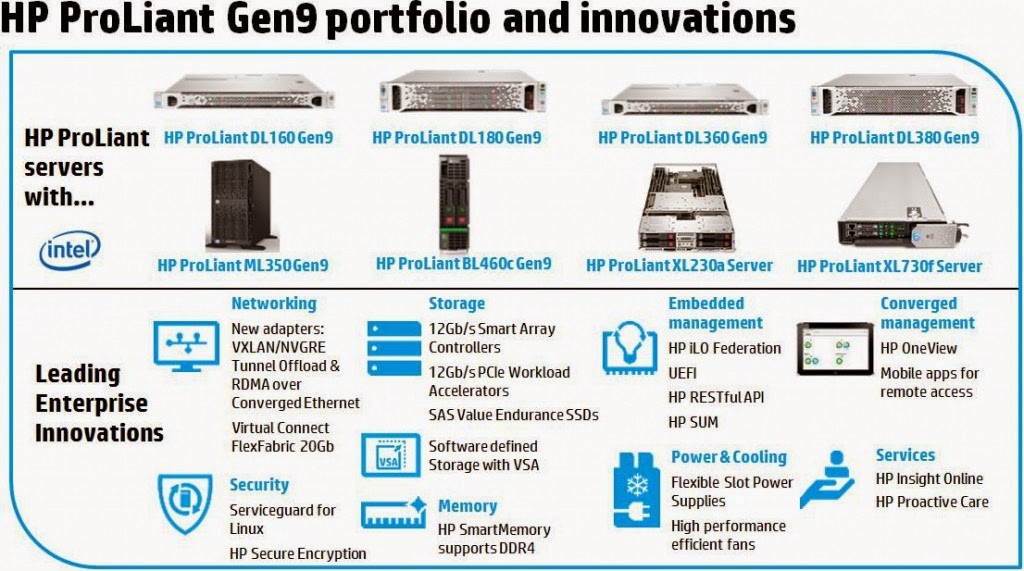
Building on 25 years of server industry leadership, HP announces a bold new compute strategy to help customers thrive in the era of Big Data, mobility and the cloud. Traditional server silos are too inefficient and slow for the New Style of IT. HP is reimagining the server and thinking instead about compute — the vast pool of processing resources that are converged, software-defined, cloud-ready and workload-optimized for business growth.
The new HP ProLiant Gen9 portfolio is HP’s latest compute milestone, helping customers:
  • Lower IT service costs
  • Accelerate IT service delivery time
  • Boost IT business value
Now available, HP ProLiant Gen9 platforms with Intel Xeon E5-2600 v3 processor series: BL460c, DL160, DL180, DL360, DL380, ML350, XL230a (HP Apollo 6000), and XL730f (HP Apollo 8000).


Rear view of a DL 380 Gen9 Server 
The Comman Slot power supplies are replaced by Flexible slot power supplies , so the Gen8 power supplies does not fit in Gen9. by choosing for the flexible power supplies this gives you the options to choose for 2 redundant power supplies or for 1 power supply and a battery based power supply in the second slot.This battery gives you up to 5 minutes of power in the server. Power supplies are now rated 500W,800W, 1400W and there is also a  550W power supply for the Gen9 entry level servers DL160 and DL 180


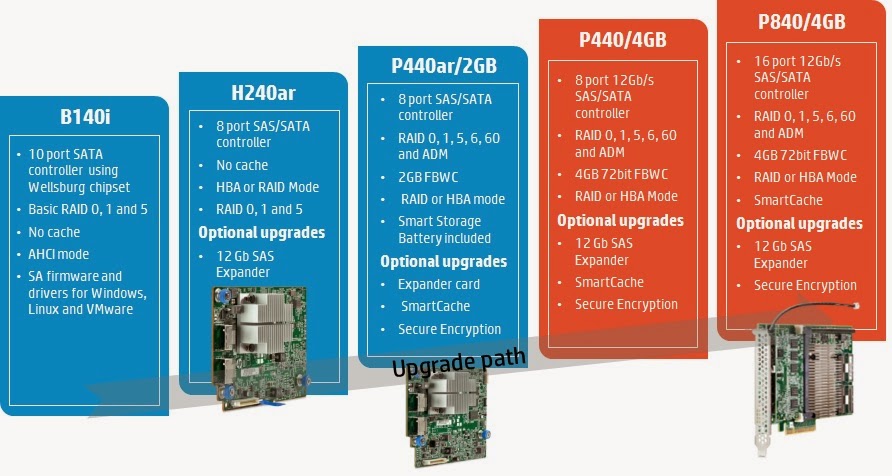
The Smart Array controller is not on-board anymore. This means the RAID controller is now like a FlexLOM Ethernet adapter or add-on card on the motherboard of the server. HP provides besides Smart Array controllers also FlexHBA’s which you need for Microsoft Storage Spaces


In Some models like DL380 Gen9 there is an additional drive cage at the back of the server for 2 SFF or 3 LFF drives . this means you can have up to 26 disks in a DL380 Gen9 – 24 at the front and not 25 any more like in Gen8 , and 2 at the back. by using a SAS expander this can be all managed by 1 RAID Controller Supports in “DL 180, DL380 ,ML 350”
The backup power for the FBWC Smart Array controllers is centralised now in 1 New smart storage battery. it is a single long life Lithium Ion battery which lasts for at least 7 years “Where was the time it was 3 days to survive a weekend?” for all Smart Array controllers and other devices (up to 16 ) . the cabling is also much simpler since power is directly drawn from the motherboard.
The HP Proliant Gen9 Servers support improved ambient temperature ASHAE A3 and A4 3 standards helping to reduce your cooling expenses . Temperatures up to 45°C are supported in select configurations .
Gen9 DL380 Configuration some pictures 
Gen9 ML 350 Configurations Some Pictures


More information go to this HP url : www.hp.com/go/proliant

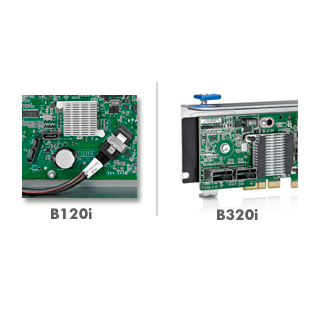
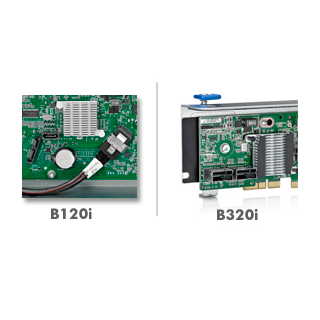
Enable & Disable HP Dynamic Smart Array B120i & B320i Controllers

Enable and Disable HP Dynamic Smart Array B120i & B320i Controllers

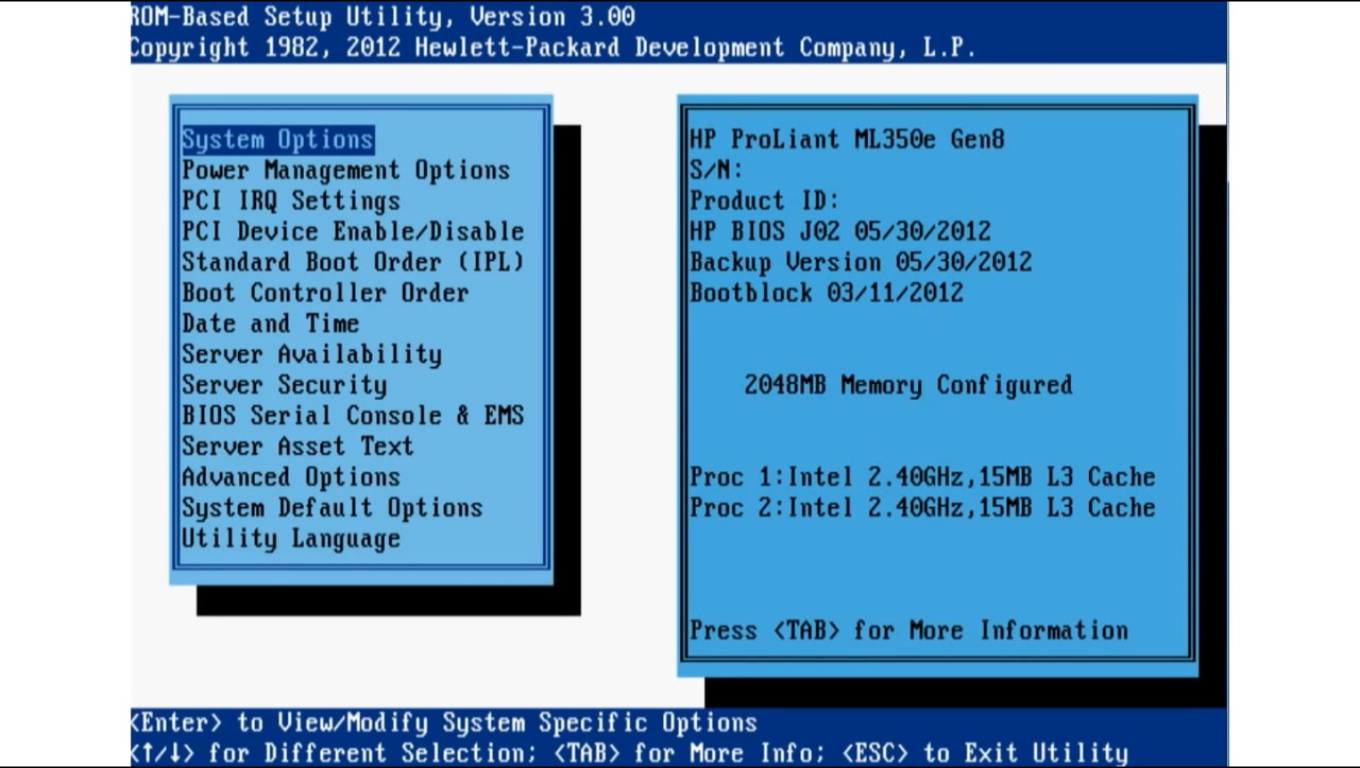
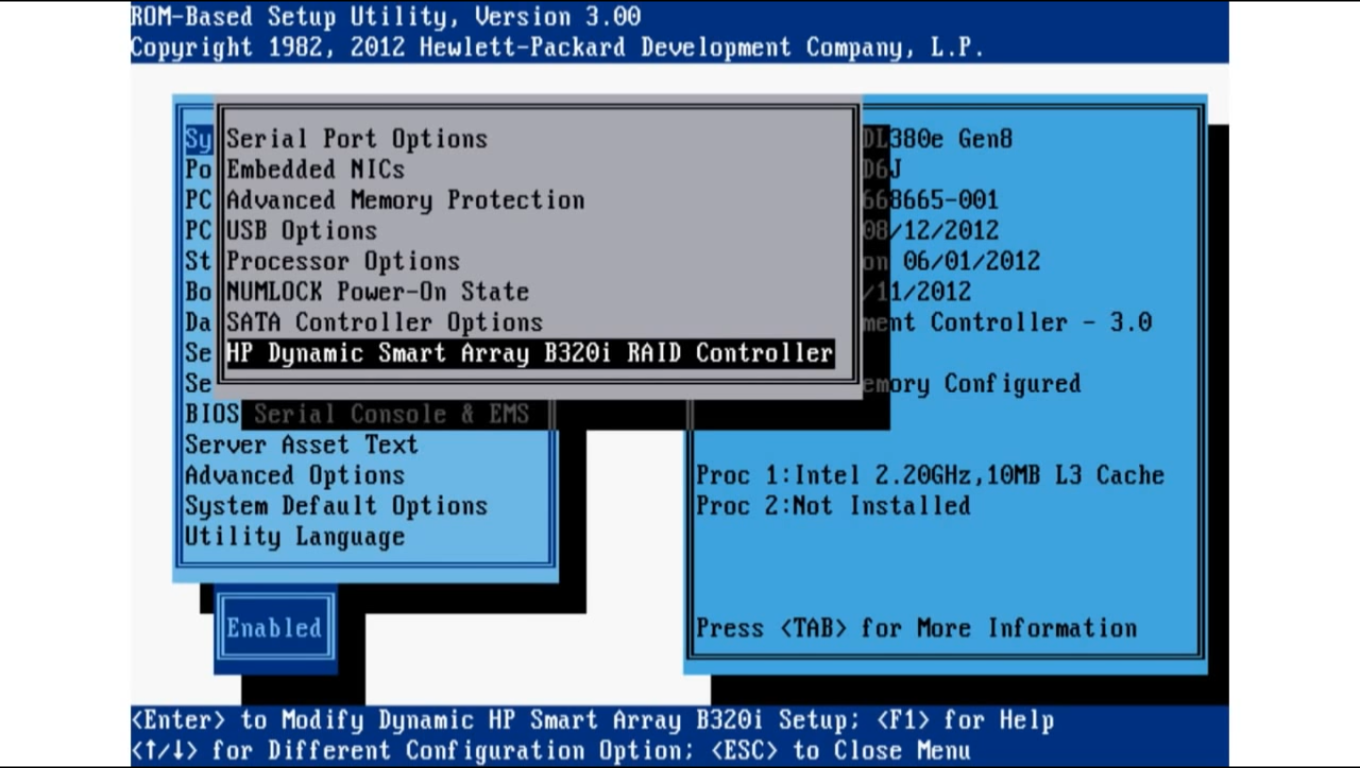
  • Press F9 to Enter RBSU “Rom Based Setup Utility” 

  • System Options

  • HP Dynamic Smart Array B120i / B320i RAID Controller 

  • Enable
  • for disable simply switch to Disable 

” Configuring HP Dynamic Smart Array B120i & B320i Controllers “


NOTE*

“ if you need drivers while installing Windows Server on these servers go to this site and download it “ .

Configuring HP Dynamic Smart Array B120i & B320i Controllers

Configuring HP Dynamic Smart Array B120i & B320i Controllers

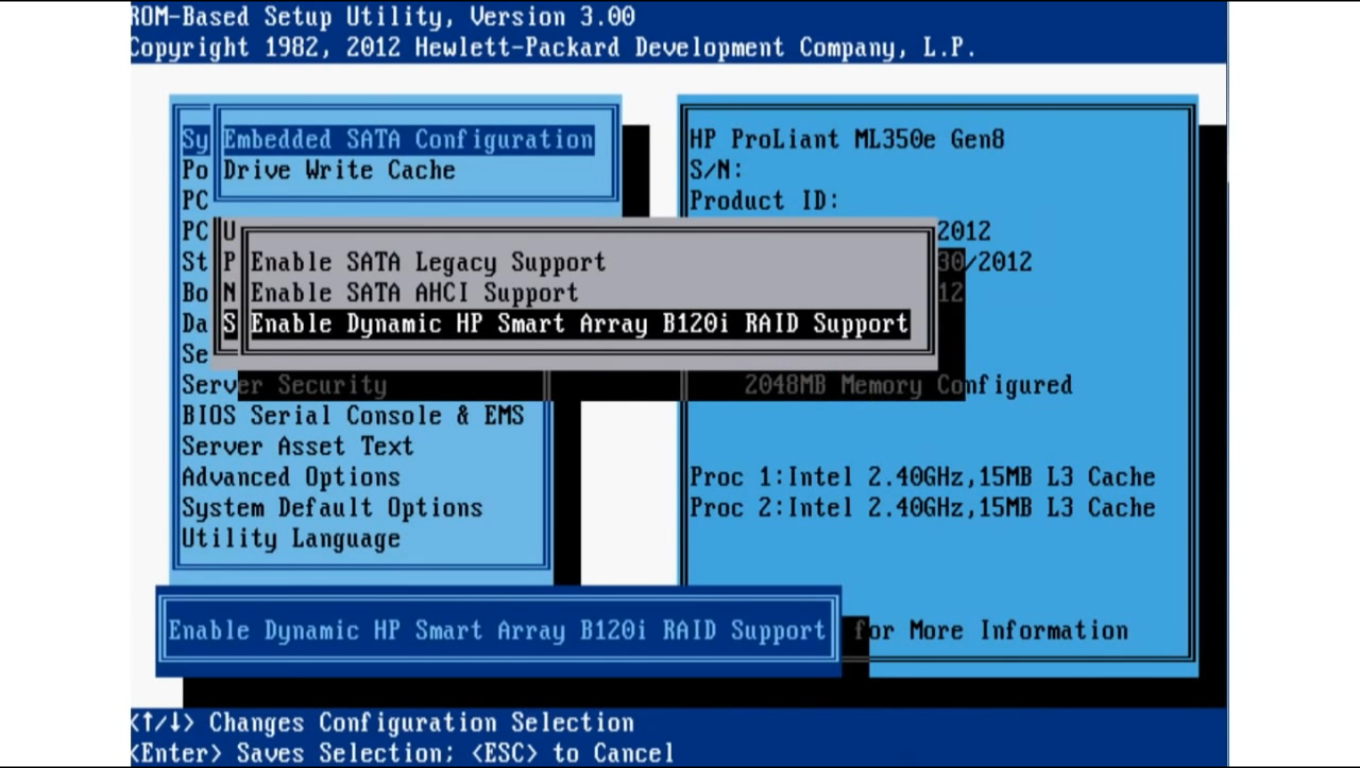
Press F9 to Enter RBSU “Rom Based Setup Utility”

System Options 

Sata Controller Options 

Embedded Sata Configuration (Press Enter) 

Again Enter 

Enable Dynamic HP Smart Array B120i/B320i RAID Support 


” Enable and Disable HP Dynamic Smart Array B120i & B320i Controllers “


NOTE*

“ if you need drivers while installing Windows Server on these servers go to this site and download it “ .
http://cl.ly/1r2S2M1x0P0W 

Pin It on Pinterest