Select Page

How to rdp into your linux server

Remote Desktop Protocol (RDP) is a proprietary protocol developed by Microsoft , which provides a user with a graphical interface to connect to another computer over a network connection. The client PC uses RDP client software (often mstsc.exe) for this purpose, while the other computer must run RDP server software. This tutorial will teach you how to RDP to Linux machines.

Open your terminal in Linux machine then type the following command line in it (Ubuntu-based machines!)

 sudo apt-get install xrdp  

In fedora-based machines you can use

 yum install xrdp  

It will will ask permission to install the package , so just type your admin password and hit enter, and then type ” y ” to continue

This will install the xrdp package and start the RDP service in your Linux machine. Now you will need to determine the IP of the Linux machine. For that, type following command line in terminal:

 ifconfig  

In this case my Linux machine`s IP is 192.168.1.110 Now type mstsc in the Windows Search field, which will open up the following window:

Now, simply type your Linux machine`s IP in the Computer: field, and then click connect. You will likely need to click through an authentication/version warning. Now you can see a xrdp login session. At this point, type your username and password for the Linux machine and click OK.

You are now connected to the Linux PC via RDP!

How to add Custom Drivers to VMware Esxi iso image !

How to add Custom Drivers to VMware Esxi iso image !

Hi friends once i have try to install VMware Esxi in my old pc . but it failed because absence of network driver in it , so i have to customise Esxi image and add driver to it

For this you will need ESXi-Customizer
Download from this link 
used this driver vmware-bootbank-net-r8168.vib

Run ESXi-Customizer-v2.7.2 as Admin

This will extract to a folder open it and run “ESXi-Customizer.cmd ” as Admin

Brwose VMware.iso

Browse Destination

Browse Driver

Browse VMware.iso

Run

Enjoy 

How to fix Unable to lock the administration directory (/var/lib/dpkg/) error in Linux

Some of you may experience this error in your life if you are using linux .it happens when previous installation fails , here is the screenshot which is happened in my Linux Distro

E: Could not get lock /var/lib/dpkg/lock – open (11: Resource temporarily unavailable)
E: Unable to lock the administration directory (/var/lib/dpkg/), is another process using it?

 its very easy to fix this error just type following commands in your terminal

sudo rm /var/lib/dpkg/lock  

this will delete the “lock” directory in /var/lib/dpkg/

after that you can install what ever you want

Enabling .Net Framework 3.5 in Windows Server 2012 using Command prompt

Enabling .Net Framework 3.5 in Windows Server 2012 using Command prompt 

You need

  1. Media of Windows Server 2012

insert your media in your dvd drive or mound it via iLo or pendrive

please not your drive letter which is assigned to that media

now open up your command prompt

press windows key and R key same time now run windows will appear  , now  type CMD  then press enter 

this will open your command prompt

now mound your drive letter

in this case my drive letter is  ”  D   “

so i need to type D: in the command prompt

now type following command

dism /online /enable-feature /featurename:NetFx3 /All /Source:d:/sources/sxs

Note*  in command line letter d may vary 


now wait for some time

done !

lets check on server manager

restart your server 

good luck 

Configuring Raid 5 With 1 Hot Spare in HP Proliant ML310e Gen8

What is RAID 5

f

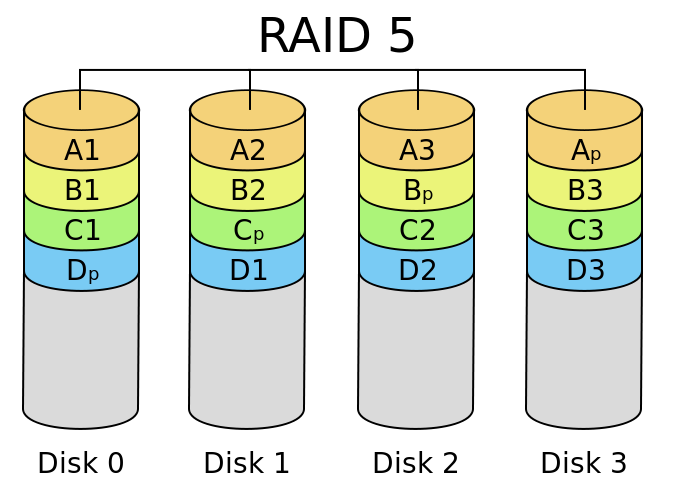
A RAID 5 comprises block-level striping with distributed parity. Unlike in RAID 4, parity information is distributed among the drives. It requires that all drives but one be present to operate. Upon failure of a single drive, subsequent reads can be calculated from the distributed parity such that no data is lost. RAID 5 requires at least three disks.
In comparison to RAID 4, RAID 5’s distributed parity evens out the stress of a dedicated parity disk among all RAID members. Additionally, read performance is increased since all RAID members participate in serving of the read requests.

Diagram of a RAID 5 setup with distributed parity with each color representing the group of blocks in the respective parity block (a stripe). This diagram shows left asymmetric algorithm

HOT SPARE

A hot spare disk is a disk or group of disks used to automatically or manually, depending upon the hot spare policy, replace a failing or failed disk in a RAID configuration.

The hot spare disk reduces the mean time to recovery (MTTR) for the RAID redundancy group, thus reducing the probability of a second disk failure and the resultant data loss that would occur in any singly redundant RAID (e.g., RAID-1, RAID-5, RAID-10). Typically, a hot spare is available to replace a number of different disks and systems employing a hot spare normally require a redundant group to allow time for the data to be generated onto the spare disk. During this time the system is exposed to data loss due to a subsequent failure, and therefore the automatic switching to a spare disk reduces the time of exposure to that risk compared to manual discovery and implementation.

The concept of hot spares is not limited to hardware, but also software systems can be held in a state of readiness, for example a database server may have a software copy on hot standby, possibly even on the same machine to cope with the various factors that make a database unreliable, such as the impact of disc failure, poorly written queries or database software errors. 

Adding License key in HP iLO

How to add License key to HP iLO 

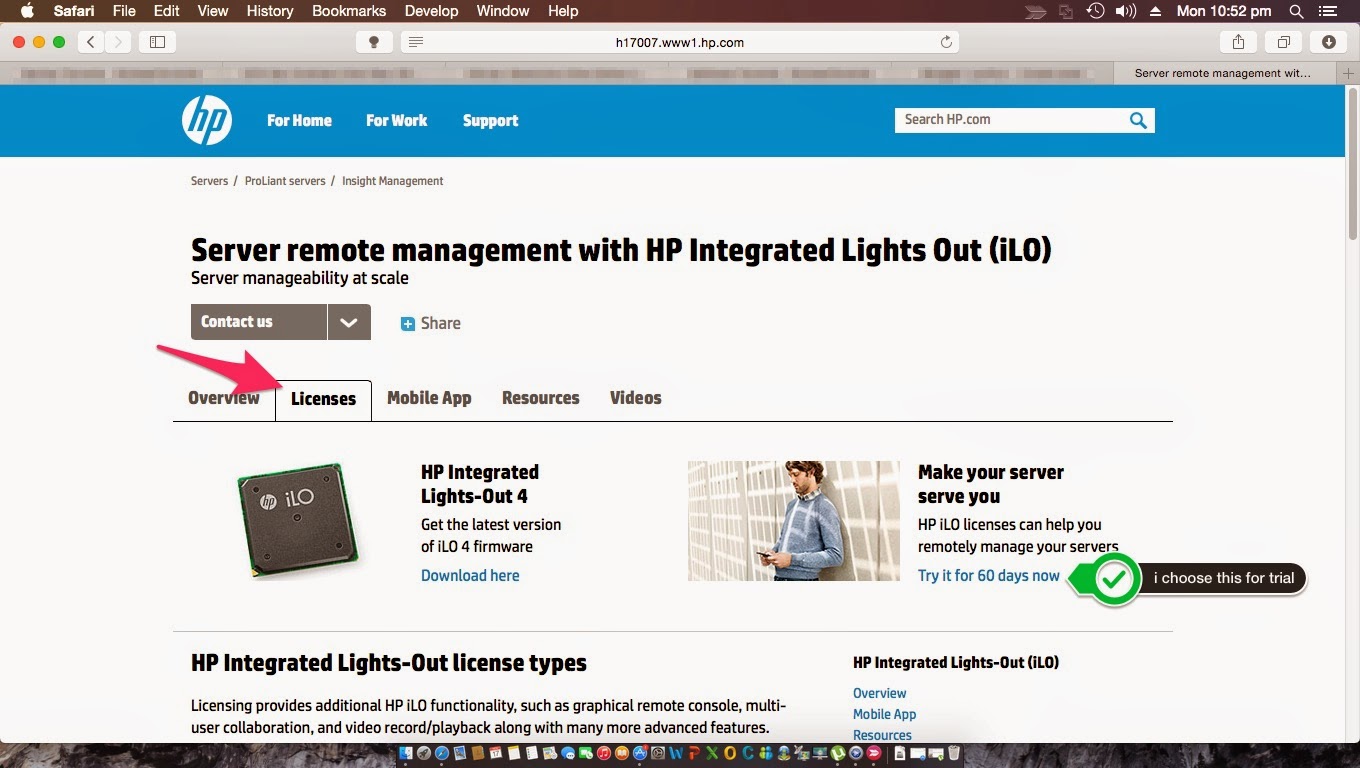
go to this url  www.hp.com/go/ilo then click on License tab

choose license you want

for this tutorial i have chosen 60 days trial license

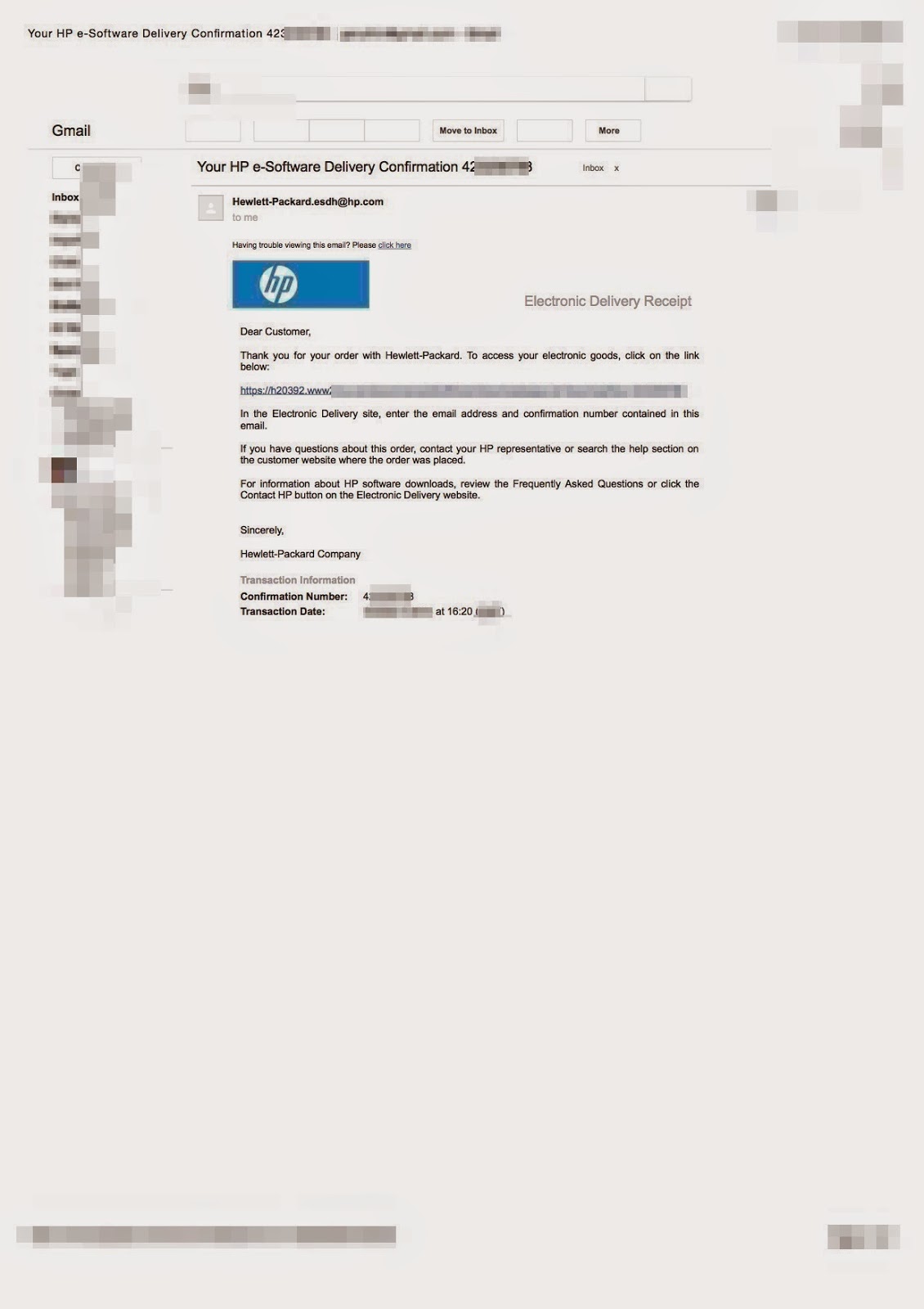
you will receive an e-Software confirmation mail

follow the link which is given in you email 
you will get your License 
after that enter your iLO 
Click administration
Licensing 

Enter you Licence Key 
Click Install 
Done Enjoy HP iLO !

Pin It on Pinterest