by George Sruthin | May 26, 2017 | Howtos, Troubleshooting, Windows
I have got this error after updating system using WSUS Offline utility,after successful update system restarts And the login screen by default shows the username of WOUTempAdmin. Not a big deal as I can log in with my admin account. But still a pain.
to fix this issue you have to follow the steps:
Press "Windows Key" and "R"
type "regedit" press Ok
Run "regedit" this will open Registry Editor
Note* Be careful when editing the registry. Don’t go into the registry editor and delete anything or change a setting unless you know exactly what you’re doing. If you do know what you’re doing and are careful to modify only the correct values, you shouldn’t have any problems. However, if you start deleting folders (known as “registry keys”) or modifying other values, you could seriously damage your Windows installation. When using the registry editor, always bear this warning in mind.

Navigate to HKEY_LOCAL_MACHINE\Software\Microsoft\Windows NT\CurrentVersion\Winlogon
Change DefaultUserName to your default user for eg: Administrator , i have used fragadmin0608 instead of Administrator this may vary
then within the registry you can find AutoAdminLogon
Press F3 and search for any entry containing "woutemplogin" and delete it as long as the searchphrase can't be found any more,then restart your system
After restart if you can see your login screen with your default username .then your issue is fixed
best of luck .
by George Sruthin | May 8, 2017 | Howtos, Windows
Things you need
- advancedbattoexeconverter.exe
- a batch file
Now we have to add script to script file and verify it , if its works we can continue to further setup, then download advancedbattoexeconverter.exe and install in your system, Click to download app
I am using a simple script "which will show ipconfig result"for this tutorial , SORRY i have mistakenly named script file to ping.bat instead of ipconfig.bat 😀
Right click the batch file and click on "Open with Advanced BAT to EXE" option
Within the app you can read or edit script you have created, there are a lot of customization available, but i am skipping it and going to build exe, click on the "Build Exe" Button
This will popup a new windows, there you can add EXE icon, version file embed files and password, But for this tutorial i am going to just build the app, for that just click on Build EXE button , this will ask to save the exe file
save the file as exe, now you can run this file just like an application
Converting script to an exe will ensure more security, others will not get much confidential details whats running background and for the users this will be much more easier to click on a single app installed of executing a script file which is more complex and difficult for them, you can also create silent installation scripts to install application to systems using this kind of method
by George Sruthin | Apr 10, 2017 | Howtos, Windows
Its very easy to create vhd from physical disk,
First you need to download Disk2vhd utility from this url https://technet.microsoft.com/en-us/sysinternals/ee656415.aspx
Then run it as Administrator
Now you can see all drives which is associated with the hdd , select drive which you want to convert
to save it give vhd file name and location , then click create
after process complete you can find vhd file in the given exported path
now you can attach this vhd file to any hypervisor or windows diskmanager to access files in it , if it is bootable you can boot that inside virtualbox or vmware workstation
by George Sruthin | Jun 21, 2016 | Howtos, Windows
To Create God Mode on your PC you need to login to your Windows Machine with Administrative privilege
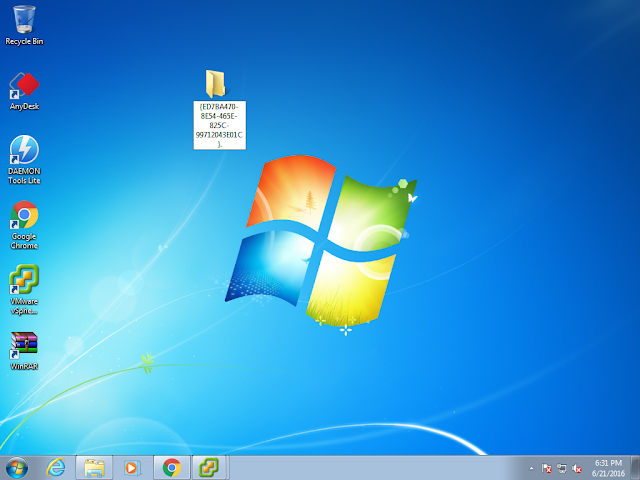
Then Right Click on the desktop and create new folder in there
Then Rename it with following name
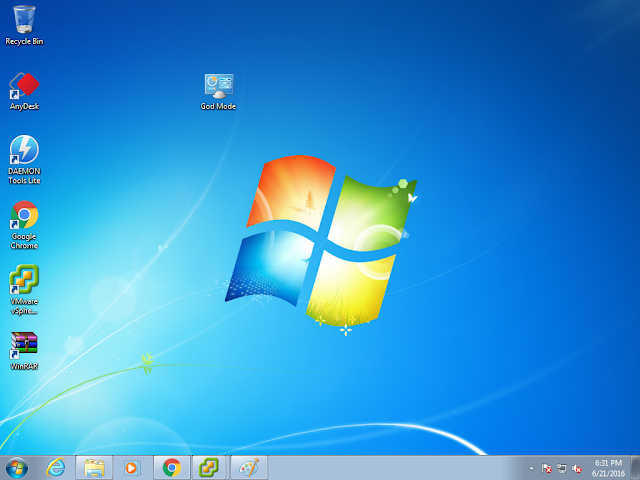
God Mode .{ED7BA470-8E54-465E-825C-99712043E01C}.
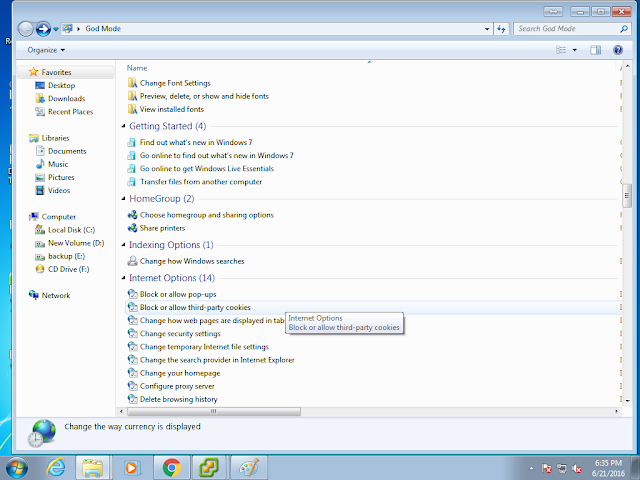
Double clicking this icon will give you access to many features like you see in this picture
by George Sruthin | Nov 18, 2015 | Howtos, Linux, OS, Windows
i am using Linux Mint as client machine
for Ubuntu / Mint open terminal
use this command line to install rdesktop
sudo apt-get install rdesktop
hit enter
then type your password in hidden field
type y and hit enter
after installing rdesktop you have to type this command in terminal window
rdesktop 192.168.1.51
in this case my server ip is 192.168.1.51
a windows login window will pop up
use your login account and password to login
enjoy
by George Sruthin | Aug 27, 2015 | Howtos, Linux, OS, Servers, Windows
Remote Desktop Protocol (RDP) is a proprietary protocol developed by Microsoft , which provides a user with a graphical interface to connect to another computer over a network connection. The client PC uses RDP client software (often mstsc.exe) for this purpose, while the other computer must run RDP server software. This tutorial will teach you how to RDP to Linux machines.
Open your terminal in Linux machine then type the following command line in it (Ubuntu-based machines!)
sudo apt-get install xrdp
In fedora-based machines you can use
yum install xrdp
It will will ask permission to install the package , so just type your admin password and hit enter, and then type ” y ” to continue
This will install the xrdp package and start the RDP service in your Linux machine. Now you will need to determine the IP of the Linux machine. For that, type following command line in terminal:
ifconfig
In this case my Linux machine`s IP is 192.168.1.110 Now type mstsc in the Windows Search field, which will open up the following window:
Now, simply type your Linux machine`s IP in the Computer: field, and then click connect. You will likely need to click through an authentication/version warning. Now you can see a xrdp login session. At this point, type your username and password for the Linux machine and click OK.
You are now connected to the Linux PC via RDP!