
Enabling .Net Framework 3.5 in Windows Server 2012 using Command prompt
Enabling .Net Framework 3.5 in Windows Server 2012 using Command prompt
You need
- Media of Windows Server 2012
insert your media in your dvd drive or mound it via iLo or pendrive
please not your drive letter which is assigned to that media

now open up your command prompt
press windows key and R key same time now run windows will appear , now type CMD then press enter
this will open your command prompt
now mound your drive letter
in this case my drive letter is ” D “
so i need to type D: in the command prompt

now type following command
dism /online /enable-feature /featurename:NetFx3 /All /Source:d:/sources/sxs
Note* in command line letter d may vary
now wait for some time


done !
lets check on server manager

Tips on Learning PowerShell from a PowerShell Noob

What is PowerShell
Intelligent Provisioning 1.60 breaks 2008 R2 install (will not accept product key during setup)
Intelligent Provisioning 1.60 breaks 2008 R2 install (will not accept product key during setup)
On HP Proliant ML 310e V2 Gen8 / DL380p Gen8 servers to install 2008R2 /2014R2 using IP 1.60. After the GUI for Windows setup starts, it fails on the autounattend.xml that IP 1.60 generates on the ProductKey.

After the setup fails it drops you back to a command prompt in WinPE

notepad c:autounattend.xml
this will now open up autounattend.xml in notepad

now press ctrl + f and search for the string ProductKey

just below this string insert a new line contains the string “only the tags”
now save the file
then type the command to begin the installation process
x:WindowsHpssbem.exe


How to make Multiple ISO bootable Pendrive (Windows & Linux same time)
How to make Multiple ISO bootable Pendrive (Windows & Linux same time)
Connect your usb drive to your pc (min 8gb)
Open up gparted tool in you linux
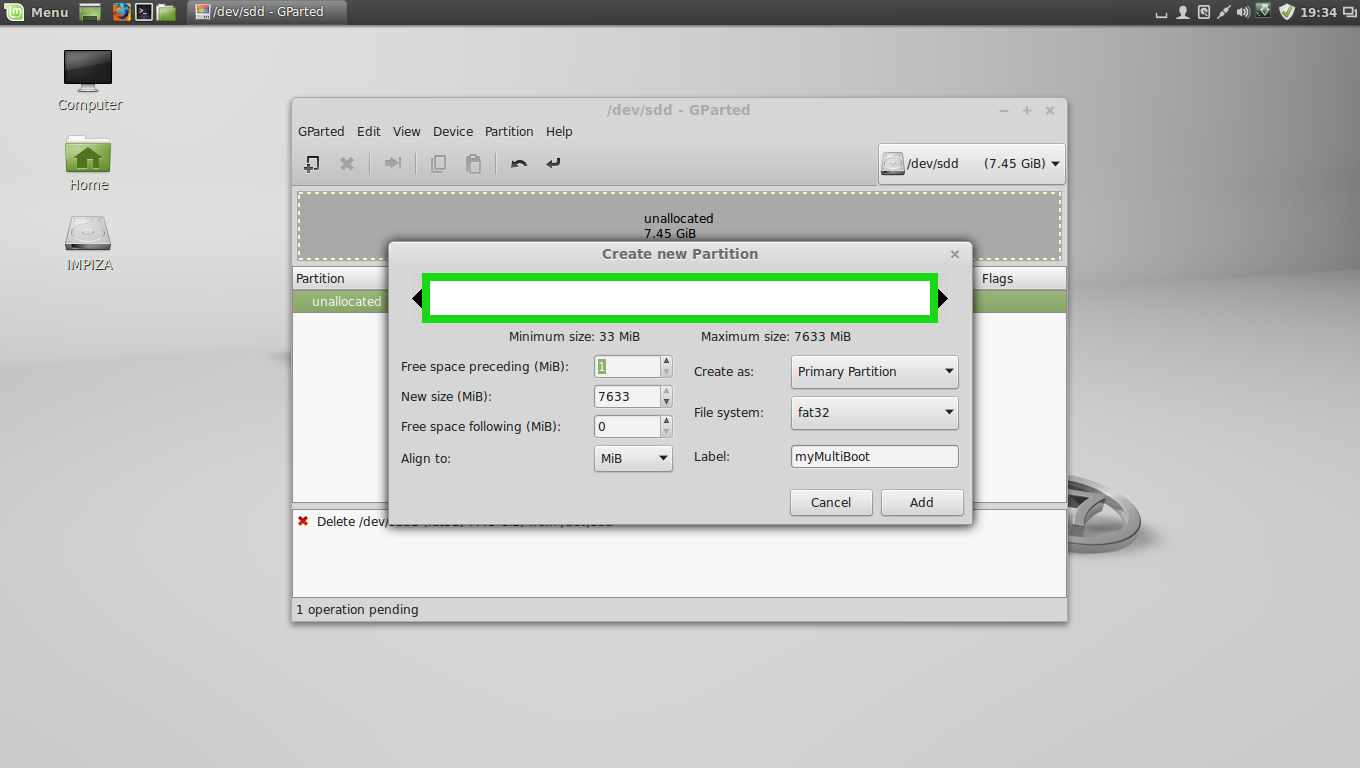
format your pendrive in fat32 format
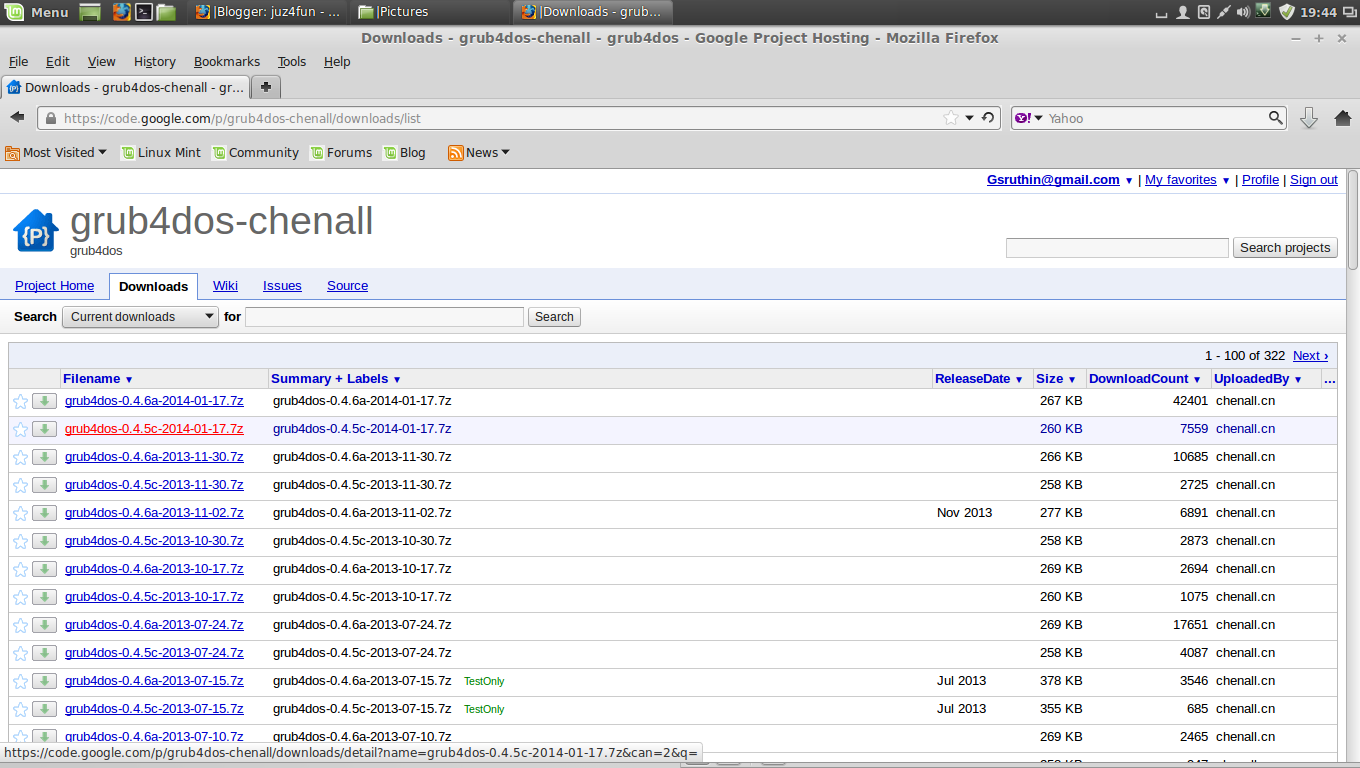
after that download grub4dos-0.4.5c (not grub4dos-0.4.6a)
here is the link https://code.google.com/p/grub4dos-chenall/downloads/list
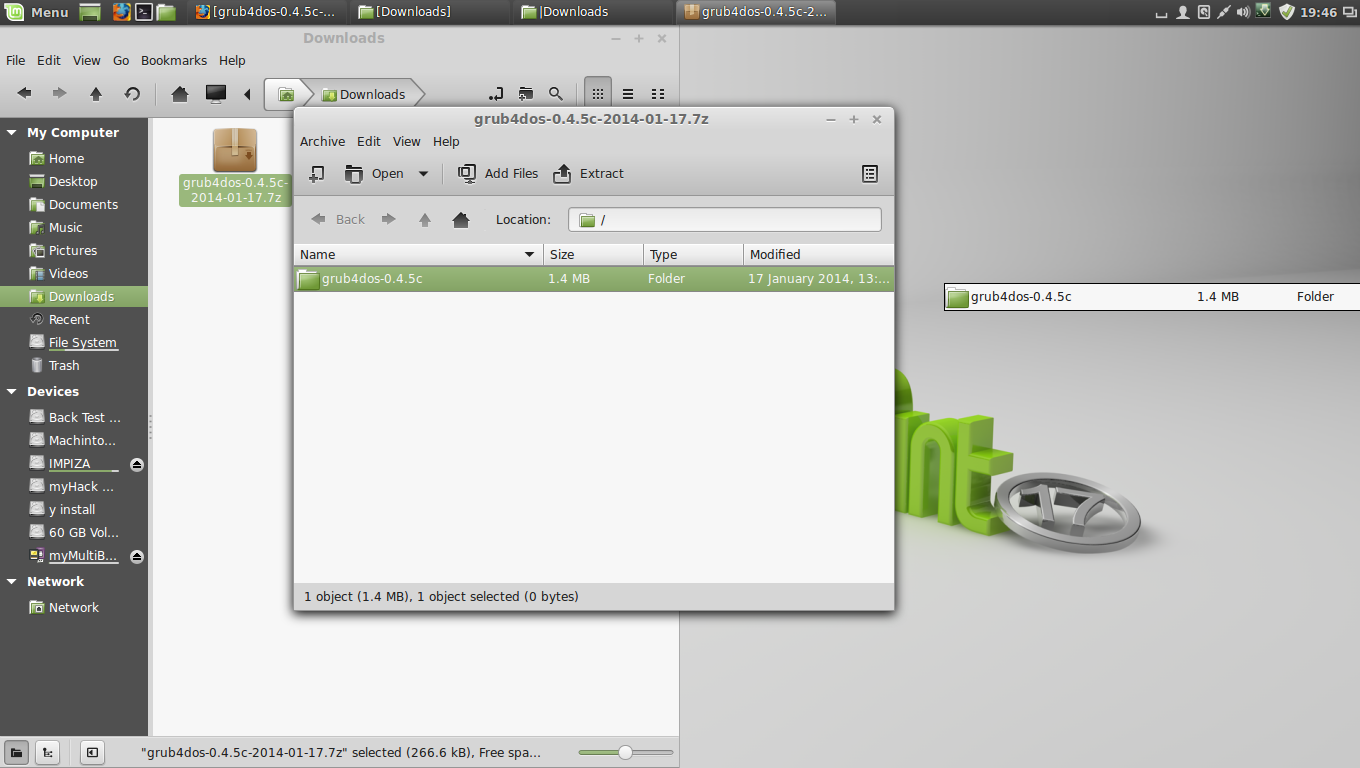
and extract it to the desktop
type following command in terminal
df 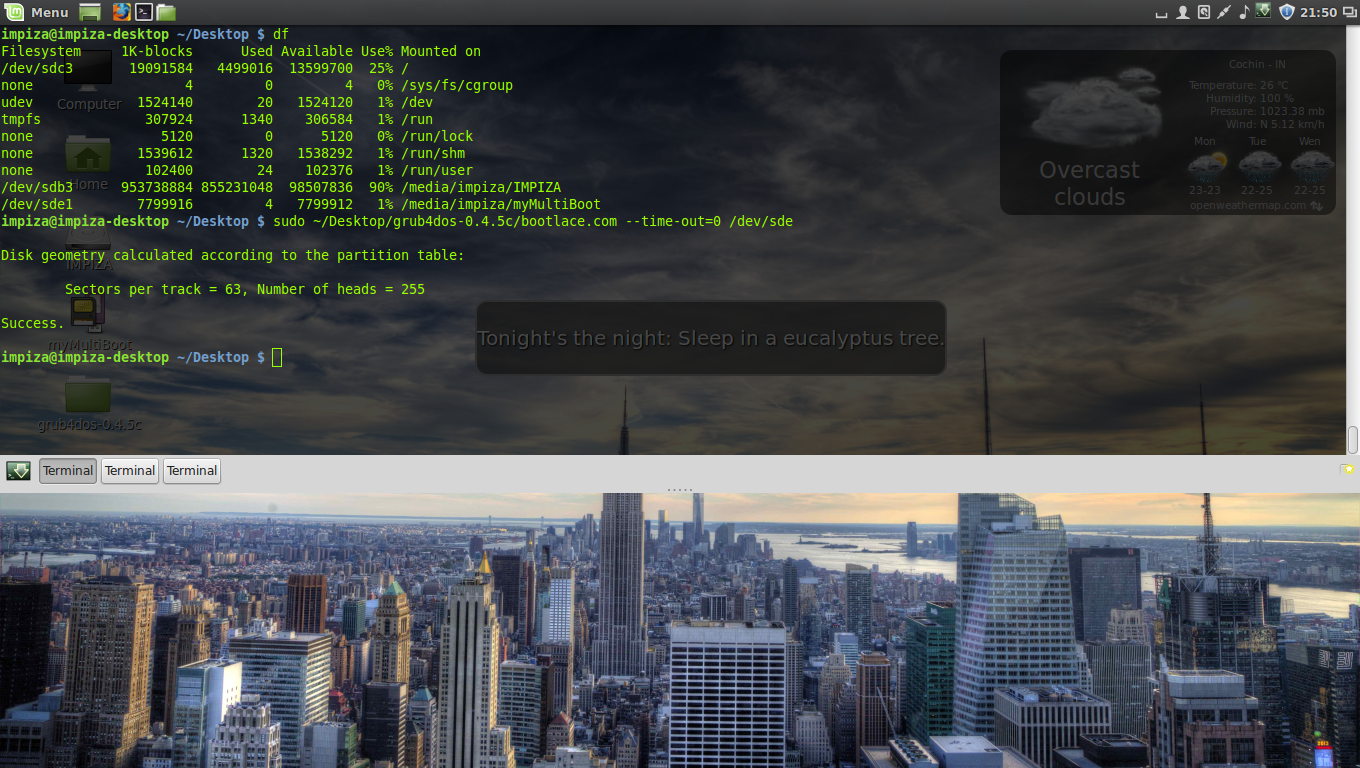
which will give you details about your pendrive and all drives
- from there you can find your filesystem name of pendrive
- in this case its /dev/sde1 but in the following command line we only need to use /dev/sde
then install the grub4dos on the MBR with zero second time-out on your USB Stick,by typing the following command in the terminal
sudo ~/Desktop/grub4dos-0.4.5c/bootlace.com --time-out=0 /dev/sde 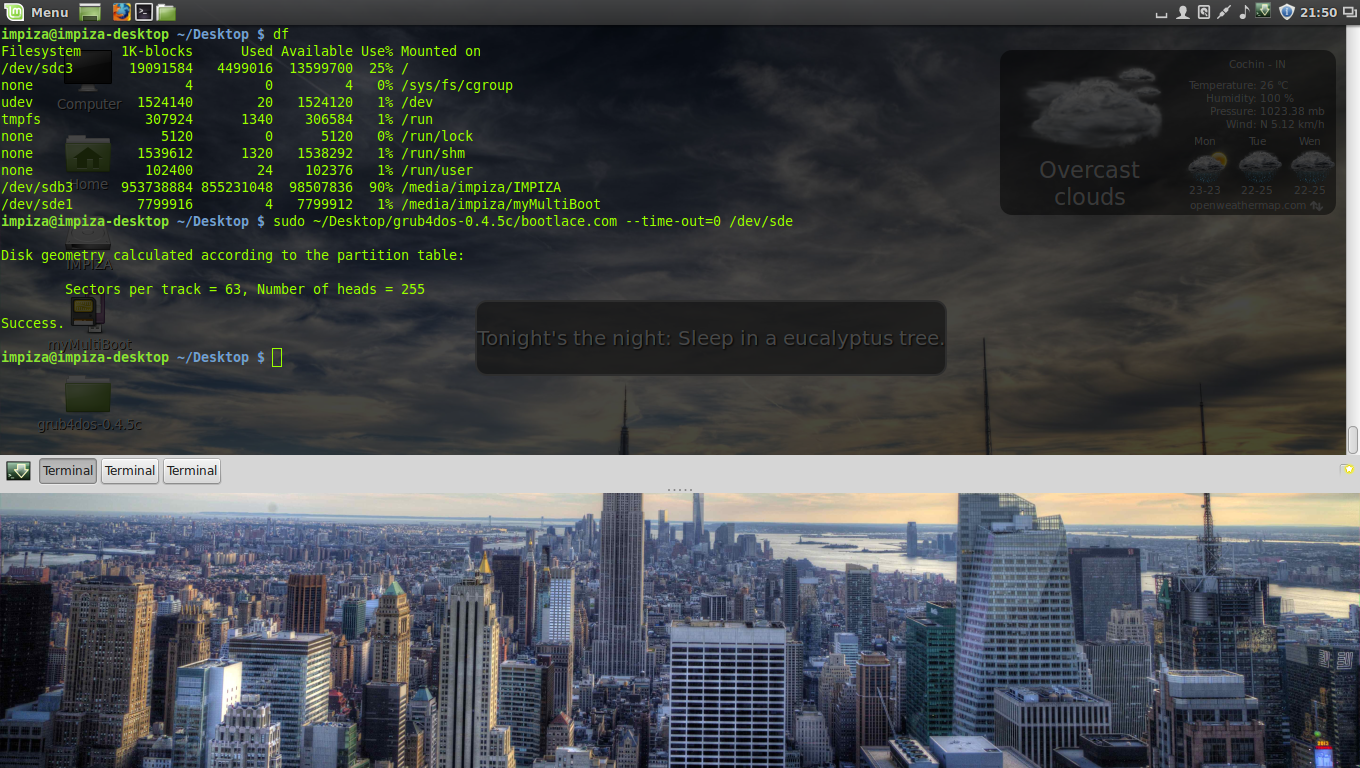
Note: You can change the path to your grub4dos folder. sde is your USB and can be checked by ” df ” command in a terminal or by using the gparted or disk utility tools
Copying Easy2Boot files to USB
your pendrive is ready to boot , but we need menu files, which are necessary to detect the .ISO files in your USB.
go to Easy2Boot website http://www.easy2boot.com/download/
then extract its files to your pendrive
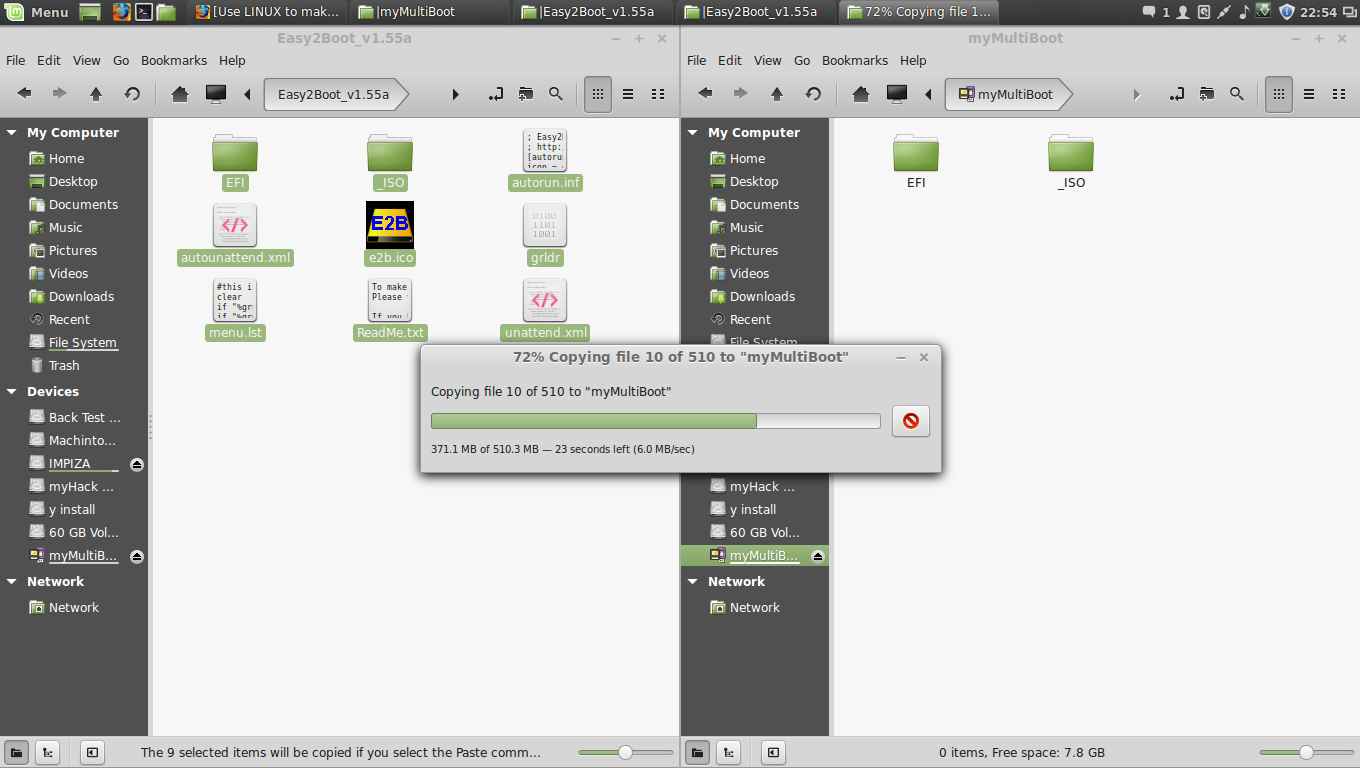
after that you find both windows and linux related ISO folders simply copy your ISO’s to corresponding OS folders
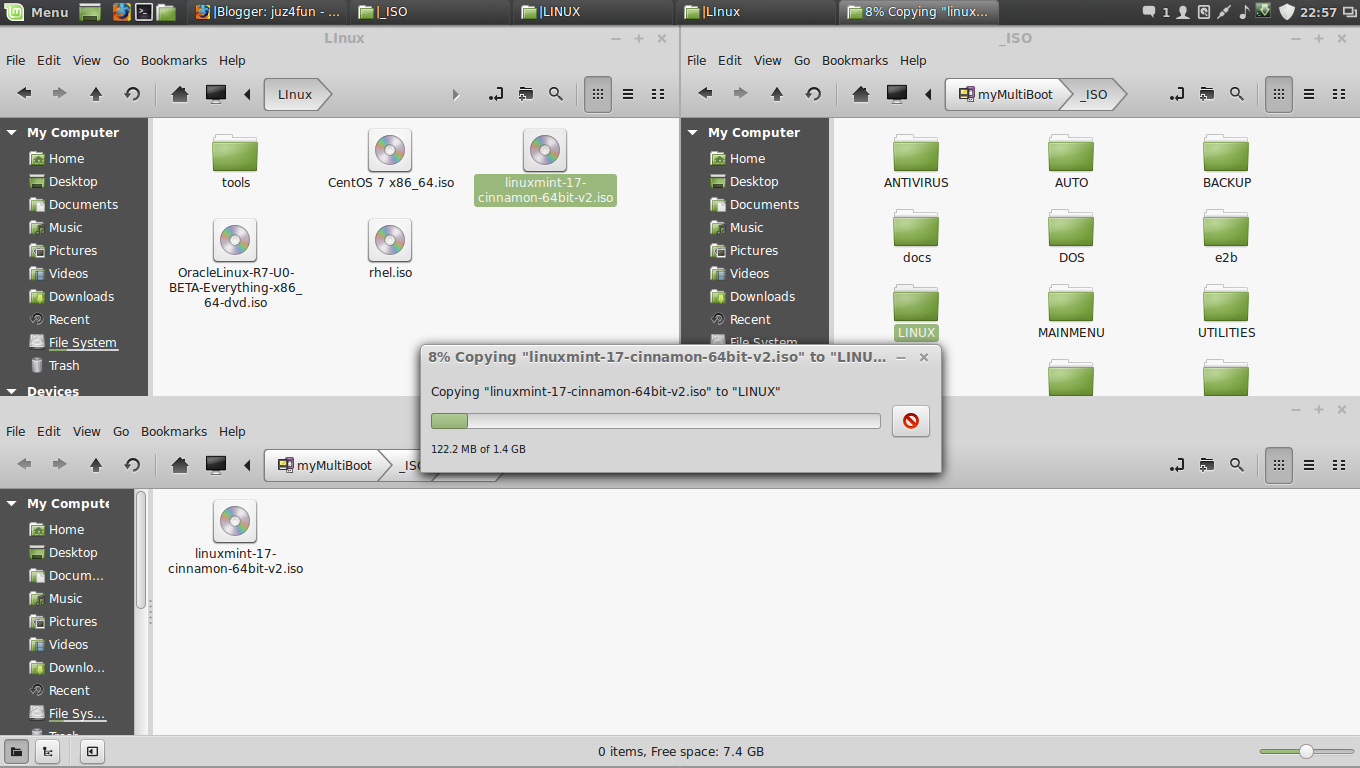

After that adding Windows ISO Files to Windows Version Folderdont just put windows ISO file to _ISO/WINDOWS like _ISO/LINUX because in windows folder there is Version Folders you have to put it there like ” XP,VISTA,WIN7,WIN8,SVR2K8R2,SVR2012 “
after this you need to defragment the folders in the USB drive,To defrag your USB drive, download the defrags-1.1.1.gz file from
http://defragfs.sourceforge.net/download.html
extract it to desktop
then unmount using this command
sudo umount /dev/sdd1/dev/sdd1 (i have reboot pc so its changes from sde to sdd) type in terminal ” df ” to find current one
sdd1 is the partition on my usb which has the E2B files.
sudo mkdir ~/Desktop/usb && sudo mount /dev/sdd1 ~/Desktop/usb sudo perl ~/Desktop/defragfs ~/Desktop/usb -f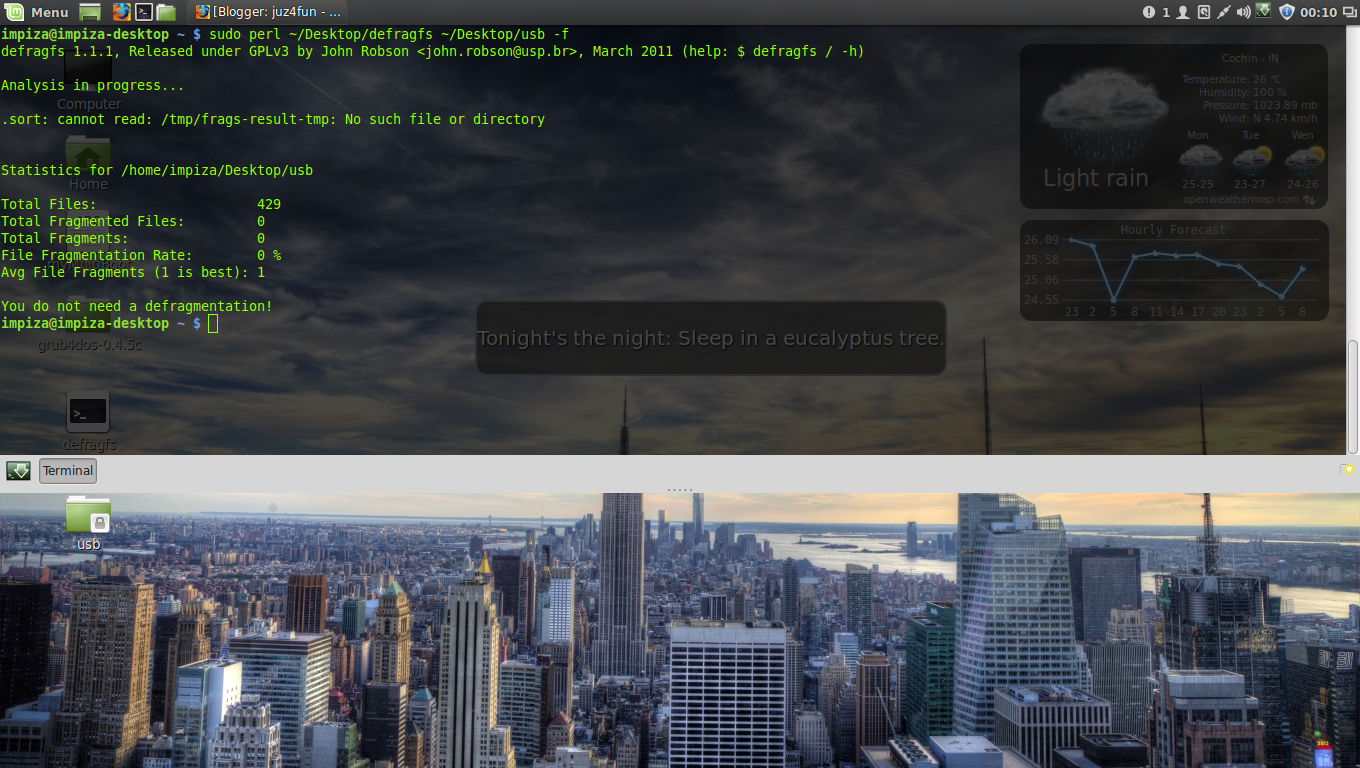
Private Browsing !
Privacy mode or “private browsing“, sometimes informally referred to as “porn mode“, is a term that refers to privacy features in some web browsers. Historically speaking, web browsers store information such as browsing history, images, videos and text within cache. In contrast, privacy mode can be enabled so that the browser does not store this information for selected browsing sessions. This allows a person to browse the Web without storing local data that could be retrieved at a later date. Privacy mode will also disable the storage of data in cookies and Flash cookies. It is of note that this offers virtually no privacy protection beyond the local level. For example, it is still possible to identify frequented websites by associating the IP address with the user on the server end.
History
| Date | Browser | Synonym |
|---|---|---|
| April 29, 2005 | Safari 2.0 | Private Browsing |
| December 11, 2008 | Google Chrome 1.0 | Incognito |
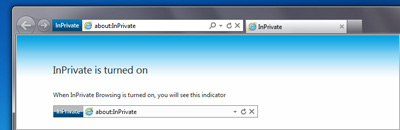
| March 19, 2009 | Internet Explorer 8 | InPrivate Browsing |
| June 30, 2009 | Mozilla Firefox 3.5 | Private Browsing |
| March 2, 2010 | Opera 10.50 | Private Tab / Private Window |
Safari

Whats New
The new advanced features in Safari make it an even better place to explore the web. Safari searches even smarter so you’ll find web pages faster. It shows you all your open tabs in a great new way. Straight from Safari, you can tweet web pages, post them to Facebook, or share them via Mail or Messages. And with even more features, browsing is just the beginning.
privacy
Method
Turn on Private Browsing
- While browsing a webpage using Safari, choose Safari > Private Browsing.
- When you see a confirmation message, click OK. A Private button appears in the address field to indicate that private browsing is on.
To skip the confirmation message, hold down the Option key while you choose Private Browsing.
Turn off Private Browsing
- While browsing a webpage using Safari, choose Safari > Private Browsing (so the checkmark disappears), or click the Private button in the address field.
- Close any Safari windows you used to view private information. If you don’t close the windows, other users can view those pages using the Back and Forward buttons.
- If you downloaded any items from websites, Private Browsing only removes the names of the items you downloaded from the Downloads window. To get rid of the items themselves, delete them from your computer.
If you forget to turn on Private Browsing



Google Chrome , TorchBrowsers , Chromium
Incognito mode (browse in private)
- Webpages that you open and files downloaded while you are incognito aren’t recorded in your browsing and download histories.
- All new cookies are deleted after you close all incognito windows that you’ve opened.
- Changes made to your Google Chrome(Torch,chromium) bookmarks and general settings while in incognito mode are always saved.
Open an incognito window
- Click the Chrome menu
 on the browser toolbar.
 - Select New incognito window.
- A new window will open with the incognito icon
 in the corner. You can continue browsing as normal in the other window.
 on the top right corner.
Internet Explorer

Mozilla Firefox


What does Private Browsing not save?
- Visited pages: No pages will be added to the list of sites in the History menu, the Library window’s history list, or the Awesome Bar address list.
- Form and Search Bar entries: Nothing you enter into text boxes on web pages or theSearch bar will be saved for Form autocomplete.
- Passwords: No new passwords will be saved.
- Download List entries: No files you download will be listed in the Downloads Windowafter you turn off Private Browsing.
- Cookies: Cookies store information about websites you visit such as site preferences, login status, and data used by plugins like Adobe Flash. Cookies can also be used by third parties to track you across websites. For more info about tracking, see How do I turn on the Do-not-track feature?
- Cached Web Content and Offline Web Content and User Data: No temporary Internet files (cached files) or files that websites save for offline use will be saved.
- If you create new Bookmarks while using Private Browsing, they will not be removed when you stop Private Browsing.
- If you save files to your computer while using Private Browsing, they will not be deleted when you stop Private Browsing. However, any files you open in an external application will be cleared from the system’s temporary folder, and none of the files you download will appear in the Downloads list.
How do I open a new Private Window?
Open a new, blank Private Window
- On the menu bar, click the File menu and select New Private Window. A new Private Window will open.

Open a link in a new Private Window
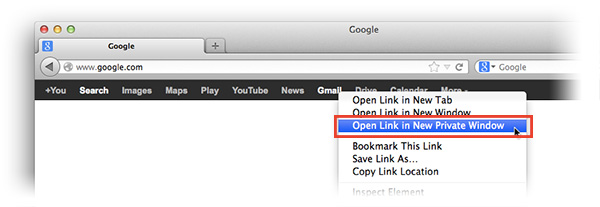
- Hold down the Ctrl key while you click on any link and choose Open Link in New Private Window from the context menu. A new Private Window will open with the link you selected.

How do I always start Firefox in Private Browsing?
- On the menu bar, click on the Firefox menu and select Preferences…
- Select the Privacy panel.
- Set Firefox will: to Never remember history.

- You will see a message that Firefox needs to restart to enable this feature. Click OKand Firefox will restart in permanent Private Browsing mode.

Opera


Create a private tab
Close a private tab
Private windows

Delete private data
Disable or clear data from the password manager
Creating HP Recovery Discs (Windows 7)
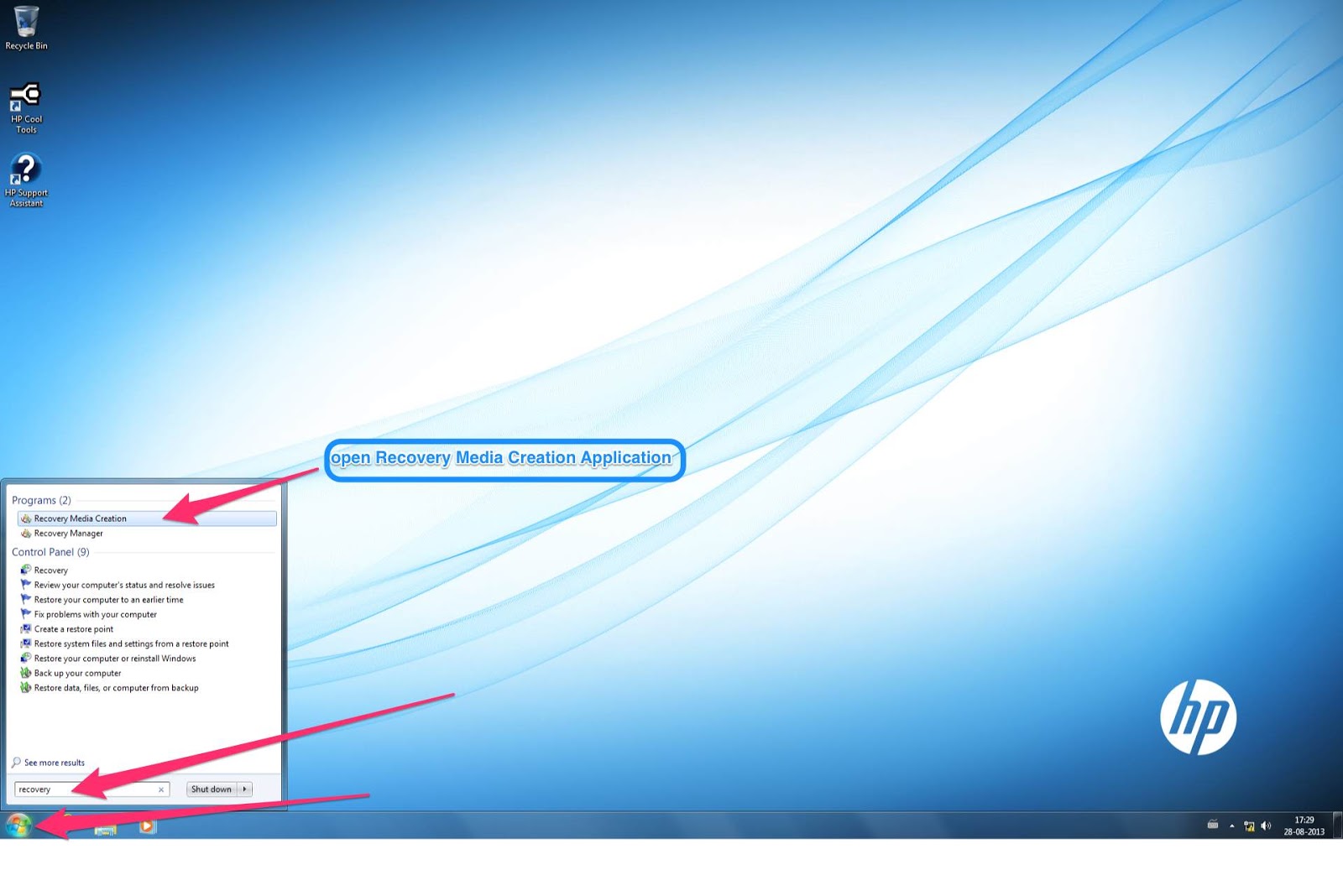
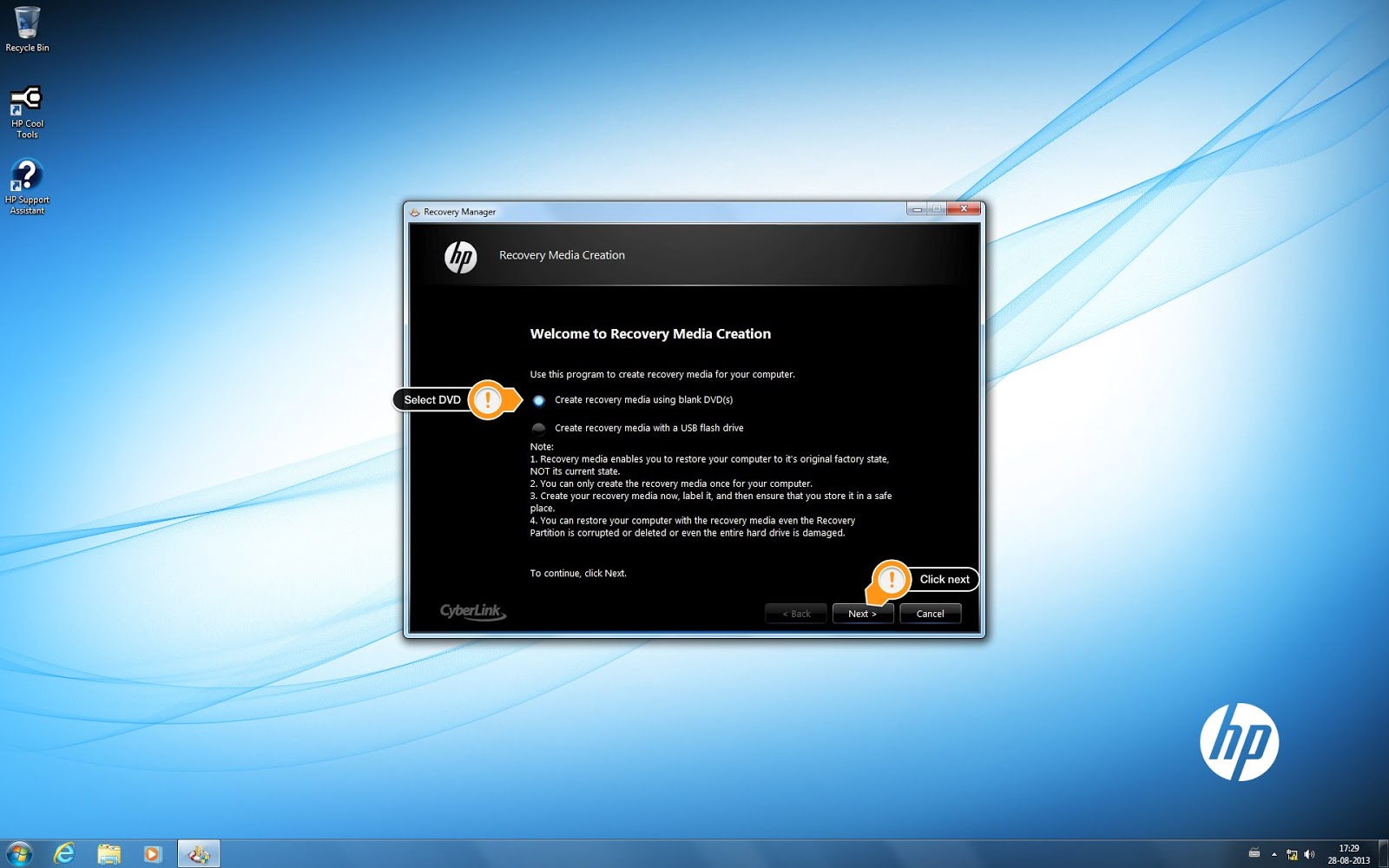

This window shows how many Discs you needed , insert blank dvd and click next

DVD must be DVD-R , You need approximately 4 blank DVD+R discs.(May vary) The Recovery Media Creation software program states how many discs are needed at the beginning of the process.Click next
after completing all 3 process click next

insert next disc

after completing all Discs click next

Congratulations You have Successfully created the recovery media
 NOTE:If Recovery Media Creation or Recovery Disc Creation is not available (grayed out), then a recovery image has already been created. Due to license restrictions, only one set of recovery media can be created. Any new recovery media must be ordered online or obtained using another method.