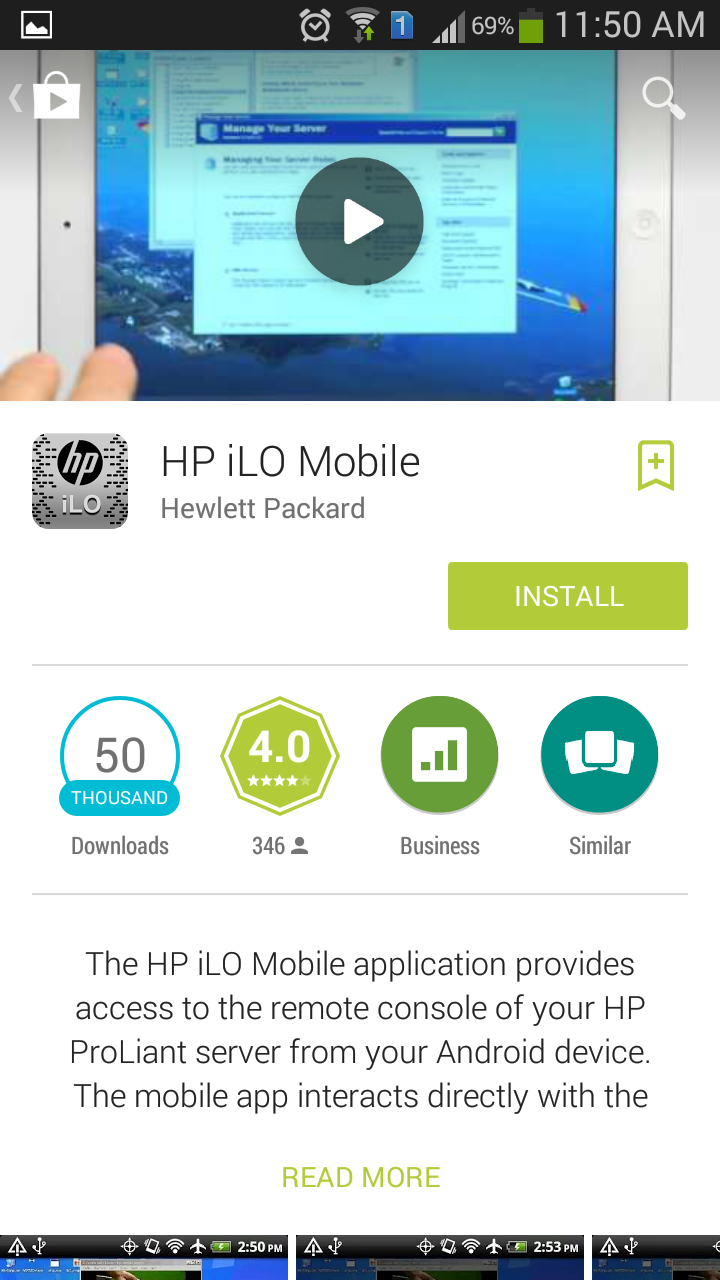
How to Install & configure iLO, HP Integrated Lights Out (iLO) on Android
Supported servers
- HP ProLiant Gen8 Servers
- HP ProLiant G7 Servers
Supported mobile operating systems
- Android 2.2 or greater
- iOS 4.3 or greater
Manage
- Operate the server power switch
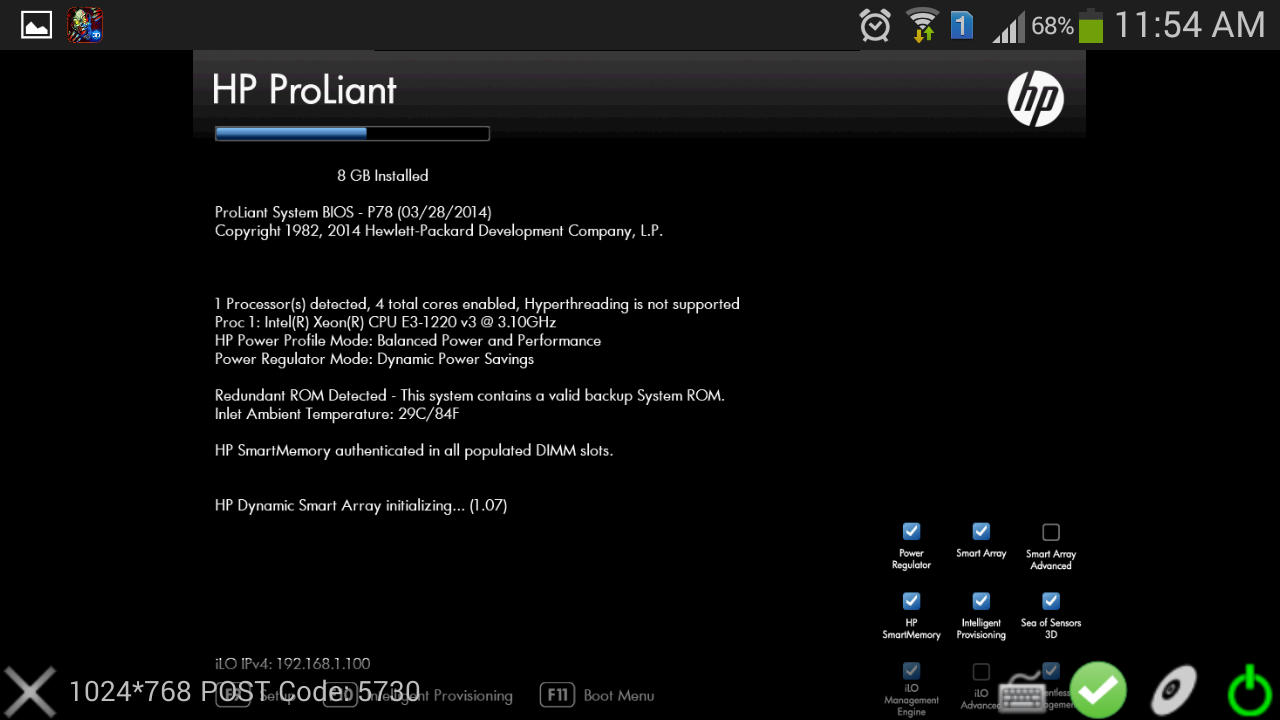
- Use the Remote Console to interact with the operating system, including BIOS and ROM configuration changes
- Mount an ISO CD/DVD image. The disk image is available on the server as a USB CD/DVD drive. You can boot from the disk image and deploy an operating system
- Launch HP iLO scripts and monitor their progress
- Access the iLO web interface
- Store the list of servers you want to manage
- Remote Console
- Lauch Script
- iLO Web Interface
Quick tips
- Show/Hide menu bar – Tap once with two fingers to show or hide the menu bar in the Remote Console
- Show/Hide iLO web interface – Tap the server health icon in the Remote Console to show or hide the iLO web interface
- Ctrl/Alt/Del Command – Tap Ctrl+Alt+backspace to enter the Ctrl+Alt+Del command
Intelligent Provisioning 1.60 breaks 2008 R2 install (will not accept product key during setup)
On HP Proliant ML 310e V2 Gen8 / DL380p Gen8 servers to install 2008R2 /2014R2 using IP 1.60. After the GUI for Windows setup starts, it fails on the autounattend.xml that IP 1.60 generates on the ProductKey.
After the setup fails it drops you back to a command prompt in WinPE
notepad c:autounattend.xml
this will now open up autounattend.xml in notepad
now press ctrl + f and search for the string ProductKey
just below this string insert a new line contains the string “only the tags”
now save the file
then type the command to begin the installation process
x:WindowsHpssbem.exe
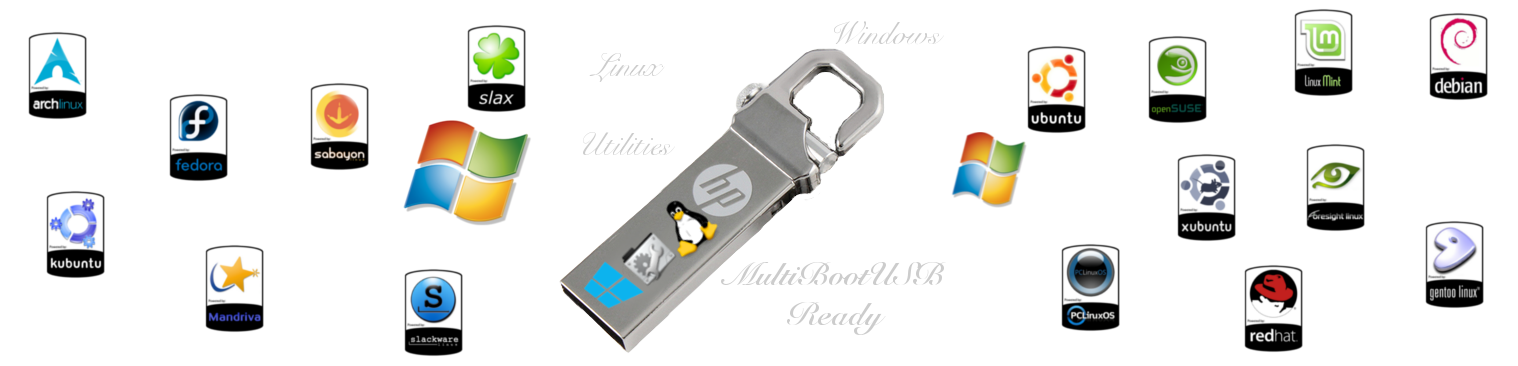
How to make Multiple ISO bootable Pendrive (Windows & Linux same time)
Connect your usb drive to your pc (min 8gb)
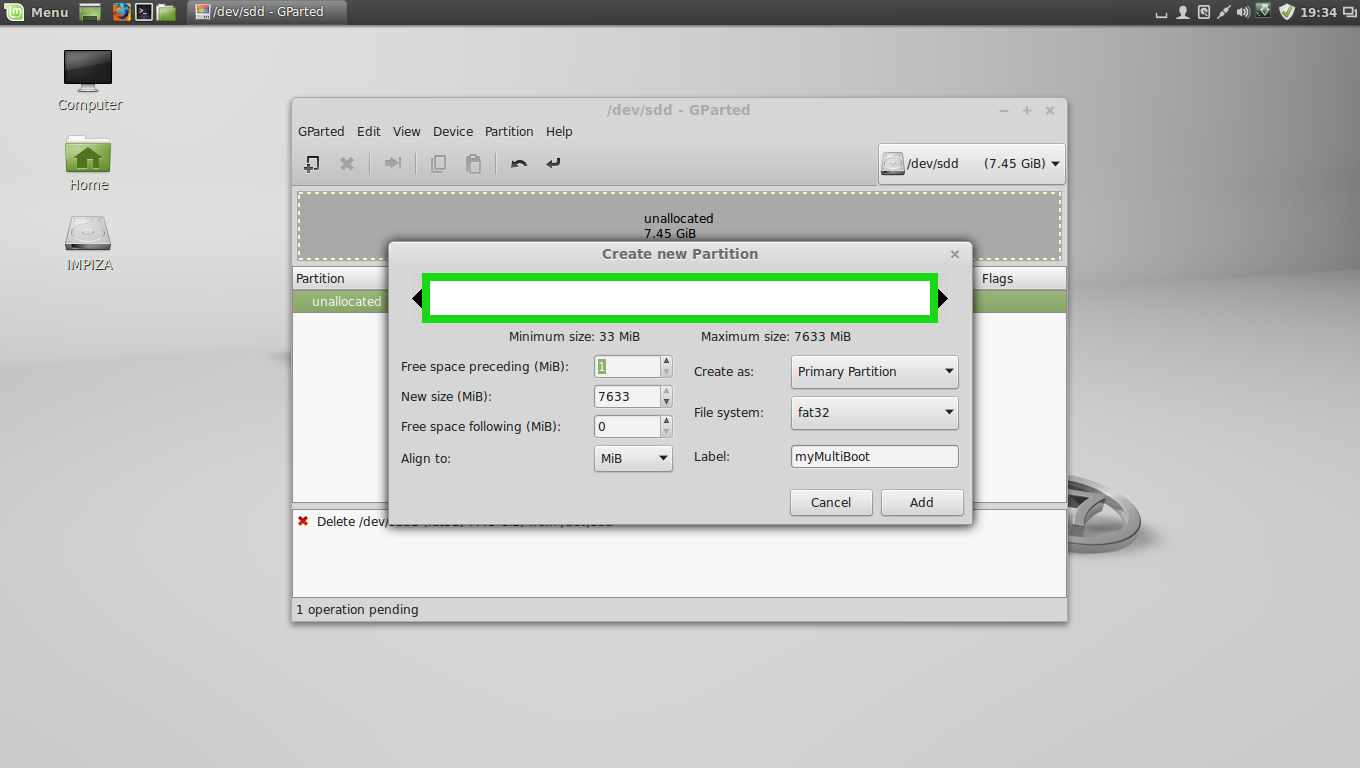
Open up gparted tool in you linux
format your pendrive in fat32 format
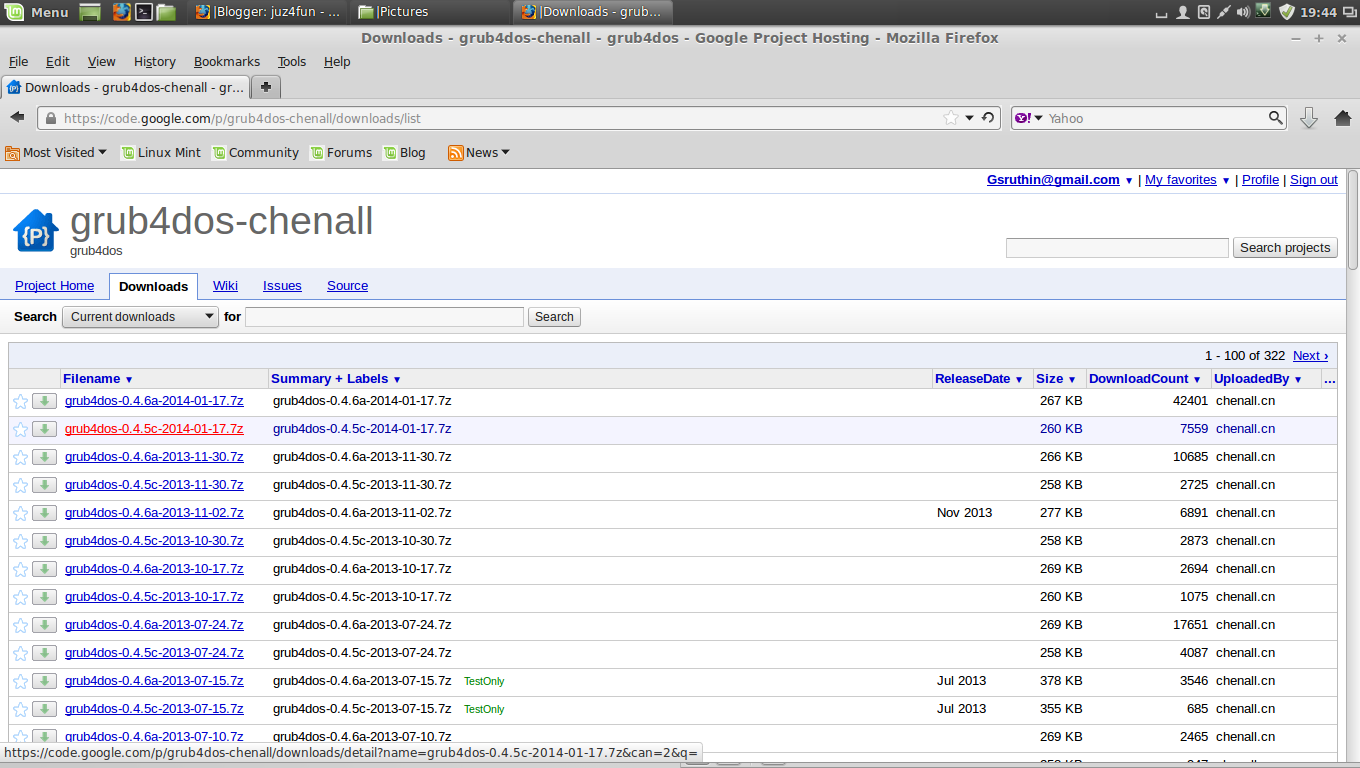
after that download grub4dos-0.4.5c (not grub4dos-0.4.6a)
here is the link https://code.google.com/p/grub4dos-chenall/downloads/list
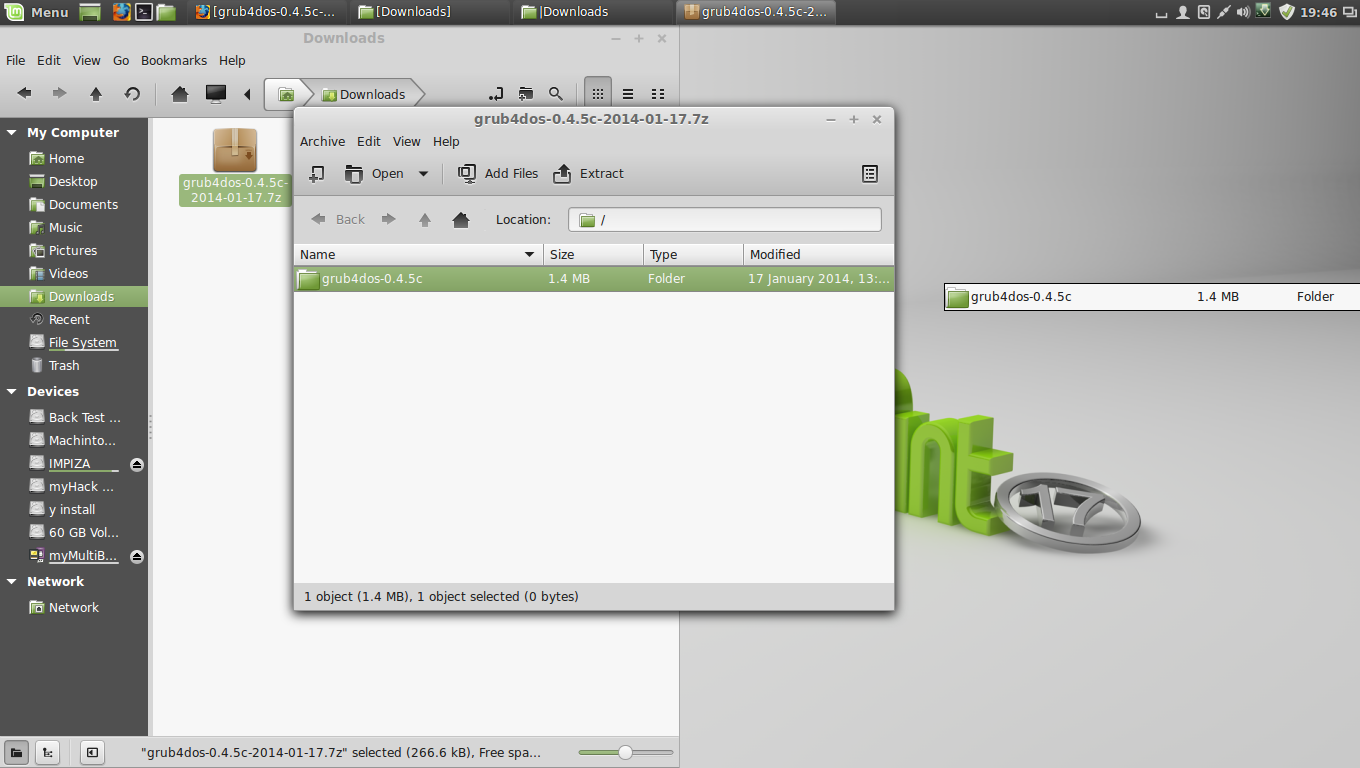
and extract it to the desktop
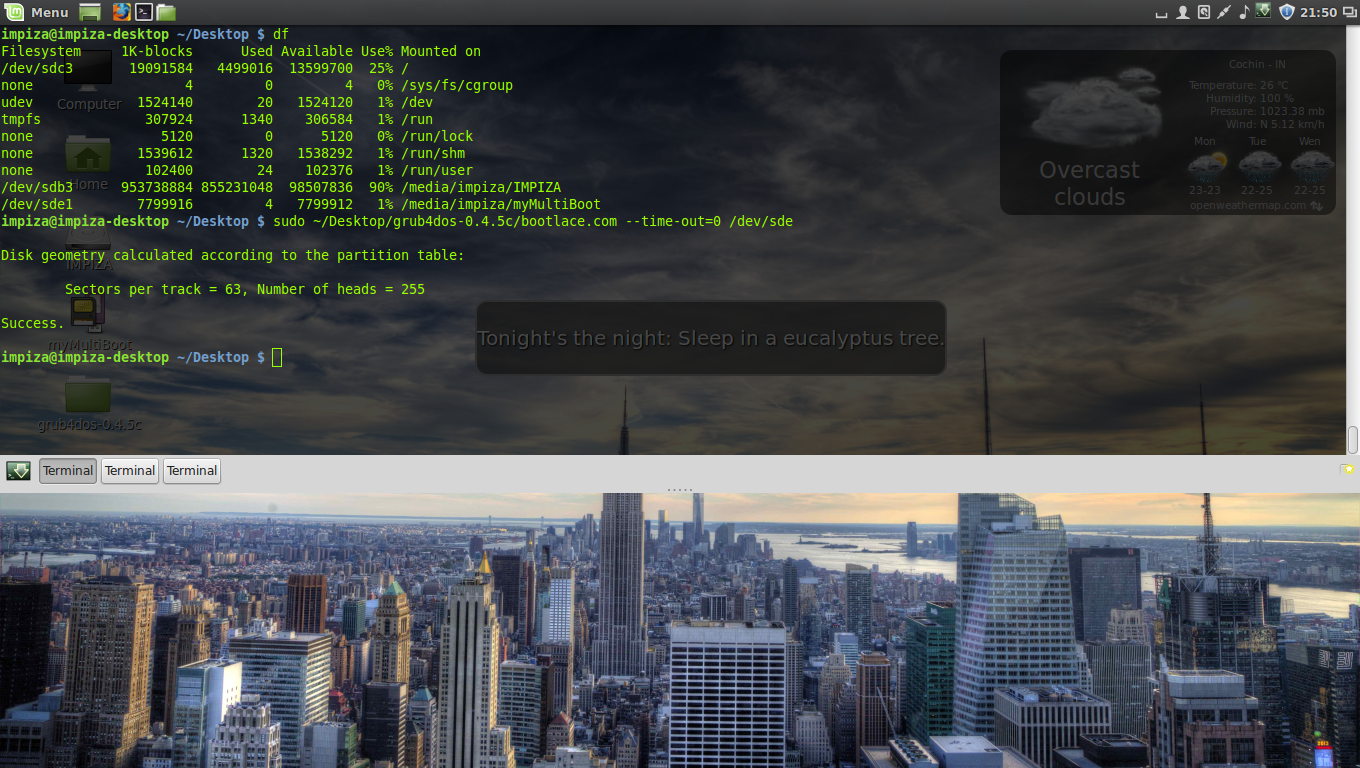
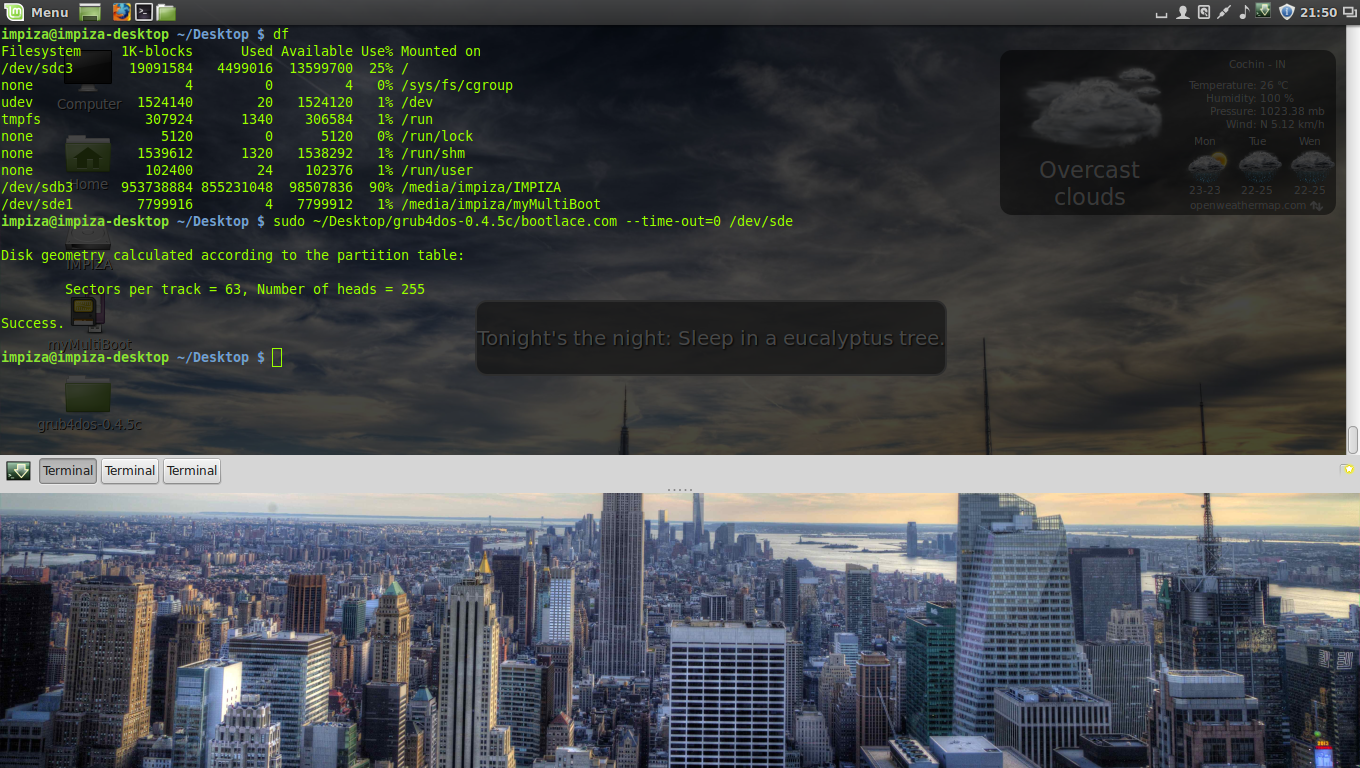
type following command in terminal
df

which will give you details about your pendrive and all drives
- from there you can find your filesystem name of pendrive
- in this case its /dev/sde1 but in the following command line we only need to use /dev/sde
then install the grub4dos on the MBR with zero second time-out on your USB Stick,by typing the following command in the terminal
sudo ~/Desktop/grub4dos-0.4.5c/bootlace.com --time-out=0 /dev/sde
Note: You can change the path to your grub4dos folder. sde is your USB and can be checked by ” df ” command in a terminal or by using the gparted or disk utility tools
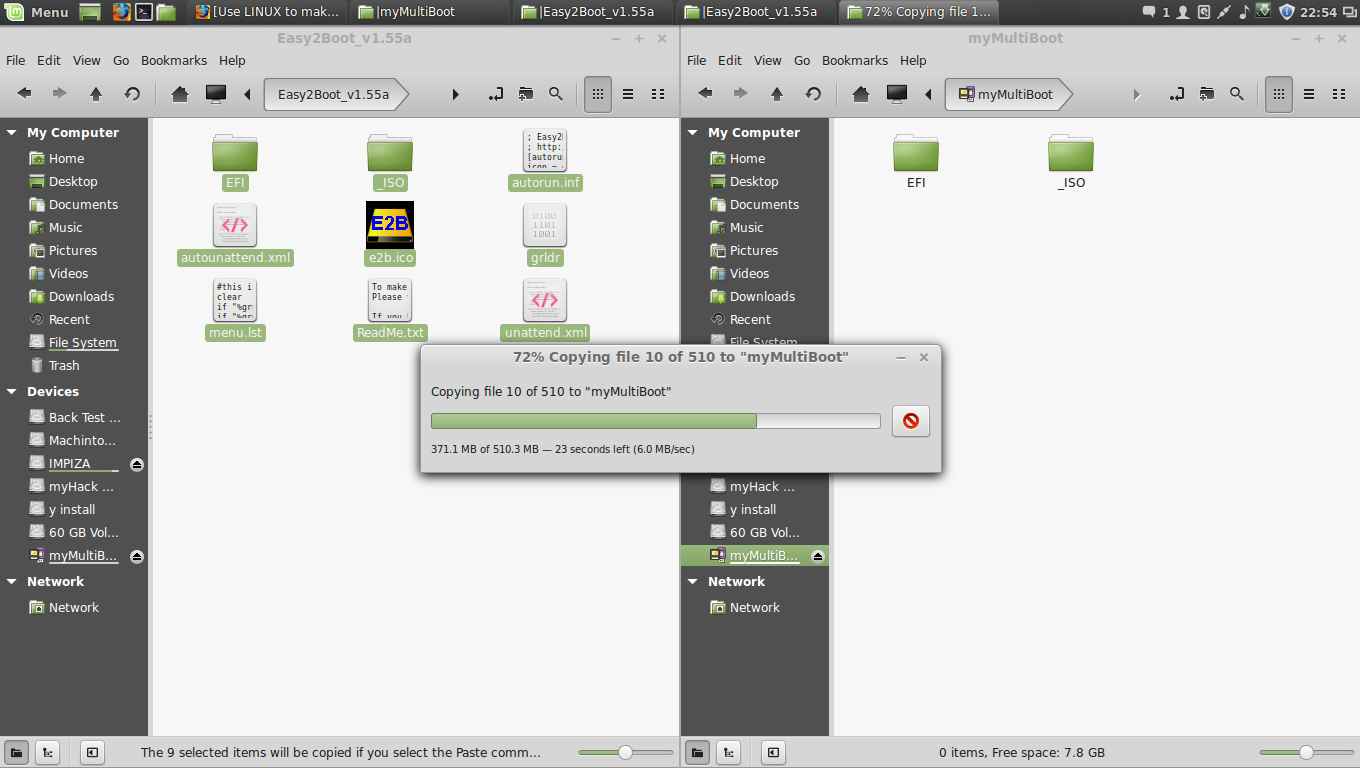
Copying Easy2Boot files to USB
your pendrive is ready to boot , but we need menu files, which are necessary to detect the .ISO files in your USB.
go to Easy2Boot website http://www.easy2boot.com/download/
then extract its files to your pendrive
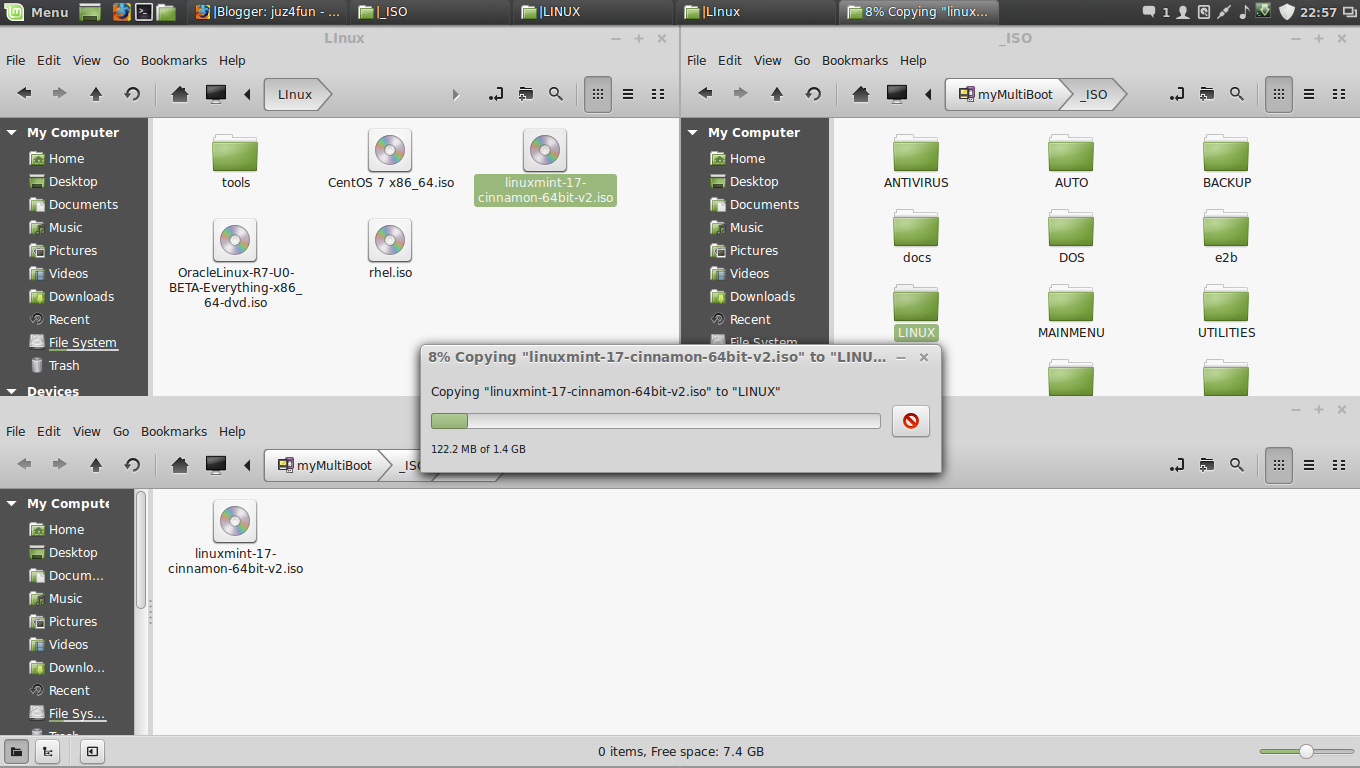
after that you find both windows and linux related ISO folders simply copy your ISO’s to corresponding OS folders
After that adding Windows ISO Files to Windows Version Folderdont just put windows ISO file to _ISO/WINDOWS like _ISO/LINUX because in windows folder there is Version Folders you have to put it there like ” XP,VISTA,WIN7,WIN8,SVR2K8R2,SVR2012 “
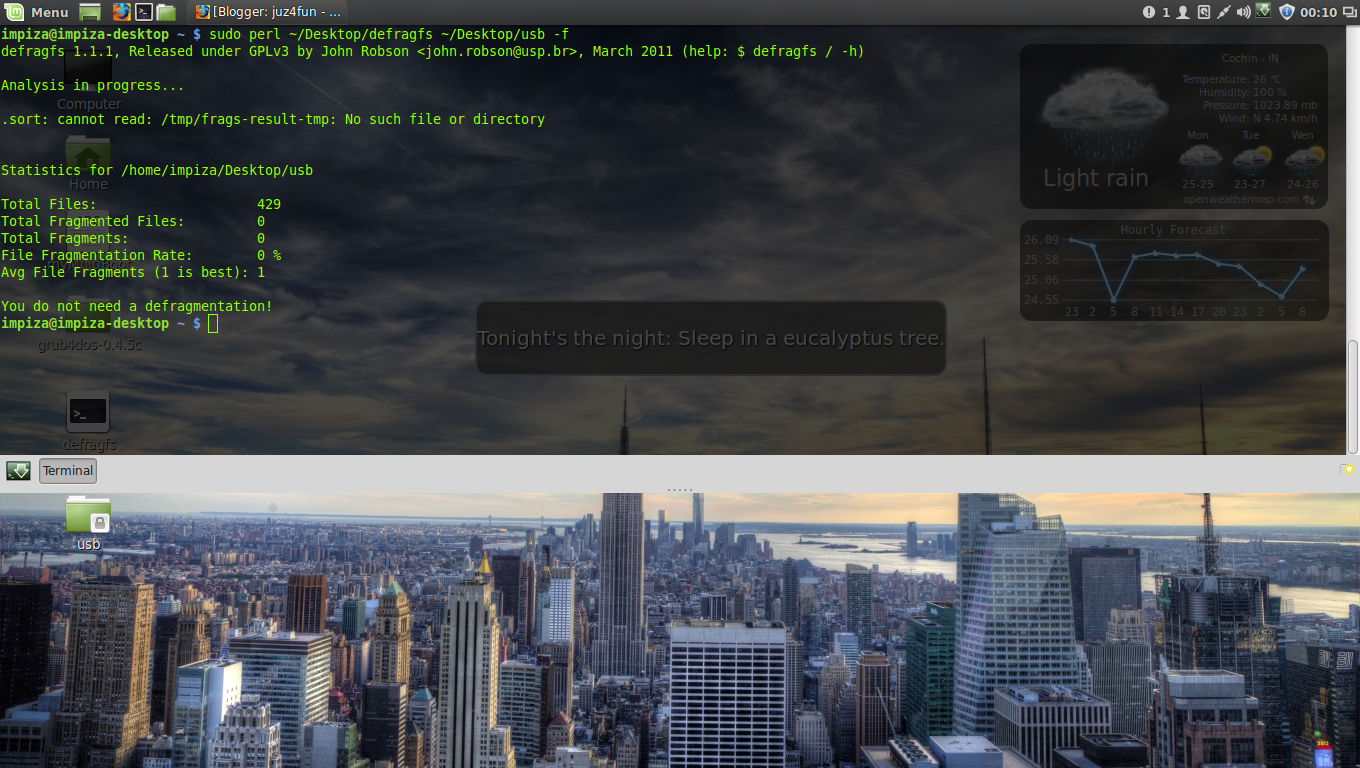
after this you need to defragment the folders in the USB drive,To defrag your USB drive, download the defrags-1.1.1.gz file from
http://defragfs.sourceforge.net/download.html
extract it to desktop
then unmount using this command
sudo umount /dev/sdd1
/dev/sdd1 (i have reboot pc so its changes from sde to sdd) type in terminal ” df ” to find current one
sdd1 is the partition on my usb which has the E2B files.
sudo mkdir ~/Desktop/usb && sudo mount /dev/sdd1 ~/Desktop/usb
sudo perl ~/Desktop/defragfs ~/Desktop/usb -f

Swap space for Linux
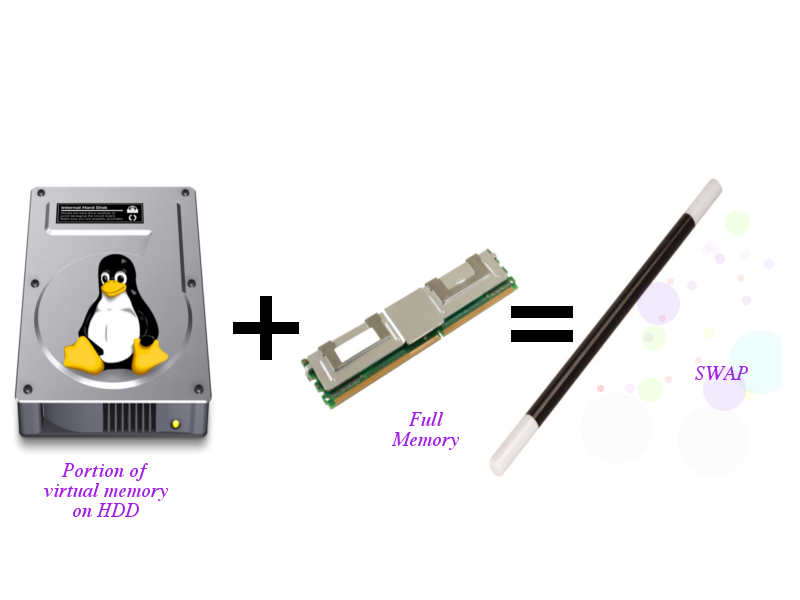
What is Swap?
How much is really needed ?
Linux divides its physical memory (RAM) into chunks called pages. Swapping is the process whereby pages get transferred to a preconfigured hard disk area. The quantum of swap space is determined during the Linux installation process. This article is all about swap space, and explains the term in detail so that newbies don’t find it a problem choosing the right amount of it when installing linux
Swapping is required for two reasons:
- When more memory than is available in physical memory (RAM) is required by the system, the kernel swaps less used pages and gives the system enough memory to the run the application smoothly.
- Certain pages are required by the application only at the time of initialisation and never again. such files are transferred to the swap space as soon as the application access these pages.
Amount of swap space depends on the kind of application you run and kind of user you are
The following rules can effectively help to improve Linux’s performance on your system
For Normal Servers:
- Swap space should be equal to RAM size if RAM size is less than 2 Gb
- Swap space should be equal to 2 Gb if RAM size is greater than 2 Gb . ,
For heavy duty servers with fast storage requirements:
- Swap space should be equal to RAM size if RAM size is less than 8 Gb
- Swap space should be equal to 0.5 times the size of the RAM if the RAM size is greater than 8 Gb
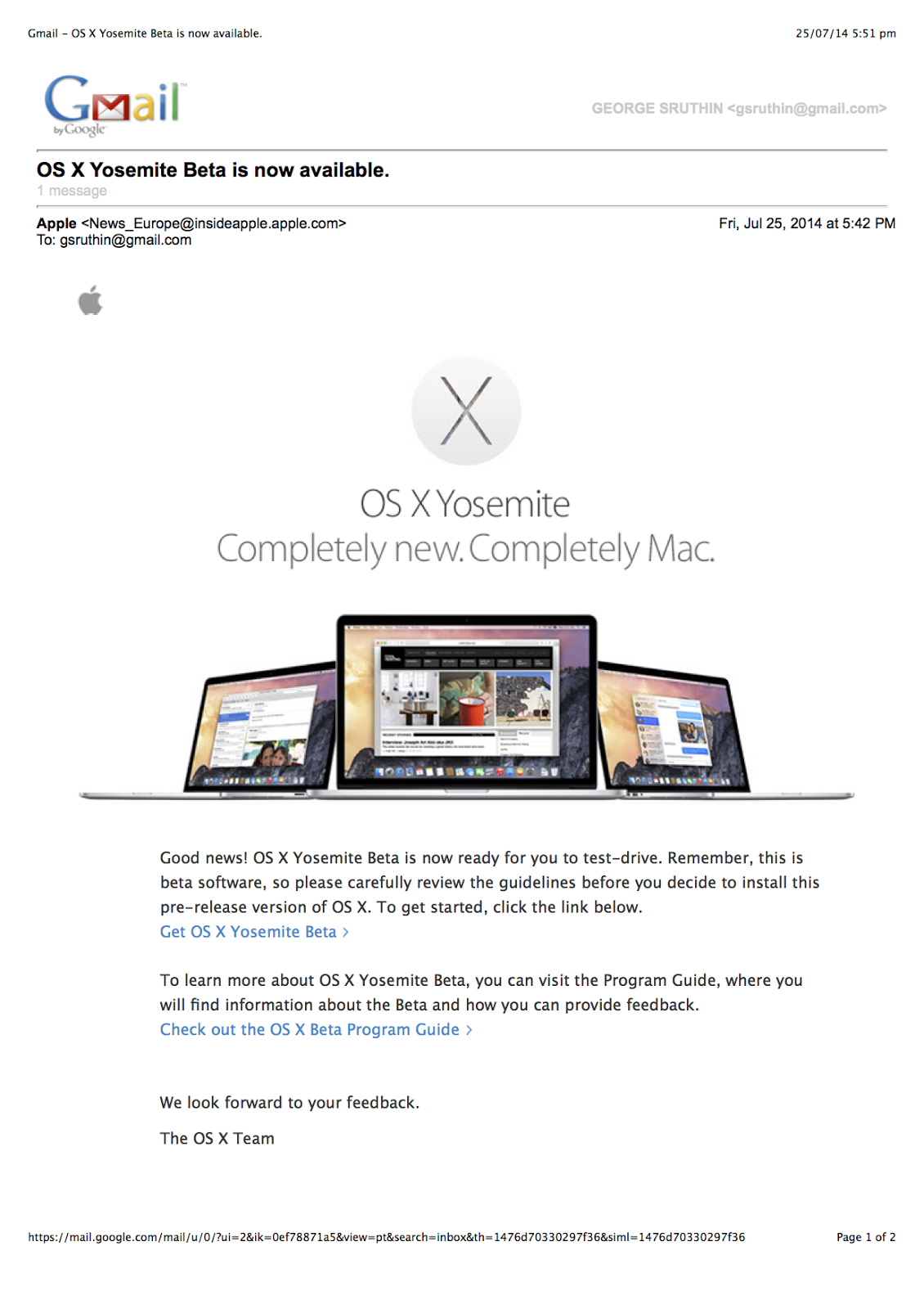
OS X Yosemite Beta is Released
Requirement
Make sure your Mac can run
OS X Yosemite Beta.
- OS X Mavericks 10.9 or later installed
- At least 2GB of memory
- At least 8GB of availble disk space
Back up your Mac.
and files before installing beta versions of OS X. If you have another Mac, we
recommend installing OS X Yosemite Beta on your secondary computer.
Backing up files on a Mac is easy with Time Machine, the built-in backup utility
in OS X.
Download and install OS X Yosemite Beta.
Store will open with your redemption code already entered. In the Mac App Store
click the Redeem button to start your download and follow the on screen instructions.
- Things you should know before installing OS X Yosemite Beta:
- This is beta software that is still in development, which means some applications
and services may not work as expected.
- We recommend installing OS X Yosemite Beta on a secondary Mac. For important information about resetting your Mac to OS X Mavericks, click here.
- Important note: Enabling iCloud Drive during setup will disable iCloud Documents and Data for all your existing devices. Learn More
Click on Download OS X Yosemite Beta
OS X Yosemite Beta starts downloading Click Launchpad to view status
it will look like this