Select Page

How to create USB Bootable Pendrive to update Bios

Hi friends here i am going to show you how to make a USB Bootable Pendrive to UPDATE BIOS

*  i am using HP Bios files for this tutorial

Things you need ! 

  • a Pendrive 
  • Windows 98 Boot Files  => Here is the link : Click to download
  • HP USB Disk Format Tool  =>  Here is the link : Click to download
  • Bios Files 
  • a PC with Windows OS 
Here we go ………
  1. Connect your pendrive to your pc 
  2. Download your files (above mentioned )
  3. Extract all file to Desktop 
  4. Install HP USB Disk Format Tool V2.1.8 (Right Click and RUN as admin to install or run program)
  5. after installing run program as RUN as Administrator 
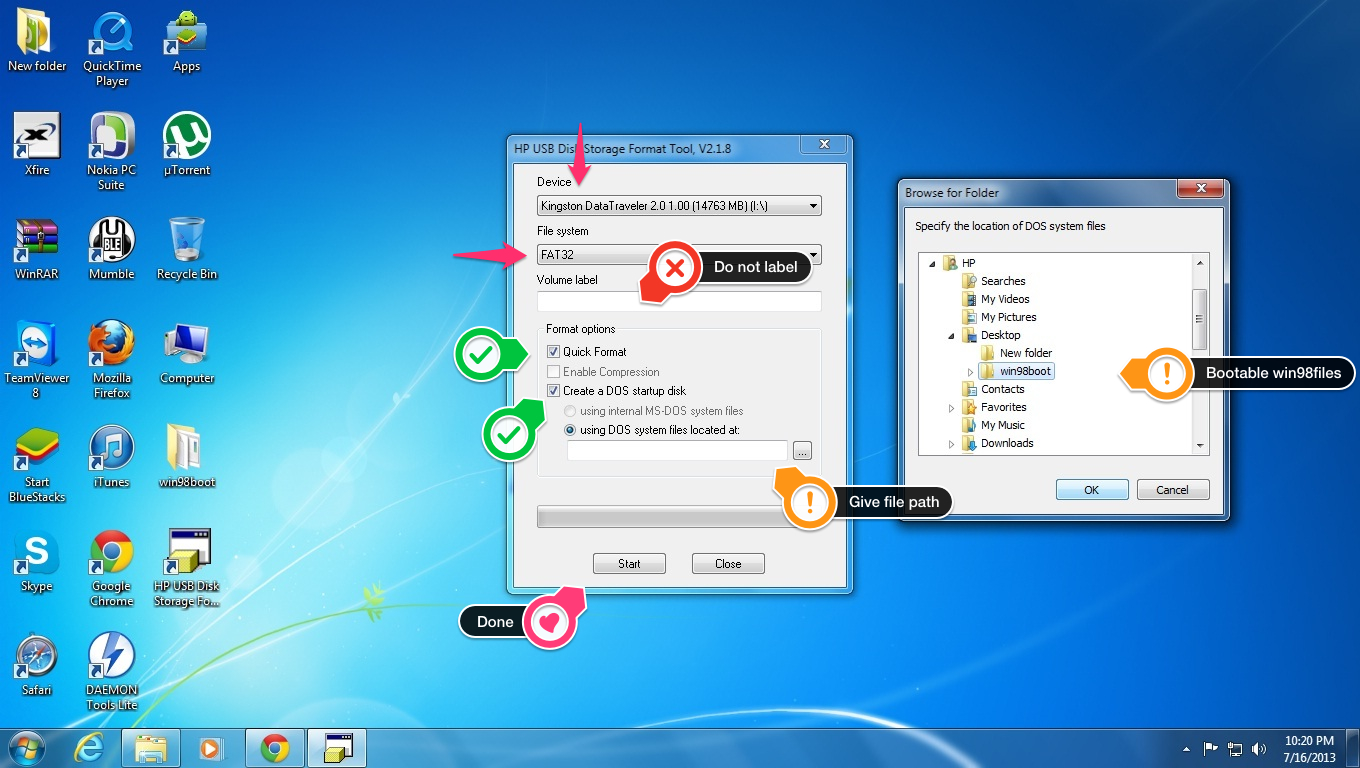
  6. confirm you have selected right pendrive in application 
  7. select format as FAT32
  8. Do NOT label 
  9. tick Quick format 
  10. tick Create a DOS system files located at:  
  11. now show path where you have extracted win98boot files “show folder”
  12. now click ok 
  13. then start
  14. now a warning message will pop up CLICK YES 
  15. after formatting  click ok and close application 
  16. now you cant see any files in your pendrive but its bootable 
  17. now copy BIOS file to your pendrive (in HP it is named as DOS Flash folder)
  18. connect your pendrive to PC which you need to UPDATE BIOS 
  19. restart it 
  20. select boot priority to usb device 
  21. done 🙂

using this method you can update your BIOS or update microcode error ! thanks for visit

HP Notebook PCs – WWAN Module Remains Off After Upgrading to Windows 8

WLAN Card  remains off, after upgrading to windows 8 ?


Description ! 

Wireless Wide Area Network is in off state after upgrading the computer to Windows 8.  !


Solution ! 

 Simply load the BIOS defaults and it should take care of the issue.  !


Information in this document applies to the following:
Systems:
  • HP EliteBook 2170p Notebook PC
  • HP EliteBook 2560p Notebook PC
  • HP EliteBook 2760p Tablet PC
  • HP EliteBook 8460p Notebook PC
  • HP EliteBook 8460w Mobile Workstation
  • HP EliteBook 8470p Notebook PC
  • HP EliteBook 8560p Notebook PC
  • HP EliteBook 8560w Mobile Workstation
  • HP EliteBook 8570p Notebook PC
  • HP EliteBook 8570w Mobile Workstation
  • HP EliteBook 8760w Mobile Workstation
  • HP EliteBook 8770w Mobile Workstation
  • HP EliteBook Folio 9470m Notebook PC
  • HP ProBook 2570p Notebook PC
  • HP ProBook 6460b Notebook PC
  • HP ProBook 6470b Notebook PC
  • HP ProBook 6560b Notebook PC
  • HP ProBook 6570b Notebook PC
Resolution

Follow the steps provided to resolve this issue.

  1. Start the computer.
  2. Press the F10 key to enter the BIOS setup
  3. Select Restore Defaults
  4. Under Load Defaults , Select Yes . 
  5. Choose Save Changes and Exit .
  6. Under Save Changes and Exit , Choose Yes .

How to add start button to Windows 8

Bored with Windows 8 Metro style start menu ?
want to add Windows xp , 7 like Start menu in Win 8
install classic shell to get your START button Back on Windows 8 OS

open up this url in your browser http://www.classicshell.net/

download and install latest files then 

after installing go to start button, right click ..  select “settings” on the pop-up form, select “all settings”


done ! 


different styles 


Windows classic style
Windows XP style 

Windows 7 Style 

This website also provide Windows 7 Classic explorer styles 


System Requirements


Classic Shell works on Windows Vista , Windows 7 , Windows 8 , Windows Server 2008, Windows Server 2008 R2 , and Windows Server 2012 , Both 32 and 64 Bit Versions are supported (the same installer works for both)


enjoy 🙂

How to see passwords in Browser

     How to see passwords in Browser ?


yep you can see your or your friends password while typing or see saved password ! 

how ? 


i will add my video about this tutorial 

here i am posting my new tutorial about how to see password in safari , old one doesn’t have that info

Thanks for watching my tutorial , plz give your valuable comments and suggestions, share in your social media sites , and Click some ads ;D


Thanking you all in anticipation ! 

How to make Windows 8 usb bootable


What you needed ?

  1. an ISO image of windows 8 (Windows 7 also works with this method)or DVD media
  2. 8Gb Pendrive (depends on iso size if less than 4 gb you need 4 gb Pendrive )  
  3. Windows 7 or Windows 8 installed PC 
  4. Daemon tool or Winrar to mount iso image (here i an using Daemon tool)
  5.   

    +


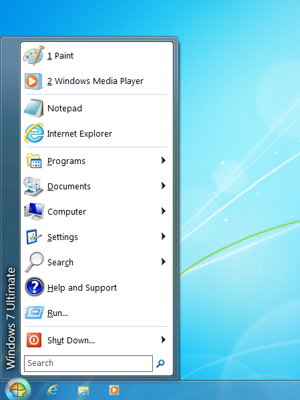
First click on start button and type cmd then select cmd from search result and right click then open it as administrator

it will ask you for permission click yes 

then you can see command prompt 

connect your pendrive to your pc 

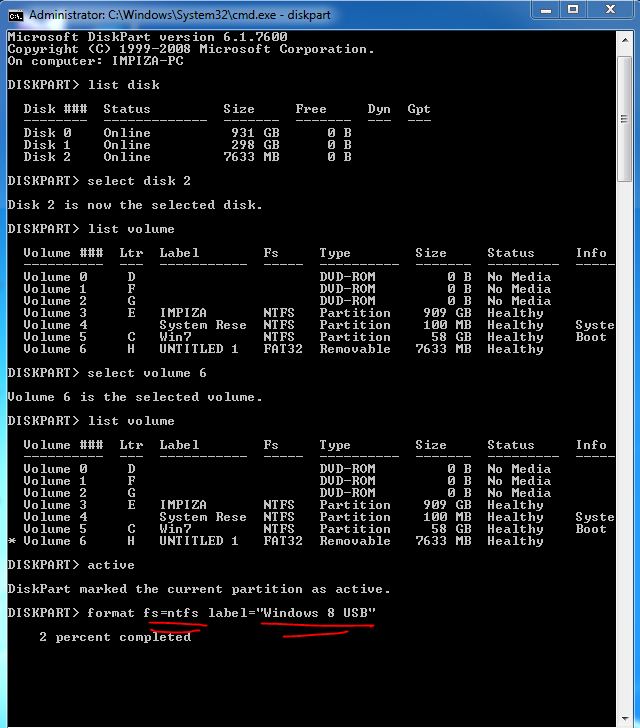
now type in the command prompt 

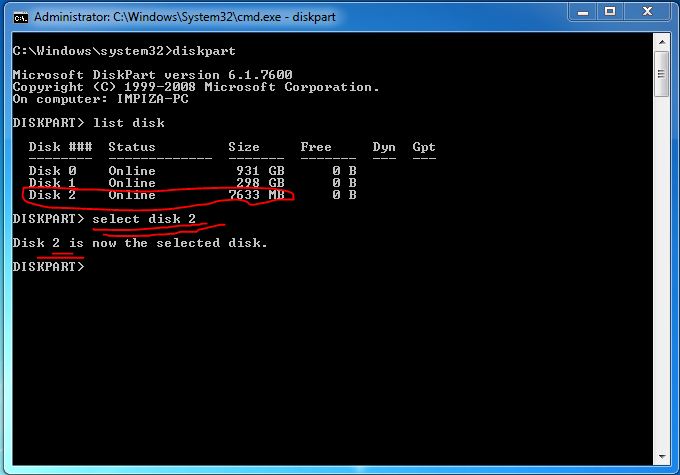
 diskpart

now it will load a system program called disk part 

then type 

 list disk 

now it will show you all partitions in pc including pendrive 
then select pendrive with its number by typing 

 select disk  ( your pendrive number here )

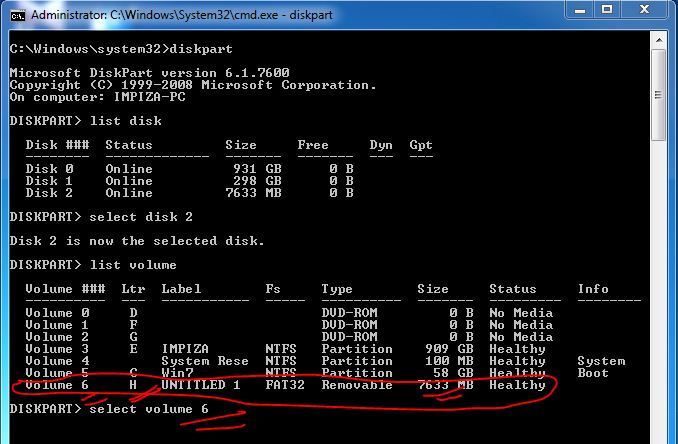
now type 

 list volume

then select your pendrive volume with your volume number like this 
  select  volume (your volume number here)

now type 

 active

then type 

  format fs=ntfs label="Windows 8 USB"
OR

type 
 format fs=ntfs label="Windows 8 USB" quick 
for quick format 
some times quick format does not works thats why i have used normal format 

*Note 
here format =  is command for format

fs= which  file format to select like ntfs , fat etc 

label = drive name 
this will take few more times to complete 
its completed 

now type 
 assign

*NOTE 

assign is a command used for give Drive letter to a partition with out giving assign ! you cant mount partition 

now type

 exit

then open Windows 8 USB drive 

then mount your iso image using (daemon tool or Winrar )or insert your Windows 8 DVD to pc 

then copy all files in your Media to your USB Drive 


eject USB drive after copying then reboot , change first boot order from bios to USB drive 

enjoy 

How to fix MSVCR100.dll file missing in Medal Of Honour Warfighter while installation

Recently i have installed medal of honor warfighter
but after installation there is an error msg popup 
saying that 
 
 
“The Program can’t start because MSVCR100.dll is missing from your 
computer .Try reinstalled the program to fix this problem”
 
 
i dont know how to solve this , so i have googled a bit and finaly find a solution , this is coz your system dont have a required .dll file in your  system32 directory 
 
 
So how to fix this issue ? 
 
solution ! 
 
you need to download a dll file from the following url given below 


after download this file open it its a zip file 
 
 
then open My computer
CWindowsSystem32
 
Check you installed Windows in C Partition if not then your partition Letter will not be C  😀 
 
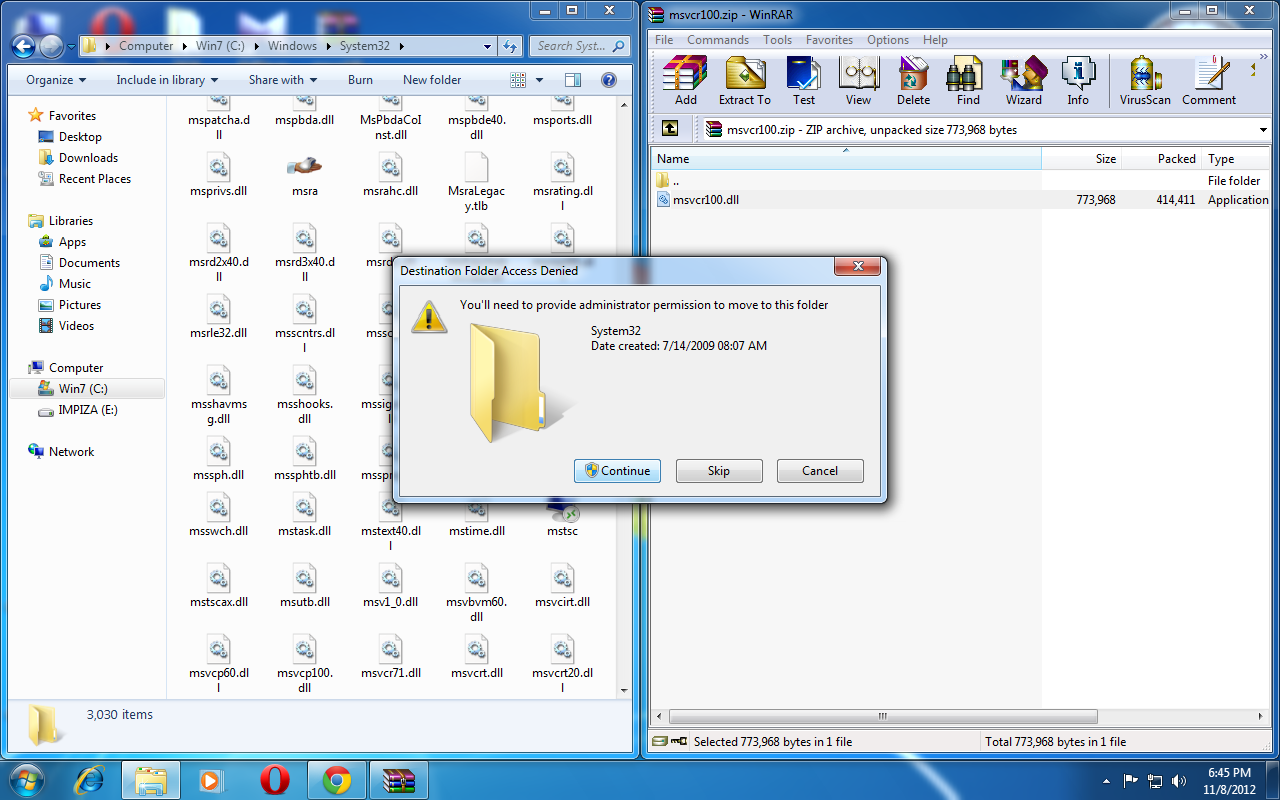
ok then drag and drop msvcr100.dll file to system32 directory 
 
it will ask you a warning message 
 
like this 

Press Start and select Run.
Type CMD and press Enter
Type regsvr32 msvcp100.dll and press Enter (this is use to register this DLL file)

Click continue, Done ! 


after copying you can play game ! enjoy 

Pin It on Pinterest