Select Page

Geek Tool VS Live Wallpaper !

                                                        Geektool Mac apps Store link
                                                             Geektool project site link
                                                                  Price : Freeware 

           What is GeekTool ? 

GeekTool is an application for Mac OS 10.6+. It lets you display various kinds of information on your desktop via 3 default plug-ins:

  1. “File plugin” to monitor MacOS X activity with /var/log/system.log, or any file that you want to follow
  2. “Shell mode” to launch custom scripts or commands like “df” to check space left on filesystems or “uptime” to monitor load on your machine
  3. “image mode” helps you monitor bandwith usage, CPU load, memory availability on your server with tools like MRTG orRRD. 
Geek tools is really cool but a user must know some basic things about his Mac ! but for get better result “Geeky sleek Desktops ” you need more things like terminal commands , apple scripting etc , users must be technical people with good understanding of Unix and shell commands , this is not something for general Mac users, unless you are ready to spend some time googling and trying to get what you want ! 


Requirement 

Mac os x 10.6 or later , 64 bit Processor


Some screenshots of Geektool Applied desktops 🙂

Name:Son of Man
Purpose:to display iTunes tracks, calendar, weather, cpu uptime, etc etc….


Name: Htc Clock 
Tutorial : Click for link
Purpose :to display weather, Date , time !
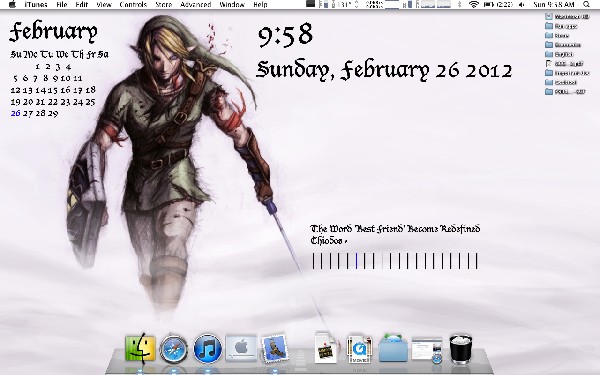
Name: itunes Meter 
Tutorial : Click for link               
Porpose : to display Current track in iTunes , calendar and day time etc

Name: Landscape Puzzle
Tutorial :click for link
Purpose :To display Analog Clock , iTunes track , Day time , calendar


Live wallpaper
price : $1.99 USD
What is Live wallpaper ?

live wallpaper is a beautiful wallpaper application with live clock & weather forecast. it provides a variety of themes which has different layouts and unique styles. some themes also have beautiful animations. 

Currently. App have 22 themes and developer are adding themes continuously (All themes are free). Each theme has the unique layout , clock , text , and weather forecast.

The application provides a variety for preferences . the main customization of each live wallpaper contains up to 4 parts 

  1. Wallpaper. Use default wallpaper of each theme or select your own wallpaper. some theme have animating wallpapers.
  2. Clock . choose time format . you can hide or show it 
  3. custom text , change your text . also you can hide or show it .
  4. Weather forecast. Choose your location. The weather data shows up to 5 days depends on each theme. also, you can hide or show it . i use weather forecast from NOAA (USA only) and yr.no
Also support many features such as
-Multiple monitors. you can choose to display different themes for each display 
-Edit mode.you can change the position of time , Clock or Text to any position
-when switch between spaces , wallpaper will appear instantly 

Some screenshots of Live wallpaper  app


how to select themes in live wallpaper


An eg for animated desktop theme

i will add My own desktop  videos 

😀 


i hope you guys understand what is the difference between both applications, both have advantages and disadvantages , for pro users geektool  & Live wallpaper both works fine , but for newbies i recommend Live wallpaper !  Thank you for reading my article 
plz commend , share , !

How to customize your ubuntu (12.04 ,12.10 ), Mint 13 in cinnamon interface looks like Mac os x

This is a tutorial about how to customize your ubuntu , Mint looks like Mac os x

for ubuntu users you need to install cinnamon

after that follow below instructions 

for that visit my earlier url about how to install cinnamon interface in ubuntu 

here is the link   click here to know how-to-install-cinnamon desktop

for Mint users follow below instructions


install cairo-dock

open up your terminal type

 sudo apt-get install cairo-dock

after installing cairo-dock change your panel position from bottom to top 

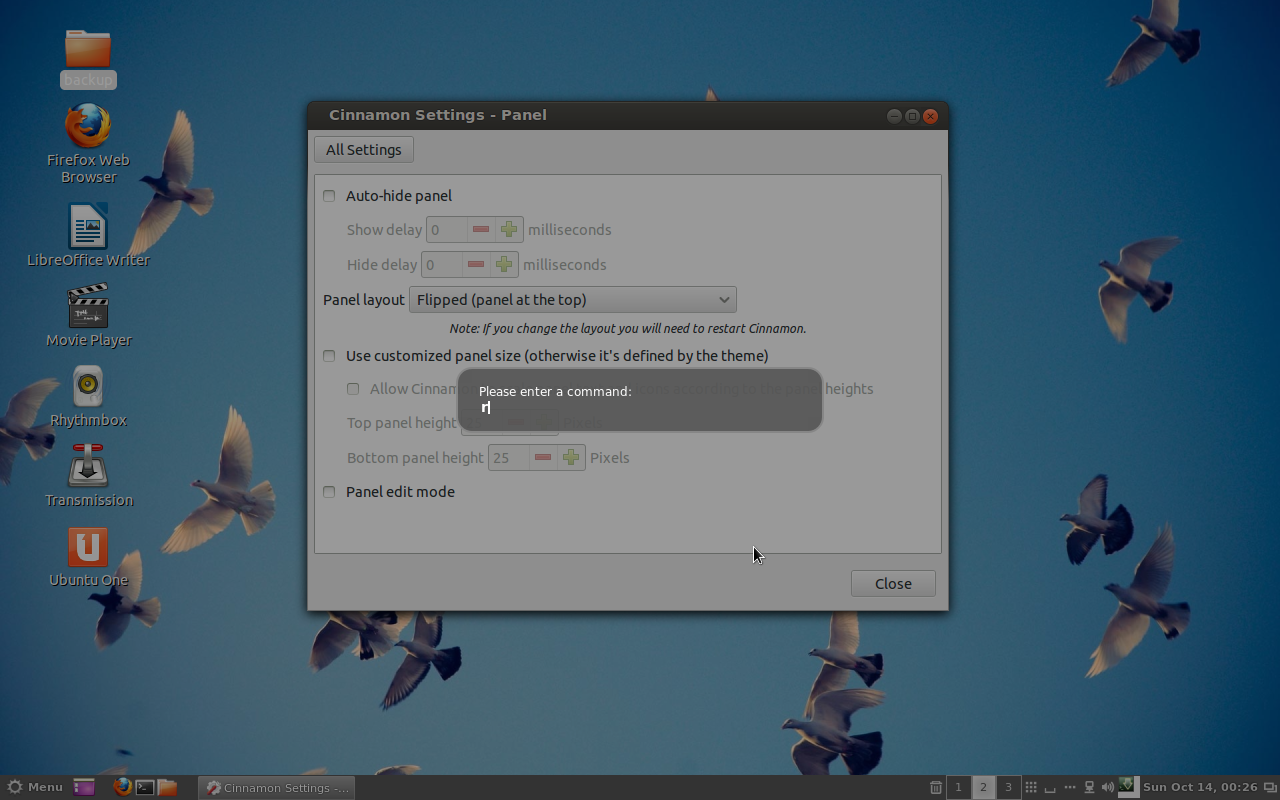
for that right click on cinnamon panel > settings > all settings >panel > panel layout > Flipped (panel at the top )
then restart your cinnamon interface for that press alt key + F2 key then type   
r
then press Enter 
after this process you can notice that your panel appear at top of your desktop 

now open your cairo-dock app from menu which we have installed before *(open Glx-dock (Cairo-dock with openGl))


now its time to configure your Cairo-dock
cario-dock is the main attraction ! so we have to customize it looks like Mac’s Dock
for that


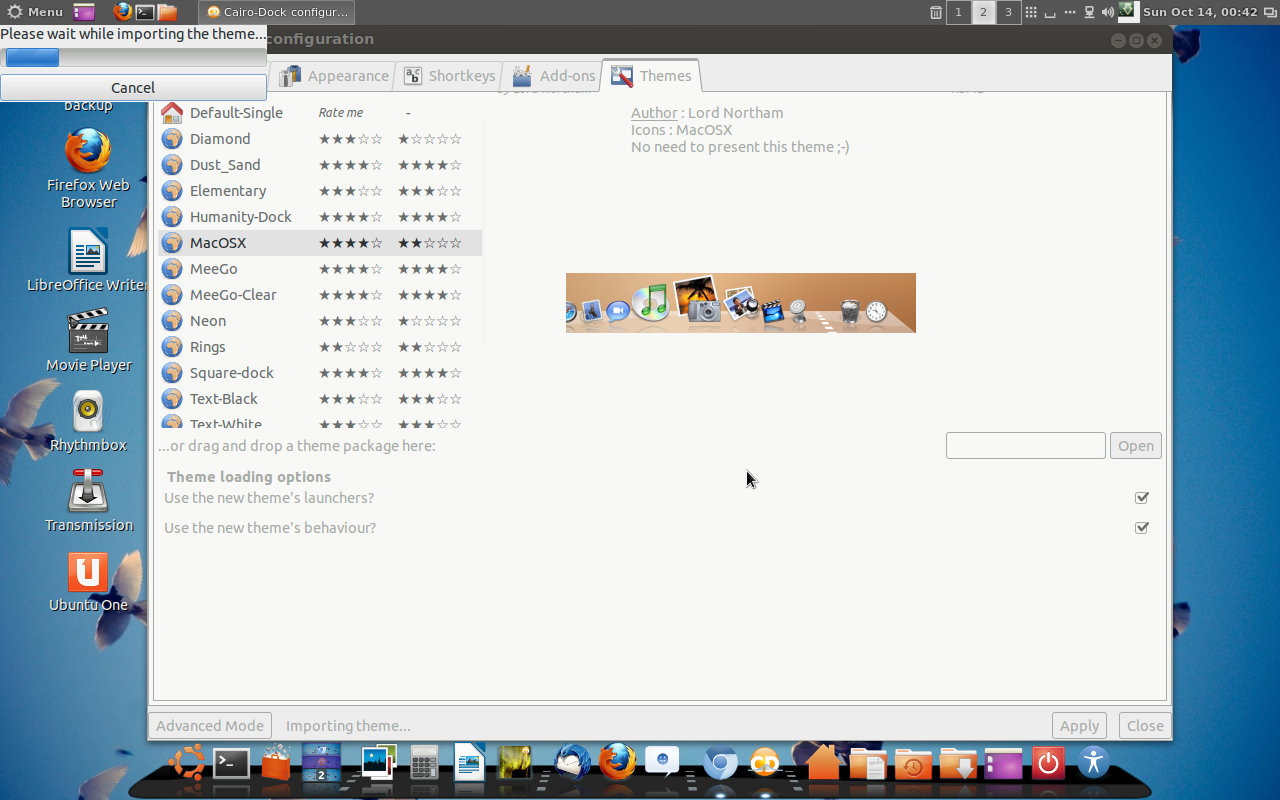
right click on cario-dock and cairo-dock configure then themes and apply Macosx theme

then
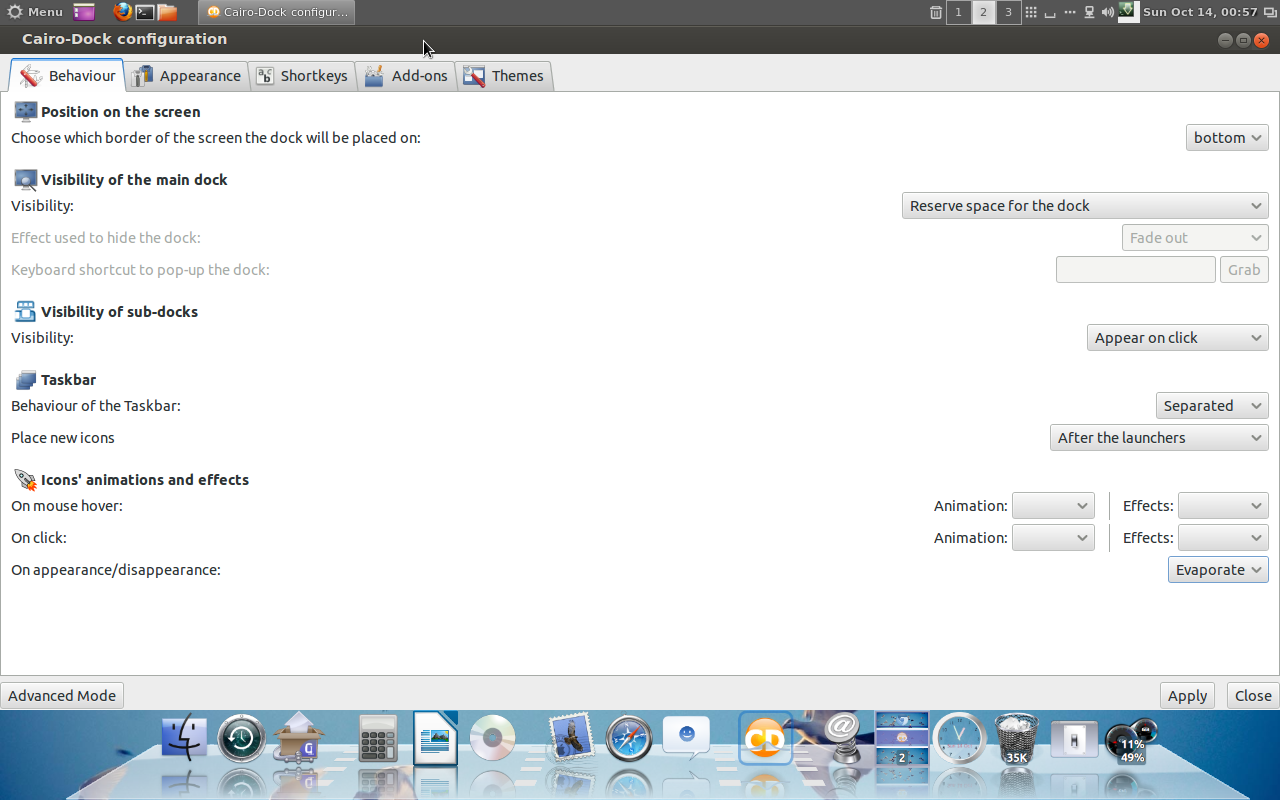
click on behavior tab , visiblility of the main dock > reserve space for the dock ! do exactly shown in screenshot

then icons animations and effect unmark all effect as shown in screenshot

after applying dock

now you need to apply a new cinnamon theme for that go to this url and download this zip file to your desktop

                                                 http://cl.ly/2X2R3D2F053e

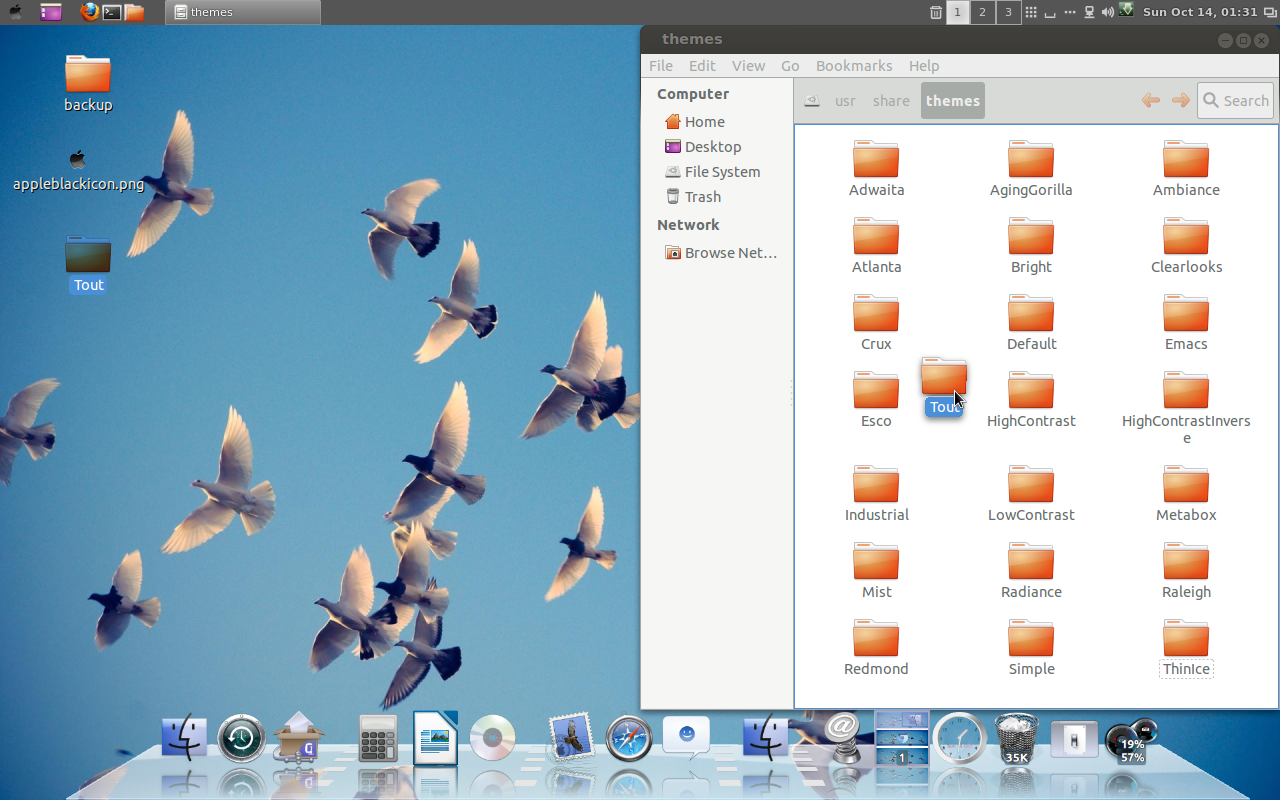
then  extract it to desktop then open this ( /usr/share/themes )location using root (right click the folder and open via root ) and drag extracted cinnamon theme folder to  this location     /usr/share/themes

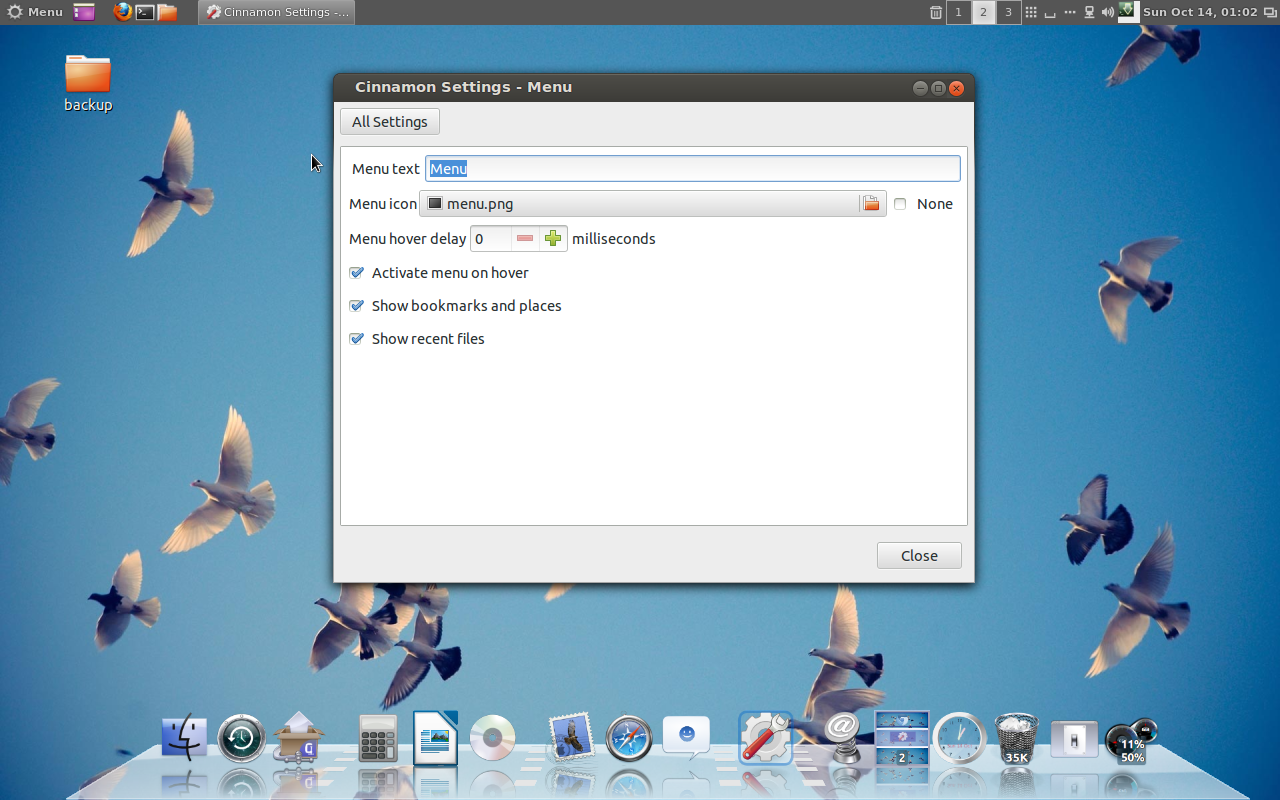
its time to edit Menuicon

apple menu has an apple icon

to do that

right click on menu in panel > Menu settings or right click on the panel settings  >  all settings then  Menu

erase Menu text

download Apple Menu icon from this url    click here to dowload Apple icon

then

show the path of newly downloaded Apple icon (save it in /home/your_desktop_profile/Pictures)

 then
press alt key + F2 keyhen press r Hit Enter key   ,  this is to refresh cinnamon interface ! then
click on all settings in cinnamon settings > themes > select newly added tout theme

do its once more Alt key + F2 then press r Hit Enter key

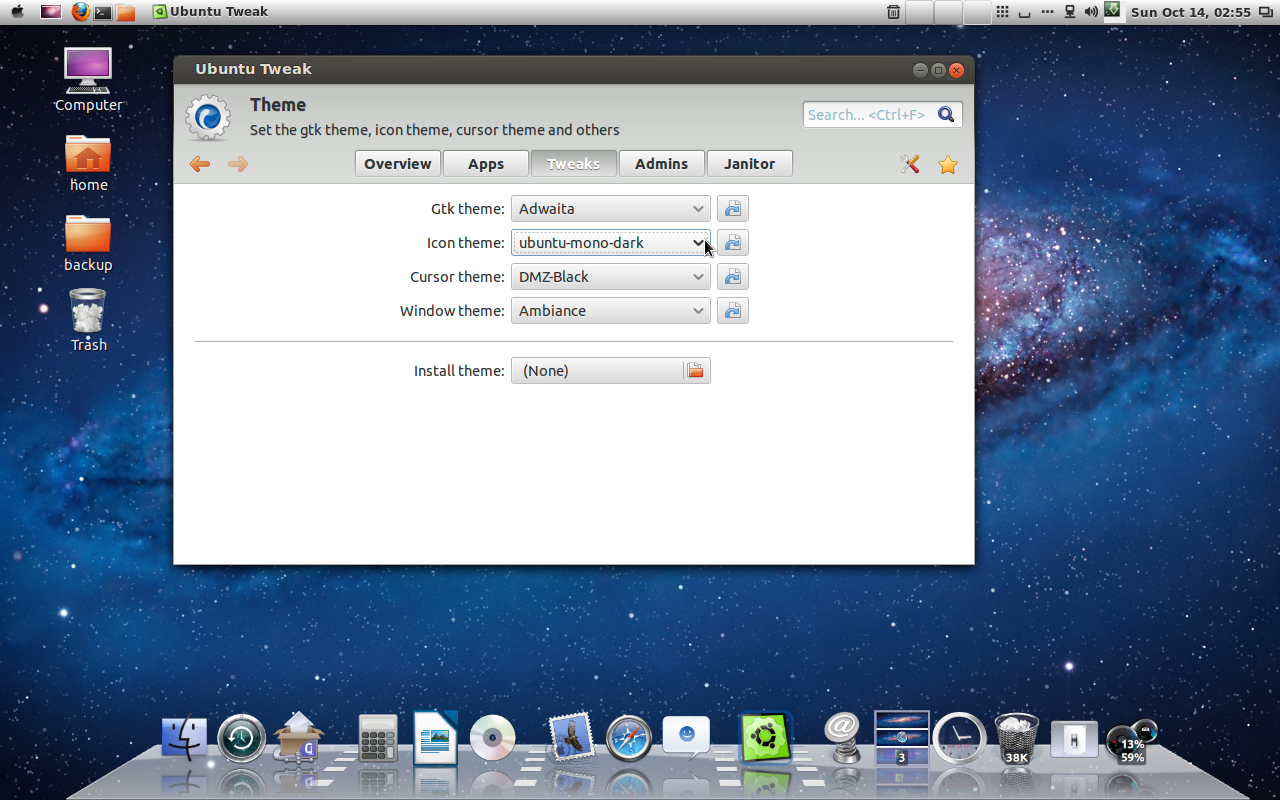
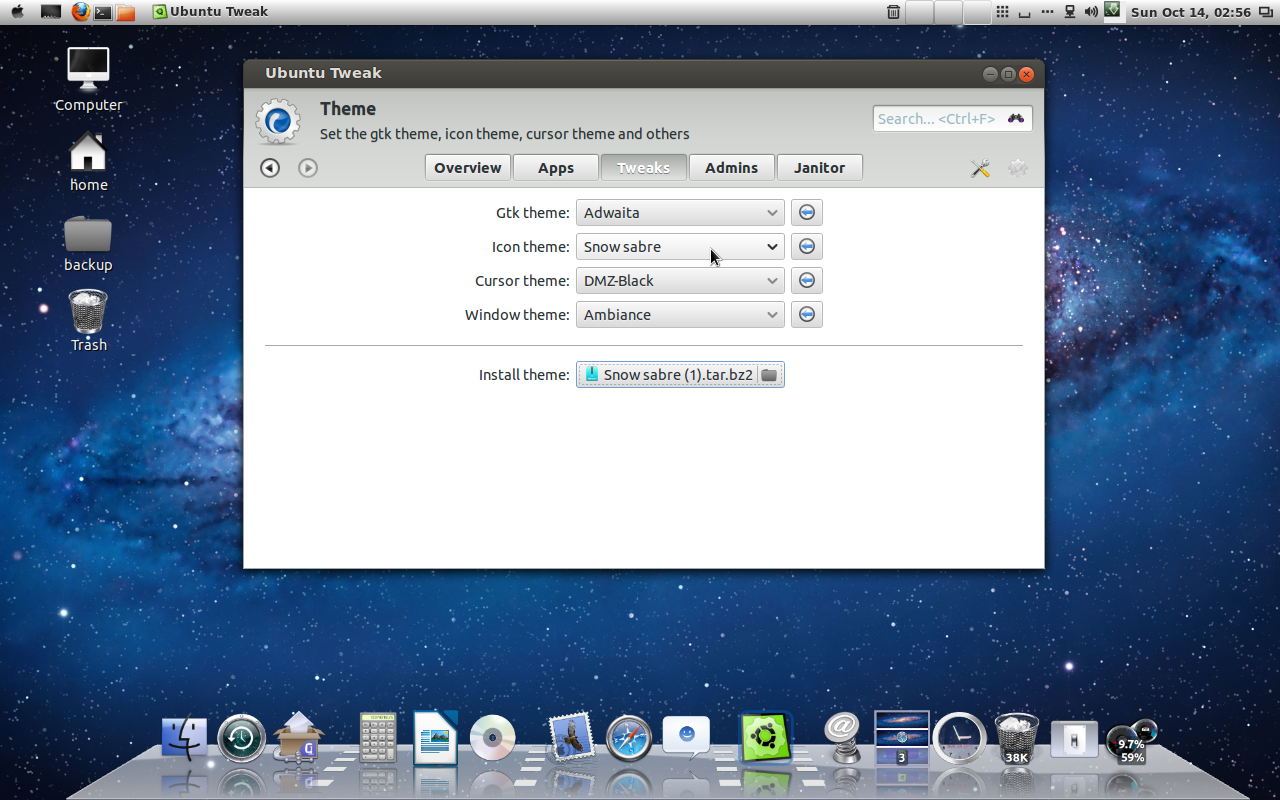
install Ubuntu-tweak tool

then download icon theme called snow sabre from this link Click to download snow sabre icons

then install it using ubuntu tweak tool

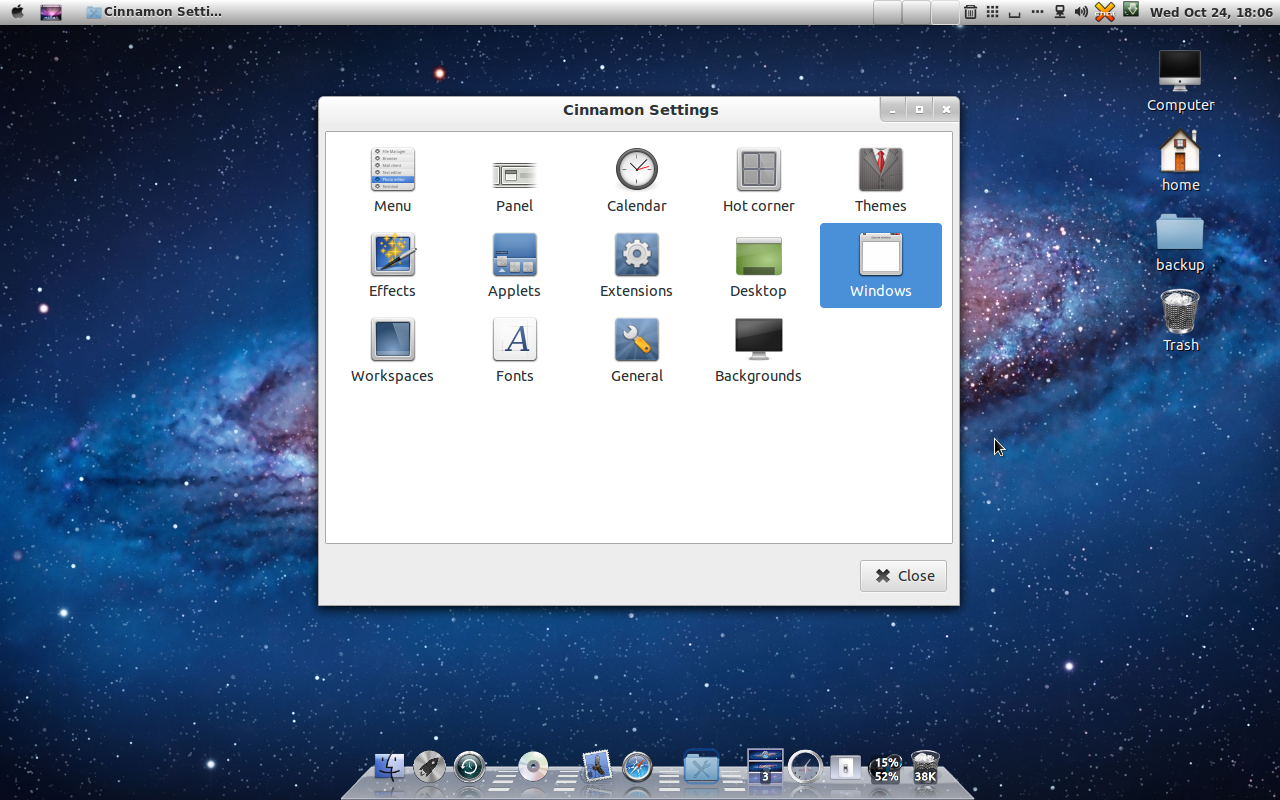
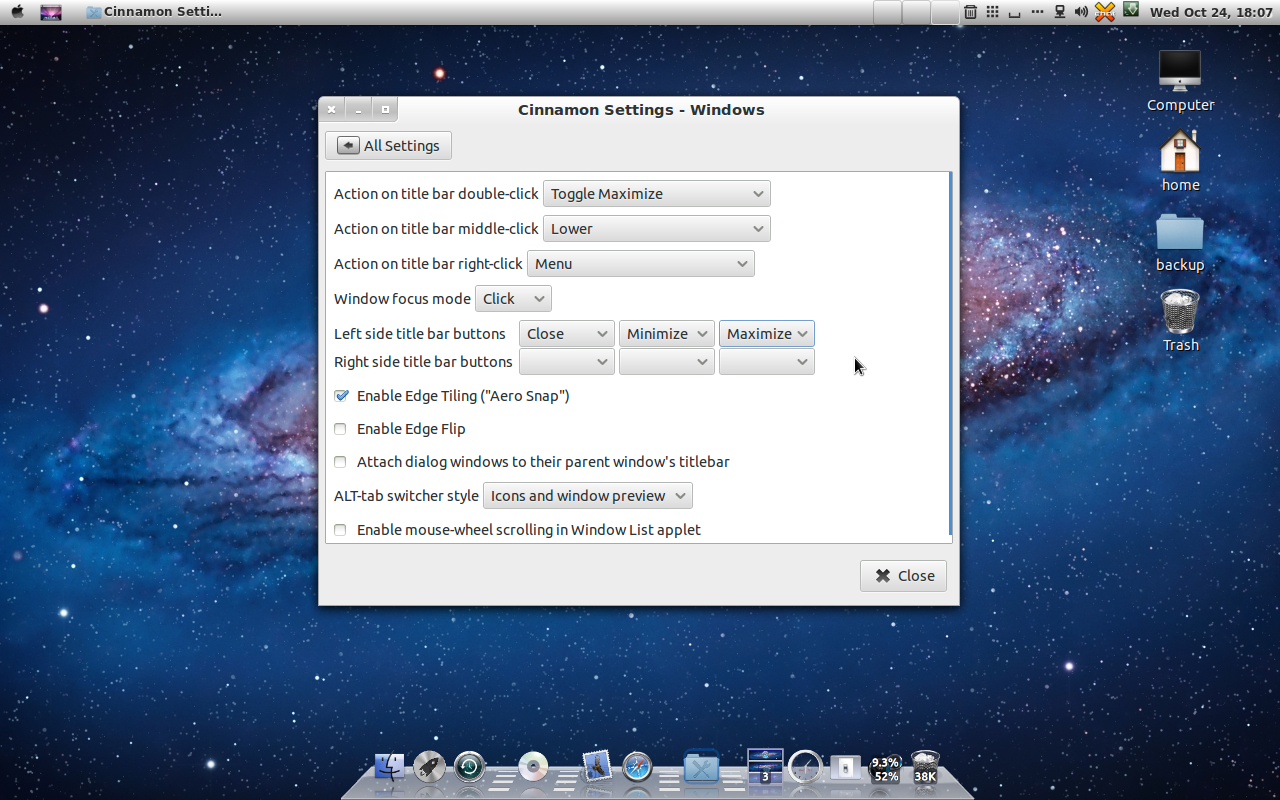
at last you need to move your windows buttons to left side  for that 
open cinnamon settings and windows 

now rearrange buttons to left close , minimize , Maximize !

then if you want to customize your cairo dock shortcut applet to looks like 
lauchpad applet ! follow this instructions 
download this icon to picture folder in your home folder 


click right click shortcut applet on cairo-dock > shortcuts > edit > icons tab and 
 rename shortcut to ( Launchpad ) then click on open button on image filename
select launchpad icon that you have download earlier ! done 


now its time  to decorate your desktop with Mac os x Lion or Mountain Lion HD Wallpapers

here my collection

                                           Mac os x HD wallpaper  Here


                      Some Selected Wallpapers ! click here

                     Here is my Mac looking desktop 

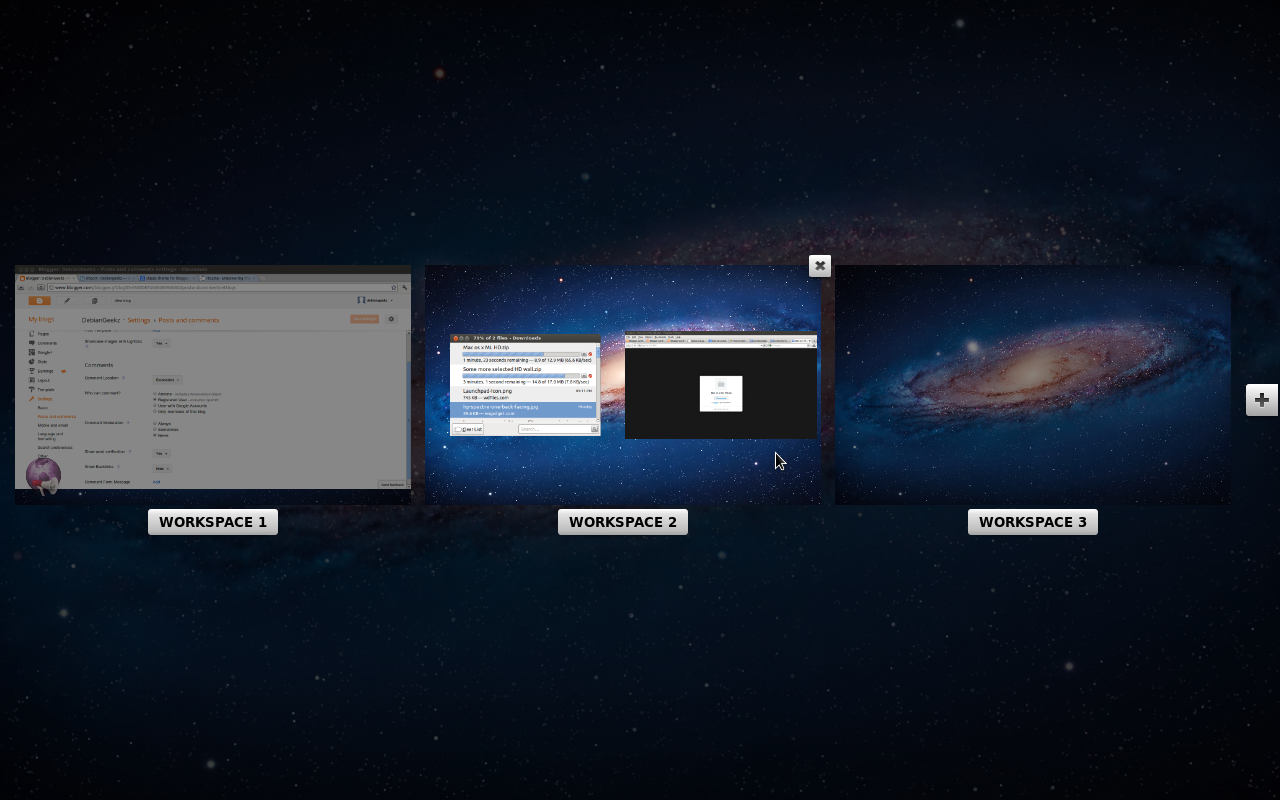
Work spaces just like Mac os x Lion and Mountain Lion ! 🙂 

Thanks for reading my blog ! share it , comment if you like the post thanks

How to switch (Customize ,Modify ) your Mac Dock to 2D & 3D

This Trick will works in Mac OS X (Snowleopard , Lion , Mountain Lion )

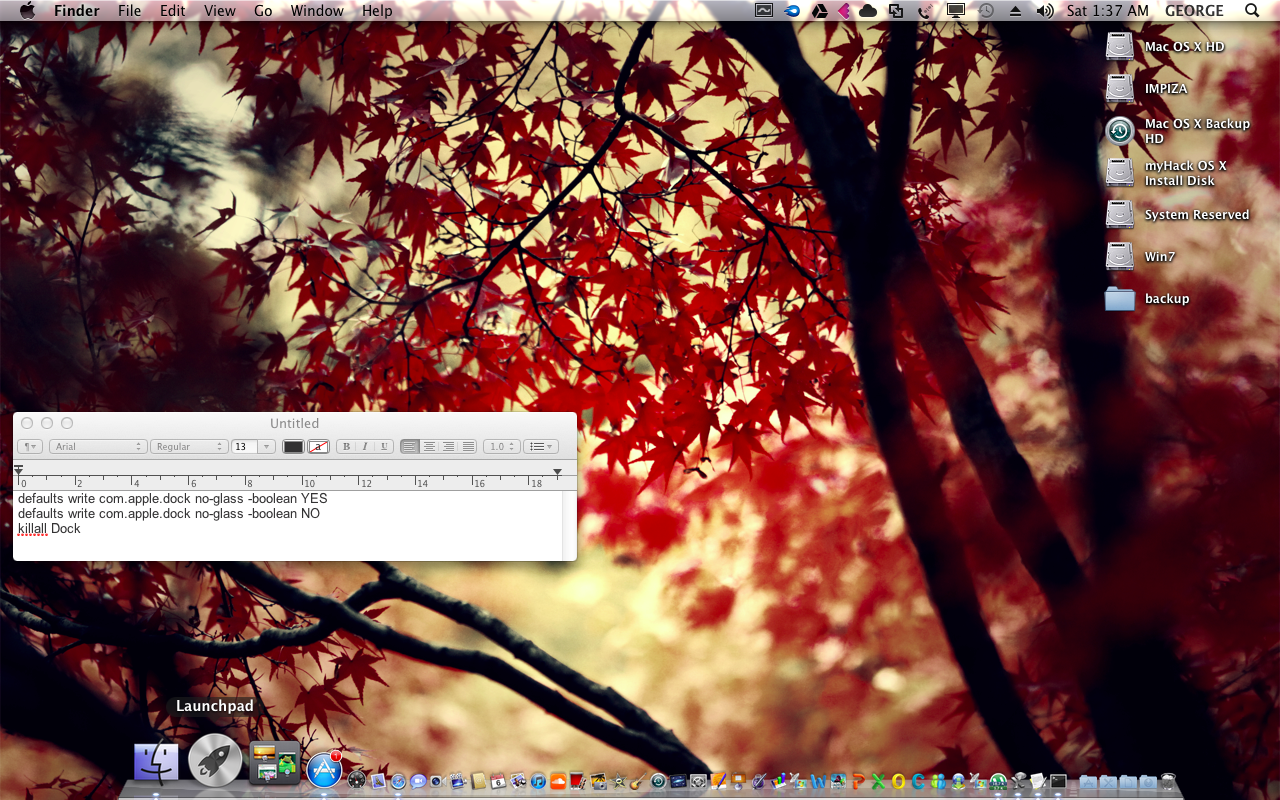
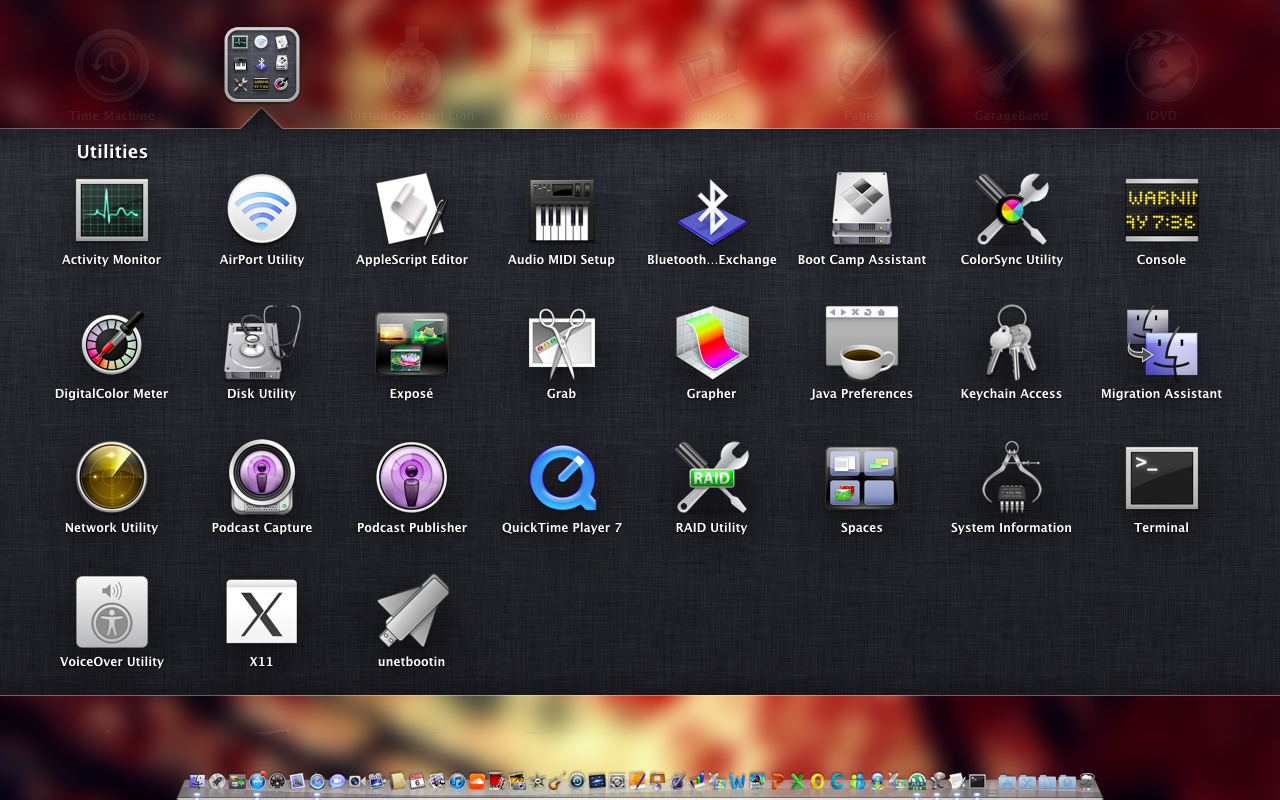
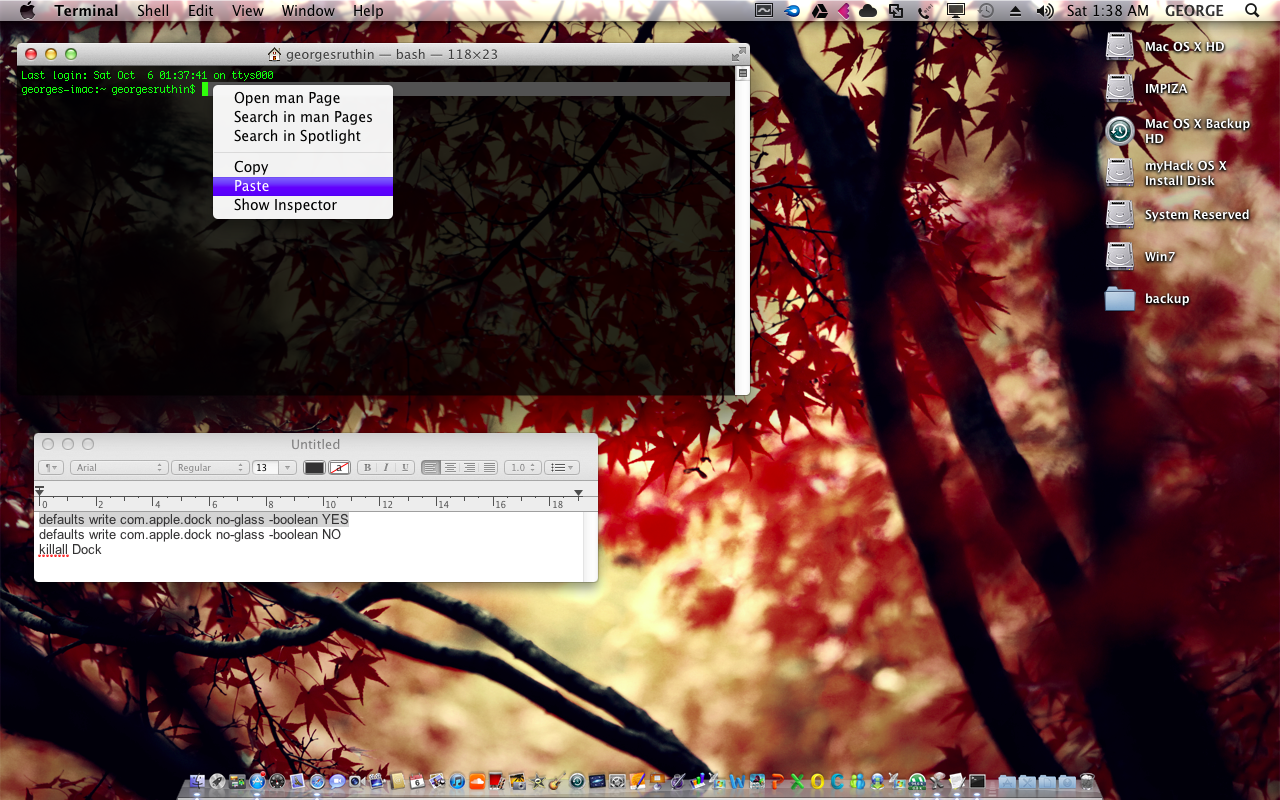
Open up your launchpad from Dock , Utilities folder , select terminal app !

now copy and  paste this command lines to your terminal (* some works needs to be in CAPS thats why i  prefer copy paste )

 defaults write com.apple.dock no-glass -boolean YES 

                                                         Then press enter key 

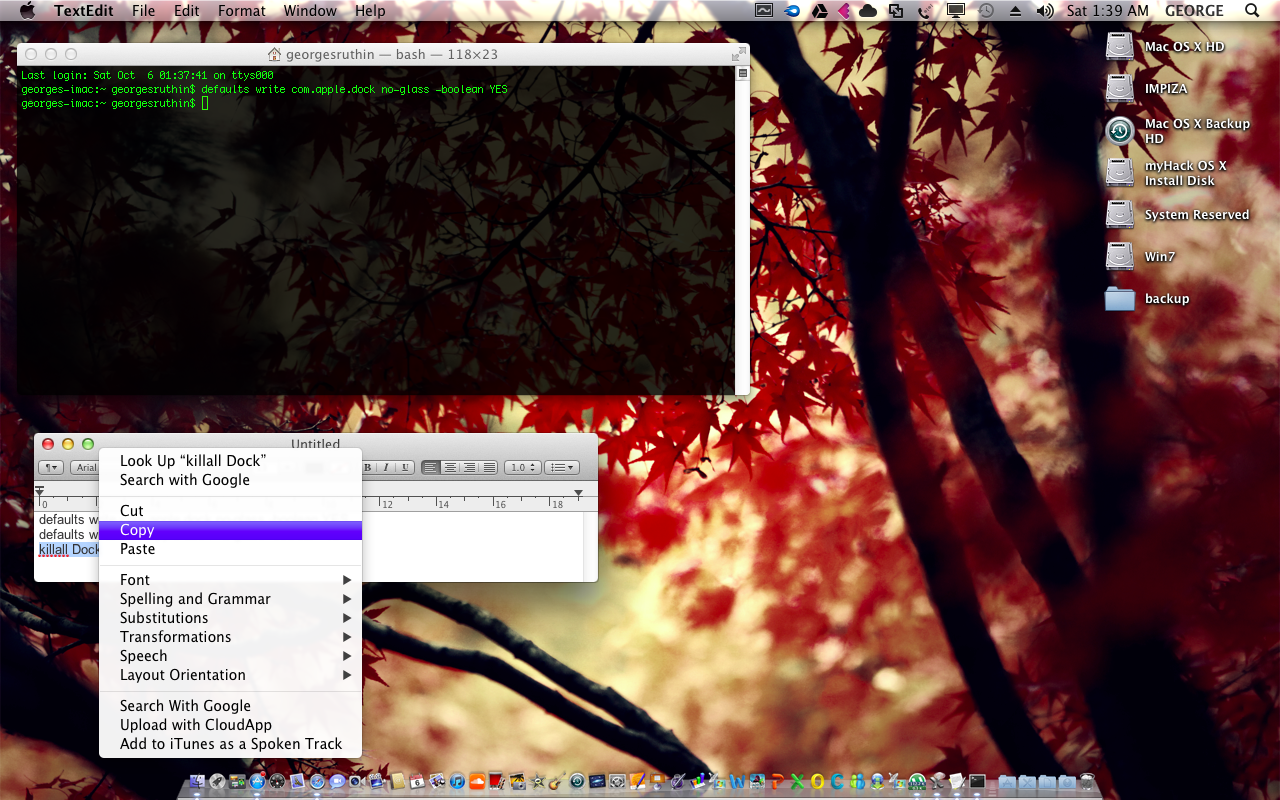
Then 
                                           copy and paste this command line to terminal and press enter key 
                                                                       

                                                                                        killall Dock

    your 2D Dock is Ready 😀

To Switch 2D Dock to 3D you just need to enter same command lines in terminal and replace YES to NO

defaults write com.apple.dock no-glass -boolean NO

Thank you For Reading my Article Plz Comment , Like me @ fb (hit like @ right corner fb box) , subscribe join my blog 🙂

How to install android in your virtual box ! Mac , windows , Linux !

things you need to install android in your pc , mac

FOLLOW STEPS

  • Install virtual box 
  • install virtualbox extension pack 
  • download android iso 

Open up your virtual box app

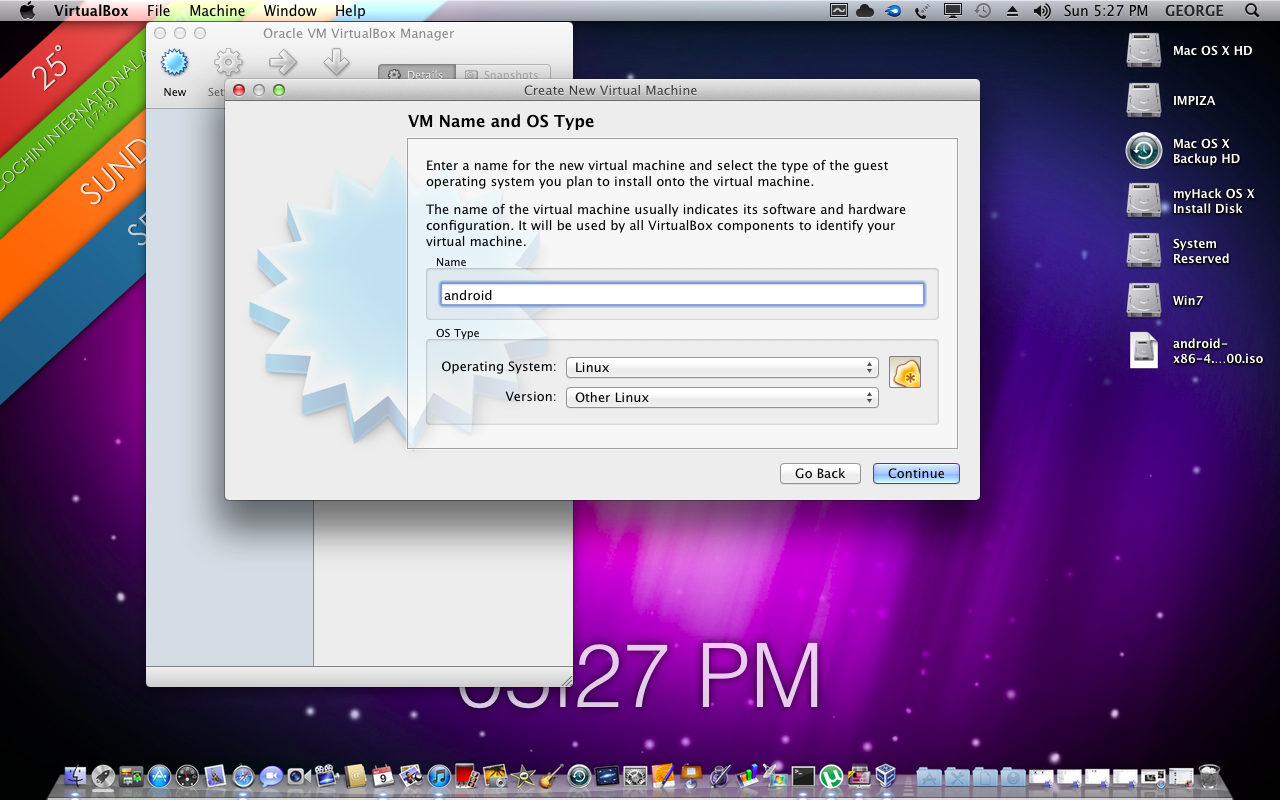
click new to install new os virtually 
name it , select os type
so select linux , version as other linux
Set up Memory for virtualbox in this tutorial i have given 512 mb 
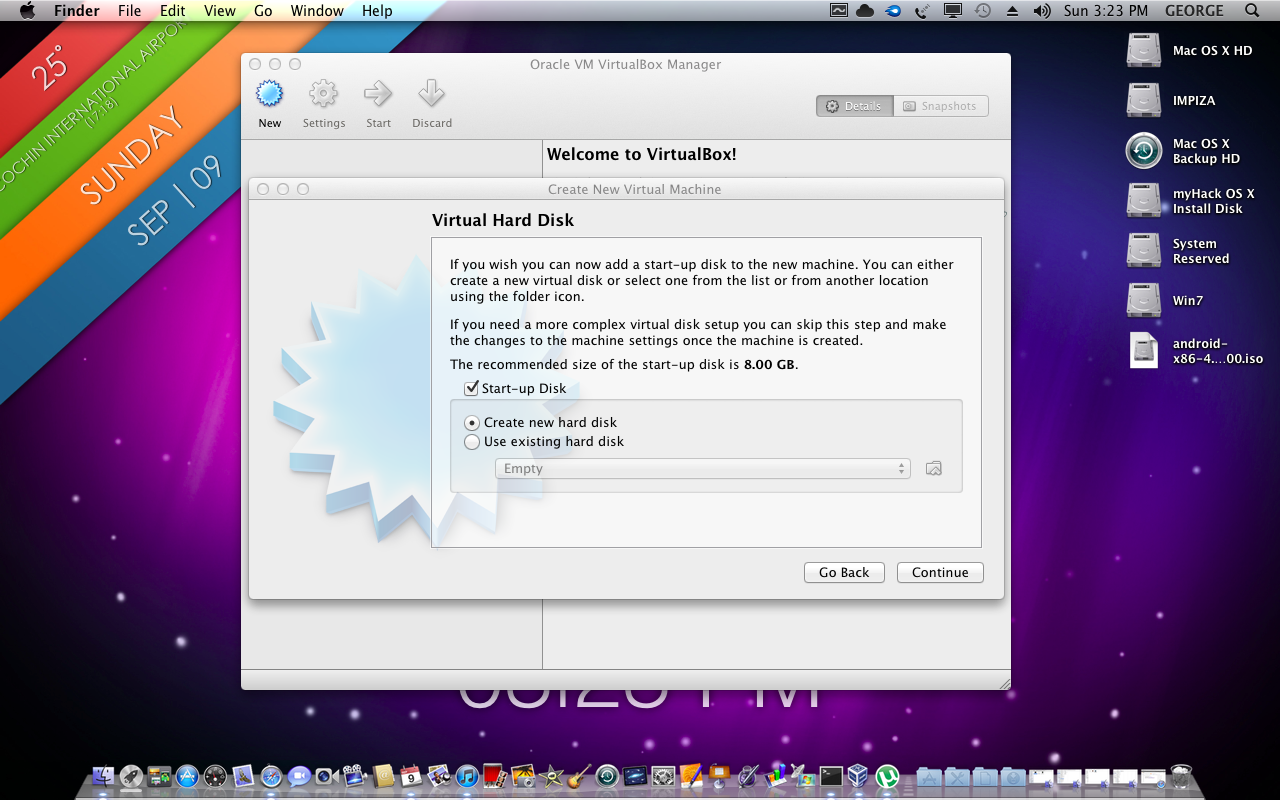
Set up Disk space 
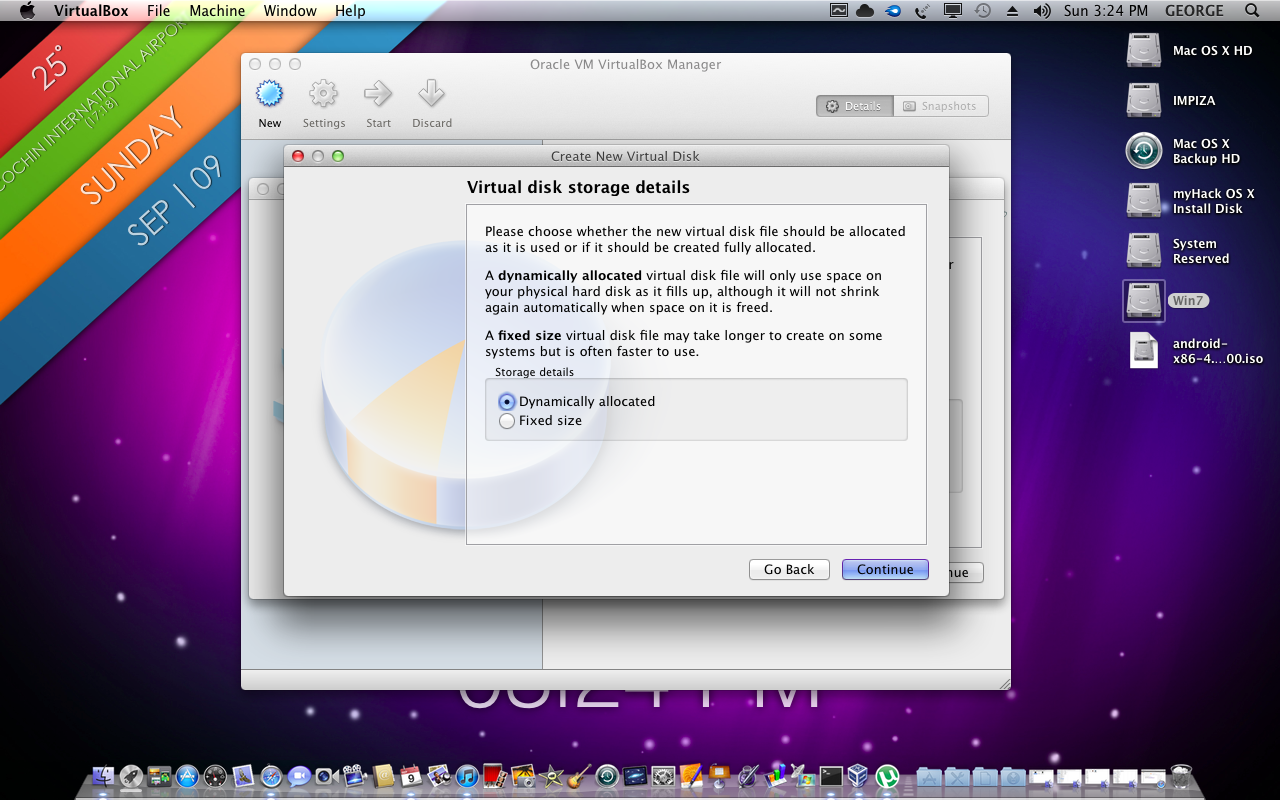
select virtual disk type in here i have selected .vdi (virtualbox disk image)
now select virutal disk storage type ! “always select dynamic ”  
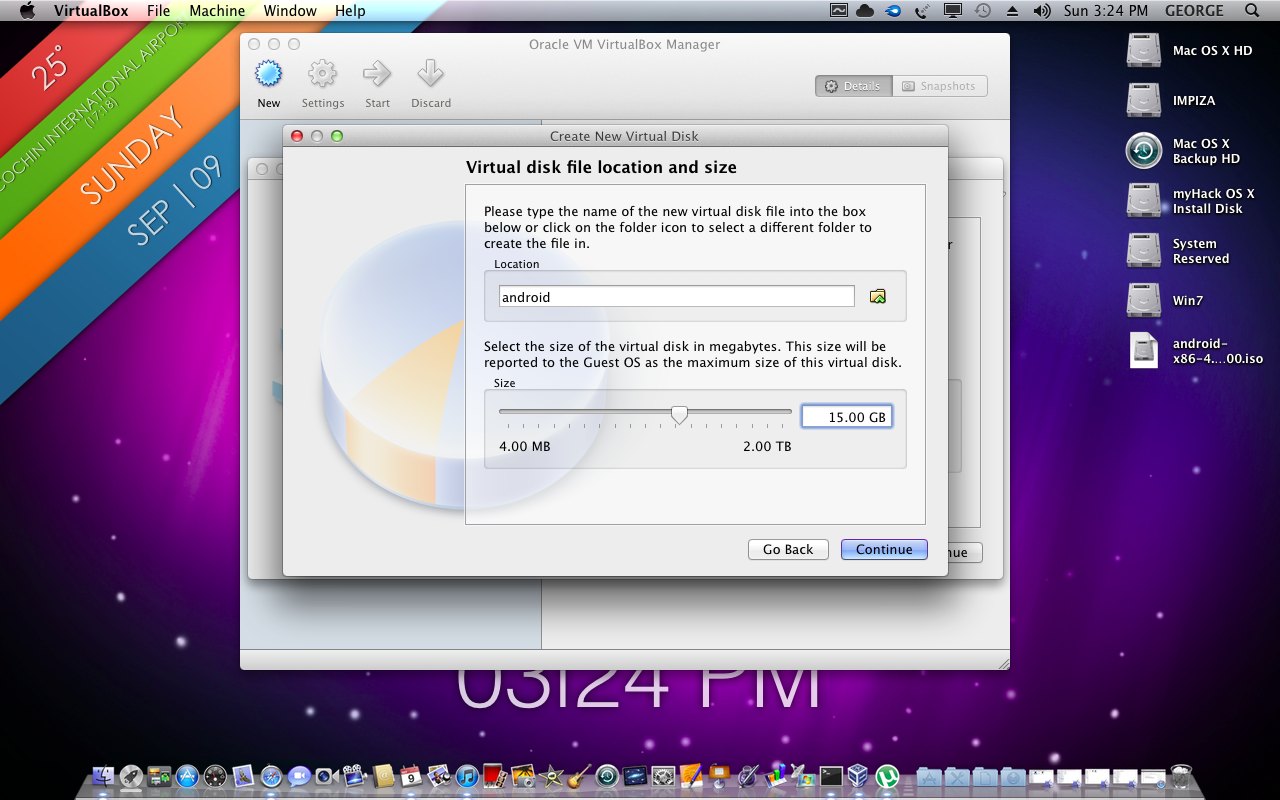
 i have given 15 Gb for my android os 
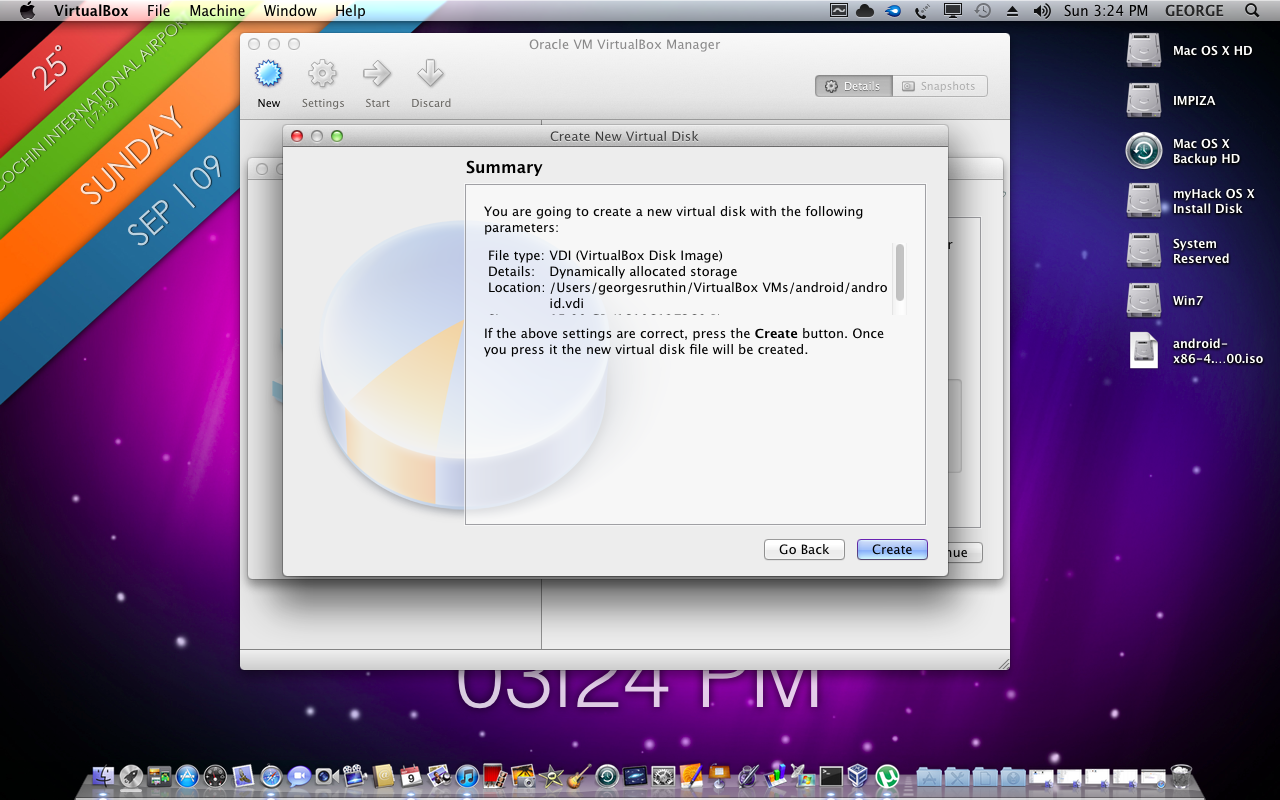
now click create done ! 
————————————————————————————————————
now select your os from virtualbox click start 
then a popup box appear asking for disk image select os iso 
select it and click start on next screen 
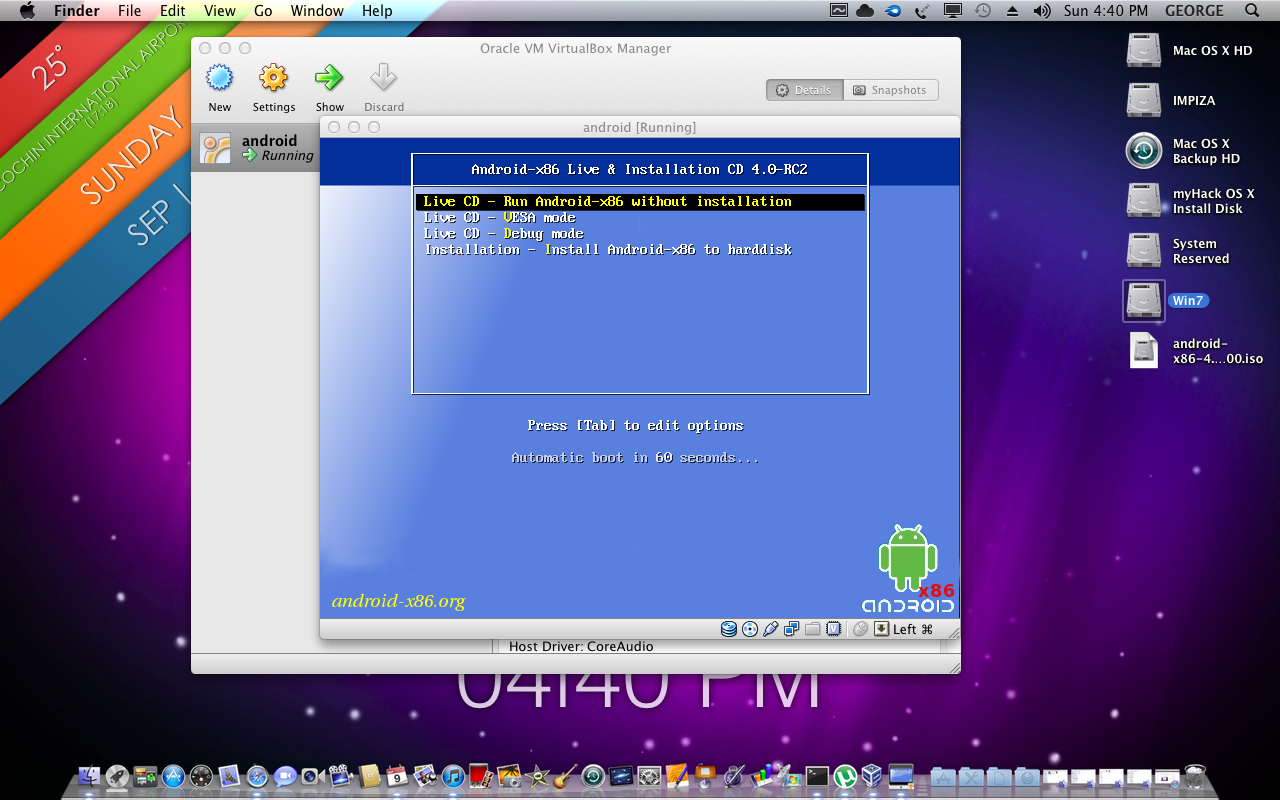
here android start 
move arrow key to below and select 
“Installation – Install Android-x86 to harddist “
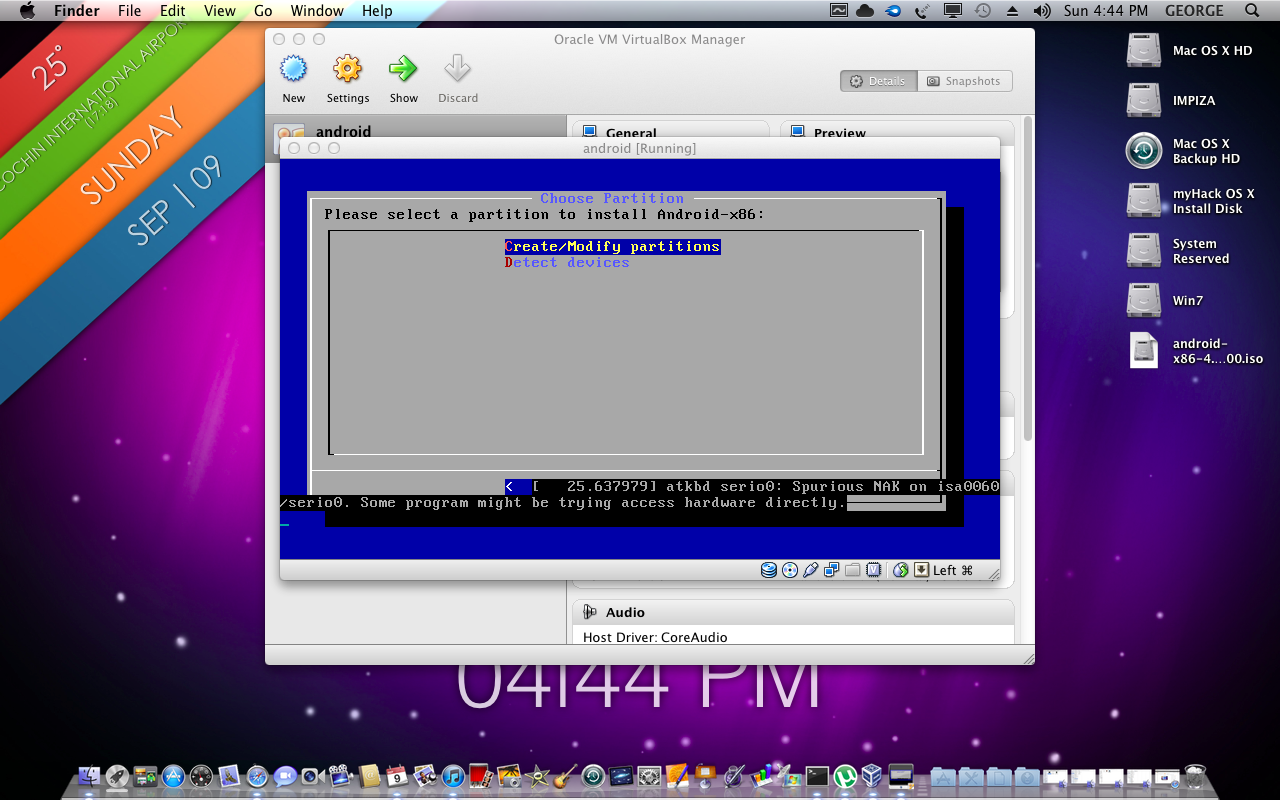
select create partition 
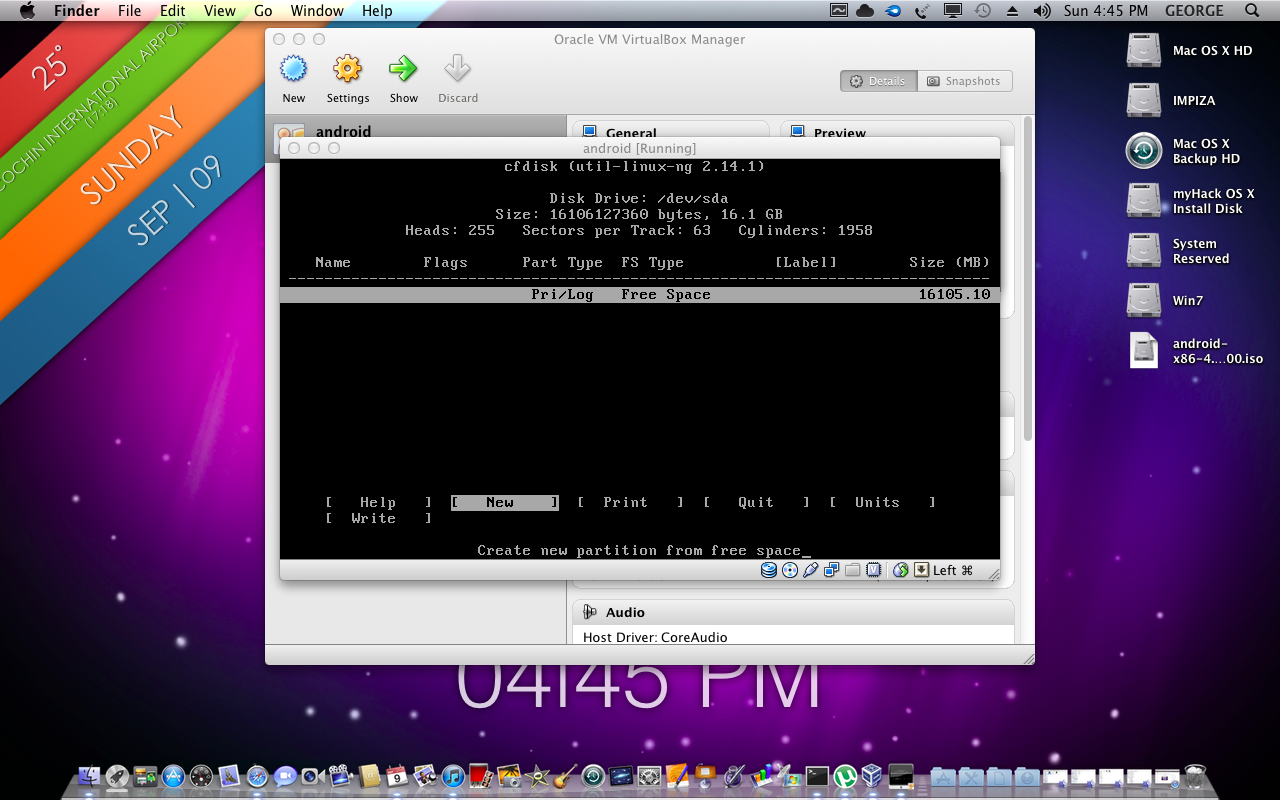
@ next screen hit new 
select primary at next screen 
select new 
select write 
at this time os will ask you to say yes or no 
 so type ” yes ” to write  and hit enter 
exit 
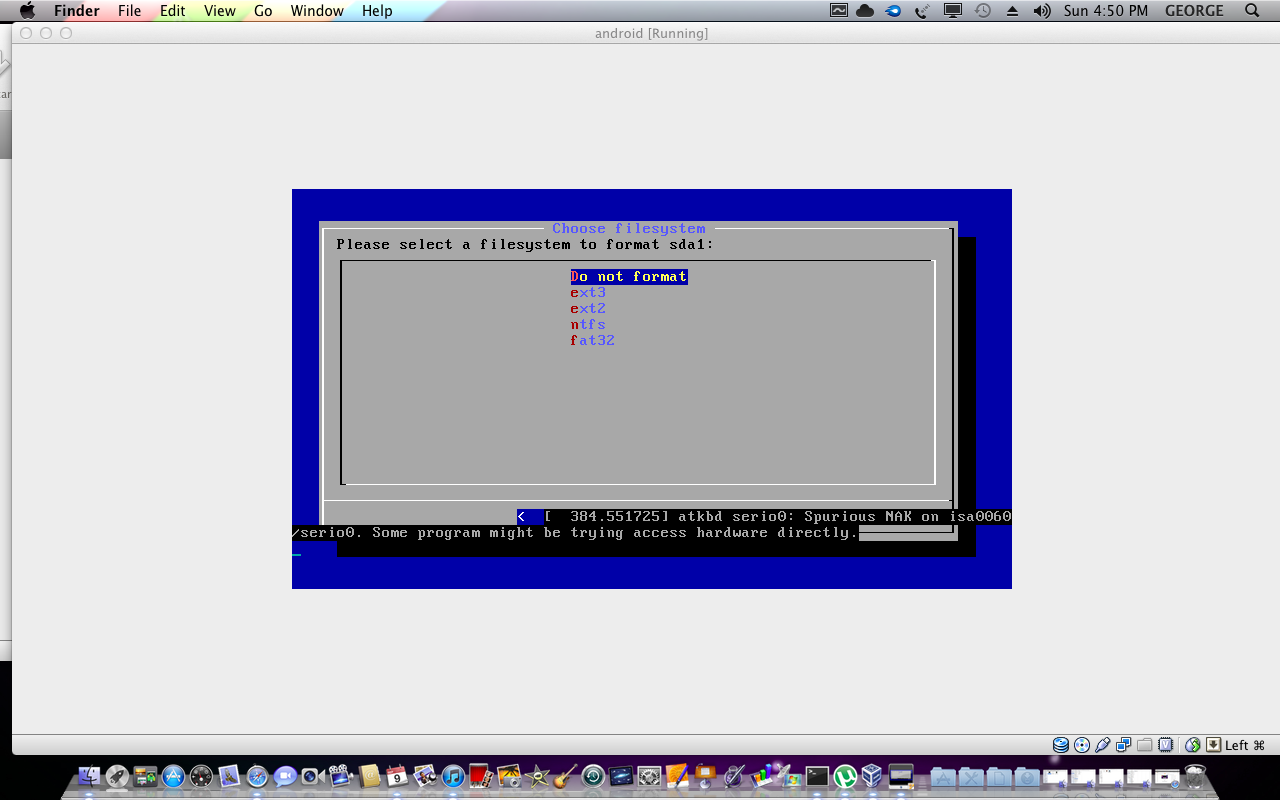
then select file system as ext3 
select install grub as yes 
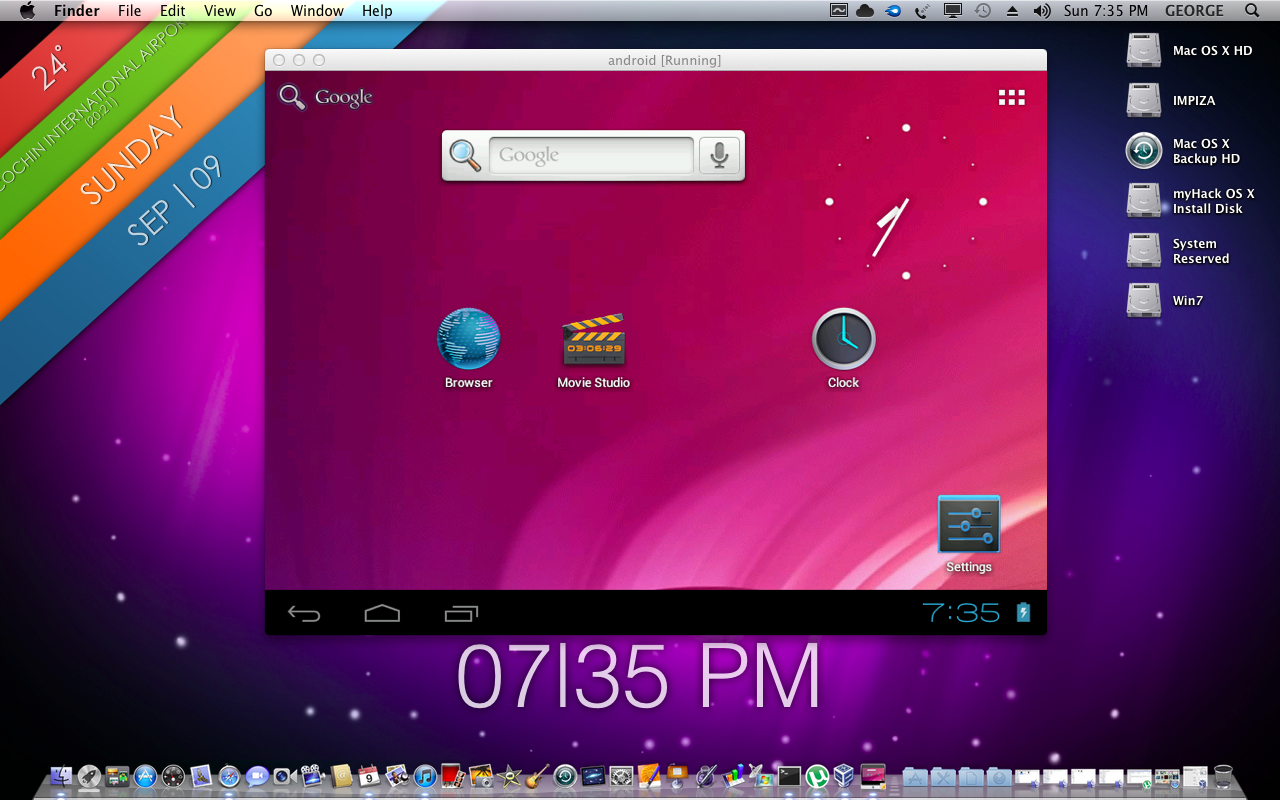
select android  done 
after the installation it will ask to reboot but dont reboot 
there will show three options 
  • run android 
  • make fake flash drive 
  • exit
so select make fake flash drive 
done 
Thank you for watching this tutorial ! 🙂 
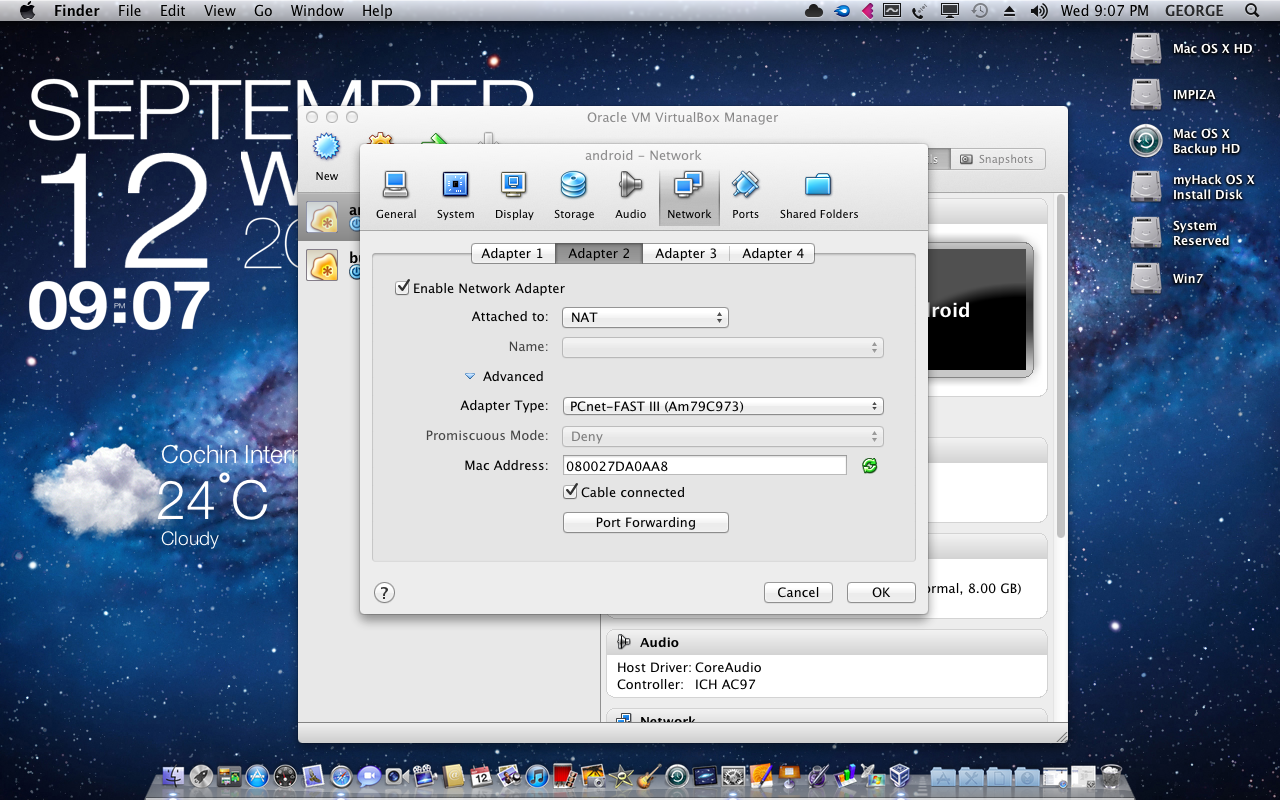
How to configure android network in virtualbox see this ! 
after that watch this video 


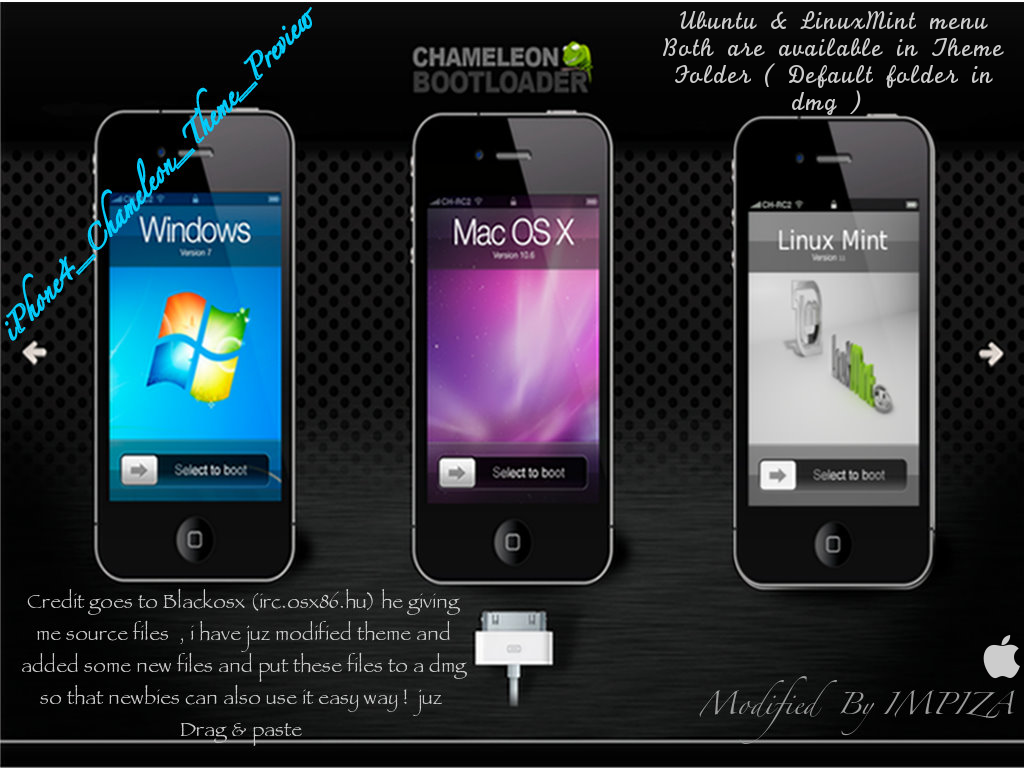
iPhone4_Chameleon_Theme

iPhone4_Chameleon_Theme_preview

Thank you.
Downloads below.


Pin It on Pinterest