by George Sruthin | Jul 20, 2011 | Mac, OS
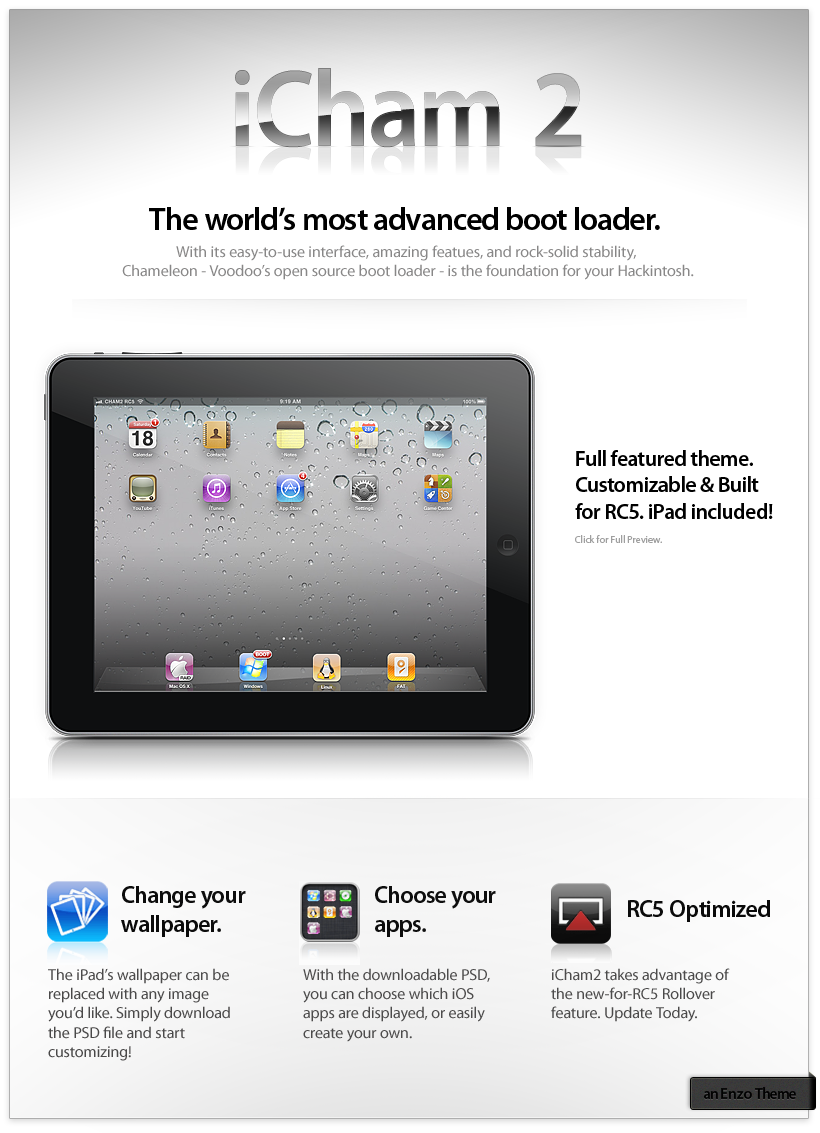
Click for Full Preview.  Now on to the fine print… =P
I always thought iOS lent itself nicely to a simple Cham theme, just needed a frame, and that’s where the iPad came in. Came together easily after that, though the hardest part (By Far) is having to adjust for the various bugs/quirks Chameleon has. Once finished, I couldn’t help but mimic typical Apple advertising. 
Technical Notes
-Theme was designed for 1920×1200 and cropped for 1680×1050. 1366×768 required a resize of the iPad and devices.
-Icons are adjusted to look as close to the mockup as possible in the options screen. Some effects look exaggerated because of this in the first/countdown screen.
-By Default, the theme uses an invisble/hidden font_small, so you will not be able to see your partition names. If you need the functionality, there is an alternate font_small included. The obligatory Ubuntu alternate is also included.
-PSD is 1920×1200. Resizing will be necessary for your resolution if you’d like to customize it. The PSD was simplified so it can be easier to use, hopefully it’s all you’d need. It’s easy to drop in a wallpaper between the Default one, and the Shadowing layer. It’s then simply a matter of resizing the wallpaper to your preference. The App icon template isn’t much more complicated than that either. I whipped up an example Firefox app icon. Guides are also included for convenience.
-Theme is RC5 designed, but works with any version of Cham 2. You will see a red arrow in older versions of Cham2 to indicate a selection.
Thank you.
Downloads below.


by George Sruthin | Aug 10, 2010 | Linux, Mac, OS
First go to this website ” http://community.linuxmint.com/software/search ” then type in search box “dock ” , from the next page you can find many dock ! you have to select ” cairo-dock ” —> from the next page you can able to install directly cairo dock to your pc !
then go to your desktop , then press right button in mouse then select ” change Desktop Background ” , from the dropdown menu ! then ” appearance preferences ” menu will appear on your desktop !
then select theme button from ” appearance preferences ” menu ! then select ” shiki-wise ” theme from theme menu !
then select downloaded “ snow sabre.tar.bz2 ” file & drag and paste to ” theme menu ” in ” appearance preference ” settings ! then you can see a installation process , this is icon installation ! after that select customize of selected shiki-wise theme !
then a menu called ” customize theme ” will appear ,from there select ” icon menu ” then select ” snow sabre icon ” , then select ” color icon “from customize theme menu “then change the select item & background colour green to gray ( colour name #BEBEBE )
- or you can download this image from this website
then apply this wallpaper as your desktop background !
now we have to edit menu icon of mint ! first you would have a icon like this one ! but it must be in .png format 22×20 pixel !
- you can also download this image from
 or
or 
- then resize it to 22×20 pixel
- and save as .png
then goto computer ; filesystem –> usr –> lib –> linuxmint —> then select the ” mintMenu icon ” then right click , then from the dropdown menu select ” open as administrator ” then it will ask your password ! when you enter to mintMenu icon
be careful don’t delete any other files !
then select mint Menu default icon !
right click
delete
remember ones you will delete in this mode will not regain from trash as always !
so carefully !
then paste 22×20 pixel .png format picture there
now rename it to ” mintMenu “
then close that administrator mode !
then go to desktop
right click on menu icon
then select Menu preferences
delete button text
then close that menu
now you have to change your linux mint default button layout !
for that !
now goto your desktop
from the ” Appearance Preference ” you can find a theme called ” custom “
select that theme and click in save as button
now you can find a menu appearing called ” save theme as “
name it Mac os x
type description
click on ” save background image ” otherwise your desktop wallpaper will not save with the theme
then click save !
now click menu button
type in the filter ” cairo “
now two application will appear
this is cairo-dock (no openGL ) & ( GLX-dock ( cairo-dock with openGL )
select GLX-dock ( cairo-dock with openGL ) for more animation for your dock
single click on GLX-dock ( cairo-dock with openGL )
then right click your desktop dock
then select cairo dock button & press configuration
change toolsbar to Mac os x style ( windows 7 & gnome style is also available !
now your desktop will look like this
this is my modified Linux Mint 9 Isadora Desktop
you can see dock fire animation when i move my mouse over it !
its coolllllllllllllllllllllllllll !
- plz add me as your friend in facebook , orkut , myspace etc …………………………
- my email id is [email protected]
- send me your comments
George Sruthin



