Select Page

How to see passwords in Browser

     How to see passwords in Browser ?


yep you can see your or your friends password while typing or see saved password ! 

how ? 


i will add my video about this tutorial 

here i am posting my new tutorial about how to see password in safari , old one doesn’t have that info

Thanks for watching my tutorial , plz give your valuable comments and suggestions, share in your social media sites , and Click some ads ;D


Thanking you all in anticipation ! 

How to connect irc server using irc server ip


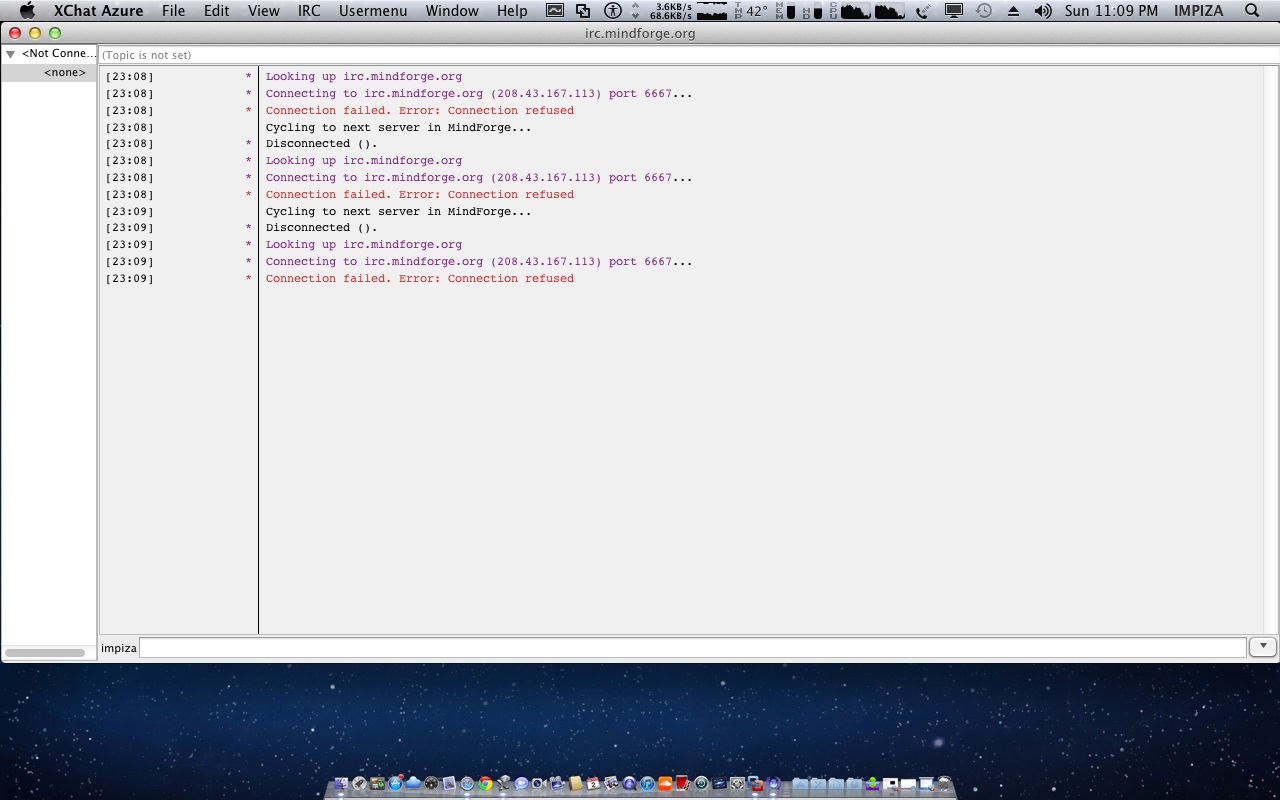
when some time you may notice that irc server shows some problem while login to server ! 

* in this case i have try to login to this irc server irc.mindforge.org and you can see that it  trying to connect to ” 208.43.167.113 “, this is the server ip address of mindforge , 

if it fail , lets try another way

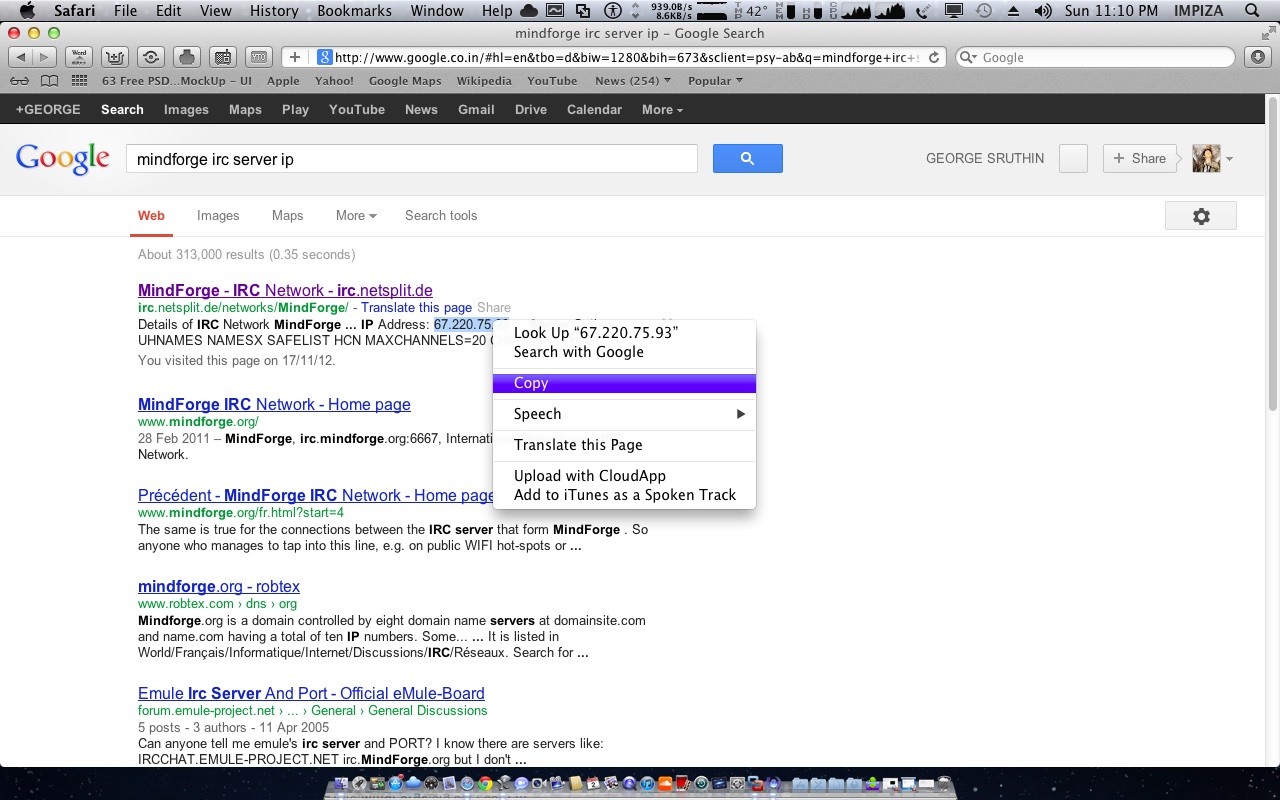
you have to google about its another ip 

if you find another ip from sites just copy it , 

then 

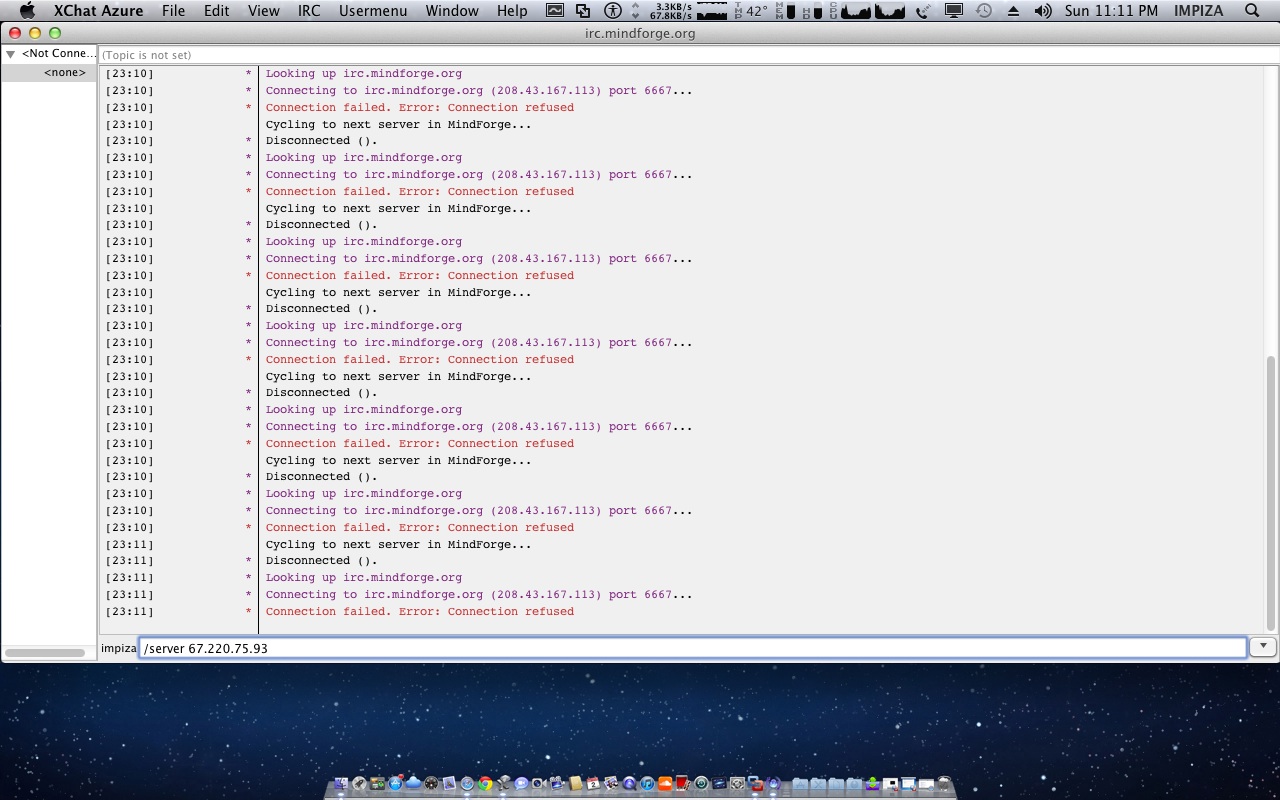
type in irc client 

 
   /server yourip

press enter 

eg /server 208.43.167.113

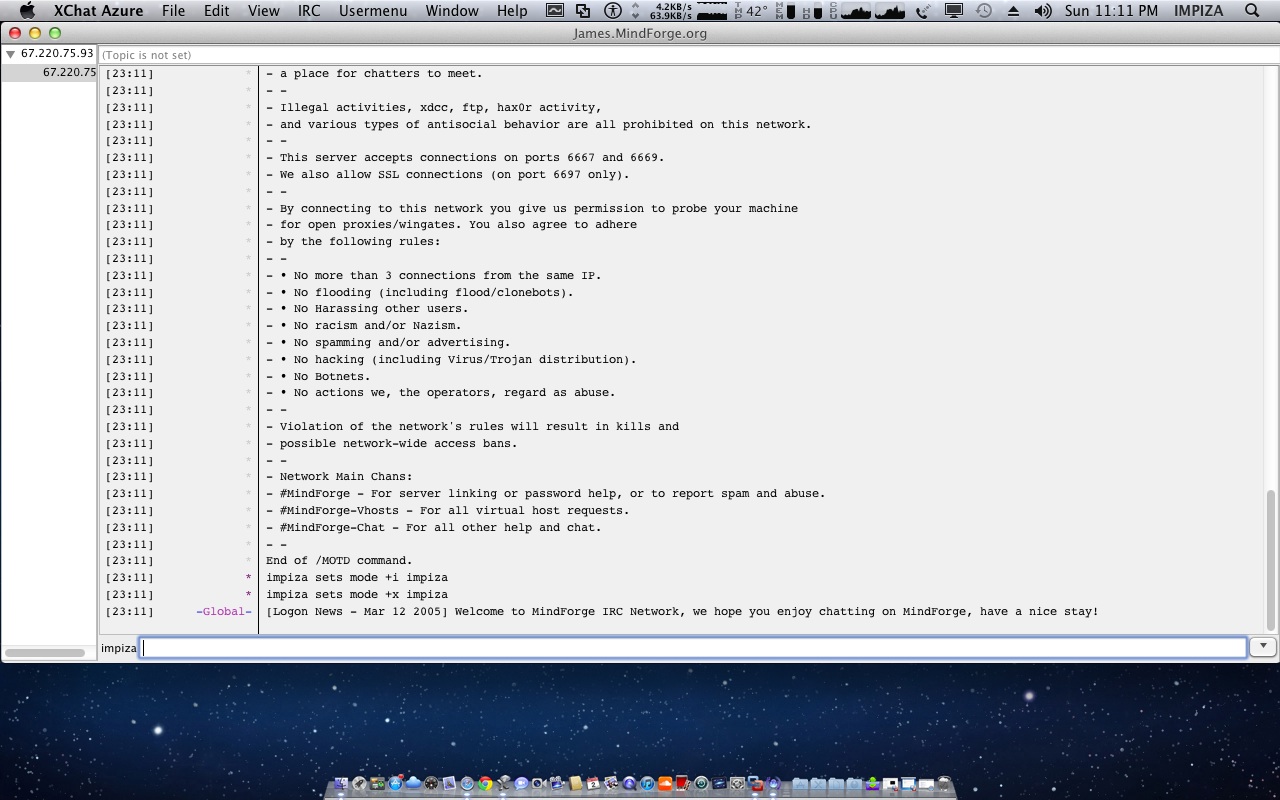
now its connecting , if it fail , try another ip , it will work ! 😀 

thanks for reading my article , plz comment , share it , click some ads ;D


juz4fun Conky for Linux

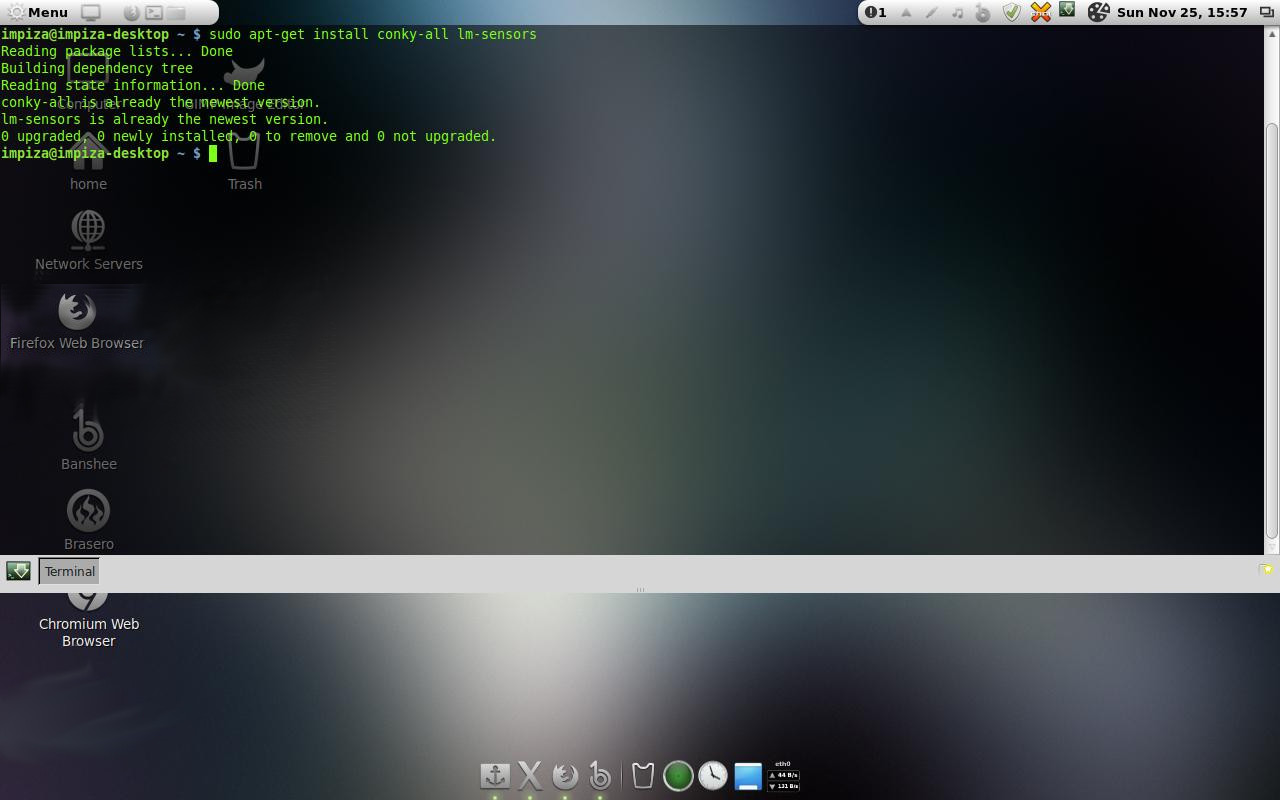
 Open Terminal app and type following commands

sudo apt-get install conky-all lm-sensors

Run:

sudo sensors-detect 

  (choose YES to all YES/no questions).

  Run :

service module-init-tools start

This will read the changes you made to /etc/modules, and insert the new modules into the kernel.
click image to download conky files 

Click Image below to download conky fileOR   click to download file

 Extract file to your home folder.
 

*For Linux Mint Mate edition (But not for Cinnamon ) open /home/.conkyrc and replace “own_window_type normal” with “ own_window_type override”.

Run in terminal :

conky 

*To kill conky open terminal and type

 killall conky 

For Autostart:

Go to Startup Applications and add in the name box ”conky” and in the command box “conky” . Logout
and login your conky is running now !

How to install mumble in Linux mint / Ubuntu


What is mumble ? 

Mumble is an (VOIP) “Voice over ip ” application primarily designed for use by gamers

Mumble uses a client-server architecture which allows users to talk to each other via the same server. it has a very simple administrative interface and features high sound quality and low latency.All communication is encrypted to ensure user privacy 

Mumble is free and open-source software, is cross-platform, and is released under the terms of new BSD license.


Original author                  :   Thorvald Natviq
Written in                           :   C++
Operating system supports :   Linux , Mac OS X  , Microsoft Windows ,iOS,           Android 
Platform :Qt
Type       : VoIP  Client and server 
License   : New BSD license 
Website  : http://mumble.sourceforge.net/   and http://www.mumble.com/


 Ubuntu / Linux mint

* Note that for the mumble-server package on Debian or Debian-based distributions, you should not start the server manually. After you install and configure it, it will start on its own.

 
Ubuntu carries whatever Mumble version was current at the time of the release in the universe repository. Mumble team also maintain a PPA that has the latest version for recent Ubuntu versions(Linux Mint is based on Ubuntu)

 sudo add-apt-repository ppa:slicer

it will ask you permission so enter your root password , then press enter key

 sudo apt-get update

paste above terminal commands to update 

 sudo apt-get install mumble

paste above terminal commands to install mumble 
it will ask you for permission 

type 

  y 

then press  enter key

its installed now 

OR

 sudo apt-get install mumble-server

 sudo dpkg-reconfigure mumble-server

how to lauch mumble after install ?

you can find it on  Menu ! 


Selecting server 


players chatting each other on a channel 

Comment if you like the post !

Guake terminal

What is Guake termianl ?

Guake is a top-down terminal for Gnome (in the style of Yakuake for KDE, Tilda or the terminal used in Quake).


Guake is a drop-down terminal for GNOME Desktop Environment. Like similar terminals, it is invoked with a single keystroke, and hidden by pressing the same keystroke again. Its design was inspired from consoles in computer games such as Quake which slide down from the top of the screen when a key is pressed, and slide back up when the key is pressed again. Guake follows the same line of Yakuake and Tilda, but it’s an attempt to meld the best of them into a single GTK-based application. Guake has been written from scratch.
Running Guake is faster than launching a new terminal with a keyboard shortcut because the program is already loaded into memory, and so can be useful to people who frequently find themselves opening and closing terminals for odd tasks.
How to install Guake ?
open up your terminal type following terminal commands 
Fedora 


  yum install guake

Debian/Ubuntu/LinuxMint


    sudo apt-get install guake


Gentoo 


  emerge -av guake


Screenshots 


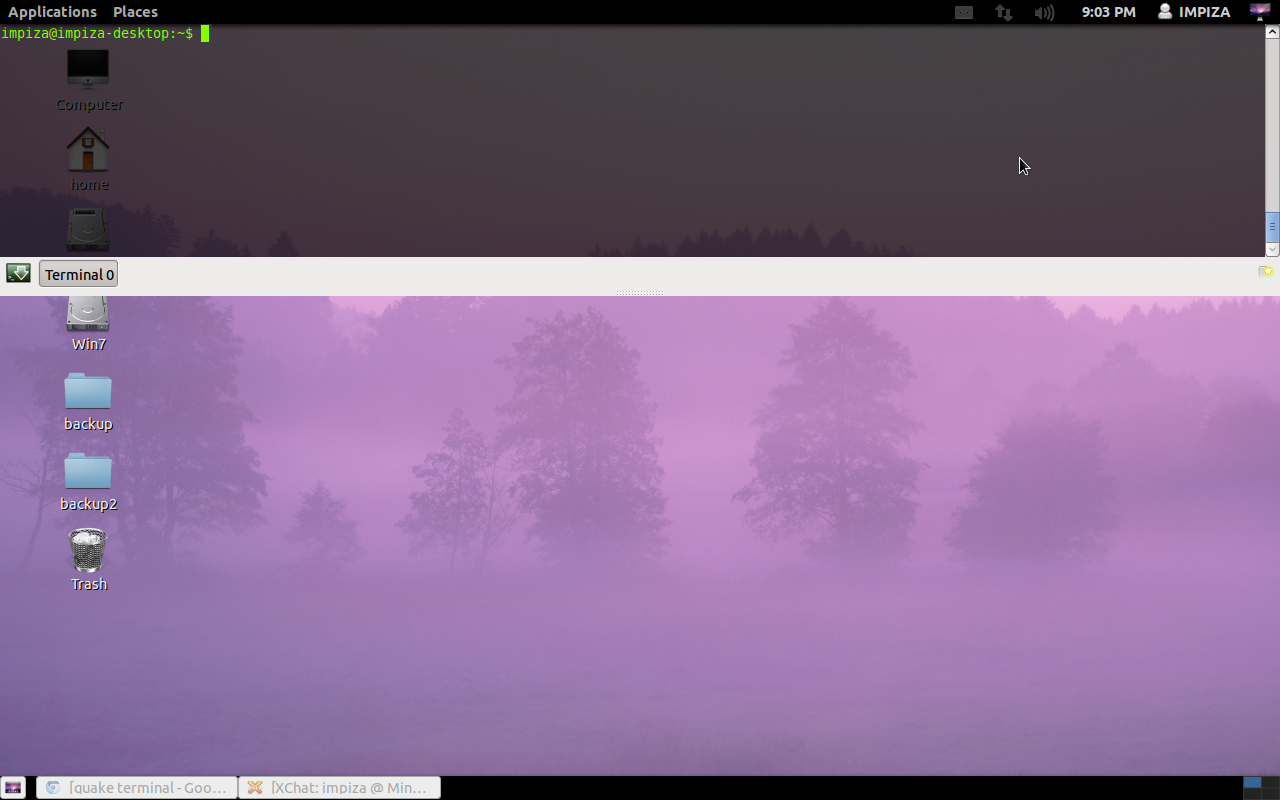
Press F12 key to Drop down terminal 

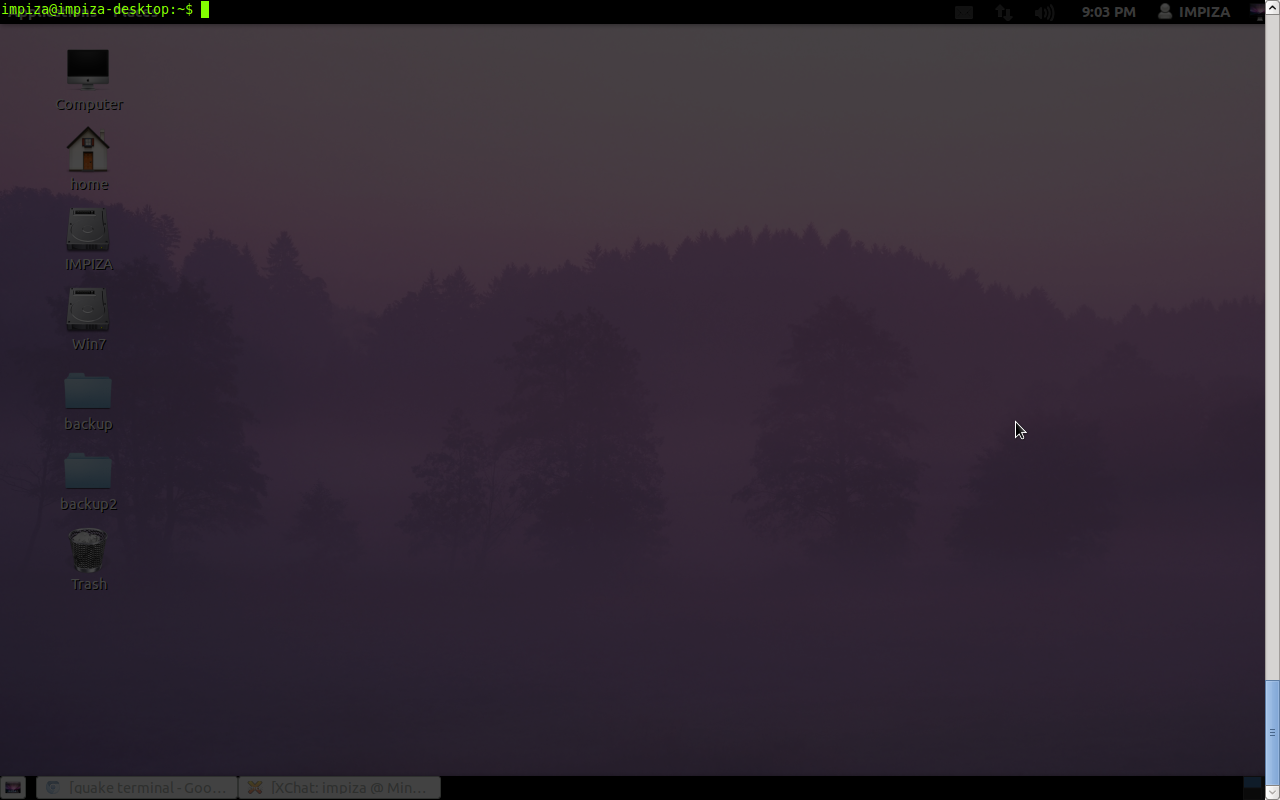
Press F11 key to maximize terminal to full screen 
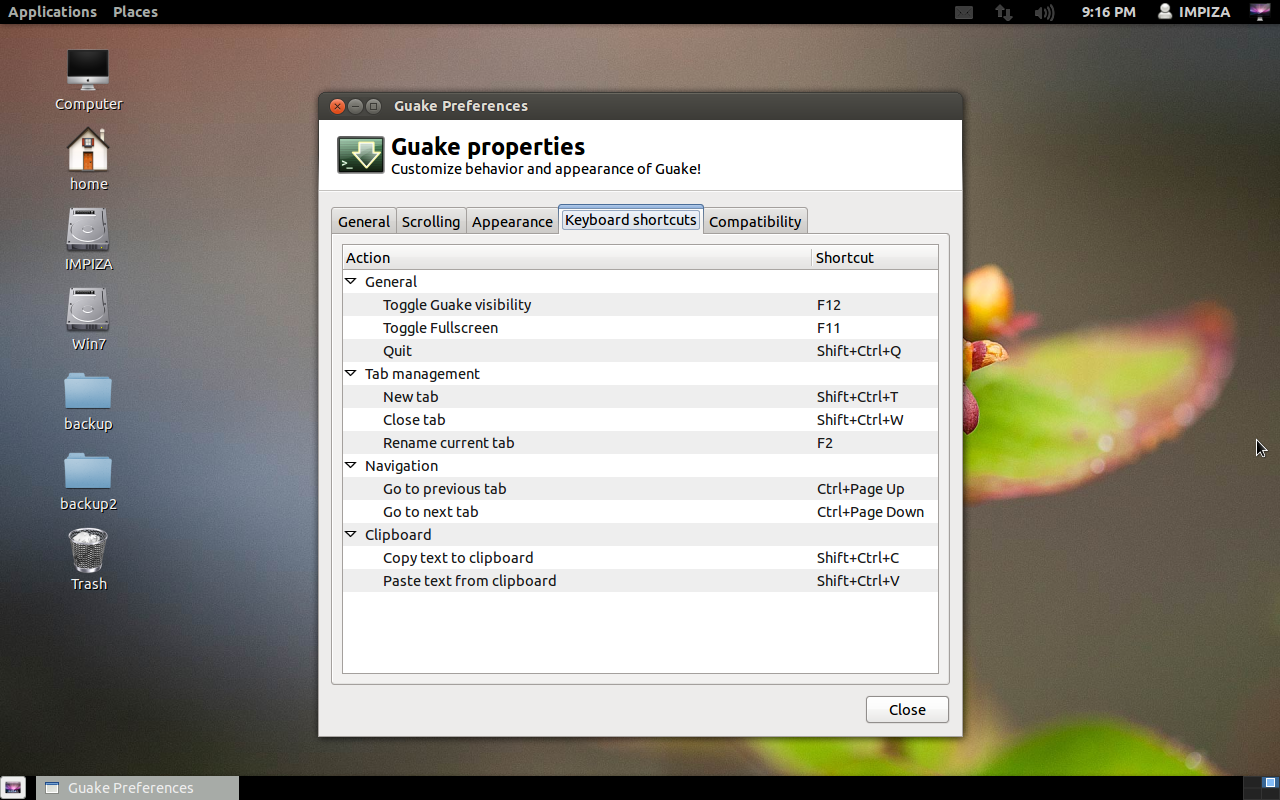
Guake terminal Properties (Keyboard Shortcuts)

How to customize your ubuntu (12.04 ,12.10 ), Mint 13 in cinnamon interface looks like Mac os x

This is a tutorial about how to customize your ubuntu , Mint looks like Mac os x

for ubuntu users you need to install cinnamon

after that follow below instructions 

for that visit my earlier url about how to install cinnamon interface in ubuntu 

here is the link   click here to know how-to-install-cinnamon desktop

for Mint users follow below instructions


install cairo-dock

open up your terminal type

 sudo apt-get install cairo-dock

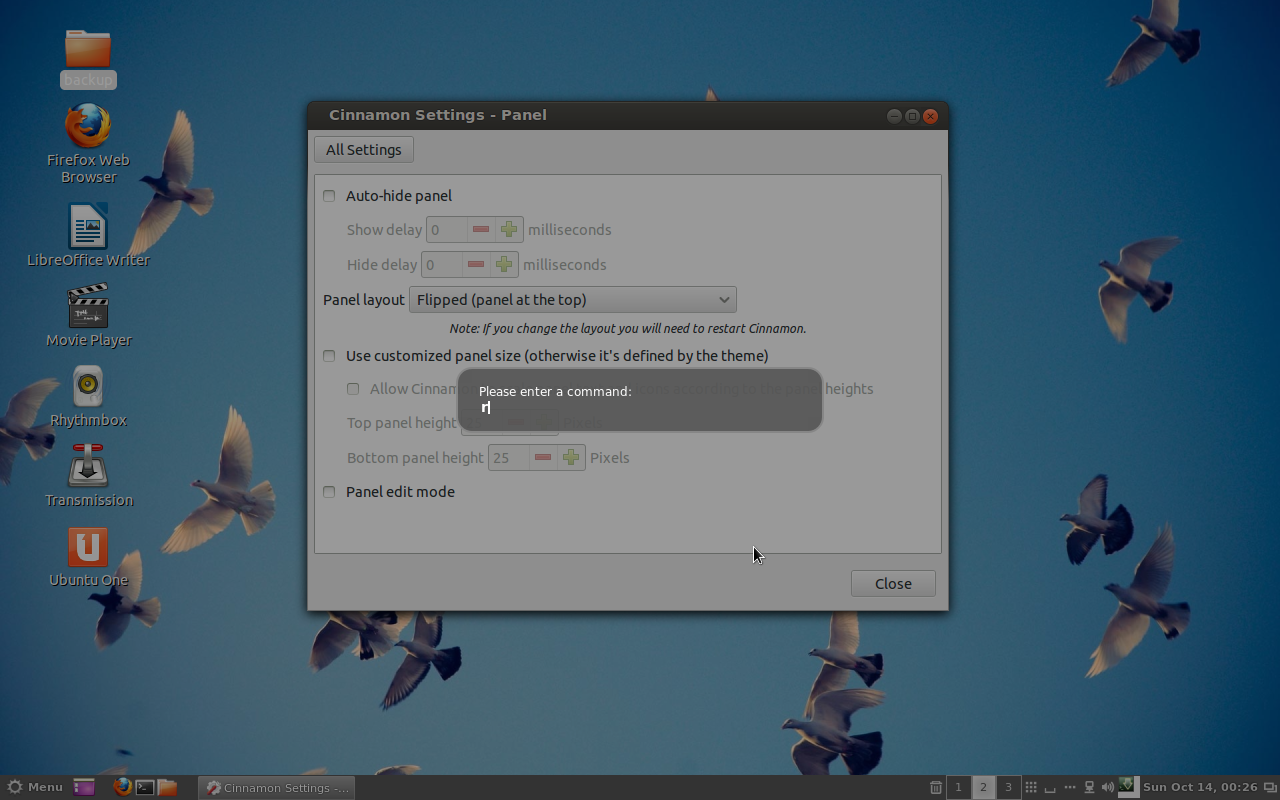
after installing cairo-dock change your panel position from bottom to top 

for that right click on cinnamon panel > settings > all settings >panel > panel layout > Flipped (panel at the top )
then restart your cinnamon interface for that press alt key + F2 key then type   
r
then press Enter 
after this process you can notice that your panel appear at top of your desktop 

now open your cairo-dock app from menu which we have installed before *(open Glx-dock (Cairo-dock with openGl))


now its time to configure your Cairo-dock
cario-dock is the main attraction ! so we have to customize it looks like Mac’s Dock
for that


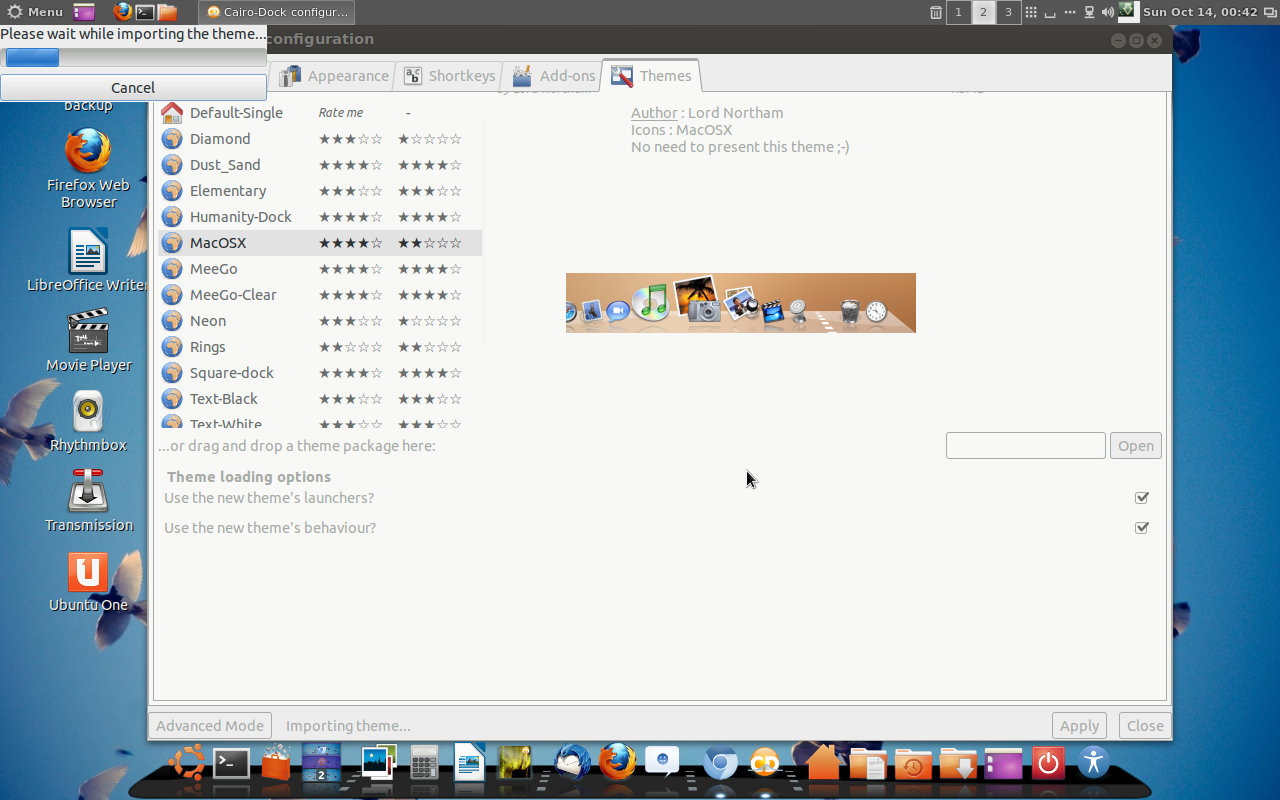
right click on cario-dock and cairo-dock configure then themes and apply Macosx theme

then
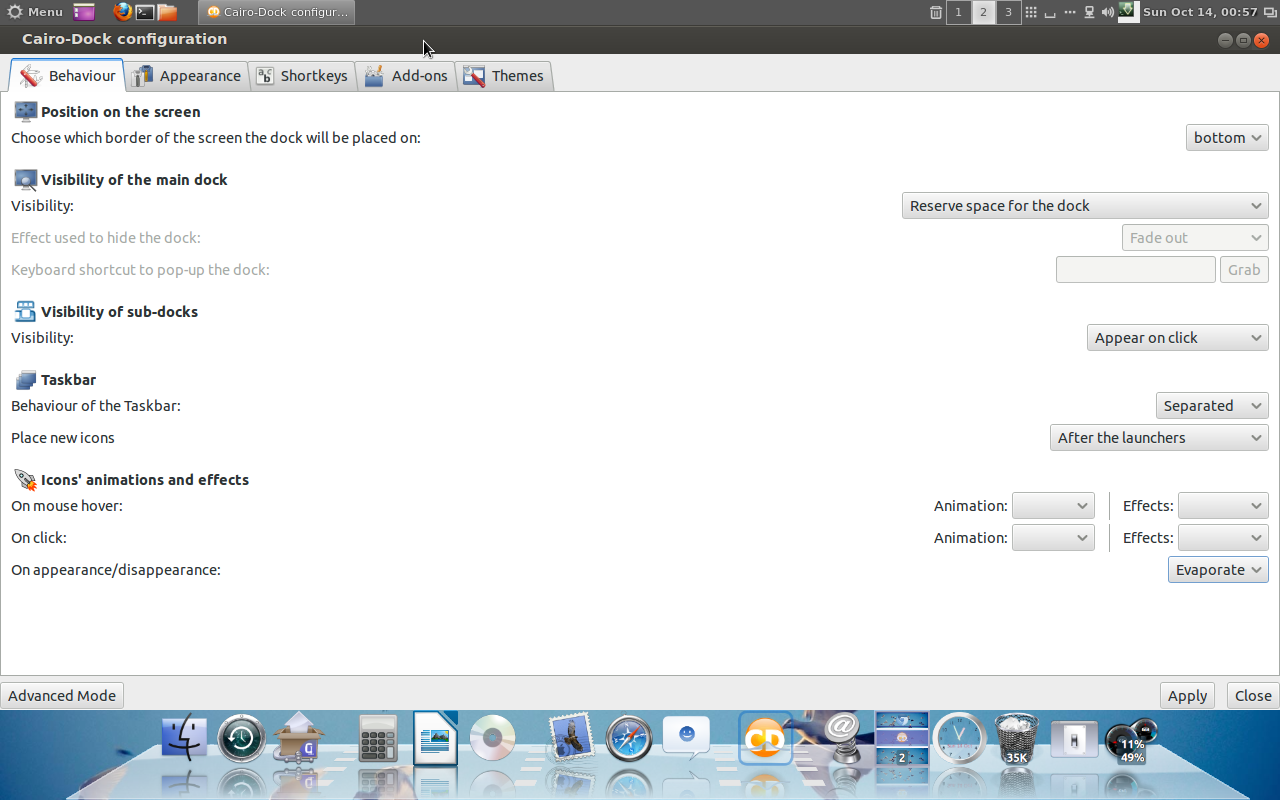
click on behavior tab , visiblility of the main dock > reserve space for the dock ! do exactly shown in screenshot

then icons animations and effect unmark all effect as shown in screenshot

after applying dock

now you need to apply a new cinnamon theme for that go to this url and download this zip file to your desktop

                                                 http://cl.ly/2X2R3D2F053e

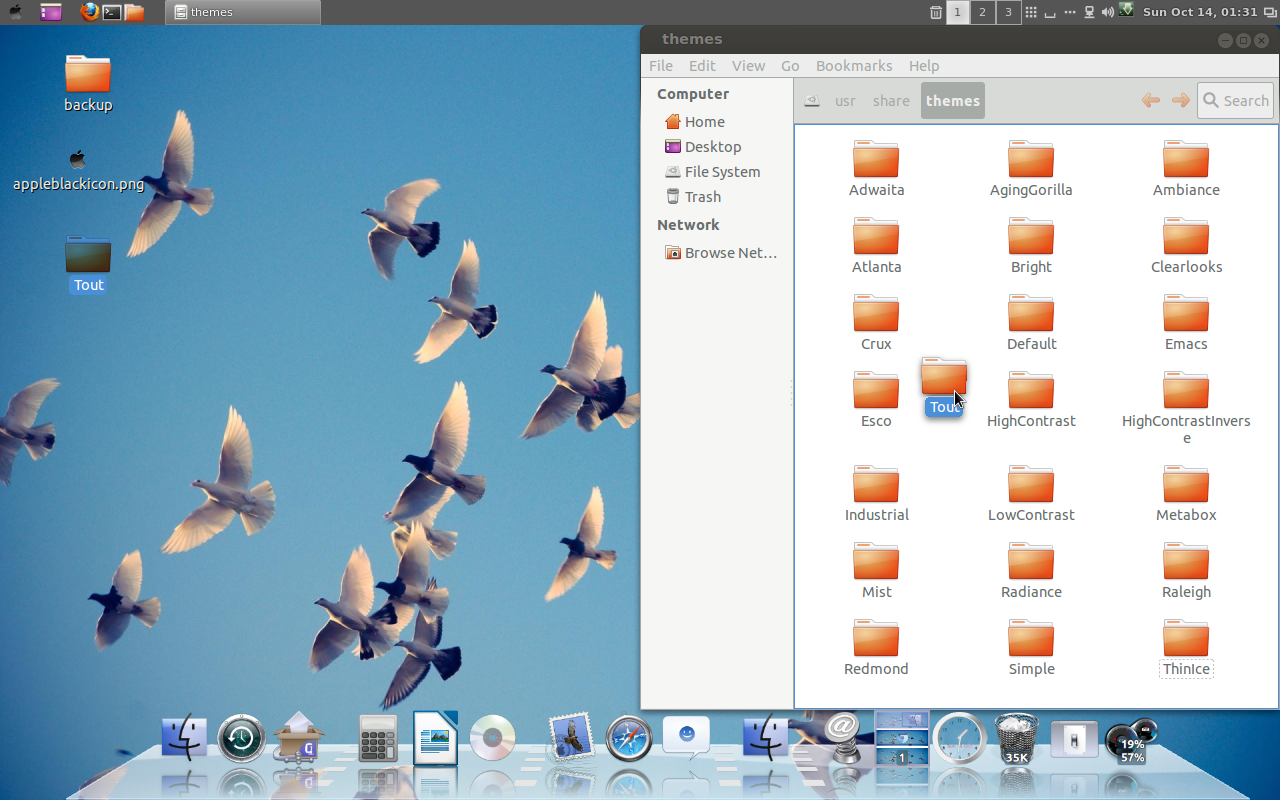
then  extract it to desktop then open this ( /usr/share/themes )location using root (right click the folder and open via root ) and drag extracted cinnamon theme folder to  this location     /usr/share/themes

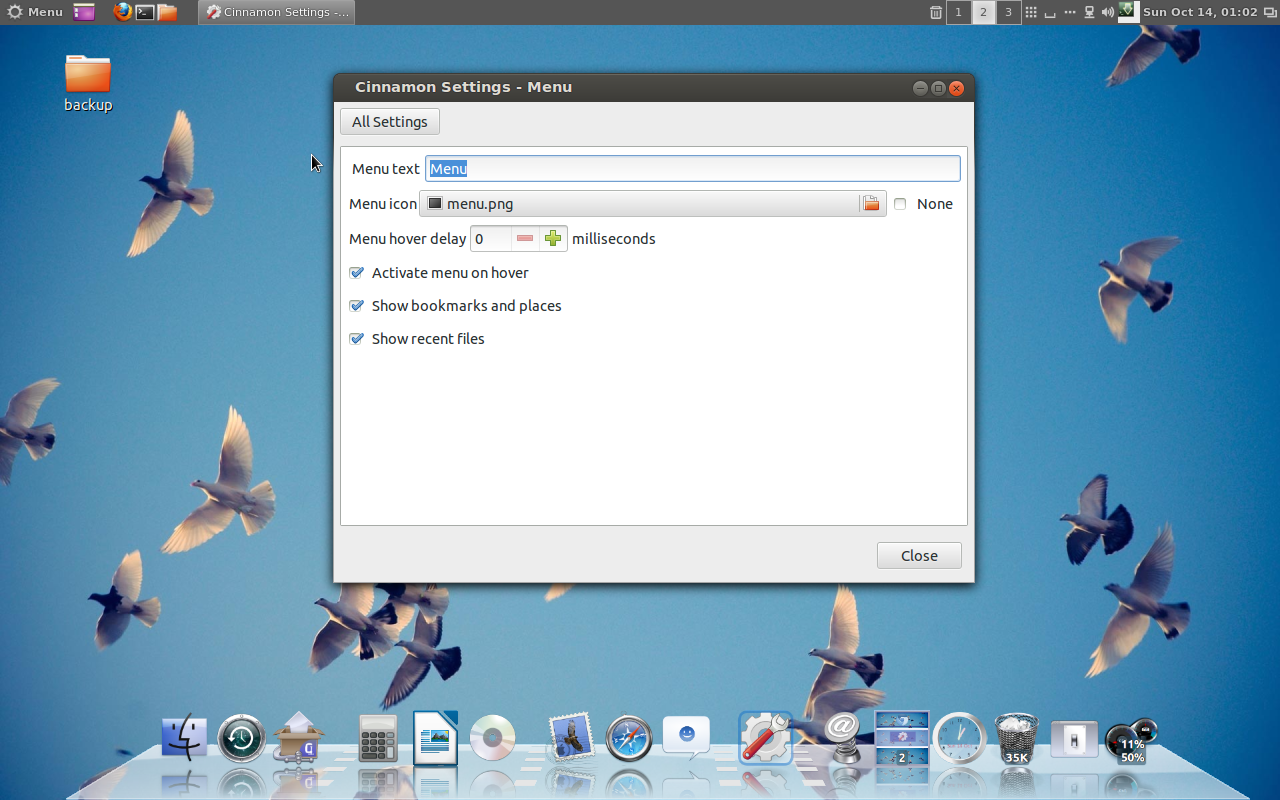
its time to edit Menuicon

apple menu has an apple icon

to do that

right click on menu in panel > Menu settings or right click on the panel settings  >  all settings then  Menu

erase Menu text

download Apple Menu icon from this url    click here to dowload Apple icon

then

show the path of newly downloaded Apple icon (save it in /home/your_desktop_profile/Pictures)

 then
press alt key + F2 keyhen press r Hit Enter key   ,  this is to refresh cinnamon interface ! then
click on all settings in cinnamon settings > themes > select newly added tout theme

do its once more Alt key + F2 then press r Hit Enter key

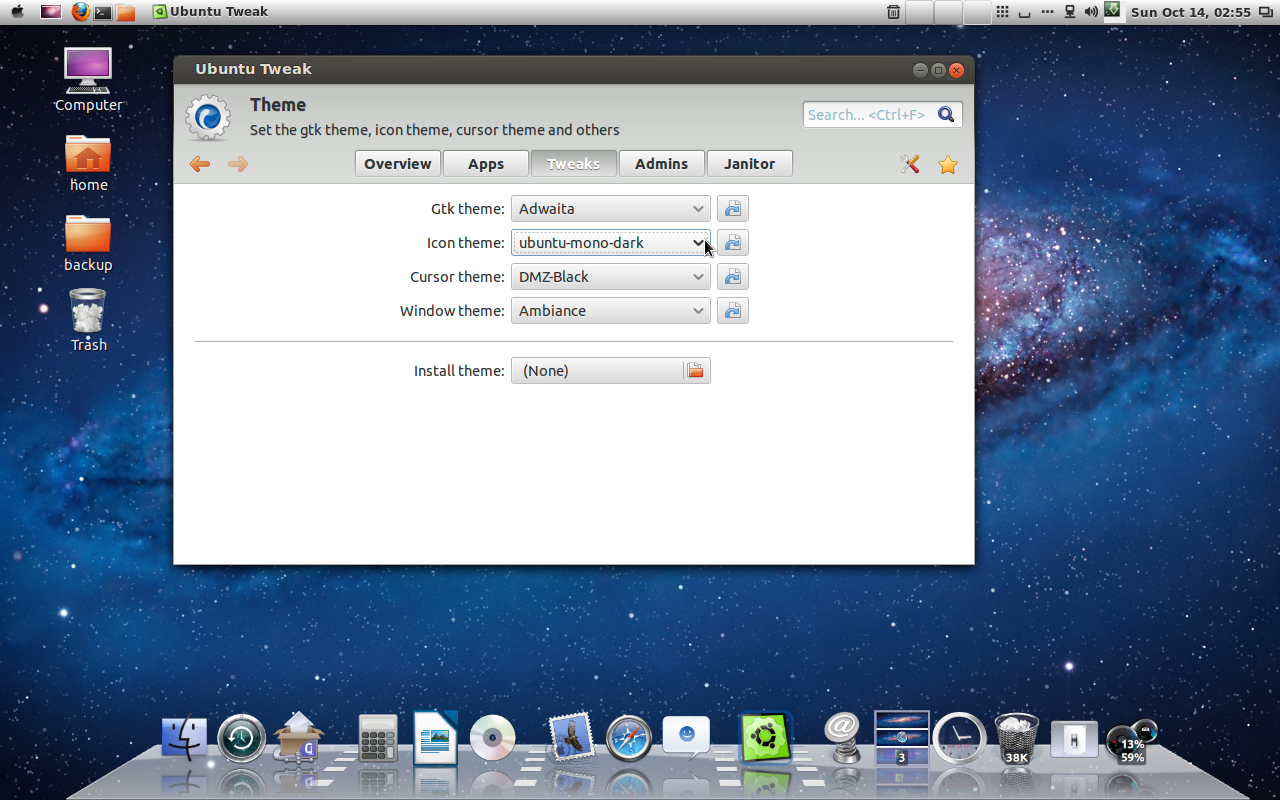
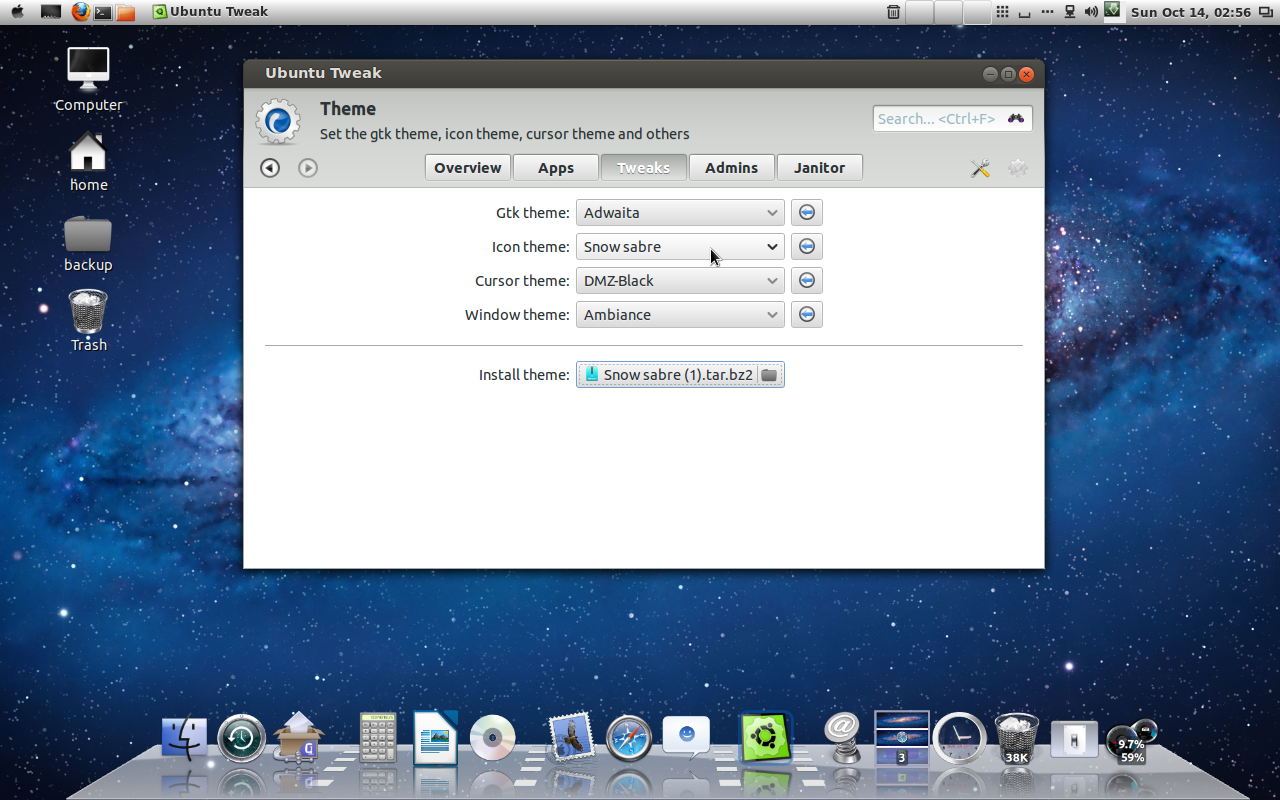
install Ubuntu-tweak tool

then download icon theme called snow sabre from this link Click to download snow sabre icons

then install it using ubuntu tweak tool

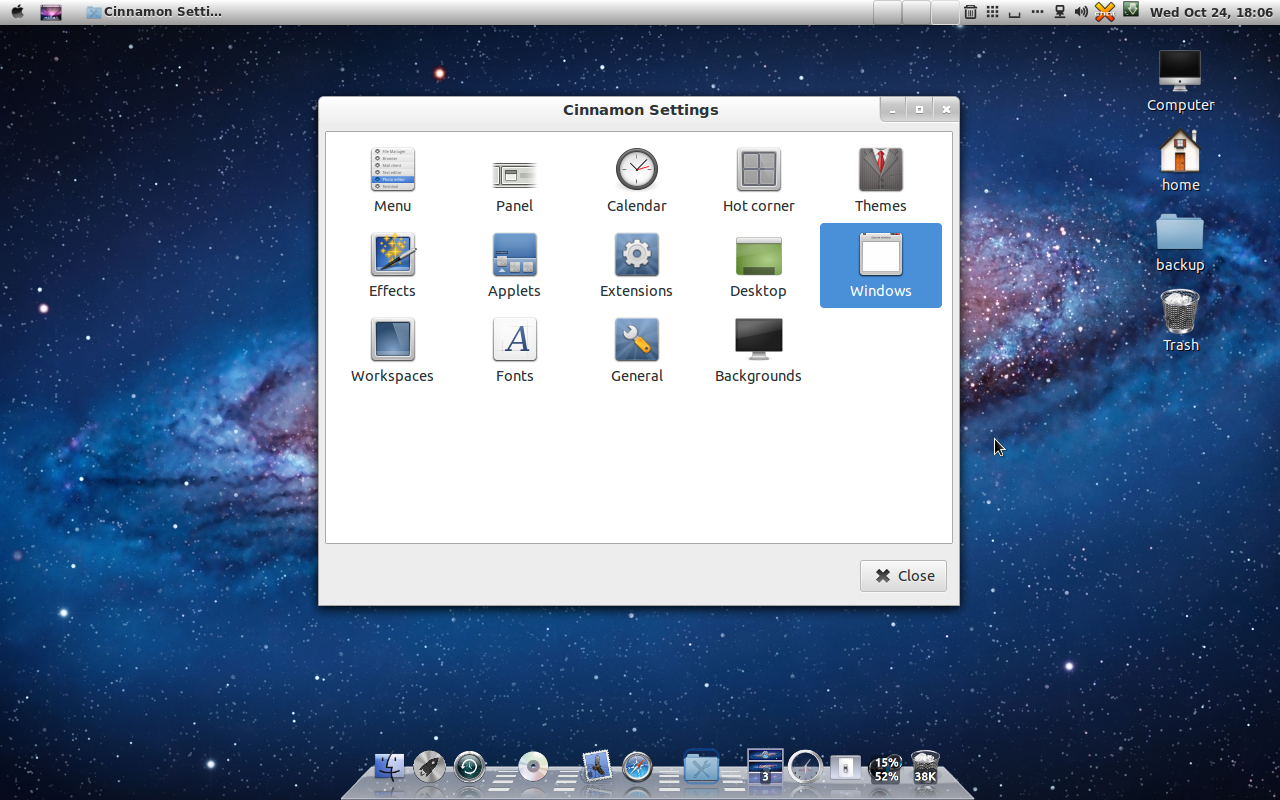
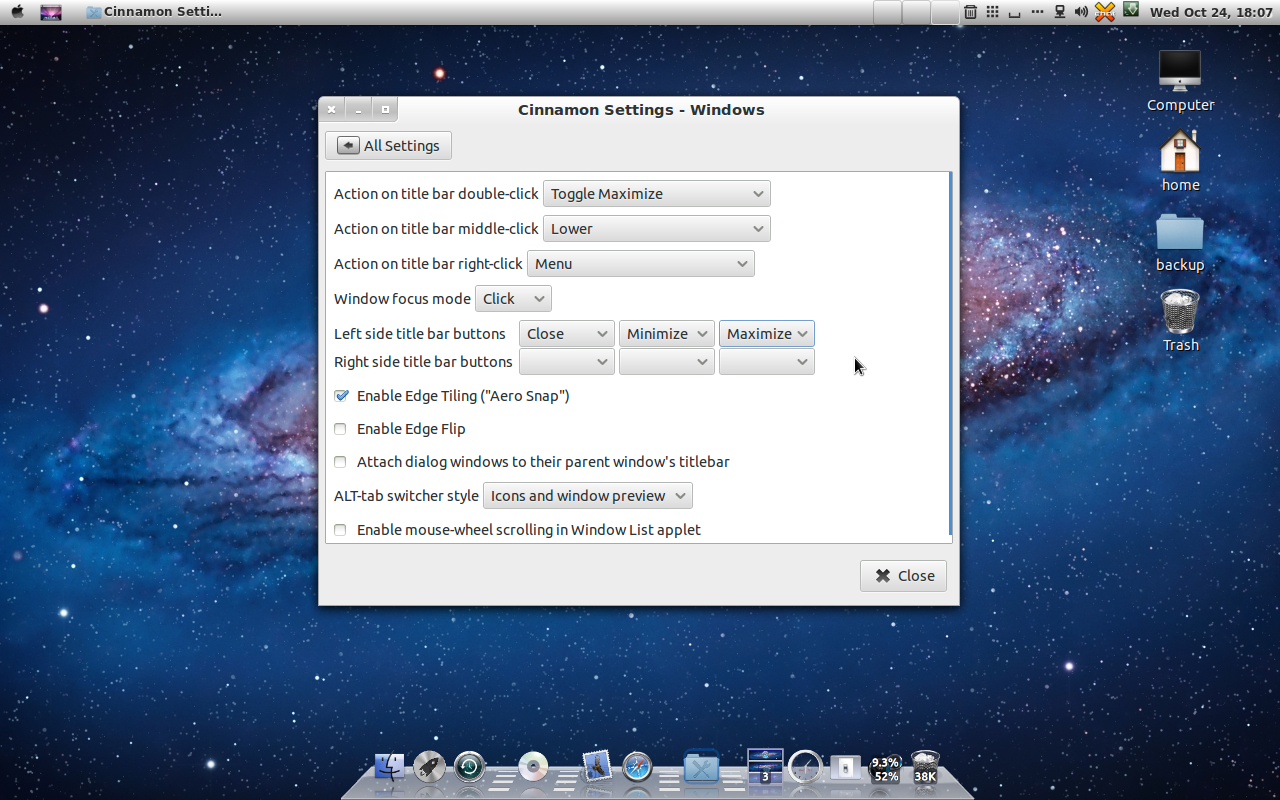
at last you need to move your windows buttons to left side  for that 
open cinnamon settings and windows 

now rearrange buttons to left close , minimize , Maximize !

then if you want to customize your cairo dock shortcut applet to looks like 
lauchpad applet ! follow this instructions 
download this icon to picture folder in your home folder 


click right click shortcut applet on cairo-dock > shortcuts > edit > icons tab and 
 rename shortcut to ( Launchpad ) then click on open button on image filename
select launchpad icon that you have download earlier ! done 


now its time  to decorate your desktop with Mac os x Lion or Mountain Lion HD Wallpapers

here my collection

                                           Mac os x HD wallpaper  Here


                      Some Selected Wallpapers ! click here

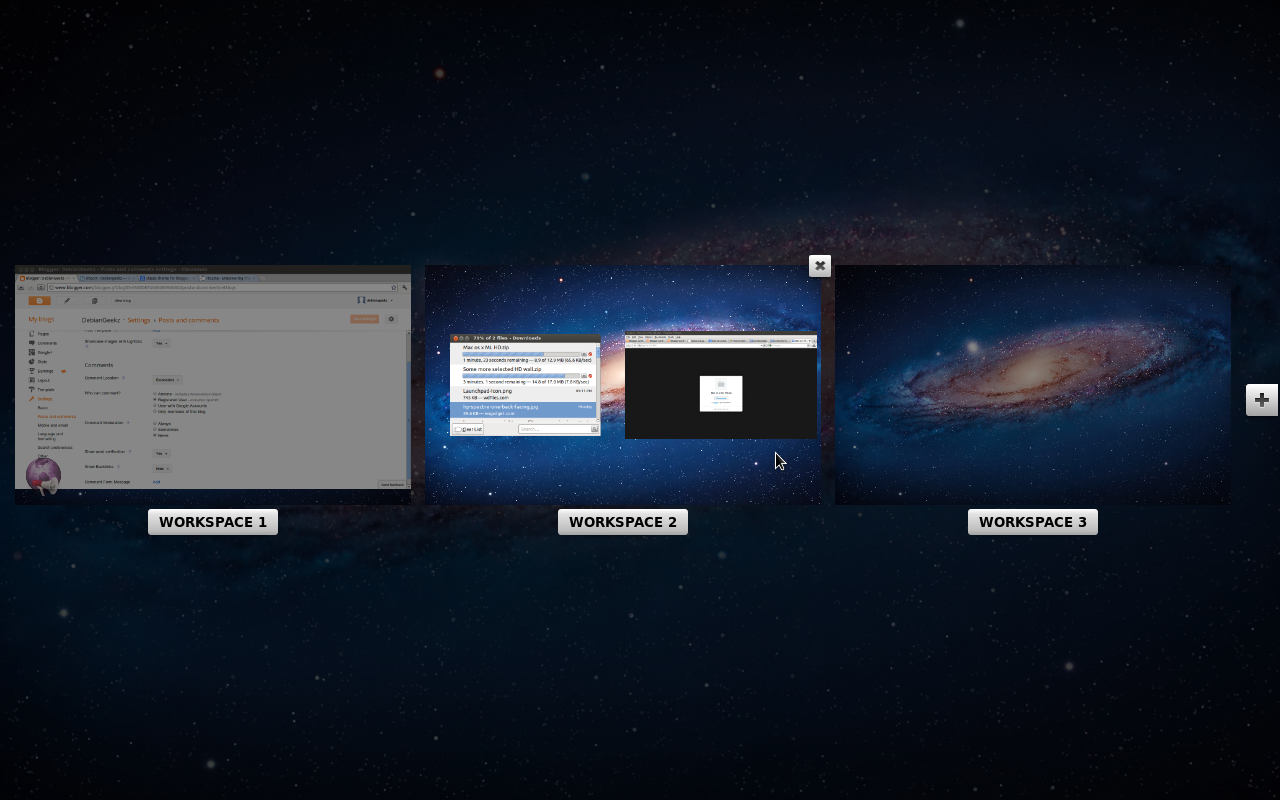
                     Here is my Mac looking desktop 

Work spaces just like Mac os x Lion and Mountain Lion ! 🙂 

Thanks for reading my blog ! share it , comment if you like the post thanks

Pin It on Pinterest