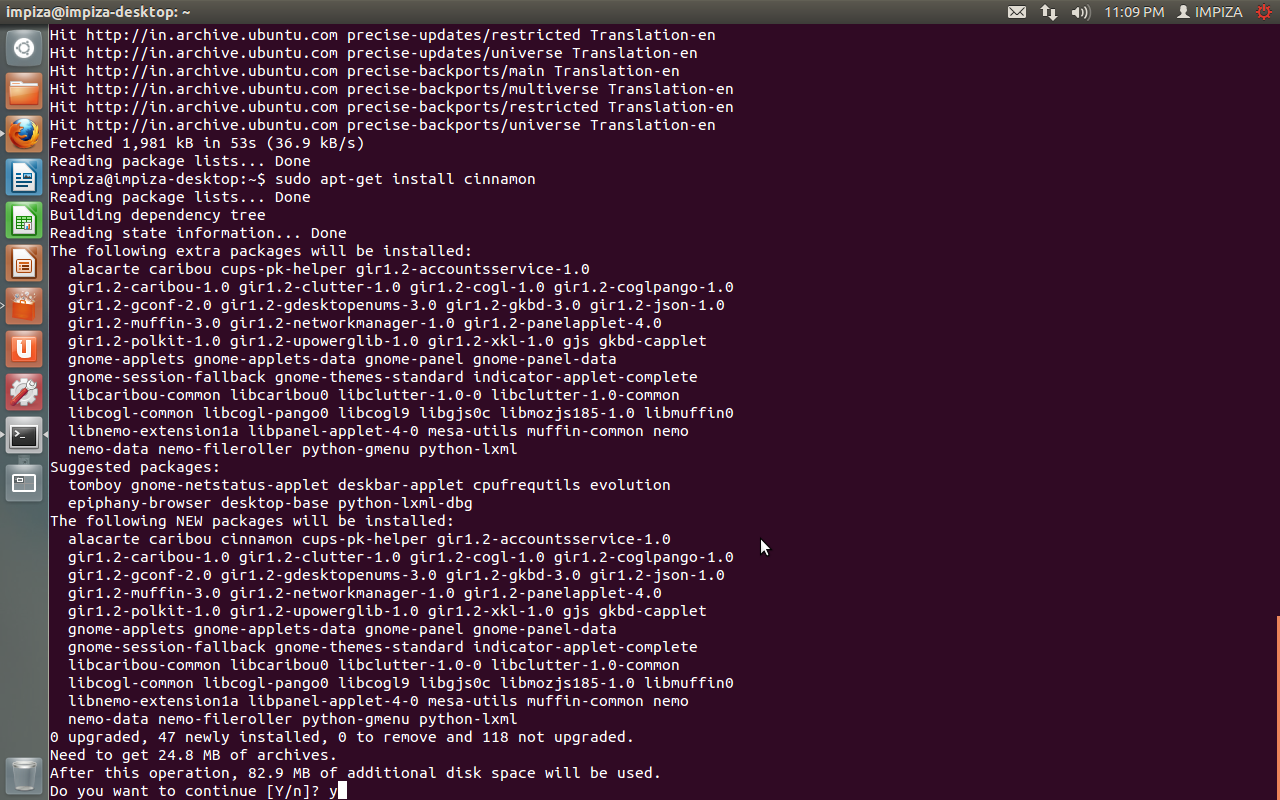
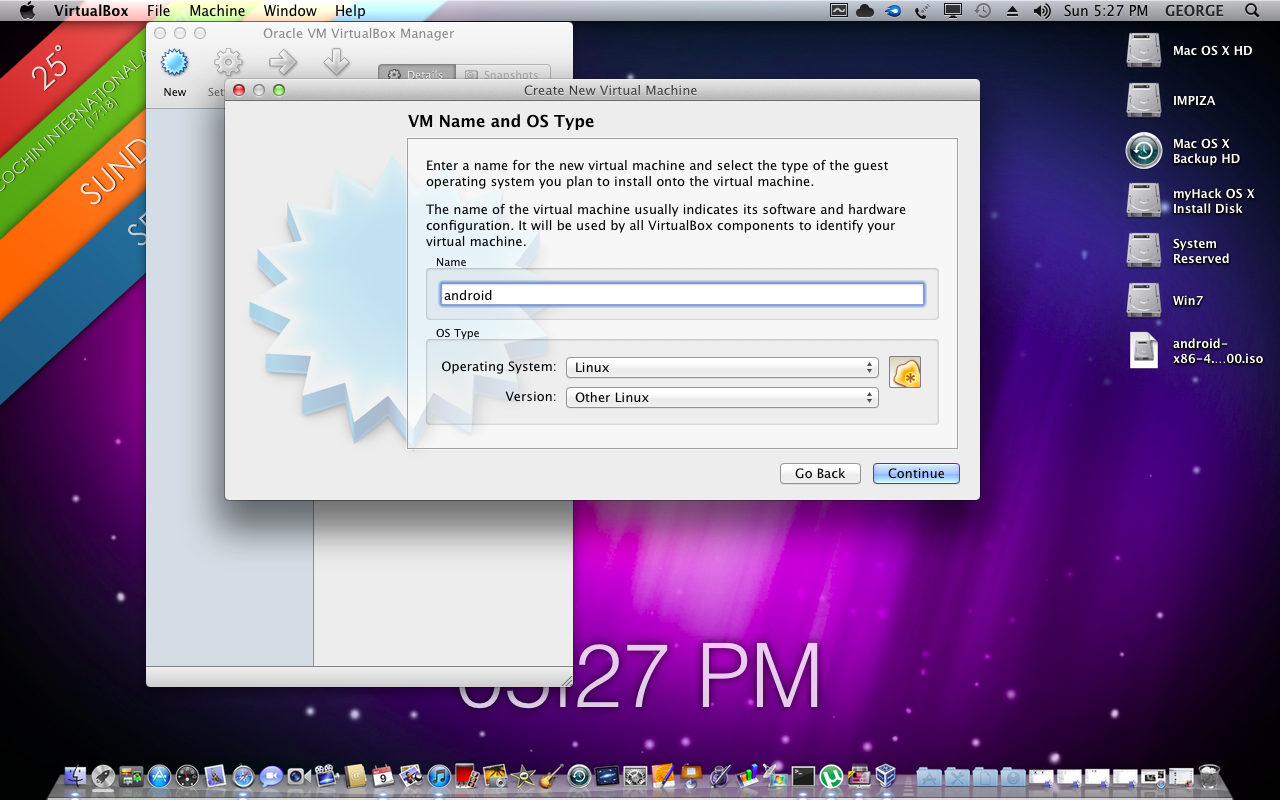
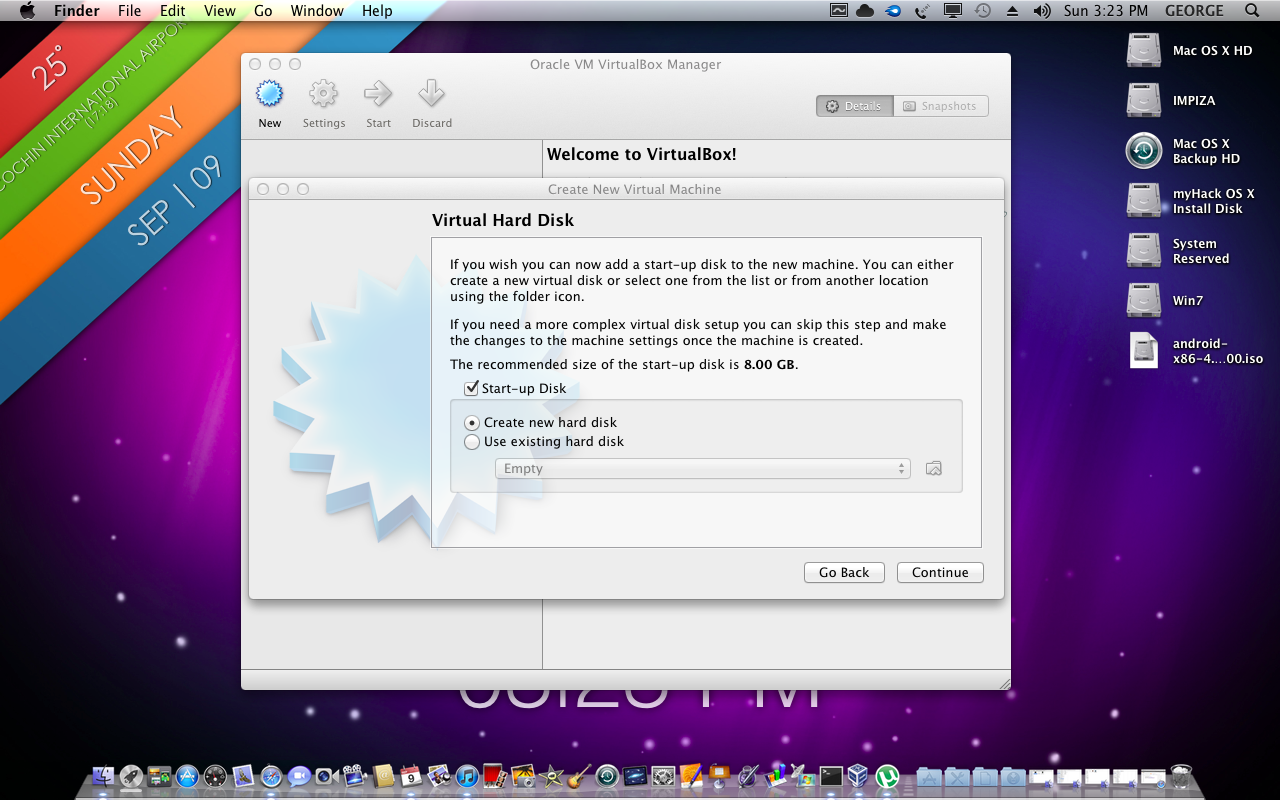
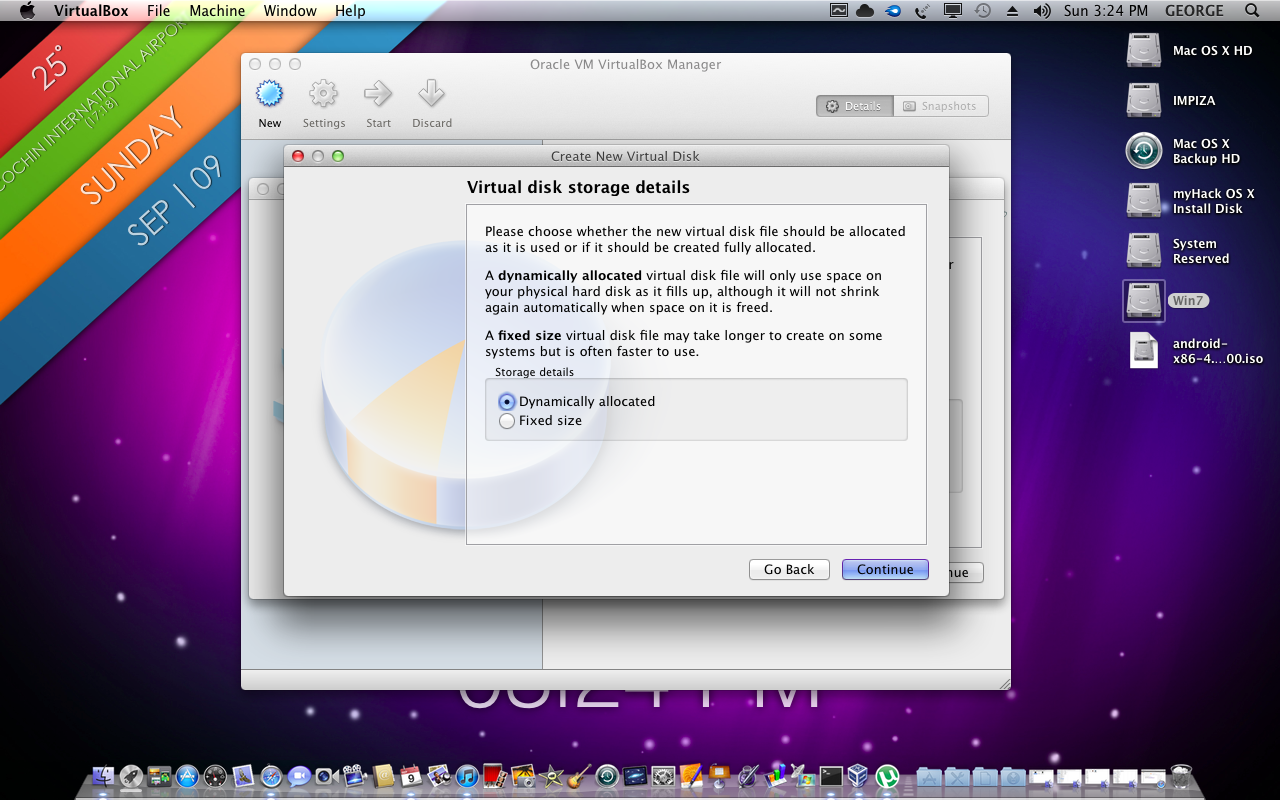
Hi guys today i am going to show you how to install Cinnamon in Ubuntu Linux OS !
About cinnamon
The Linux Mint development team was initially unsure about the future of the distribution after the release of GNOME 3. Its new interface, GNOME Shell, did not fit the design goals the team had in mind for Linux Mint, but there were initially no available alternatives. Linux Mint 11 “Katya” was released in May 2011 with the final release of GNOME 2, but it was clear that a better solution was needed, as GNOME Panel was no longer being developed. Therefore, the team set out to improve GNOME Shell so that it would fit Linux Mint’s goals, and the result was the “Mint GNOME Shell Extensions” (MGSE). In the meantime, the MATE desktop environment was forked from GNOME 2. The Mint team decided to incorporate MATE into Linux Mint 12 “Lisa” alongside MGSE, to give users a choice whether to use the traditional GNOME 2 desktop or the GNOME 3-based MGSE. Unfortunately, MGSE fell short of expectations. Since GNOME Shell was going in a different direction than the Mint developers had in mind, it was clear that MGSE was not viable in the long run. In response to this problem, GNOME Shell was forked to create the Cinnamon project, allowing the Linux Mint developers better control over the development process and to implement their own vision of the GNOME interface for use in future releases of Linux Mint. The project was publicly announced on 2 January 2012 on the Linux Mint blog.! Features
Desktop effects, including animations and transition effects;
A movable panel equipped with a main menu, launchers, a window list and the system tray;
Various extensions;
Applets that appear on the panel
Overview with functions similar to that in GNOME Shell; and
Settings editor for easy customization. It can customize:
The panel
The calendar
Themes
Desktop effects
Applets
Extensions
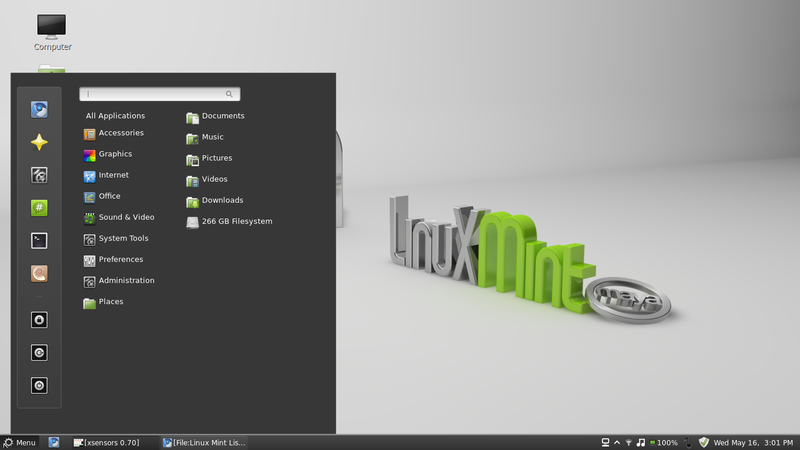
a screen shot of cinnamon desktop interface !
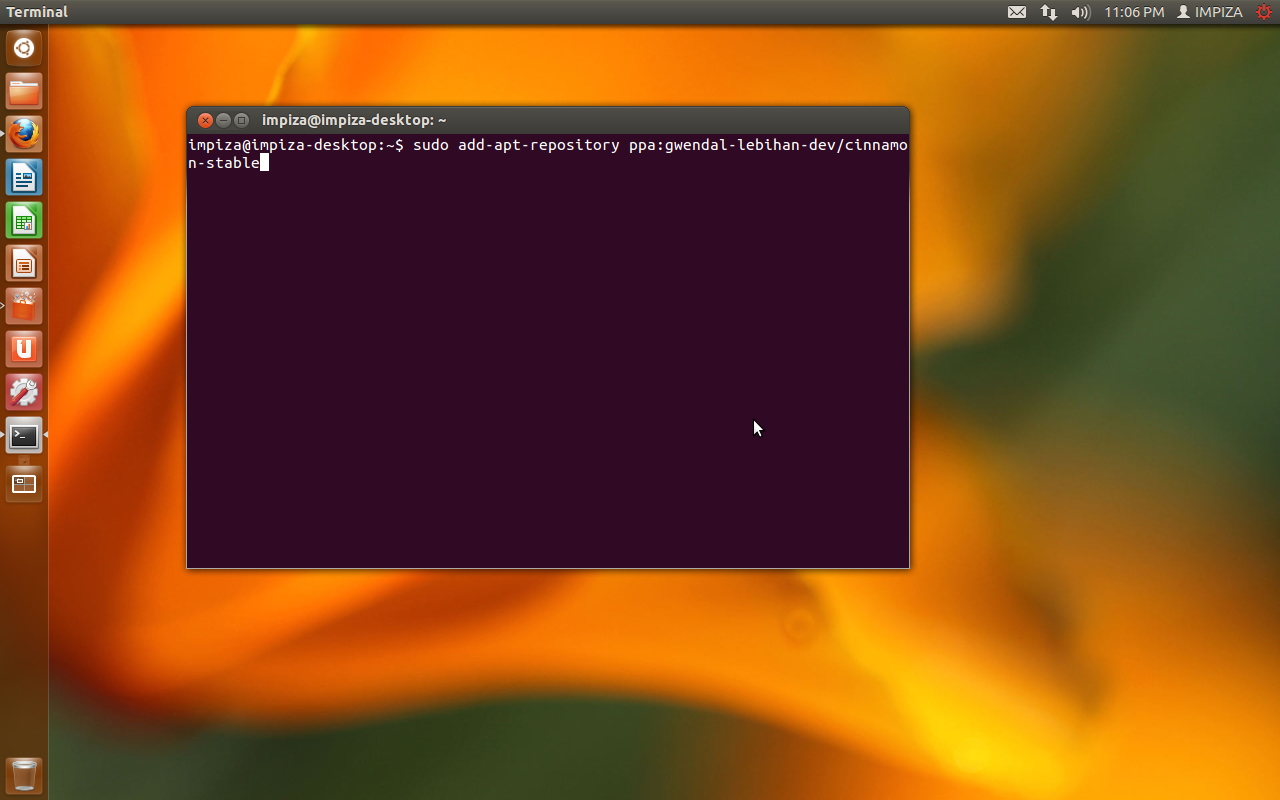
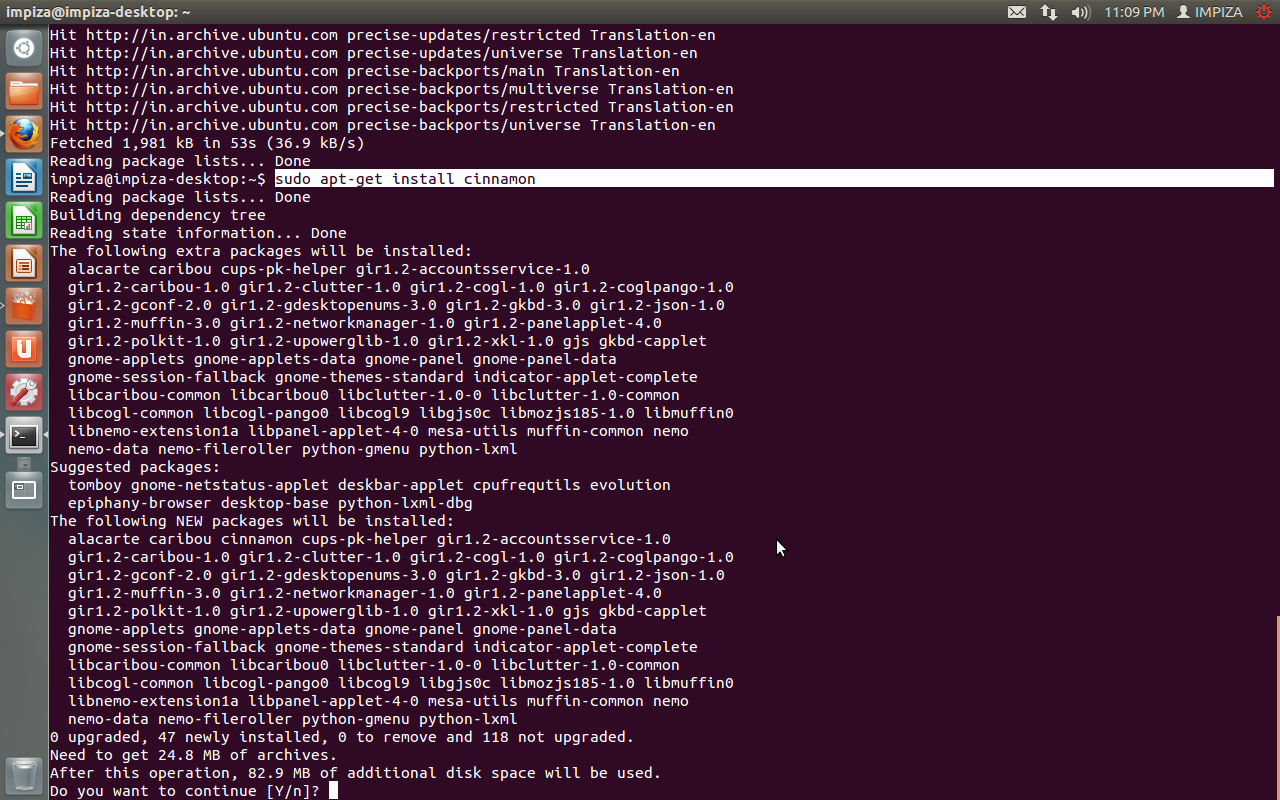
All you needed is 3 commands lines internet latest version of Ubuntu terminal
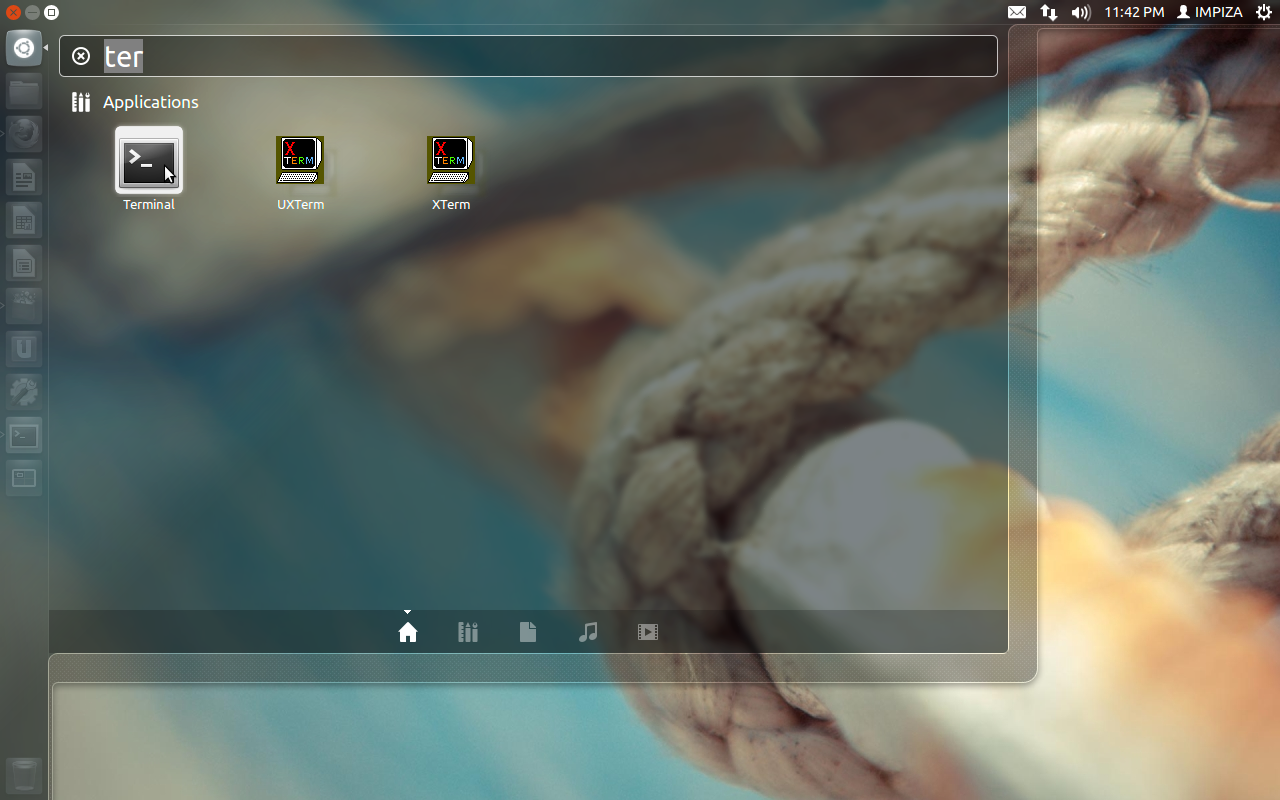
first you need to install gparted Open up your Terminal app then type
sudo apt-get install gparted
hit enter
now it will ask for password (but you cant see your password that you are typing
this is for some security reasons in linux )
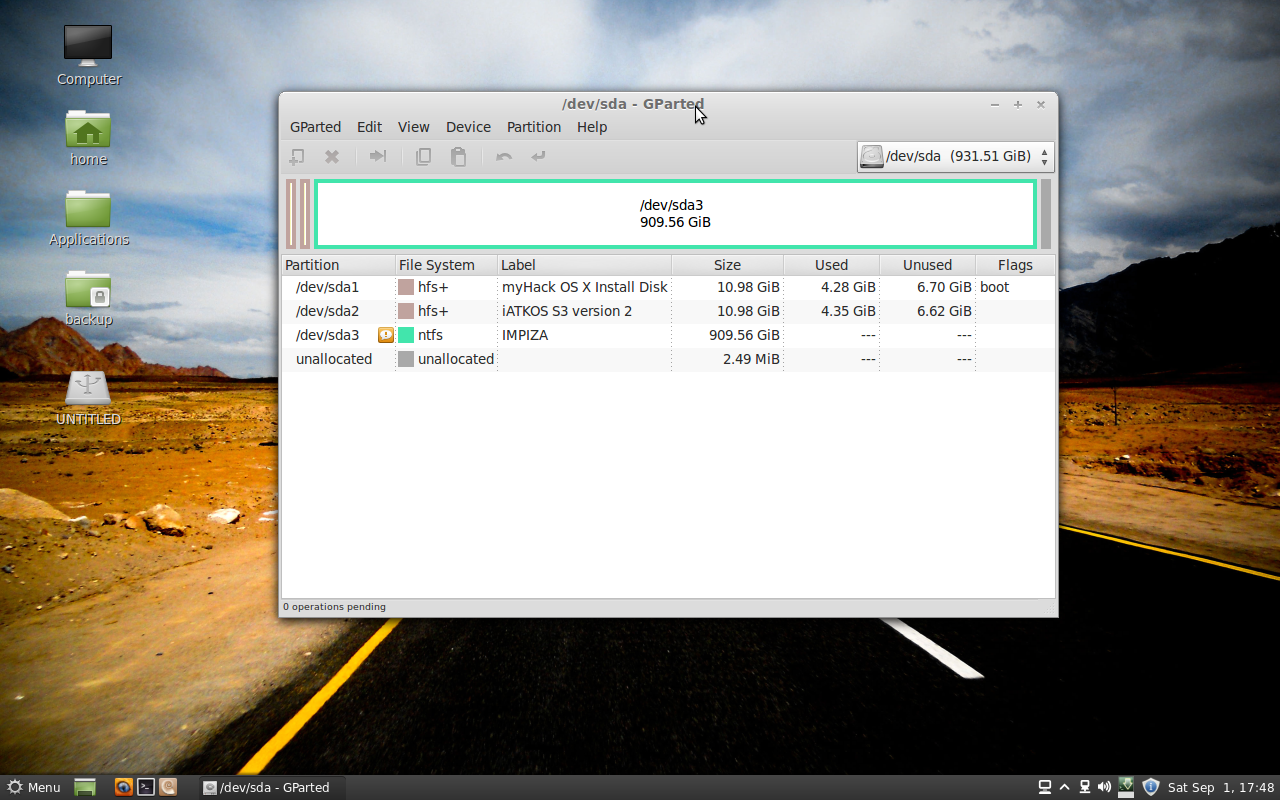
open gpared (here is a screenshot of gparted app)
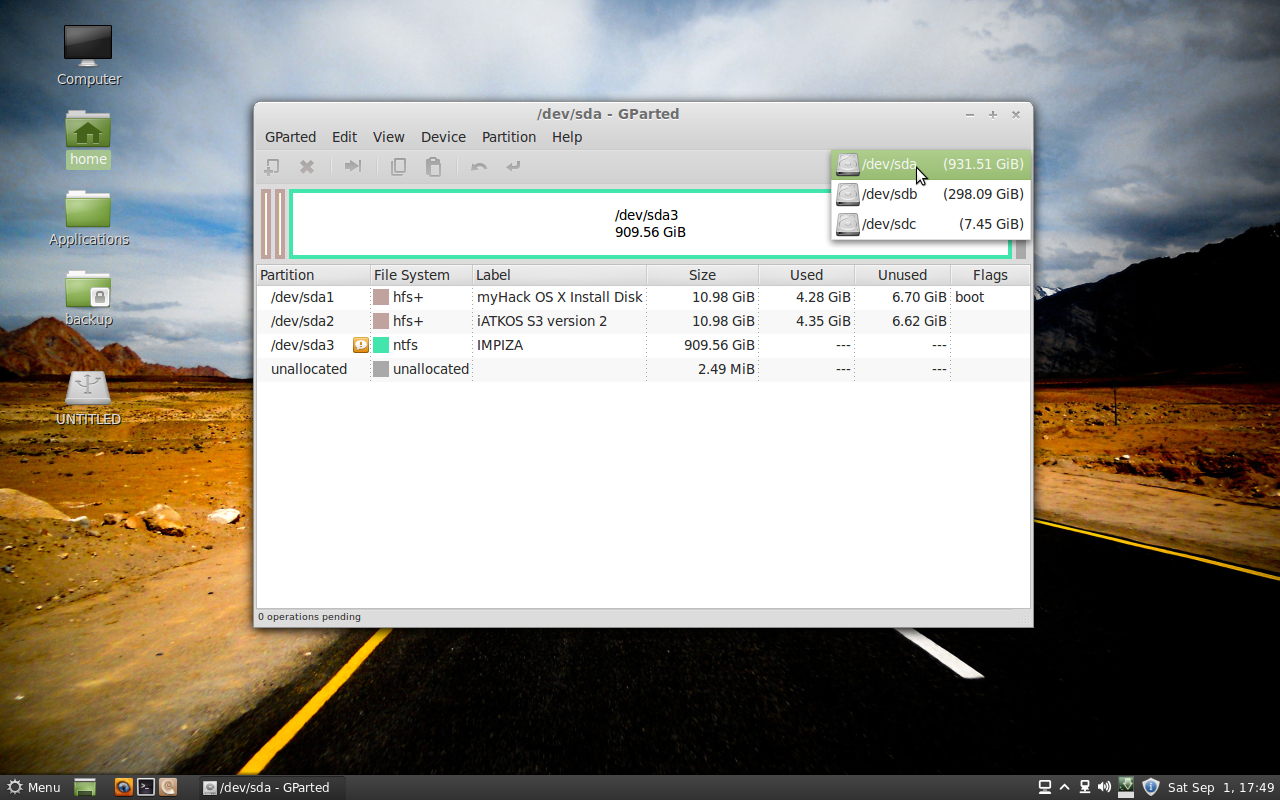
then select your targeted partition carefully (one mistake may cause lose of your data ! )
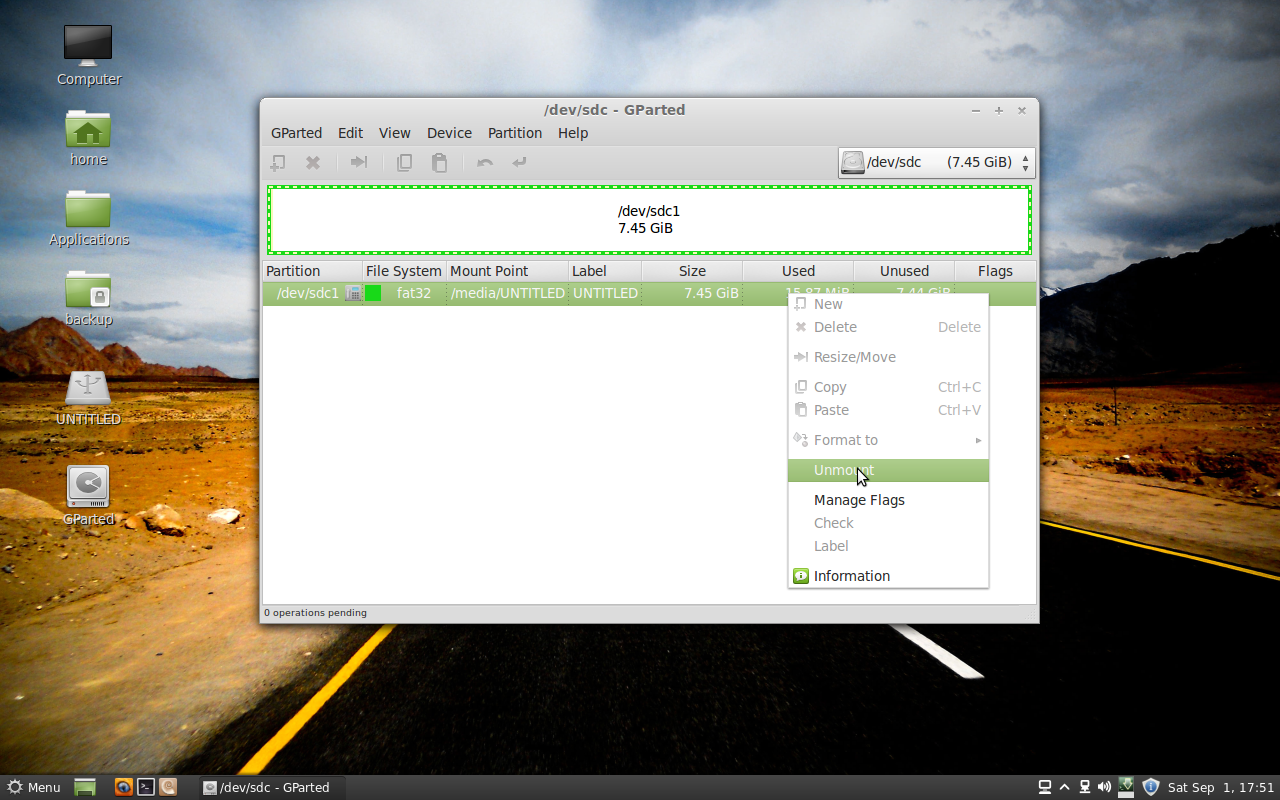
k now unmount your partition
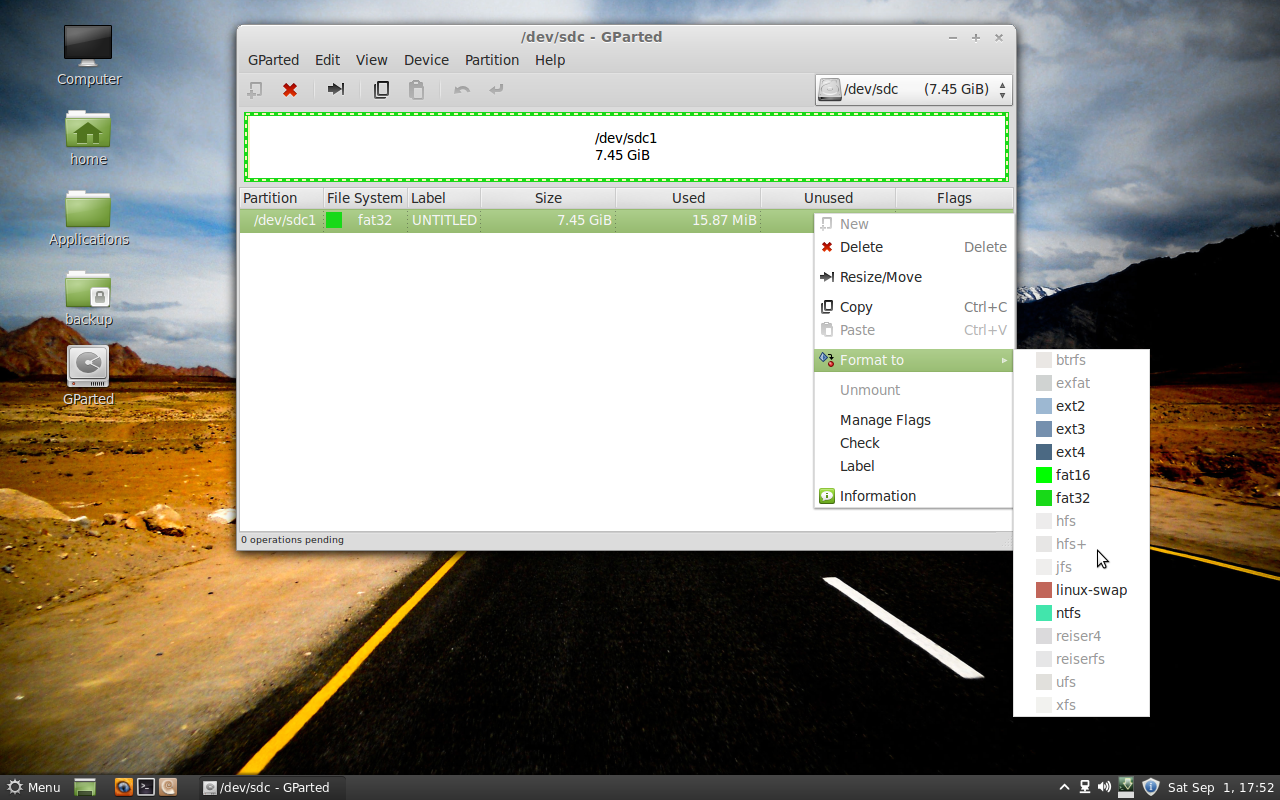
after unmounting your partition you can select format by right clicking and scroll down ! and select file format you want to format here many fileformat available for you
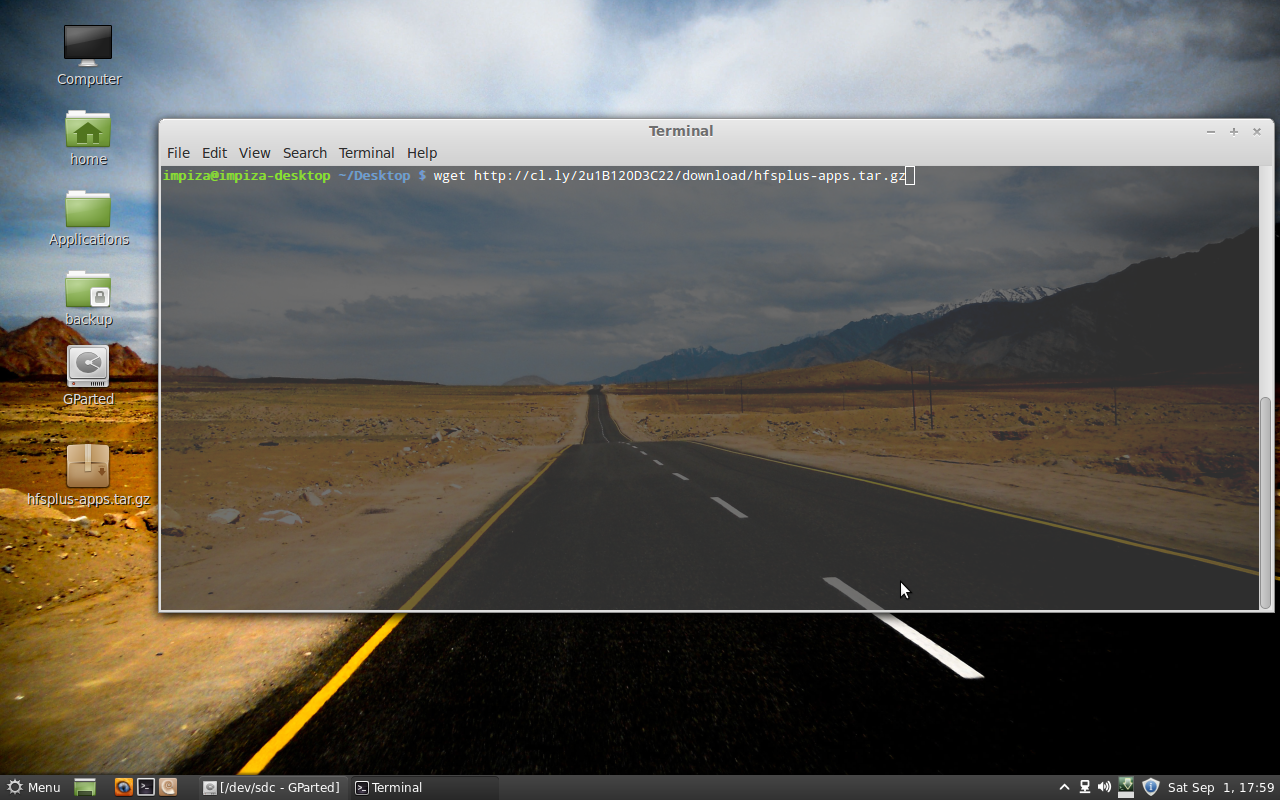
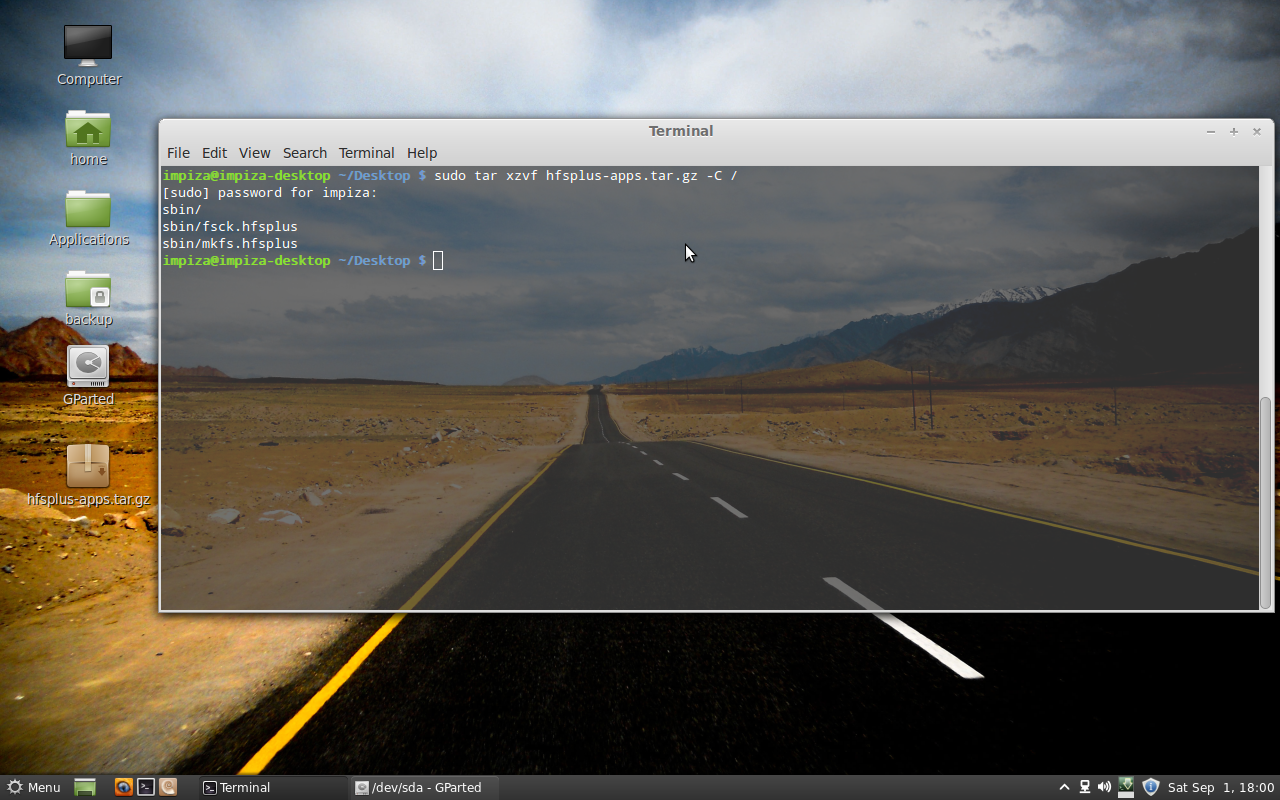
but you cant select HFS+ because its not come with default in gparted so follow my instructions to enable this features
Open up your Terminal app and enter these 2 commands in:
First go to this website ” http://community.linuxmint.com/software/search ” then type in search box “dock ” , from the next page you can find many dock ! you have to select ” cairo-dock ” —> from the next page you can able to install directly cairo dock to your pc !
from there you can able to download ” snow sabre.tar.bz2 ” icon files ” !
then go to your desktop , then press right button in mouse then select ” change Desktop Background ” , from the dropdown menu ! then ” appearance preferences ” menu will appear on your desktop !
then select theme button from ” appearance preferences ” menu ! then select ” shiki-wise ” theme from theme menu !
then select downloaded “ snow sabre.tar.bz2 ” file & drag and paste to ” theme menu ” in ” appearance preference ” settings ! then you can see a installation process , this is icon installation ! after that select customize of selected shiki-wise theme !
then a menu called ” customize theme ” will appear ,from there select ” icon menu ” then select ” snow sabre icon ” , then select ” color icon “from customize theme menu “then change the select item & background colour green to gray ( colour name #BEBEBE )
then close ” customize theme menu ” but don’t close the whole ” appearance preference menu ” then download ” Apple Mac os x wallpaper from web ” like this one !
or you can download this image from this website
then apply this wallpaper as your desktop background !
now we have to edit menu icon of mint ! first you would have a icon like this one ! but it must be in .png format 22×20 pixel !
you can also download this image from
or
then resize it to 22×20 pixel
and save as .png
then goto computer ; filesystem –> usr –> lib –> linuxmint —> then select the ” mintMenu icon ” then right click , then from the dropdown menu select ” open as administrator ” then it will ask your password ! when you enter to mintMenu icon
be careful don’t delete any other files !
then select mint Menu default icon !
right click
delete
remember ones you will delete in this mode will not regain from trash as always !
so carefully !
then paste 22×20 pixel .png format picture there
now rename it to ” mintMenu “
then close that administrator mode !
then go to desktop
right click on menu icon
then select Menu preferences
delete button text
then close that menu
now you have to change your linux mint default button layout !
for that !
select menu key
select preferences
select desktop settings
from desktop settings select windows
change button layout from ( Traditional style ( Right ) ) to )Mac style left))
close
now goto your desktop
from the ” Appearance Preference ” you can find a theme called ” custom “
select that theme and click in save as button
now you can find a menu appearing called ” save theme as “
name it Mac os x
type description
click on ” save background image ” otherwise your desktop wallpaper will not save with the theme
then click save !
now click menu button
type in the filter ” cairo “
now two application will appear
this is cairo-dock (no openGL ) & ( GLX-dock ( cairo-dock with openGL )
select GLX-dock ( cairo-dock with openGL ) for more animation for your dock
single click on GLX-dock ( cairo-dock with openGL )
then right click your desktop dock
then select cairo dock button & press configuration
change toolsbar to Mac os x style ( windows 7 & gnome style is also available !
now your desktop will look like this
this is my modified Linux Mint 9 Isadora Desktop
you can see dock fire animation when i move my mouse over it !
its coolllllllllllllllllllllllllll !
plz add me as your friend in facebook , orkut , myspace etc …………………………