Select Page

How to make Multiple ISO bootable Pendrive (Windows & Linux same time)
How to make Multiple ISO bootable Pendrive (Windows & Linux same time)

Connect your usb drive to your pc (min 8gb)

Open up gparted tool in you linux

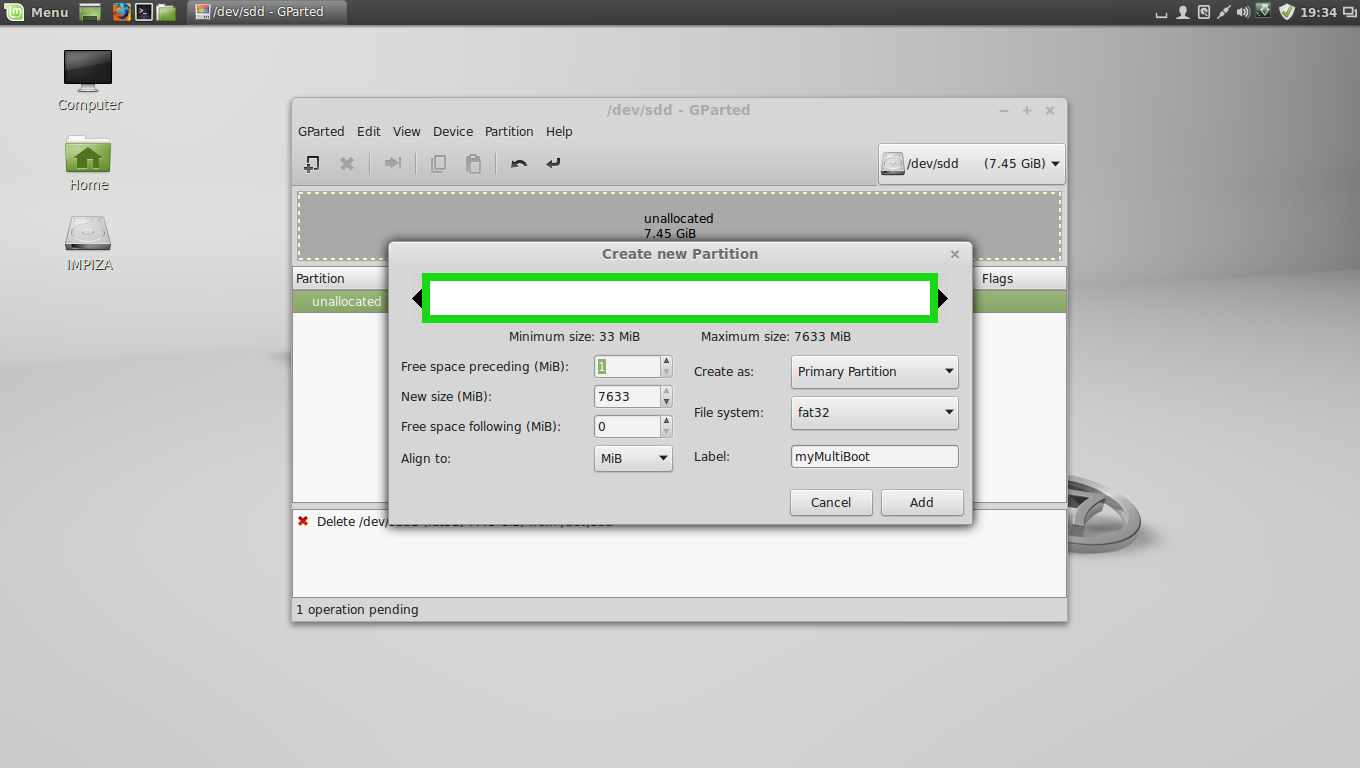
format your pendrive in fat32 format

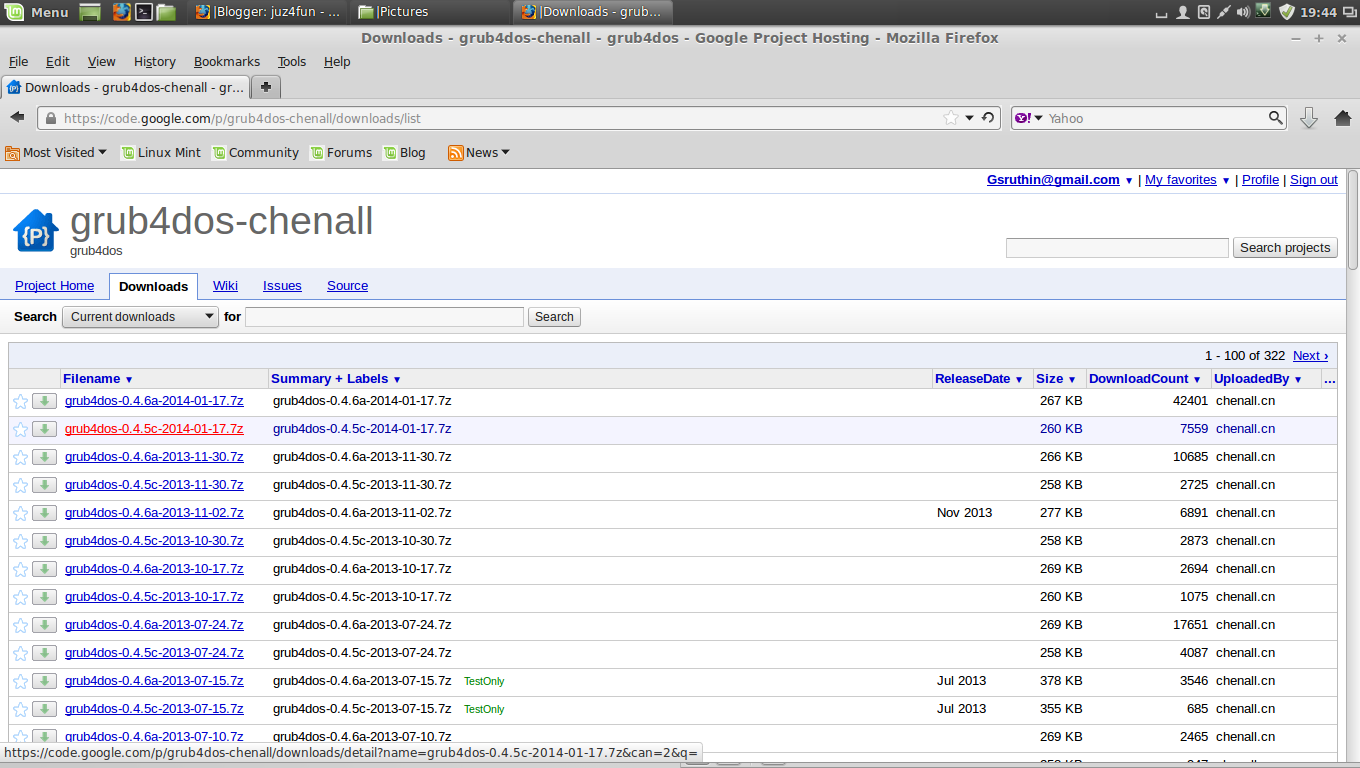
after that download grub4dos-0.4.5c (not grub4dos-0.4.6a)


here is the link https://code.google.com/p/grub4dos-chenall/downloads/list

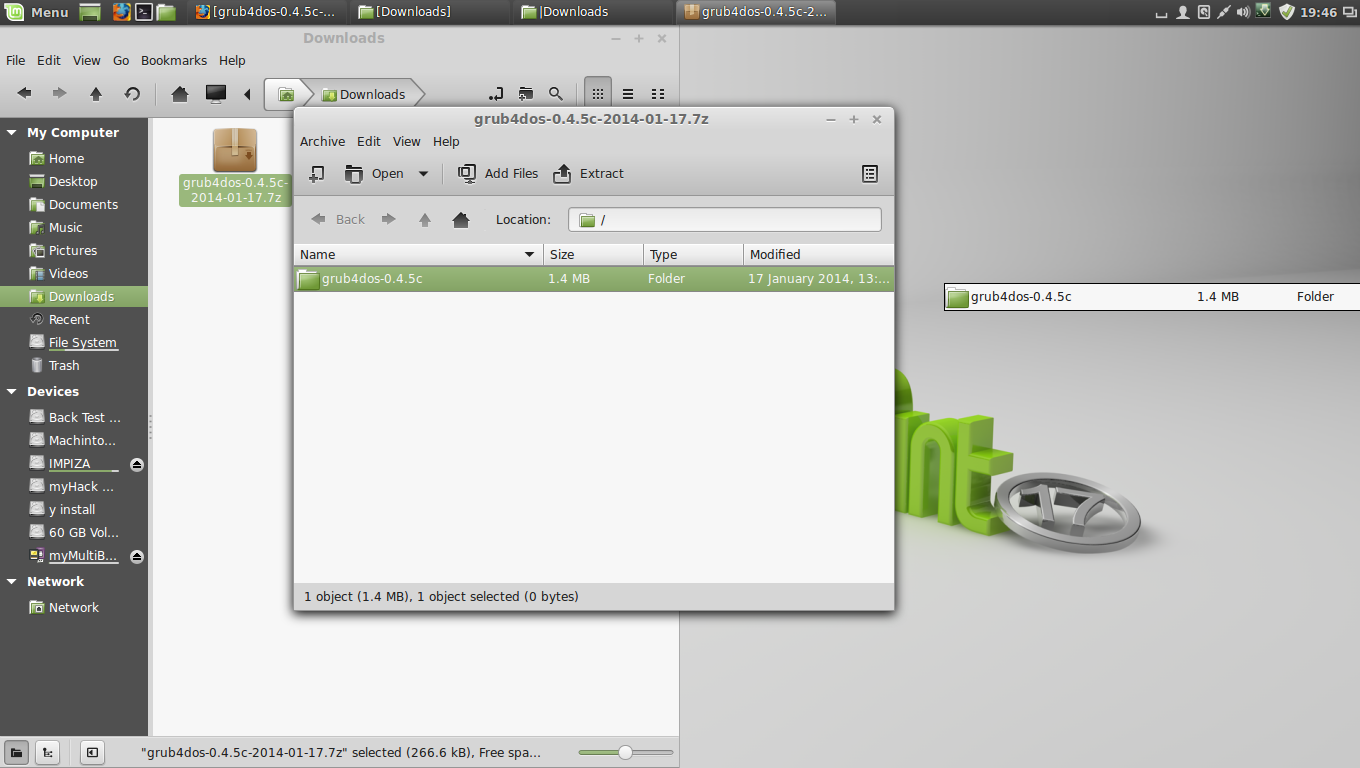
and extract it to the desktop
type following command in terminal

 df 
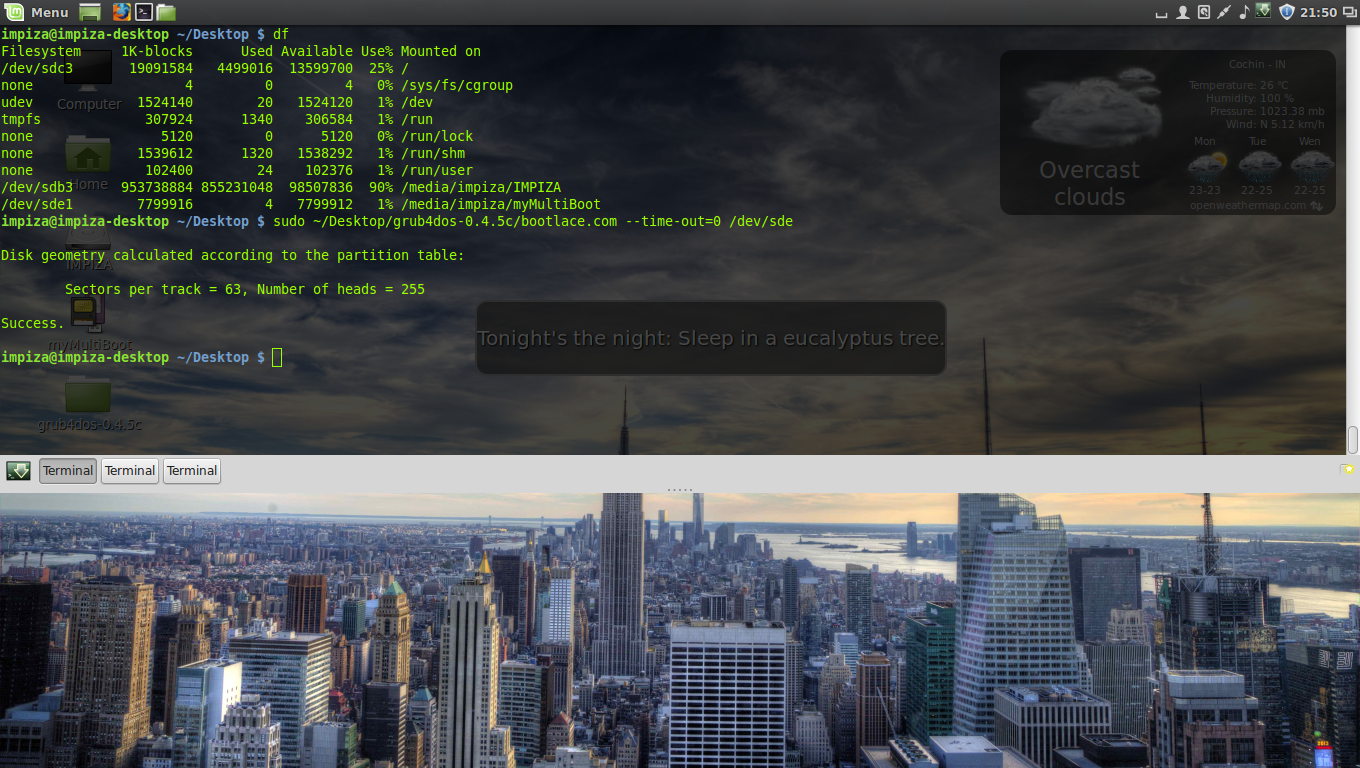

which will give you details about your pendrive and all drives

  • from there you can find your filesystem name of pendrive

  • in this case its /dev/sde1 but in the following command line we only need to use /dev/sde

then install the grub4dos on the MBR with zero second time-out on your USB Stick,by typing the following command in the terminal


 sudo ~/Desktop/grub4dos-0.4.5c/bootlace.com --time-out=0 /dev/sde 
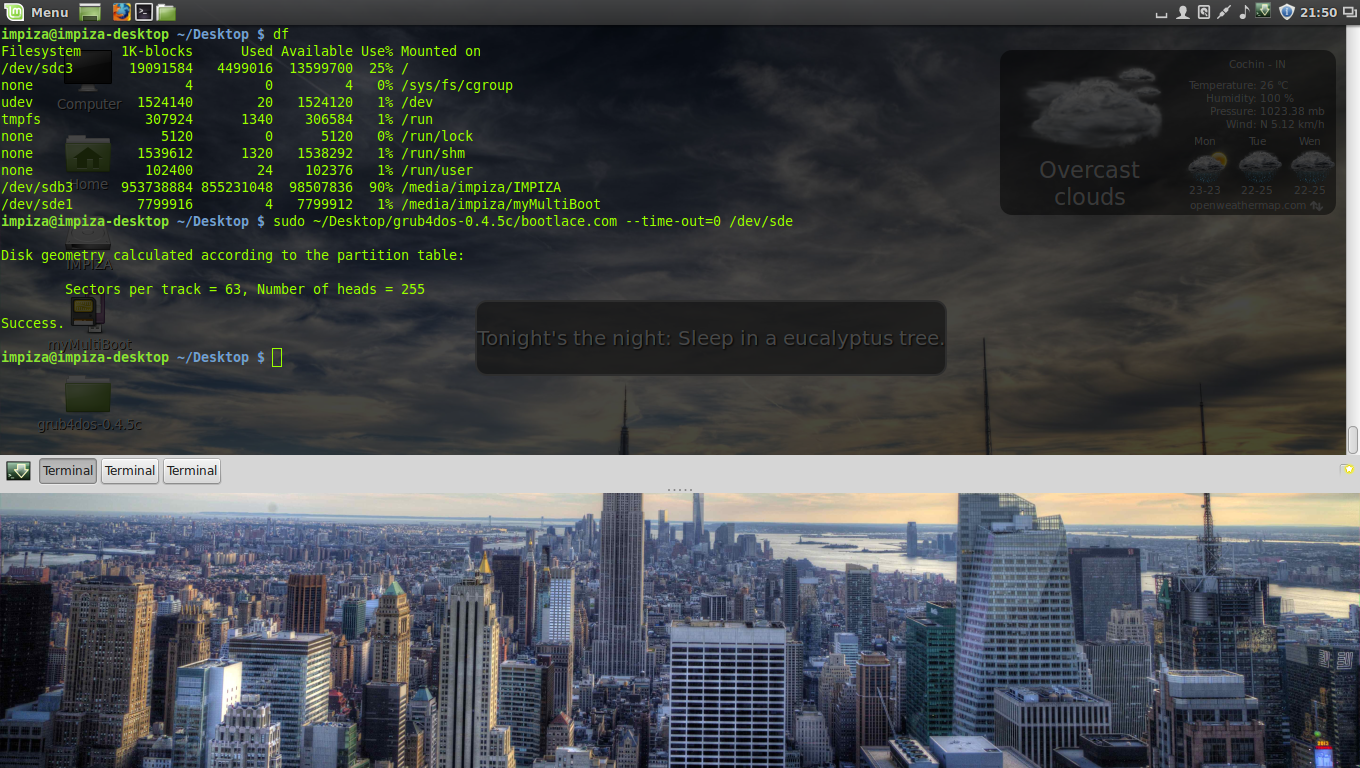
Note: You can change the path to your grub4dos folder. sde is your USB and can be checked by ” df ” command in a terminal or by using the gparted or disk utility tools

Copying Easy2Boot files to USB

your pendrive is ready to boot , but we need menu files, which are necessary to detect the .ISO files in your USB.


go to Easy2Boot website http://www.easy2boot.com/download/

then extract its files to your pendrive
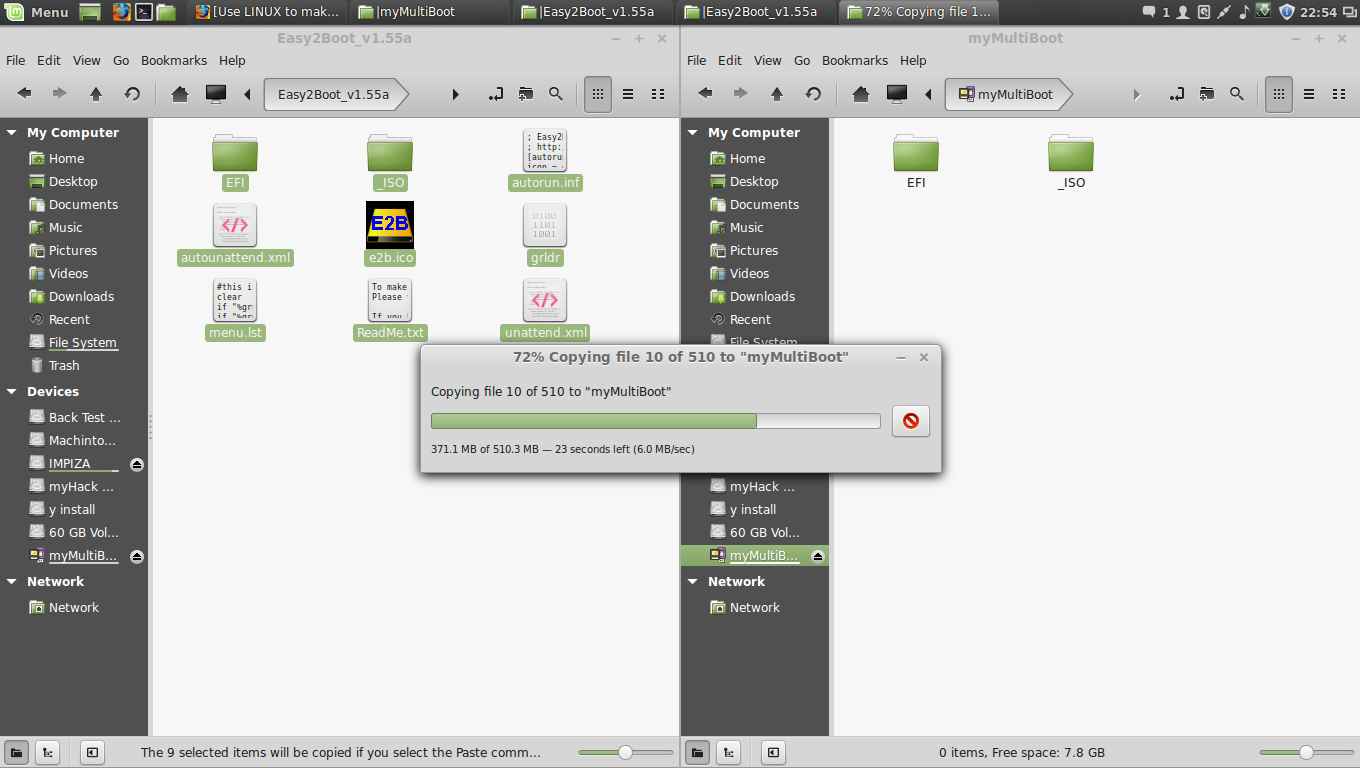
after that you find both windows and linux related ISO folders simply copy your ISO’s to corresponding  OS folders
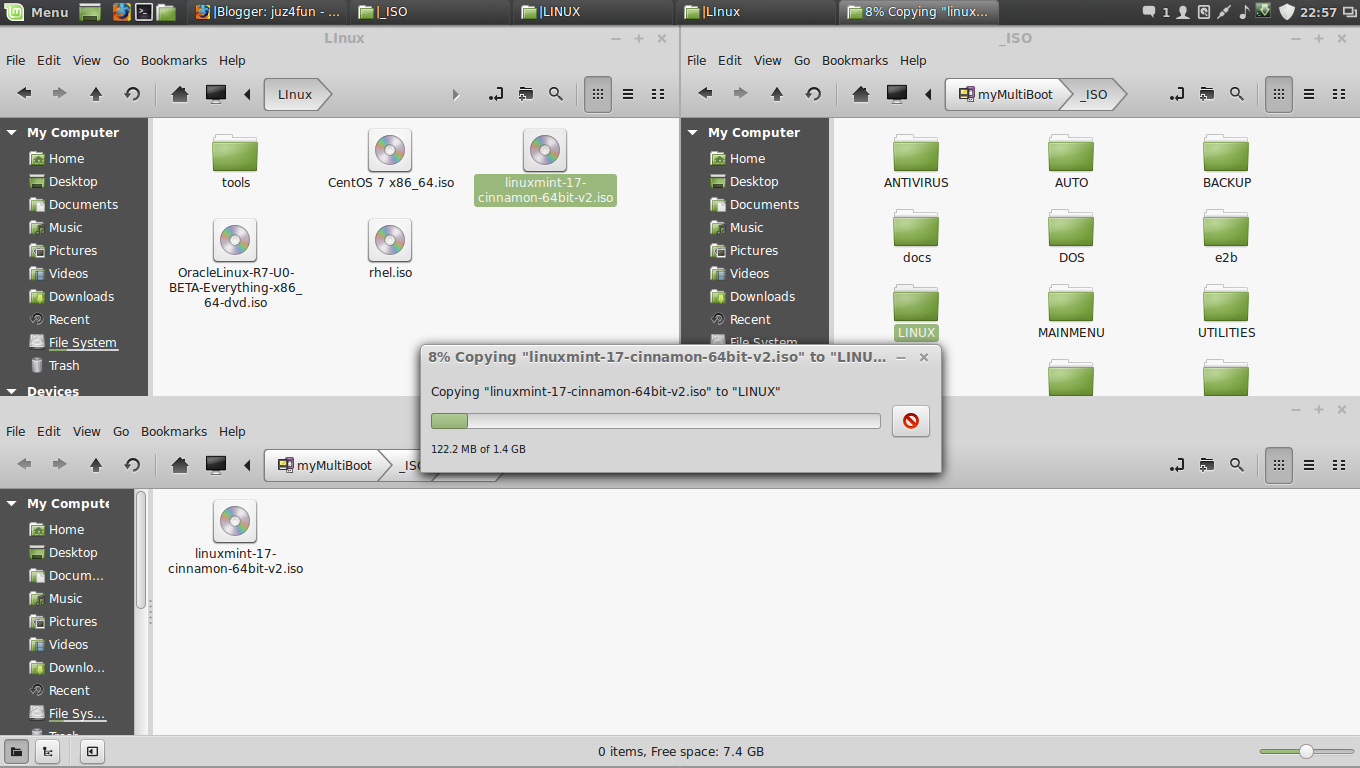
Adding Linux .ISO files
 After that adding Windows ISO Files to Windows Version Folder

dont just put windows ISO file to _ISO/WINDOWS like _ISO/LINUX because in windows folder  there is Version Folders you have to put it there like ” XP,VISTA,WIN7,WIN8,SVR2K8R2,SVR2012 “

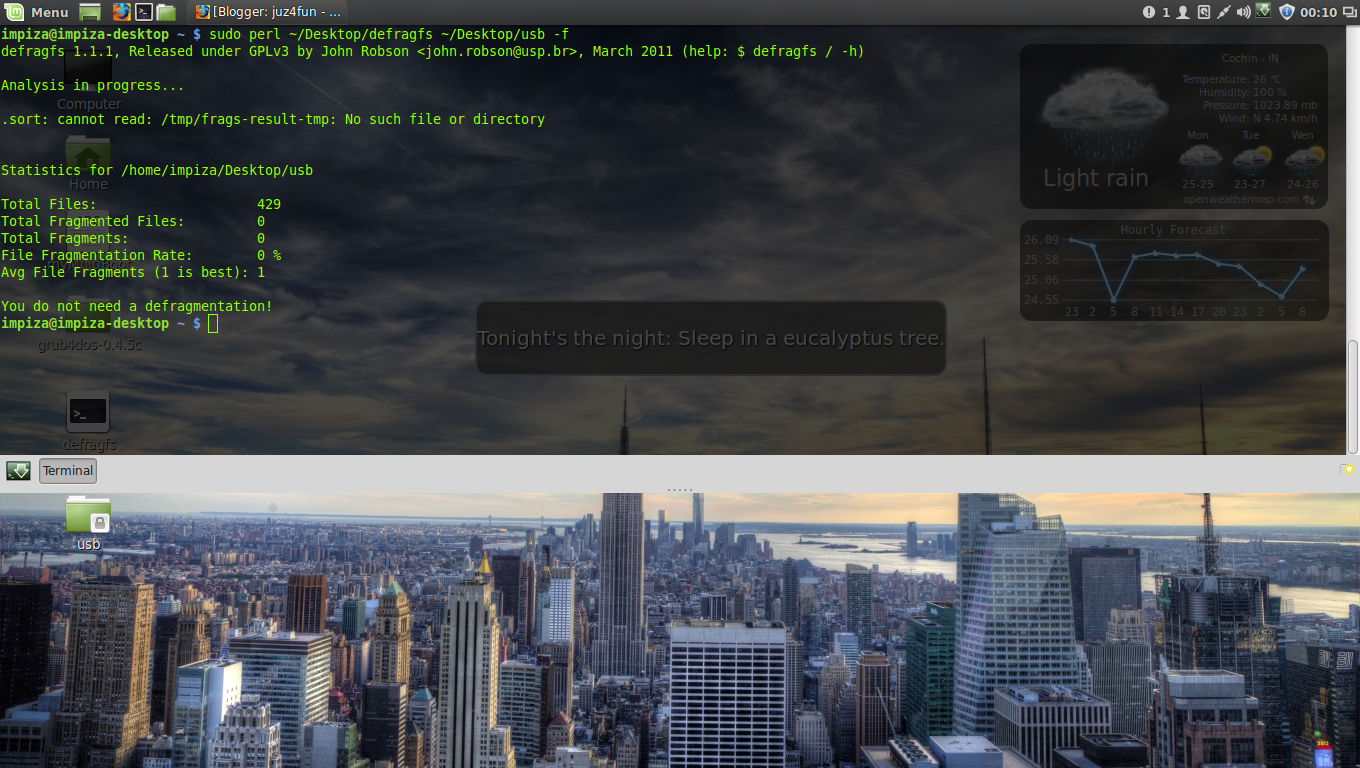
after this you need to defragment the folders in the USB drive,To defrag your USB drive, download the defrags-1.1.1.gz file from


http://defragfs.sourceforge.net/download.html

extract it to desktop
then unmount using this command

 sudo umount /dev/sdd1

/dev/sdd1  (i have reboot pc so its changes from sde to sdd) type in terminal        ” df  ” to find current one 

sdd1 is the partition on my usb which has the E2B files.

 sudo mkdir ~/Desktop/usb && sudo mount /dev/sdd1 ~/Desktop/usb


 sudo perl ~/Desktop/defragfs ~/Desktop/usb -f
Swap space for Linux

What is Swap? 

How much is really needed ?

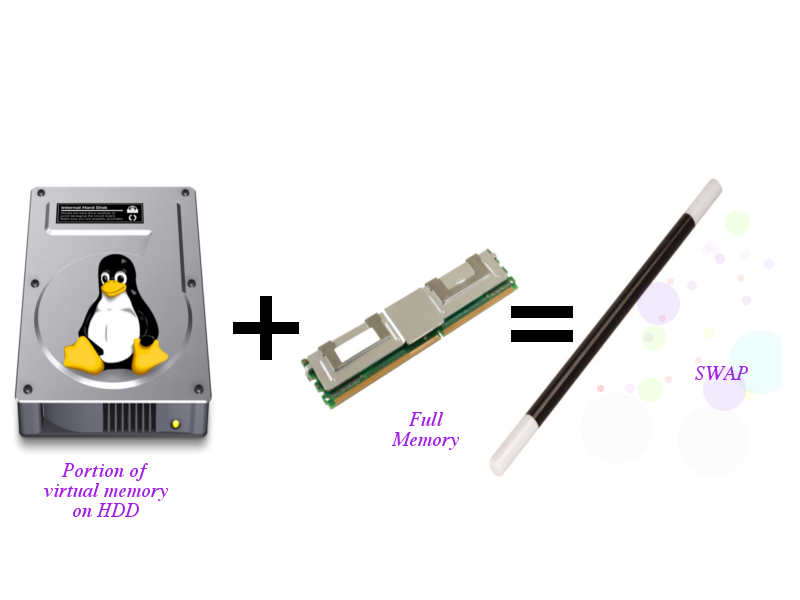
Linux divides its physical memory (RAM) into chunks called pages. Swapping is the process whereby pages get transferred to a preconfigured hard disk area. The quantum of swap space is determined during the Linux installation process. This article is all about swap space, and explains the term in detail so that newbies don’t find it a problem choosing the right amount of it when installing linux

Swapping is required for two reasons:

  • When more memory than is available in physical memory (RAM) is required by the system, the kernel swaps less used pages and gives the system enough memory to the run the application smoothly.
  • Certain pages are required by the application only at the time of initialisation and never again. such files are transferred to the swap space as soon as the application access these pages.
Earlier rule stated that the amount of the swap space should be double the amount of physical memory (RAM) available. i.e. , if we have 8 Gb of RAM , then we ought to allot 16 Gb to the swap space , But this is not very effective these days.

Amount of swap space depends on the kind of application you run and kind of user you are 

The following rules can effectively help to improve Linux’s performance on your system

For Normal Servers:

  • Swap space should be equal to RAM  size if RAM  size is less than 2 Gb
  • Swap space should be equal to 2 Gb if RAM  size is greater than 2 Gb . , 

For heavy duty servers with fast storage requirements:


  • Swap space should be equal to RAM  size if RAM size is less than 8 Gb
  • Swap space should be equal to 0.5 times the size of the RAM if the RAM  size is greater than 8 Gb
if you have already installed Linux, you can check your swap space by using the following command in the Linux terminal :

Last login: Wed Aug 27 00:47:38 on ttys001
Linuxbox:~ IMPIZA$  cat/proc/swaps _ 

How to add Backtrack repository to ubuntu based linux

How to add Backtrack linux repository to ubuntu based linux

Well i have only tested this on ubuntu and mint , try this on your own risk !

Open your terminal 

type following commands

step1
wget -q http://all.reposttory.backtrack-linux.org/backtrack.gpg -O- | sudo apt-key add – 
step 2
sudo sh -c “echo ‘deb http://all.reposotory.backtrack-linux.org revolution main microverse non-free testing’ >> /etc/apt/sources.list”
step 3
sudo apt-get update  
after completing update successfully you can install bactrack software from terminal , synaptic 

package manager, ubuntu software center , Mint software manager etc ! 😀

How to extract/mount Nero images ( .nrg ) in Linux

How to extract/mount Nero images ( .nrg ) in Linux

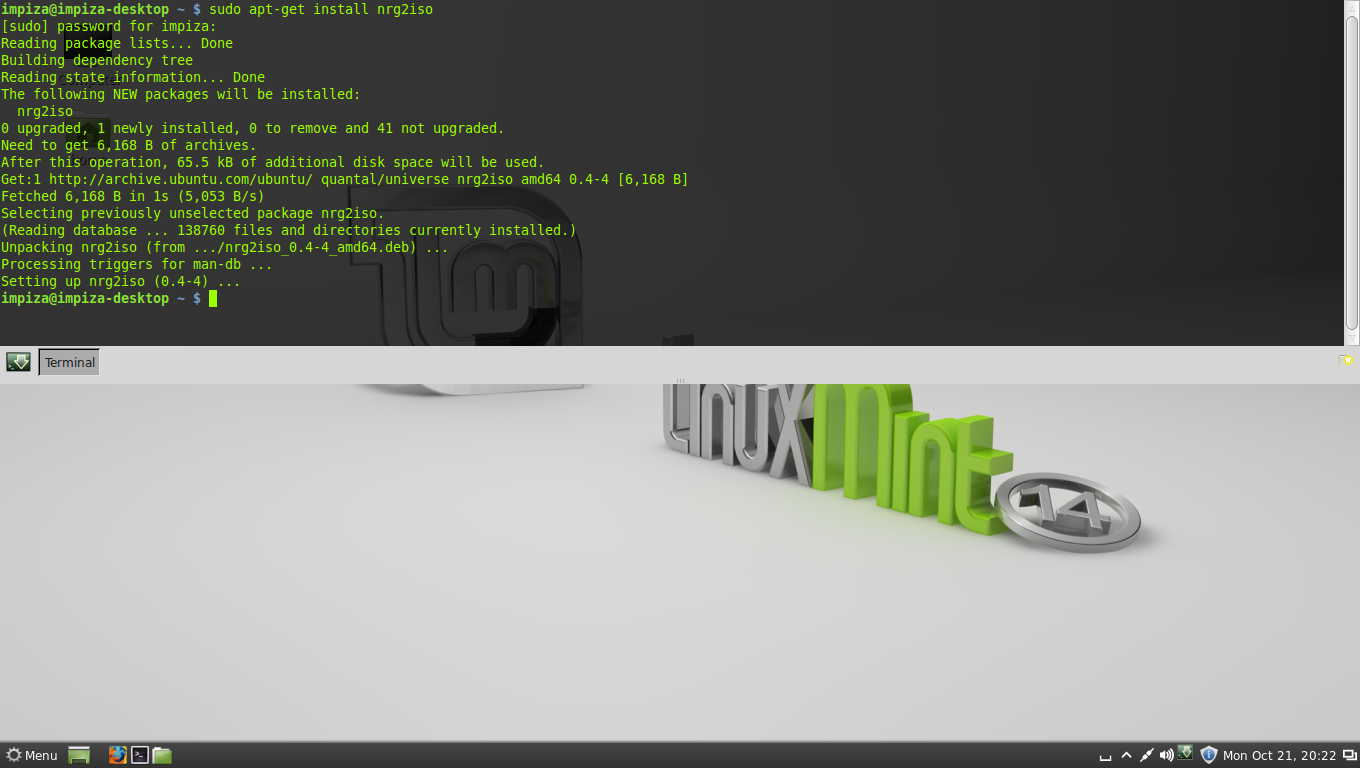
to install nrg2iso in linux 
use this command 
open terminal 
type following command
press enter
type password  “password will be hidden”
# sudo apt-get install nrg2iso 
To convert .nrg file to .iso 
use this command 
nrg2iso source.nrg destination.iso
#note !!!!! 
nrg2iso = software command
source.nrg = source file path of .nrg file to be converted 
Destination.iso = destination file path of .iso to get as result 
Enjoy !

Private Browsing !

Privacy mode or Private Browsing


Privacy mode or “private browsing“, sometimes informally referred to as “porn mode“, is a term that refers to privacy features in some web browsers. Historically speaking, web browsers store information such as browsing history, images, videos and text within cache. In contrast, privacy mode can be enabled so that the browser does not store this information for selected browsing sessions. This allows a person to browse the Web without storing local data that could be retrieved at a later date. Privacy mode will also disable the storage of data in cookies and Flash cookies. It is of note that this offers virtually no privacy protection beyond the local level. For example, it is still possible to identify frequented websites by associating the IP address with the user on the server end.

History

The earliest reference to the term was in May 2005 and used to discuss the privacy features in the Safari browser bundled with Mac OS X Tiger.The feature has since been adopted in other browsers, and led to popularisation of the term in 2008 by mainstream news outlets and computing websites when discussing beta versions of Internet Explorer 8. However, privacy modes operate as shields because browsers typically do not remove all data from the cache after the session. Plugins, like Silverlight, are able to set cookies that will not be removed after the session. Internet Explorer 8 also contains a feature calledInPrivate Subscriptions, an RSS web feed with sites approved for use with InPrivate browsing.
The common web browser plugin Adobe Flash Player began supporting privacy mode in Chrome, Firefox, Internet Explorer, and Safari with the release of version 10.1 in June 2010.
Privacy mode is known by different names in different browsers:below is shown as date of release , browser version from support this feature , and term to call this feature ! 
Date Browser Synonym
April 29, 2005 Safari 2.0 Private Browsing
December 11, 2008 Google Chrome 1.0 Incognito
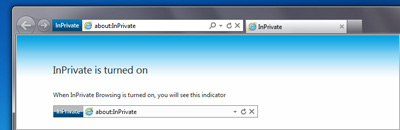
March 19, 2009 Internet Explorer 8 InPrivate Browsing
June 30, 2009 Mozilla Firefox 3.5 Private Browsing
March 2, 2010 Opera 10.50 Private Tab / Private Window

Safari

Whats New

The new advanced features in Safari make it an even better place to explore the web. Safari searches even smarter so you’ll find web pages faster. It shows you all your open tabs in a great new way. Straight from Safari, you can tweet web pages, post them to Facebook, or share them via Mail or Messages. And with even more features, browsing is just the beginning.

privacy 

Safari takes your privacy seriously. You can turn on Do Not Track, an emerging privacy standard. Ticking this Privacy pane preference sends websites you visit a request not to track you online. Safari also sends a request to websites not to track you when you use Private Browsing.

Method

Turn on Private Browsing

  1. While browsing a webpage using Safari, choose Safari > Private Browsing.
  2. When you see a confirmation message, click OK. A Private button appears in the address field to indicate that private browsing is on.
    To skip the confirmation message, hold down the Option key while you choose Private Browsing.
Private Browsing is always turned off when you open Safari, even if it was on when you last quit Safari.

Turn off Private Browsing

  1. While browsing a webpage using Safari, choose Safari > Private Browsing (so the checkmark disappears), or click the Private button in the address field.
  2. Close any Safari windows you used to view private information. If you don’t close the windows, other users can view those pages using the Back and Forward buttons.
  3. If you downloaded any items from websites, Private Browsing only removes the names of the items you downloaded from the Downloads window. To get rid of the items themselves, delete them from your computer.

If you forget to turn on Private Browsing

After you finish browsing, choose Safari > Reset Safari.

Google Chrome  ,                                       TorchBrowsers ,                                  Chromium 

Incognito mode (browse in private)

For times when you want to browse in stealth mode, Google Chrome,torch,chromium browser offers the incognito browsing mode. Here’s how the incognito mode works:
  • Webpages that you open and files downloaded while you are incognito aren’t recorded in your browsing and download histories.
  • All new cookies are deleted after you close all incognito windows that you’ve opened.
  • Changes made to your Google Chrome(Torch,chromium) bookmarks and general settings while in incognito mode are always saved.
Tip: If you’re using a Chromebook, you can use the guest browsing feature as an alternative to incognito mode. When browsing as a guest, you can browse the web and download files as normal. Once you exit your guest session, all of your browsing information from the session is completely erased.

Open an incognito window

  1. Click the Chrome menu on the browser toolbar.
  2. Select New incognito window.
  3. A new window will open with the incognito icon in the corner. You can continue browsing as normal in the other window.
You can also use the keyboard shortcuts Ctrl+Shift+N (Windows, Linux, and Chrome OS) and ⌘-Shift-N (Mac) to open an incognito window.
Windows 8 users: To switch between windows, click the window switcheron the top right corner.

“On Chrome for iOS, due to platform limitation regular and incognito* tabs share HTML5 local storage, which is typically used by sites to store files on your device (client-side caching) or to provide offline functionality. This means the same sites can always access their data in this storage in both regular and incognito* tabs. Incognito* tabs will still keep browsing history and cookies separate from regular tabs, which are cleared once those tabs are closed“

Internet Explorer 

InPrivate Browsing helps prevent your browsing history, temporary Internet files, form data, cookies, and user names and passwords from being retained by the browser. You can start InPrivate Browsing from the Safety menu, by pressing Ctrl+Shift+P, or from the New Tab page. Internet Explorer will launch a new browser session that won’t keep any information about webpages you visit or searches you perform. Closing the browser window will end your InPrivate Browsing session.

Mozilla Firefox 

What does Private Browsing not save?

  • Visited pages: No pages will be added to the list of sites in the History menu, the Library window’s history list, or the Awesome Bar address list.
  • Form and Search Bar entries: Nothing you enter into text boxes on web pages or theSearch bar will be saved for Form autocomplete.
  • Passwords: No new passwords will be saved.
  • Download List entries: No files you download will be listed in the Downloads Windowafter you turn off Private Browsing.
  • Cookies: Cookies store information about websites you visit such as site preferences, login status, and data used by plugins like Adobe Flash. Cookies can also be used by third parties to track you across websites. For more info about tracking, see How do I turn on the Do-not-track feature?
  • Cached Web Content and Offline Web Content and User Data: No temporary Internet files (cached files) or files that websites save for offline use will be saved.
Note:

  • If you create new Bookmarks while using Private Browsing, they will not be removed when you stop Private Browsing.
  • If you save files to your computer while using Private Browsing, they will not be deleted when you stop Private Browsing. However, any files you open in an external application will be cleared from the system’s temporary folder, and none of the files you download will appear in the Downloads list.

How do I open a new Private Window?

There are two ways to open a new Private Window.

Open a new, blank Private Window

  • On the menu bar, click the File menu and select New Private Window. A new Private Window will open.

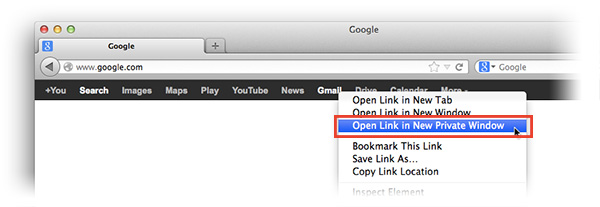
Open a link in a new Private Window

  • Hold down the Ctrl key while you click on any link and choose Open Link in New Private Window from the context menu. A new Private Window will open with the link you selected.
Important: When in Private Browsing mode, the window title will say (Private Browsing) followed by a purple Private Browsing mask. You may also have other windows open that are not Private Browsing windows.

How do I always start Firefox in Private Browsing?

There is a setting in the Preferences window that automatically enables Private Browsing whenever you start Firefox.
Note: If you enter Private Browsing this way, the Firefox title bar won’t say (Private Browsing) and won’t have a purple Private Browsing mask but Firefox will still not retain your history as described above.
  1. On the menu bar, click on the Firefox menu and select Preferences…
  2. Select the Privacy panel.
  3. Set Firefox will: to Never remember history.
  4. You will see a message that Firefox needs to restart to enable this feature. Click OKand Firefox will restart in permanent Private Browsing mode.

Opera 

Create a private tab

To create a private tab, select Tabs and Windows > New Private Tab from the menu. Alternatively, right-click the tab bar and select “New Private Tab” from the context menu.

Close a private tab

Close a private tab in the same way as a normal tab. To close all the private tabs you have open at once, right-click a tab and select “Close All Private Tabs” or use the Ctrl+Shift+Q keyboard shortcut.

Private windows

If you prefer to use separate windows when browsing, rather than tabs, you can create a private window by selecting Tabs and Windows > New Private Window. Closing the window removes all traces of your browsing.
*A closed private tab or window cannot be recovered from the “Closed Tabs” drop-down on the right side of the tab bar.
While private tabs or windows do not leave any record of the websites you visit, if you deliberately save data, for example, if you save a bookmark, or download a file, it will still be visible after the tab is closed.

Delete private data

If you are not using the private browsing functionality, you can still protect your privacy by configuring Opera to clear the history and cache or other type of private data when you close the browser. To do this, go to Opera > Preferences…. Click the ‘Privacy & security’ tab on the left sidebar. Under ‘Privacy’ click the Clear Browsing Data… button. From the dialog, you can check-select what you would like to delete (browsing history, download history, cookies, cache, or passwords) and how far back in time you would like to do so.

Disable or clear data from the password manager

If you use the password manager to save your passwords, you may want to disable it when sharing a computer or using a public one. Go to Opera > Preferences…. Click the ‘Privacy & security’ tab on the left sidebar. Under ‘Passwords’ untick the Offer to save passwords I enter on the web checkbox.
If you use the password manager to save your personal data for auto-completion in online forms, you can clear this information by clicking the Manage saved passwords button. From the dialog, you can search for passwords and tell Opera to forget information by hovering over an entry and click the ‘X’ that appears to the right.

Pin It on Pinterest