by George Sruthin | Apr 10, 2017 | Howtos, Windows
Its very easy to create vhd from physical disk,
First you need to download Disk2vhd utility from this url https://technet.microsoft.com/en-us/sysinternals/ee656415.aspx
Then run it as Administrator
Now you can see all drives which is associated with the hdd , select drive which you want to convert
to save it give vhd file name and location , then click create
after process complete you can find vhd file in the given exported path
now you can attach this vhd file to any hypervisor or windows diskmanager to access files in it , if it is bootable you can boot that inside virtualbox or vmware workstation
by George Sruthin | Jun 21, 2016 | Howtos, Windows
To Create God Mode on your PC you need to login to your Windows Machine with Administrative privilege
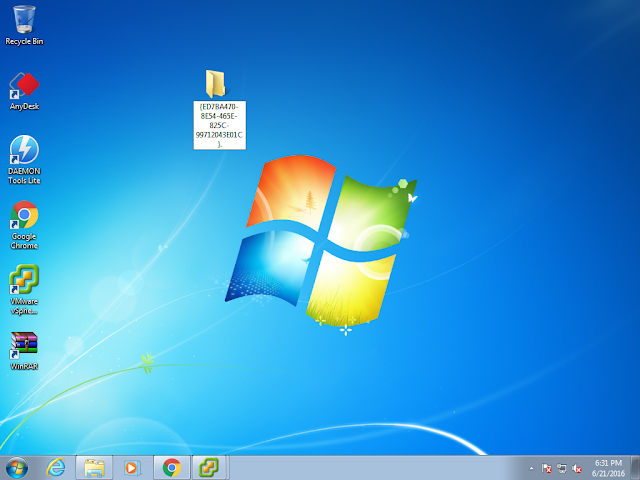
Then Right Click on the desktop and create new folder in there
Then Rename it with following name
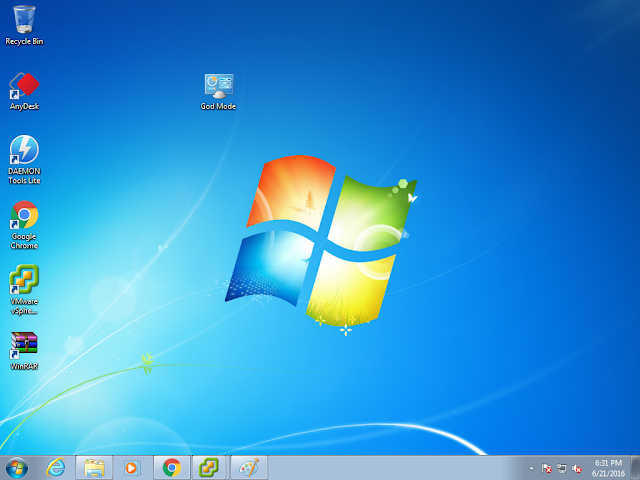
God Mode .{ED7BA470-8E54-465E-825C-99712043E01C}.
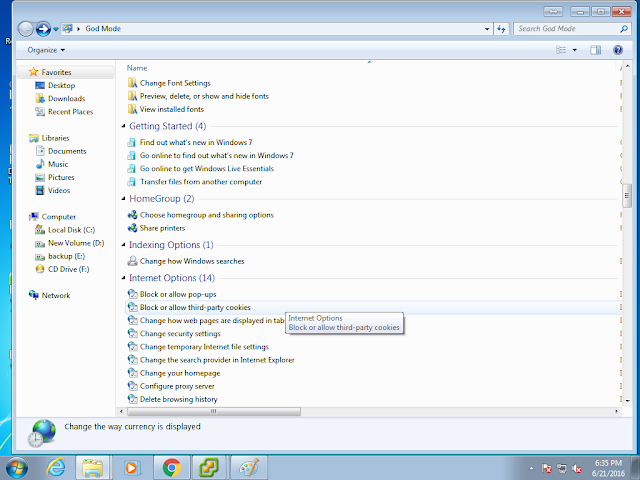
Double clicking this icon will give you access to many features like you see in this picture
by George Sruthin | Mar 6, 2016 | Howtos, Linux, Programming
In older version NetBeans default uninstall location was /usr/local/netbeansxxxx
but in new versions they have changed installation locations actually, you can decide to which location to install
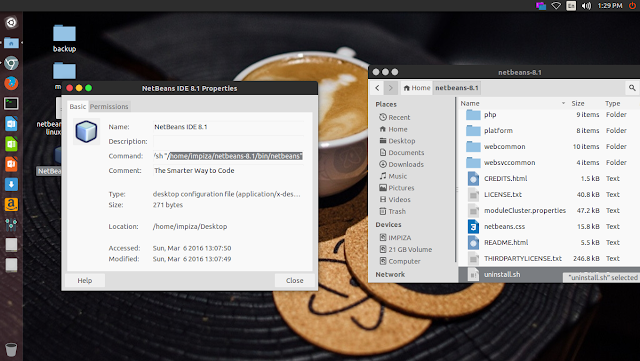
in new versions you can easily find the installed location just right click and checking properties of NetBeans Desktop icon
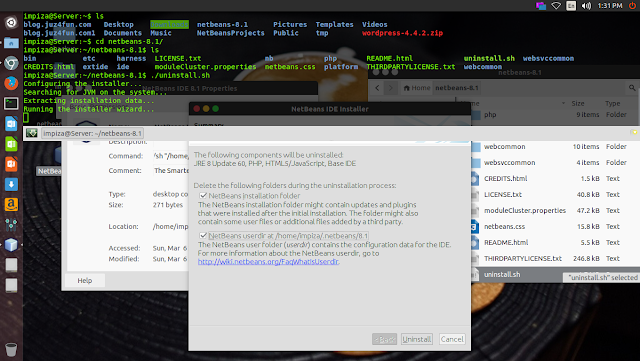
In my case i have installed it in my Home folder, i opened terminal,moved to installation location using cd /installation path
*change installation path to yours
In your terminal it will looks like this
type
press enter
uninstall
Enjoy.
by George Sruthin | Mar 6, 2016 | Howtos, Linux, Programming
First go to netbean download page https://netbeans.org/downloads/
download the netbeans installer .sh file
open terminal go to download location
make file executable by using following commands in terminal
chmod +x netbeans-8.1-php-linux-x64.sh
in your case netbeans file name may very
once you make file executable type following commands in terminal
in your case change filename.sh to your file name
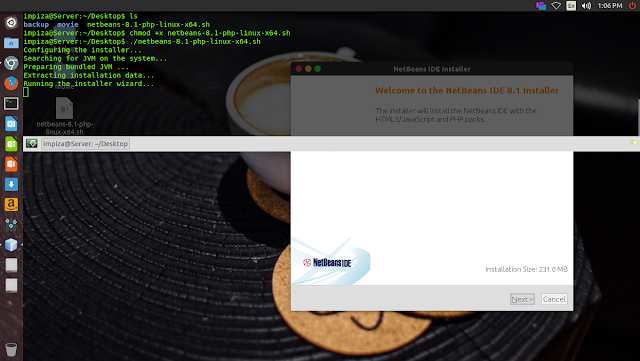
it will pop up an installation wizard like this
just follow the instruction to install
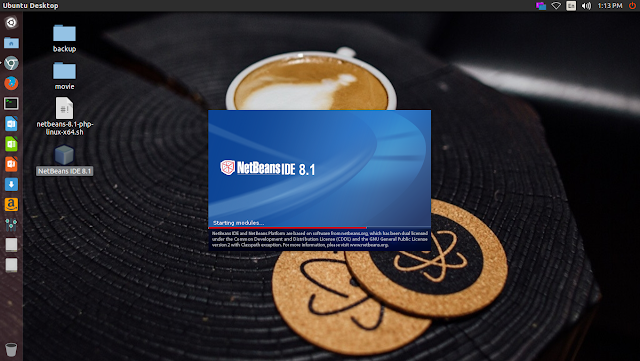
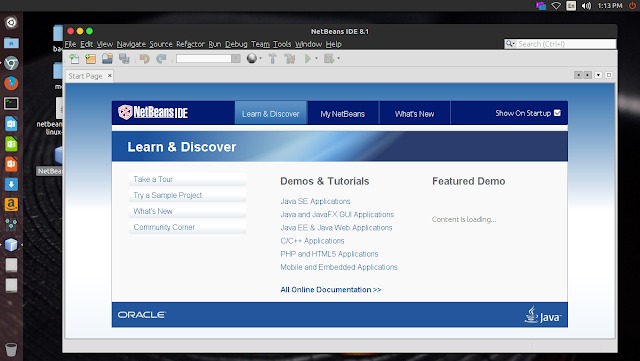
after installation you can find NetBeans IDE icon on your desktop double click it to open the application
by George Sruthin | Jan 27, 2016 | Howtos, Linux, Troubleshooting
How to fix NTFS partition is in an unsafe state ?
This usually happen with recently upgraded dual bootable windows linux pc , if you upgraded to windows 8 or later you will get this error in linux
Solution
open your terninal
type
sudo ntfsfix /dev/sda3
in here /sda3 is my hdd id check error in your pc for your hdd id
by George Sruthin | Jan 27, 2016 | Howtos, Servers
When i was trying to add new 3TB hdd to HP DL 180 G6 Server which has a HP Smart Array P410 Controller in it , the HDD is only detecting as 800 GB HDD Check the error below
After getting this error i have noticed and read instructions which came with HDD , in that instructions it clearly Saying that if we need to add HDD Which has a Capacity of 2.2 TB or above we need to upgrade the Current Firmware to 5.0 or later and supported controllers as follows
- HP Smart Array P212 Controller
- HP Smart Array P410 Controller
- HP Smart Array P410i Controller
- HP Smart Array P411 Controller
- HP Smart Array P711m Controller
- HP Smart Array P712m Contorller
- HP Smart Array P812 Controller
Then i go to this Url to Download Latest Firmware for HP Smart Array P410 (also support for P212,P410i,P411,P711m,P712m,P812)
HP Smart Array P212, P410, P410i, P411, P711m, P712m, and P812 Controller Firmware Versions !
From this url you can download latest or older version of firmware !
after downloading and updating firmware you Must restart your server and check whether it detecting or not , for that you can select controller check the information tab in HP ACU or simply check driver version in Windows Device Manager !
once you find the firmware version is detected as 5.0 or above you can add your HDD & and once it detect as correct HDD space you can create Logical volume.
And also you need to do one importing thing ! once you add hdd and create logical volume in Smart Array Controller . you need to Create GPT volume in windows Disk Manager than MBR , because to use above 2 tb you need to use GPT instead of MBR !
Hope you find this post useful , please share like and comment 🙂