HP Slate 7 (HP’s first android tablet)
HP announced the HP Slate7, an affordable Android Jelly Bean consumer tablet that provides customers with easy access to Google Mobile services.
With a 7-inch diagonal screen and weighing 13 ounces, the HP Slate7 is an ideal trusted personal companion, featuring a stainless-steel frame and soft black paint in gray or red on the back. It also is the industry’s first tablet to offer embedded Beats Audio, for the best-sounding, richest audio experience available on a tablet.
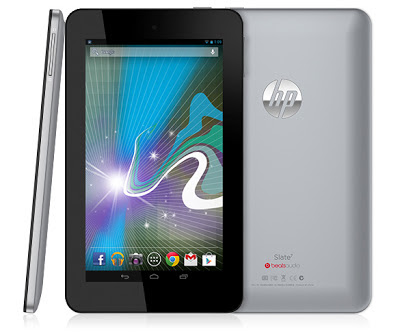
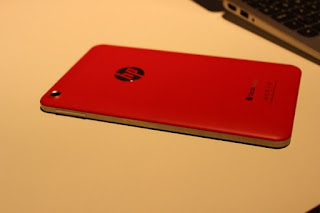

With a 7-inch diagonal screen and weighing 13 ounces, the HP Slate7 is an ideal trusted personal companion, featuring a stainless-steel frame and soft black paint in gray or red on the back. It also is the industry’s first tablet to offer embedded Beats Audio, for the best-sounding, richest audio experience available on a tablet.


Powered by an ARM Dual Core Cortex-A9 1.6 GHz processor, the HP Slate7 is fast and responsive. Integrated wireless allows customers to access email, the internet and key applications, while the High-aperture-ratio Field Fringe Switching (HFFS) panel offers wide viewing angles that provide easy viewing of documents, games, photos and videos—even in outdoor lighting conditions.

The HP Slate7 includes a 3-megapixel camera on the back and a VGA camera on the front for chatting, videos and photos.
With the HP ePrint application, customers can easily print while at home or on the go, and the exclusive native printing capability enables customers to print directly from most applications. A micro USB port allows customers to easily transfer files, and a suite of applications from HP spans exclusive games to productivity tools.
HP will provide an array of simple and easy-to-access support tools and resources to help customers take full advantage of all of the features the HP Slate7 has to offer. In addition to extensive phone and online support offerings included with the HP Slate7, HP is offering customers the opportunity to add to the standard product limited warranty with its HP Care Pack services. HP Slate7 customers will have the option to protect their investment with a two-year HP Care Pack for $29 or a two-year HP Care Pack with Accidental Damage Protection (ADP) for $49
The HP Slate7 is expected to be available in the United States in April with a starting price of $169.