Select Page

Configuring Raid 5 With 1 Hot Spare in HP Proliant ML310e Gen8

What is RAID 5

f

A RAID 5 comprises block-level striping with distributed parity. Unlike in RAID 4, parity information is distributed among the drives. It requires that all drives but one be present to operate. Upon failure of a single drive, subsequent reads can be calculated from the distributed parity such that no data is lost. RAID 5 requires at least three disks.
In comparison to RAID 4, RAID 5’s distributed parity evens out the stress of a dedicated parity disk among all RAID members. Additionally, read performance is increased since all RAID members participate in serving of the read requests.
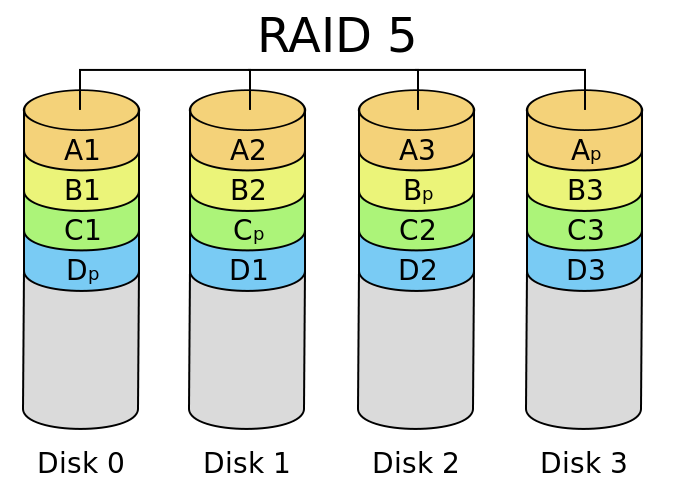
Diagram of a RAID 5 setup with distributed parity with each color representing the group of blocks in the respective parity block (a stripe). This diagram shows left asymmetric algorithm

HOT SPARE

A hot spare disk is a disk or group of disks used to automatically or manually, depending upon the hot spare policy, replace a failing or failed disk in a RAID configuration.

The hot spare disk reduces the mean time to recovery (MTTR) for the RAID redundancy group, thus reducing the probability of a second disk failure and the resultant data loss that would occur in any singly redundant RAID (e.g., RAID-1, RAID-5, RAID-10). Typically, a hot spare is available to replace a number of different disks and systems employing a hot spare normally require a redundant group to allow time for the data to be generated onto the spare disk. During this time the system is exposed to data loss due to a subsequent failure, and therefore the automatic switching to a spare disk reduces the time of exposure to that risk compared to manual discovery and implementation.

The concept of hot spares is not limited to hardware, but also software systems can be held in a state of readiness, for example a database server may have a software copy on hot standby, possibly even on the same machine to cope with the various factors that make a database unreliable, such as the impact of disc failure, poorly written queries or database software errors. 

Tips on Learning PowerShell from a PowerShell Noob

What is PowerShell

PowerShell is an object-oriented programming language and interactive command line shell for Microsoft Windows.
PowerShell was designed to automate system tasks, such as batch processing, and create systems management tools for commonly implemented processes. The PowerShell language is similar to Perl. PowerShell includes more than 130 standard command line tools for functions that formerly required users to create scripts in VB, VBScript or C#.

Adding License key in HP iLO

How to add License key to HP iLO 

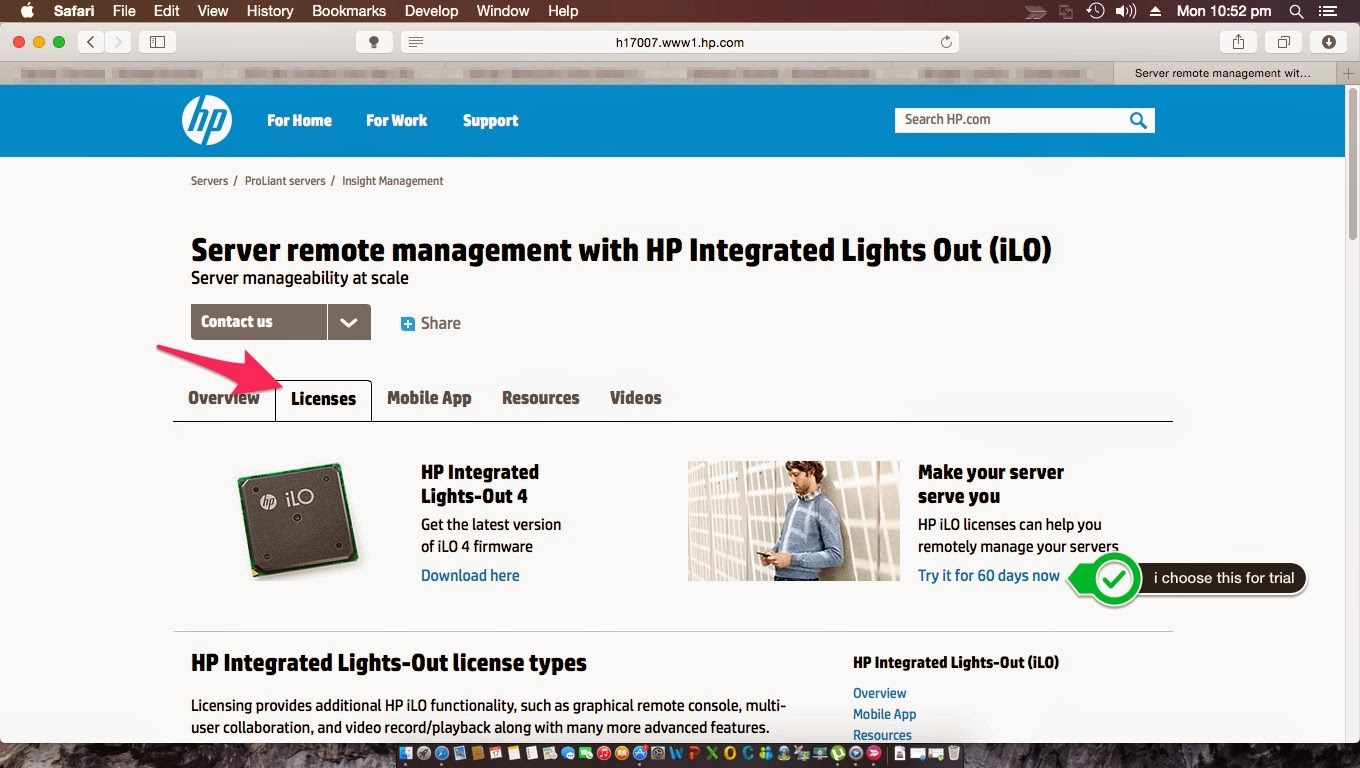
go to this url  www.hp.com/go/ilo then click on License tab

choose license you want

for this tutorial i have chosen 60 days trial license

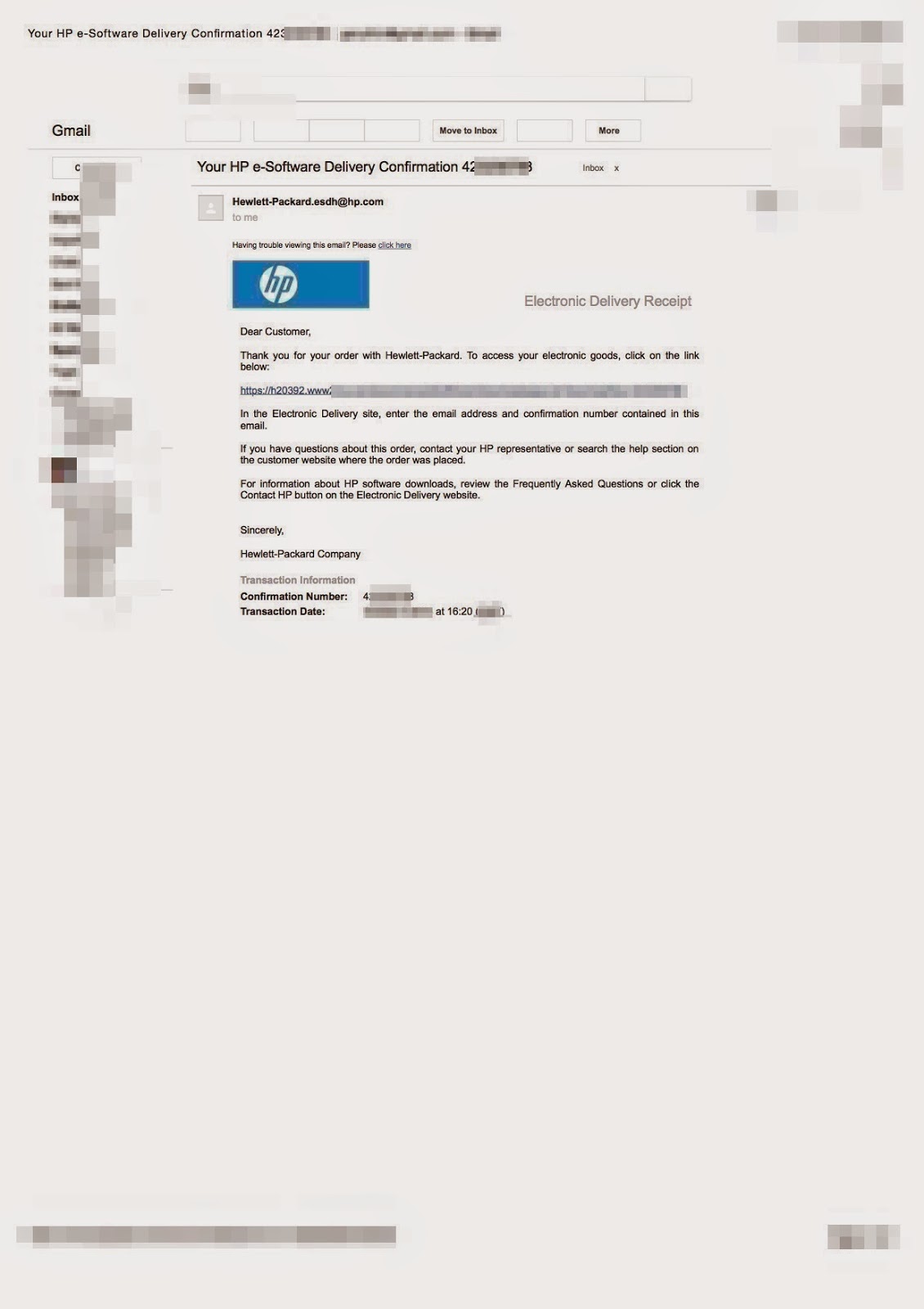
you will receive an e-Software confirmation mail

follow the link which is given in you email 
you will get your License 
after that enter your iLO 
Click administration
Licensing 

Enter you Licence Key 
Click Install 
Done Enjoy HP iLO !

HP OneView PowerShell moves to Github

What is HP OneView 

HP OneView software provides management tools for converged infrastructure and are used by system administrators to provision, control, and manage software-defined data center components. System administrators use one unified interface, HP OneView to automate data center maintenance and management tasks. These data center maintenance and management tasks traditionally required numerous manual steps and multiple management tools.

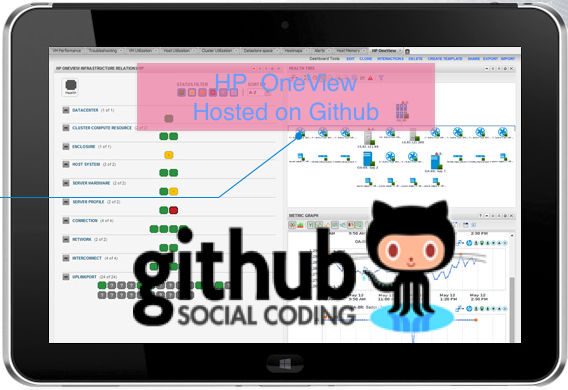
HP OneView PowerShell Library’s new project home page is http://hewlettpackard.github.io/POSH-HPOneView/HP 
OneView PowerShell library has moved to Github , before it was hosted on CodePlex ! Moving HP OneView to Github will ensure that every one can easily access HP Oneview Project , Here is the HP Github Organization Page https://github.com/HewlettPackard , 

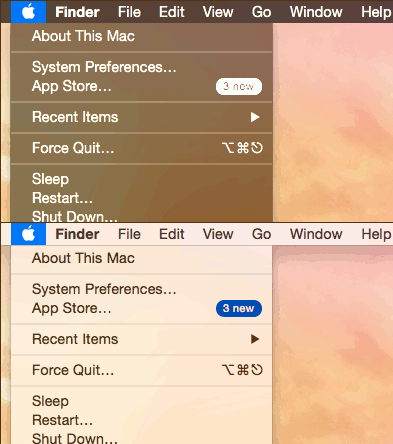
How to Enable and toggle Darkmode in Mac OS X 10.10 Yosemite using keyboard shortcut

How to Enable and toggle Darkmode in Mac OS X 10.10 Yosemite using keyboard shortcut


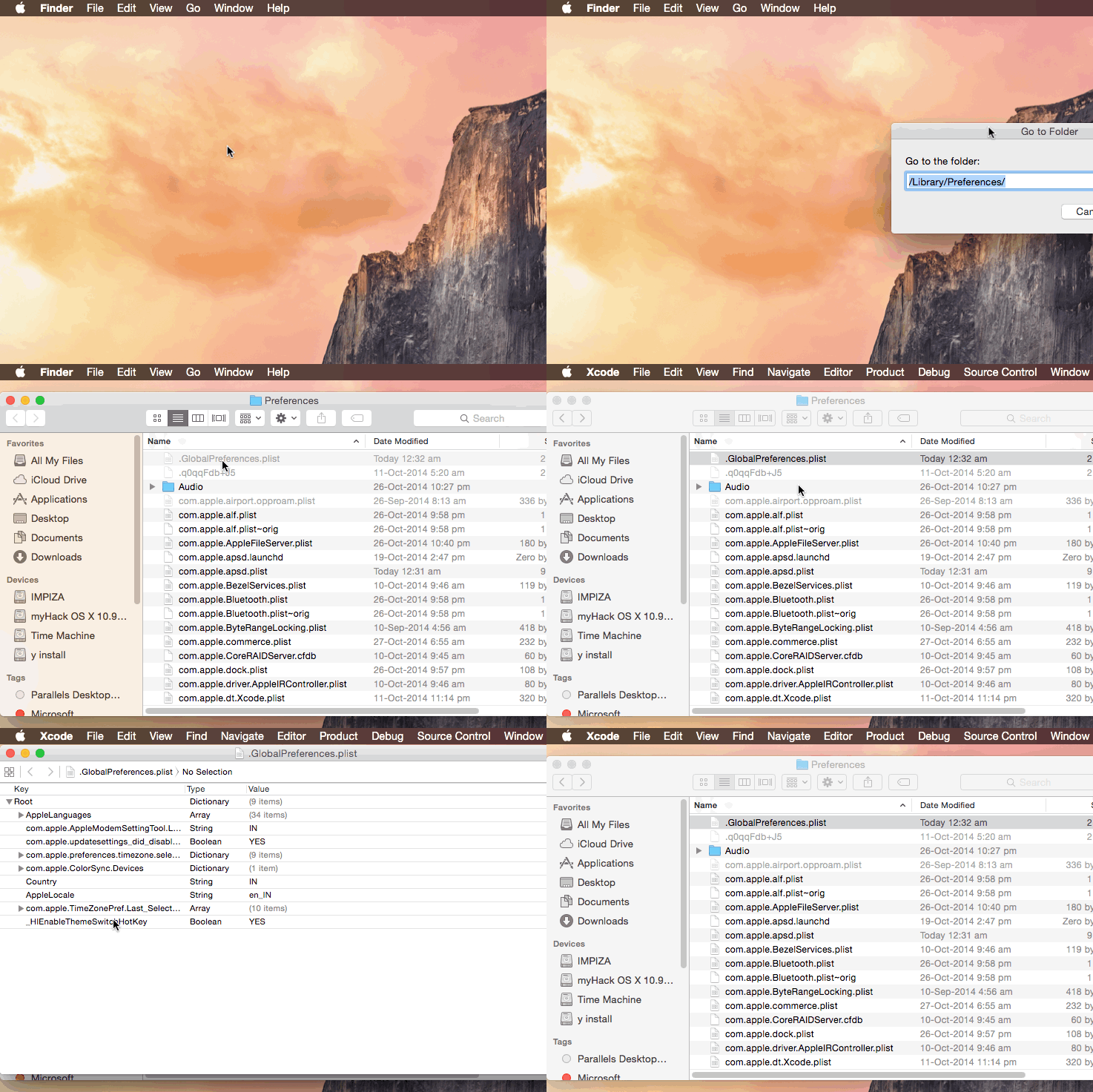
This can be done by editing .GlobalPreferences.plist in /Library/Preferences/
.GlobalPreferences.plist will be hidden , if you want to access file use apps like InVisibles.app 
you can download it from here  http://cl.ly/2p1I263s0s3l 
original site is here 

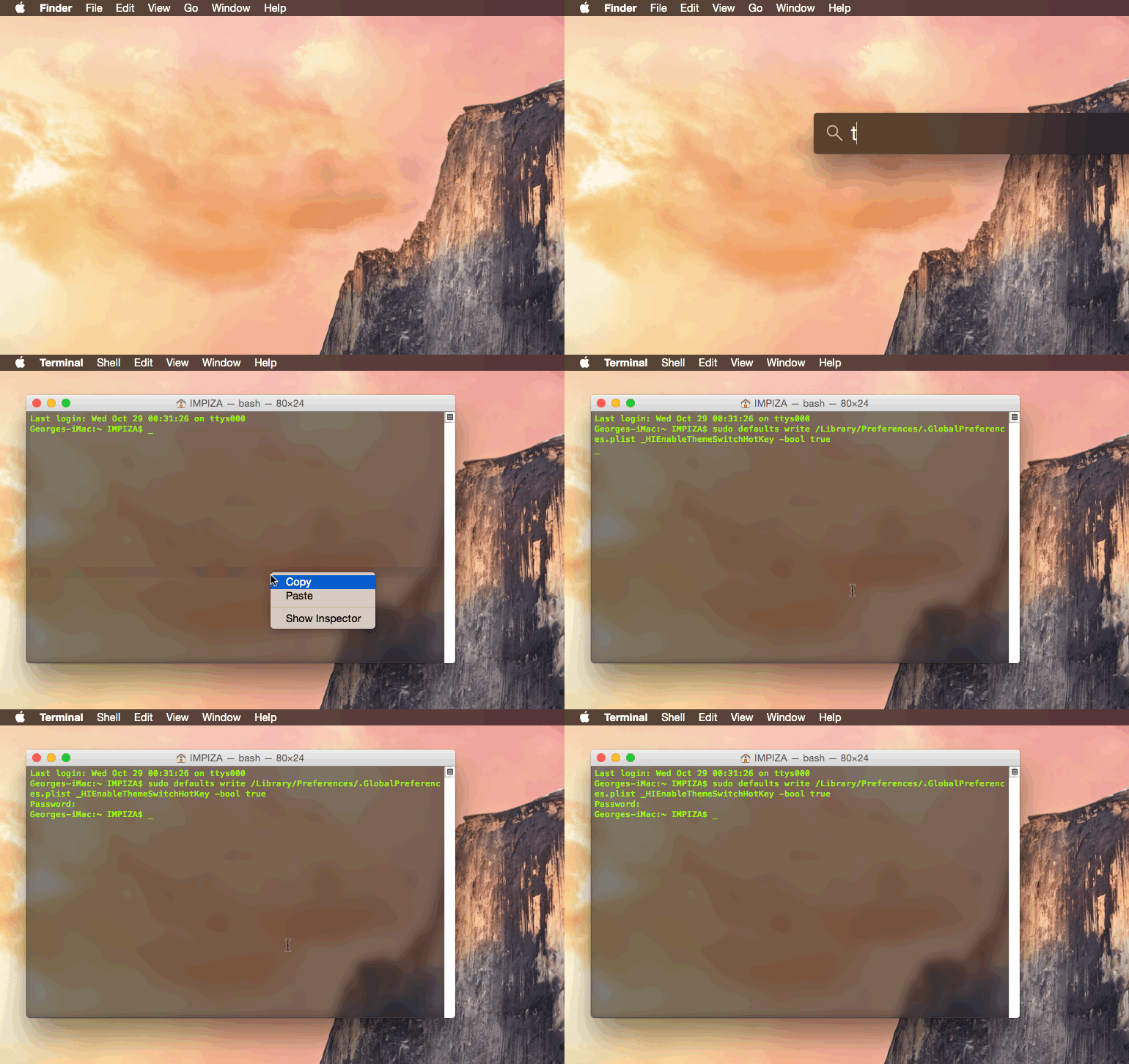
Open  up Terminal then paste the following command line and hit Enter “Return Key” 
it will ask for your admin password , enter your password and hit Return key 
done


  sudo defaults write /Library/Preferences/.GlobalPreferences.plist _HIEnableThemeSwitchHotKey -bool true


you can confirm it by opening .GlobalPreferences.plist from /Library/Preferences/ 


now logout your Mac(Hackint0sh) and re login 

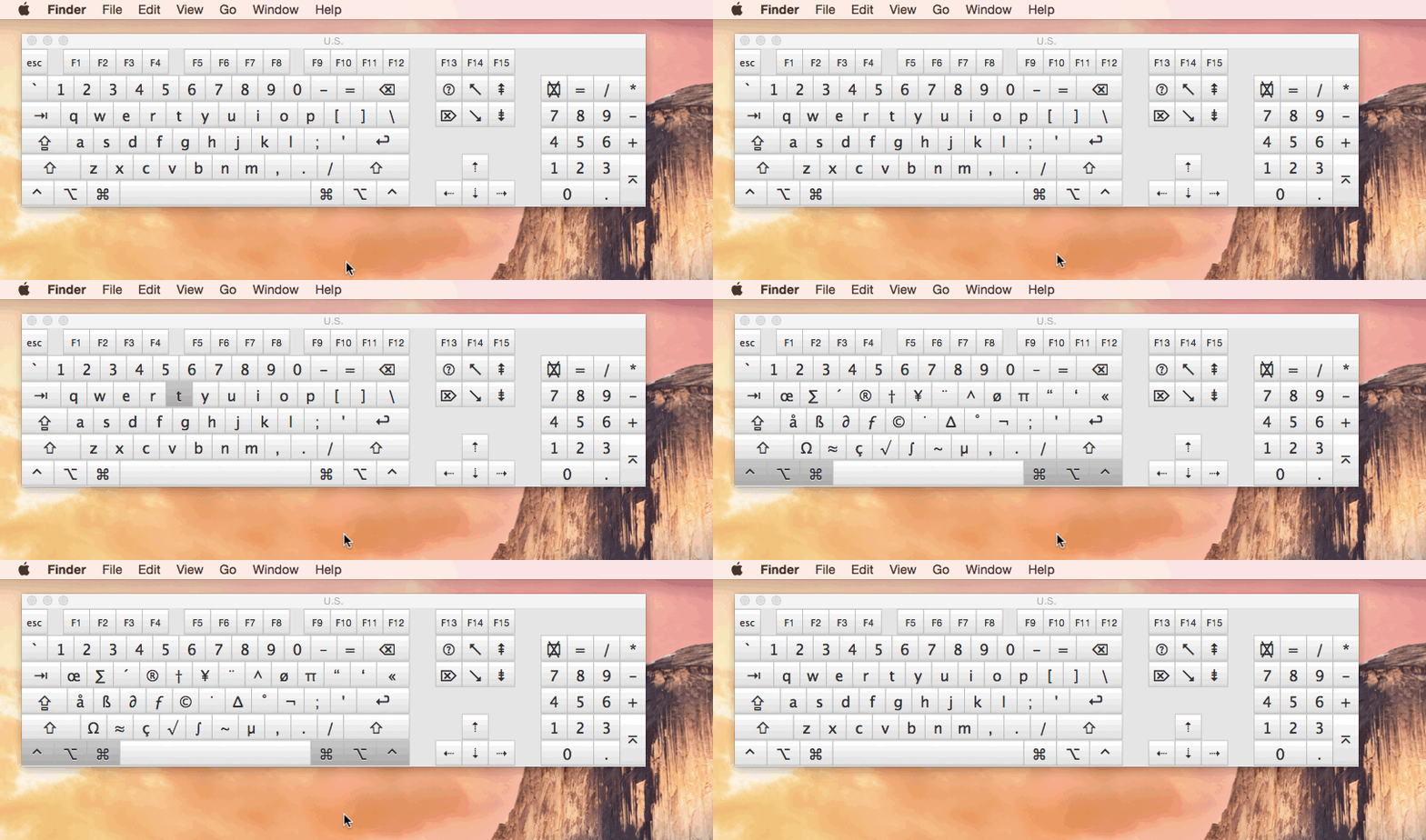
then press these keys 

CTRL + OPT + CMD + T

 Congrats you have successfully added shortcut for Darkmode in your Mac (Hackint0sh)

Video tutorial from youtube can be found here

Pin It on Pinterest