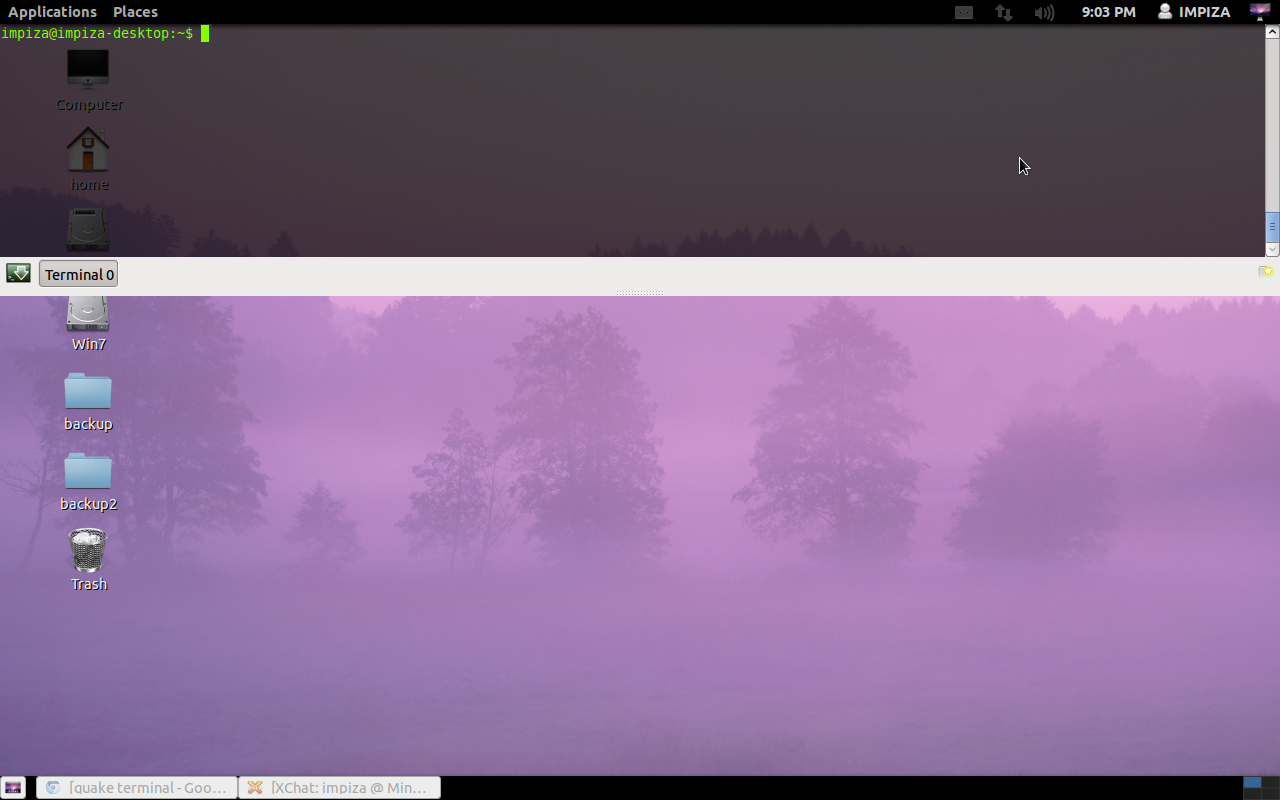
Guake terminal
yum install guakeDebian/Ubuntu/LinuxMint
sudo apt-get install guakeGentoo
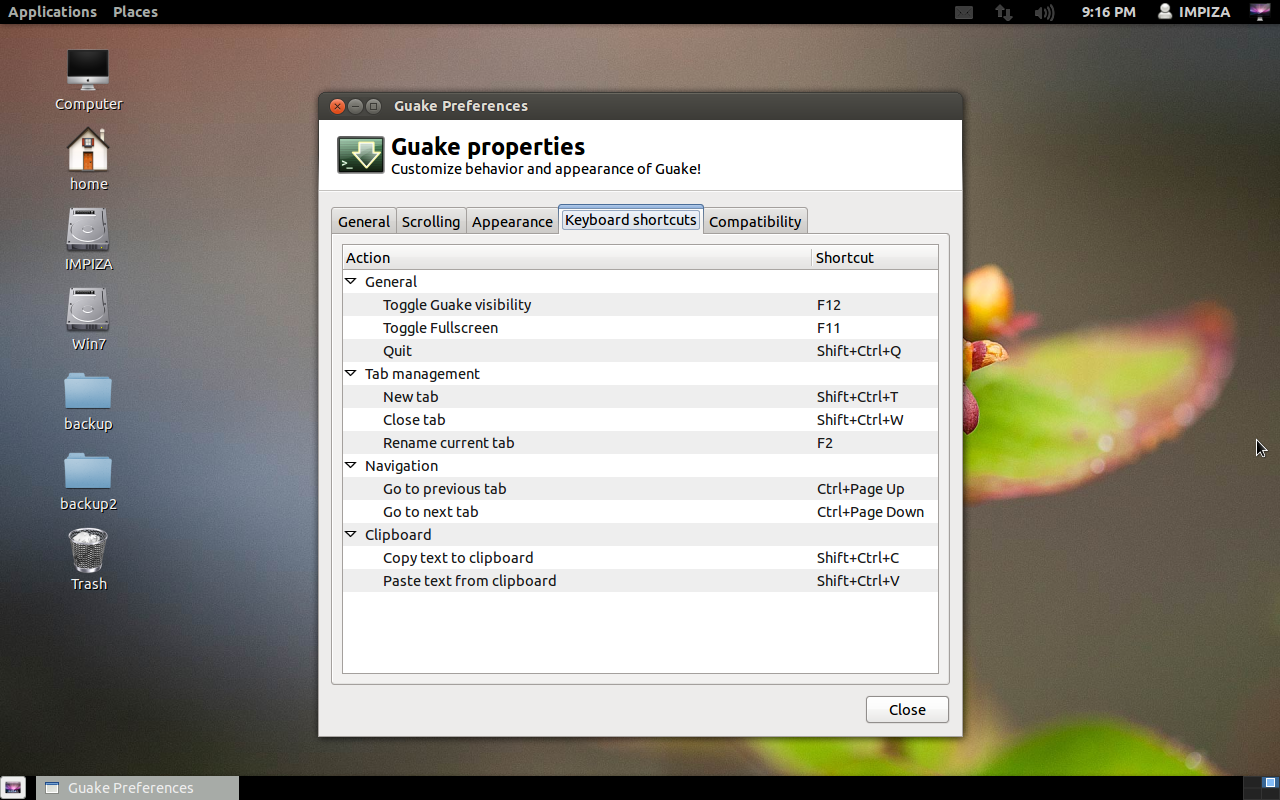
emerge -av guakeScreenshotsPress F12 key to Drop down terminal
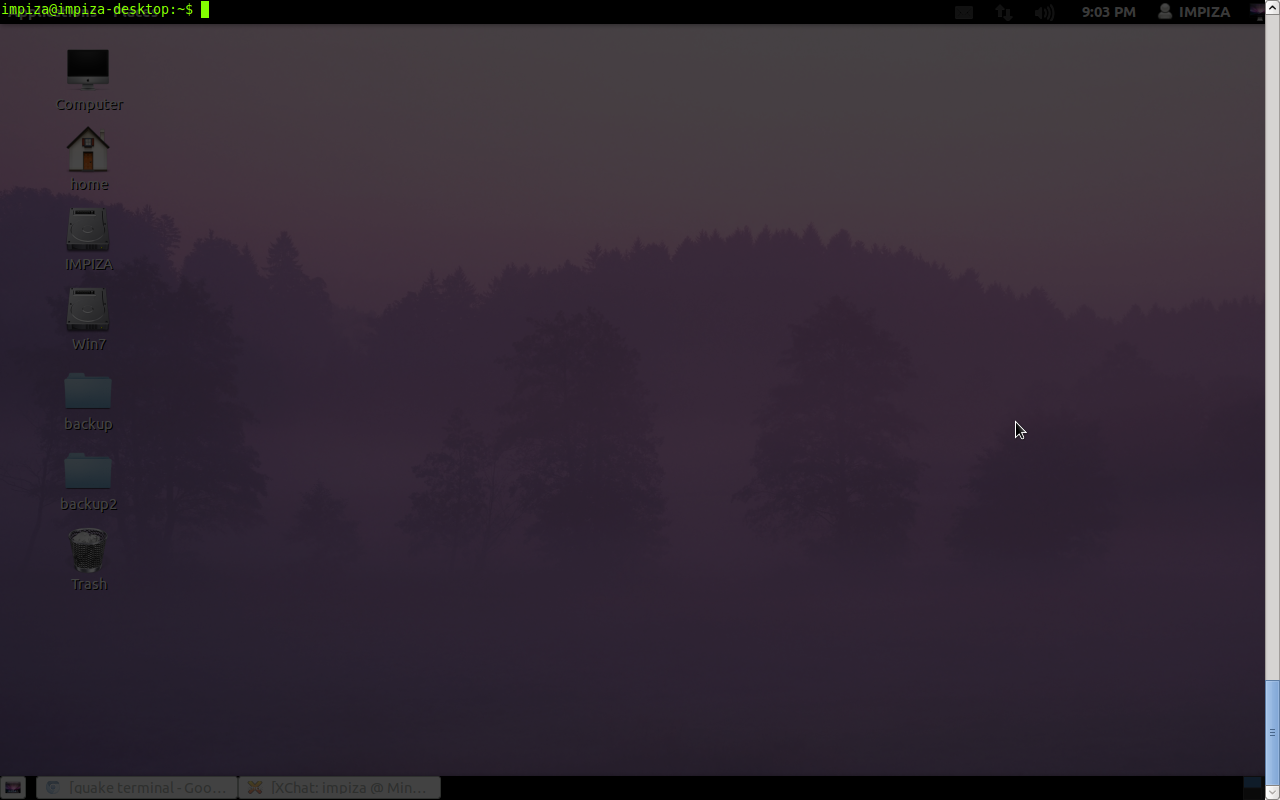
Press F11 key to maximize terminal to full screenGuake terminal Properties (Keyboard Shortcuts)
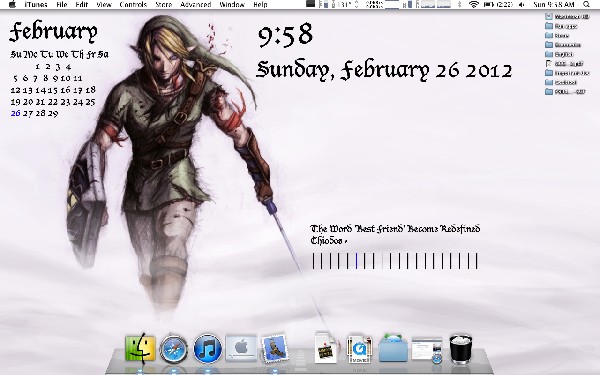
Geek Tool VS Live Wallpaper !
What is GeekTool ?
GeekTool is an application for Mac OS 10.6+. It lets you display various kinds of information on your desktop via 3 default plug-ins:
- “File plugin” to monitor MacOS X activity with /var/log/system.log, or any file that you want to follow
- “Shell mode” to launch custom scripts or commands like “df” to check space left on filesystems or “uptime” to monitor load on your machine
- “image mode” helps you monitor bandwith usage, CPU load, memory availability on your server with tools like MRTG orRRD.
- Wallpaper. Use default wallpaper of each theme or select your own wallpaper. some theme have animating wallpapers.
- Clock . choose time format . you can hide or show it
- custom text , change your text . also you can hide or show it .
- Weather forecast. Choose your location. The weather data shows up to 5 days depends on each theme. also, you can hide or show it . i use weather forecast from NOAA (USA only) and yr.no
plz commend , share , !
How to customize your ubuntu (12.04 ,12.10 ), Mint 13 in cinnamon interface looks like Mac os x
This is a tutorial about how to customize your ubuntu , Mint looks like Mac os x
for ubuntu users you need to install cinnamon
after that follow below instructions
for that visit my earlier url about how to install cinnamon interface in ubuntu
here is the link click here to know how-to-install-cinnamon desktop
for Mint users follow below instructions
install cairo-dock
open up your terminal type
sudo apt-get install cairo-dock
r
now open your cairo-dock app from menu which we have installed before *(open Glx-dock (Cairo-dock with openGl))
now its time to configure your Cairo-dock
cario-dock is the main attraction ! so we have to customize it looks like Mac’s Dock
for that
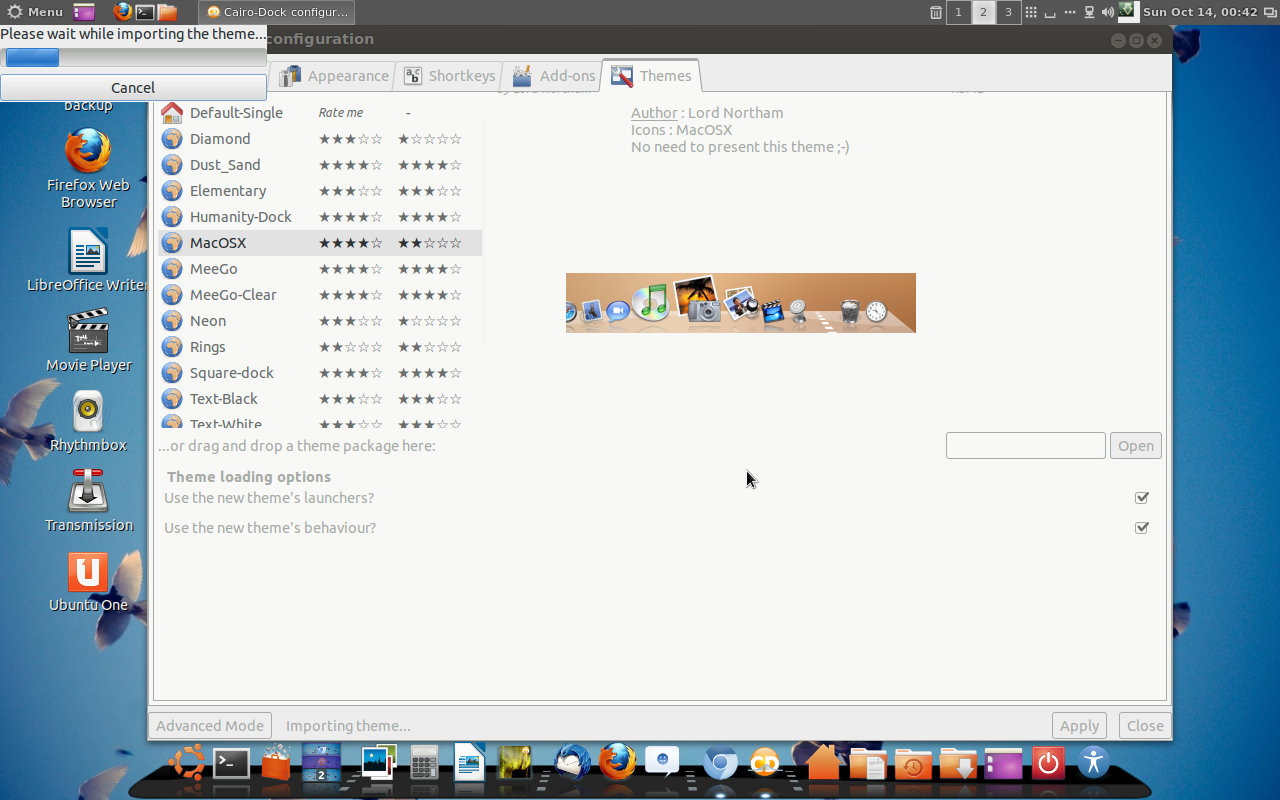
right click on cario-dock and cairo-dock configure then themes and apply Macosx theme
then
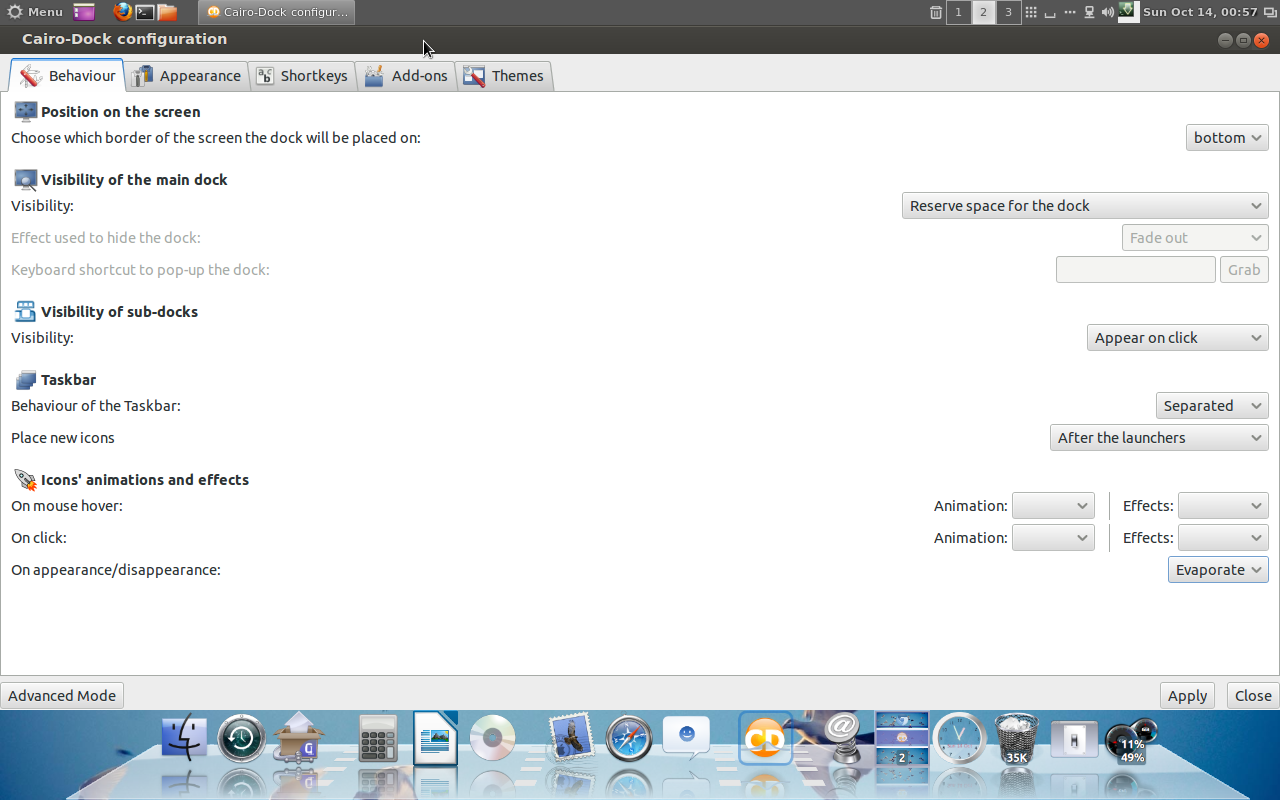
click on behavior tab , visiblility of the main dock > reserve space for the dock ! do exactly shown in screenshot
then icons animations and effect unmark all effect as shown in screenshot
after applying dock
now you need to apply a new cinnamon theme for that go to this url and download this zip file to your desktop
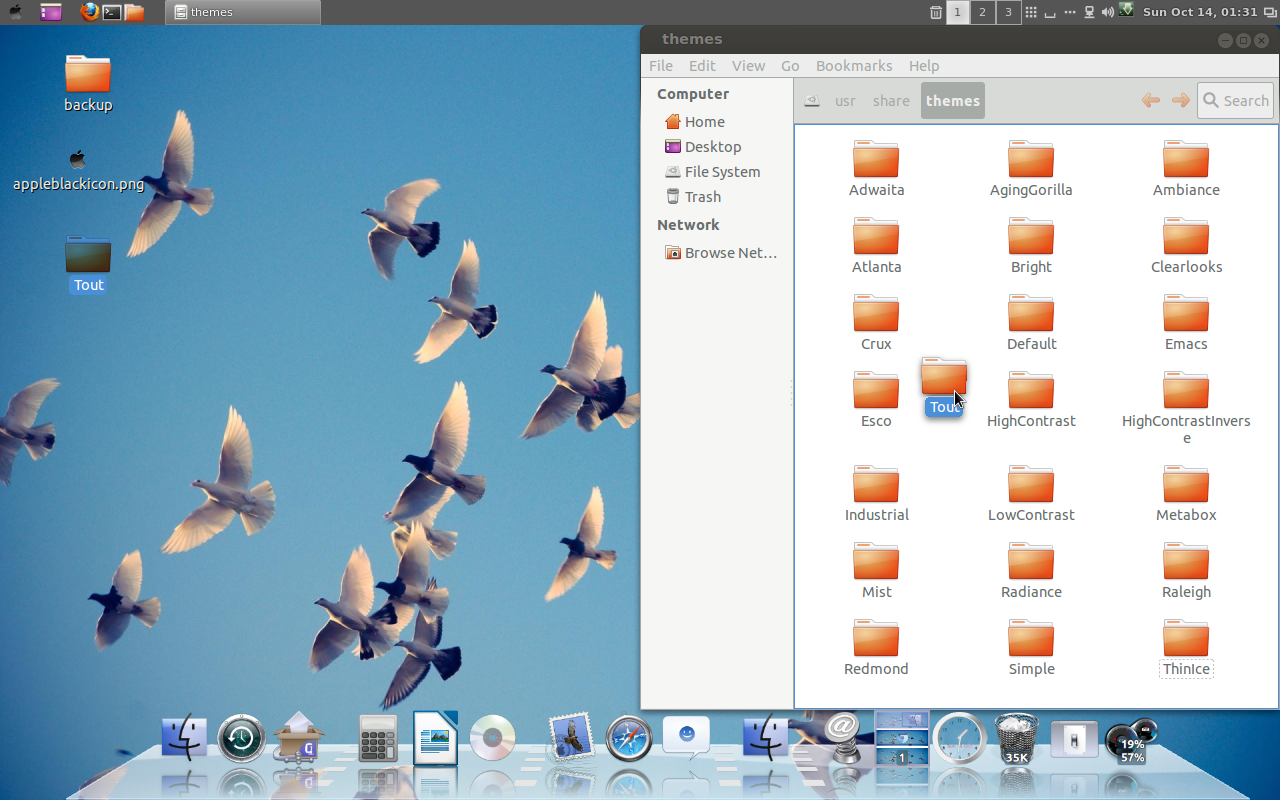
then extract it to desktop then open this ( /usr/share/themes )location using root (right click the folder and open via root ) and drag extracted cinnamon theme folder to this location /usr/share/themes
its time to edit Menuicon
apple menu has an apple icon
to do that
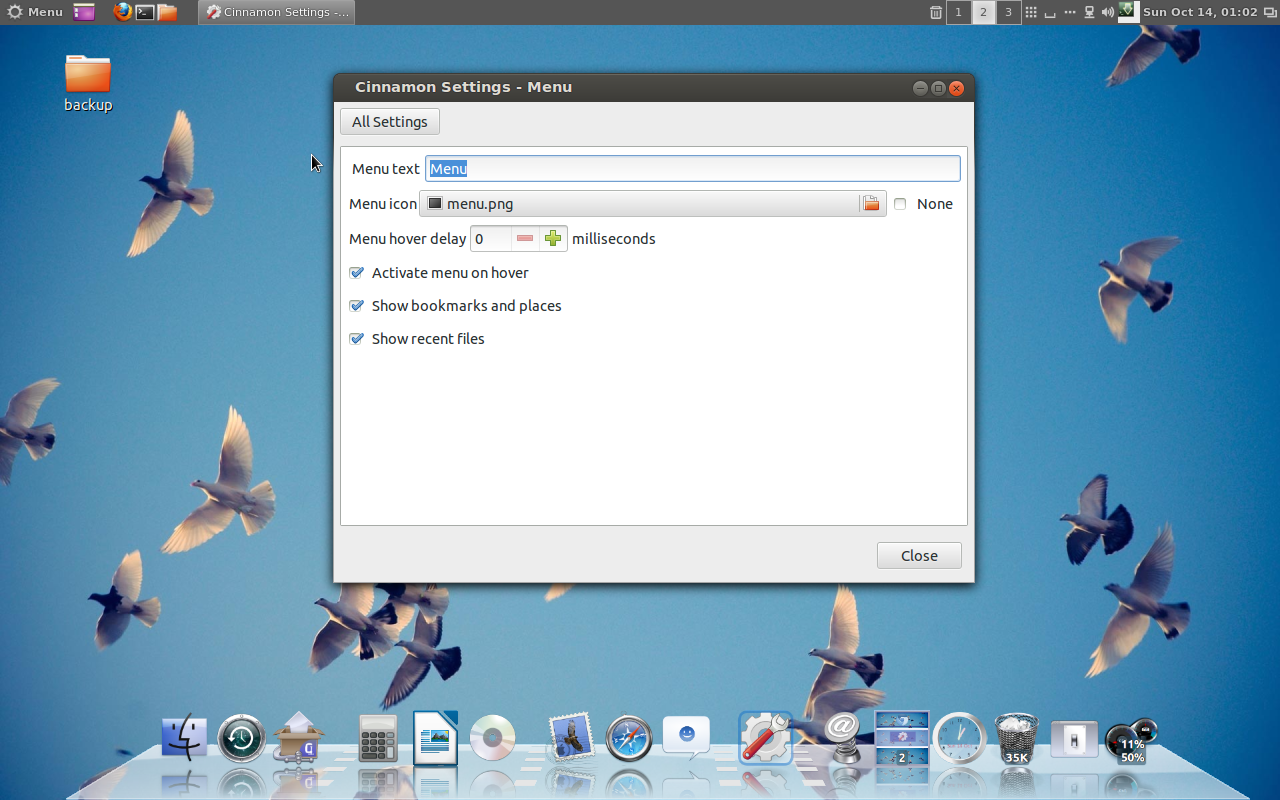
right click on menu in panel > Menu settings or right click on the panel settings > all settings then Menu
erase Menu text
download Apple Menu icon from this url click here to dowload Apple icon
then
show the path of newly downloaded Apple icon (save it in /home/your_desktop_profile/Pictures)
then
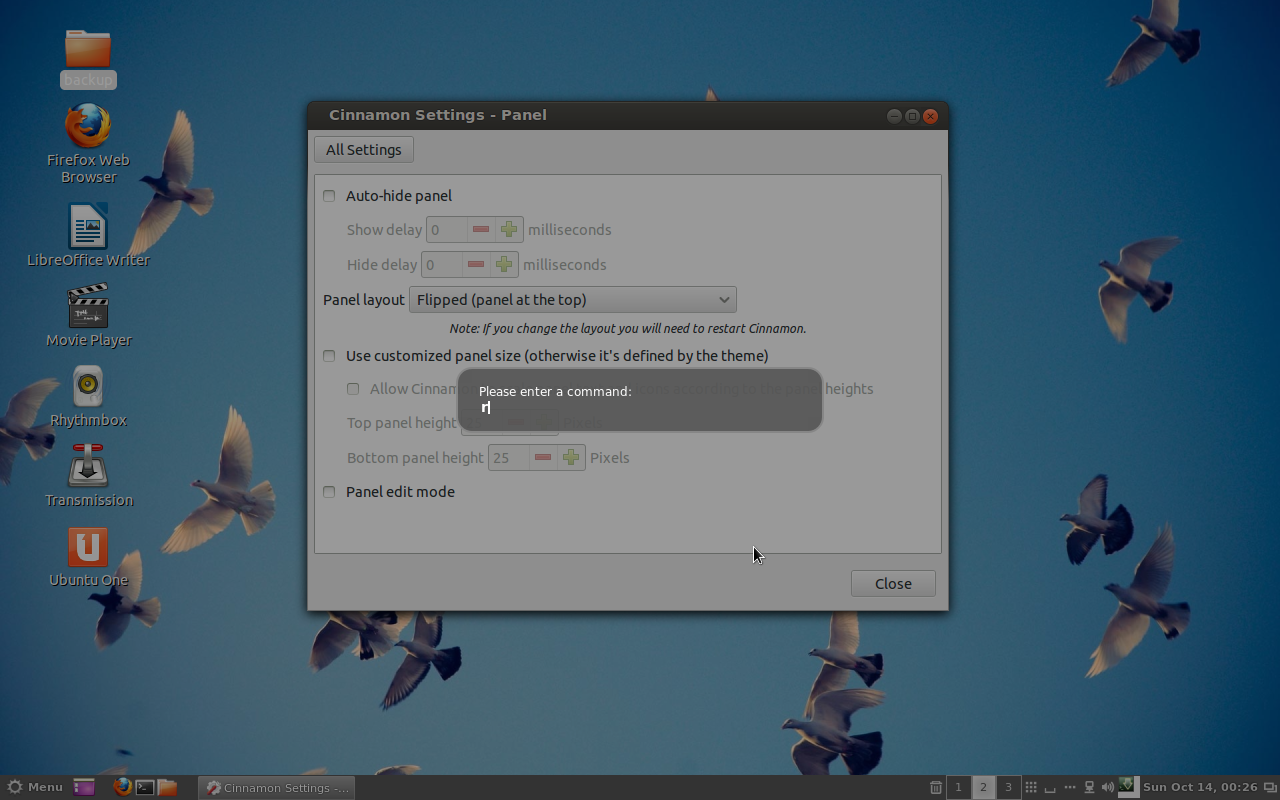
press alt key + F2 keyhen press r Hit Enter key , this is to refresh cinnamon interface ! then
click on all settings in cinnamon settings > themes > select newly added tout theme
do its once more Alt key + F2 then press r Hit Enter key
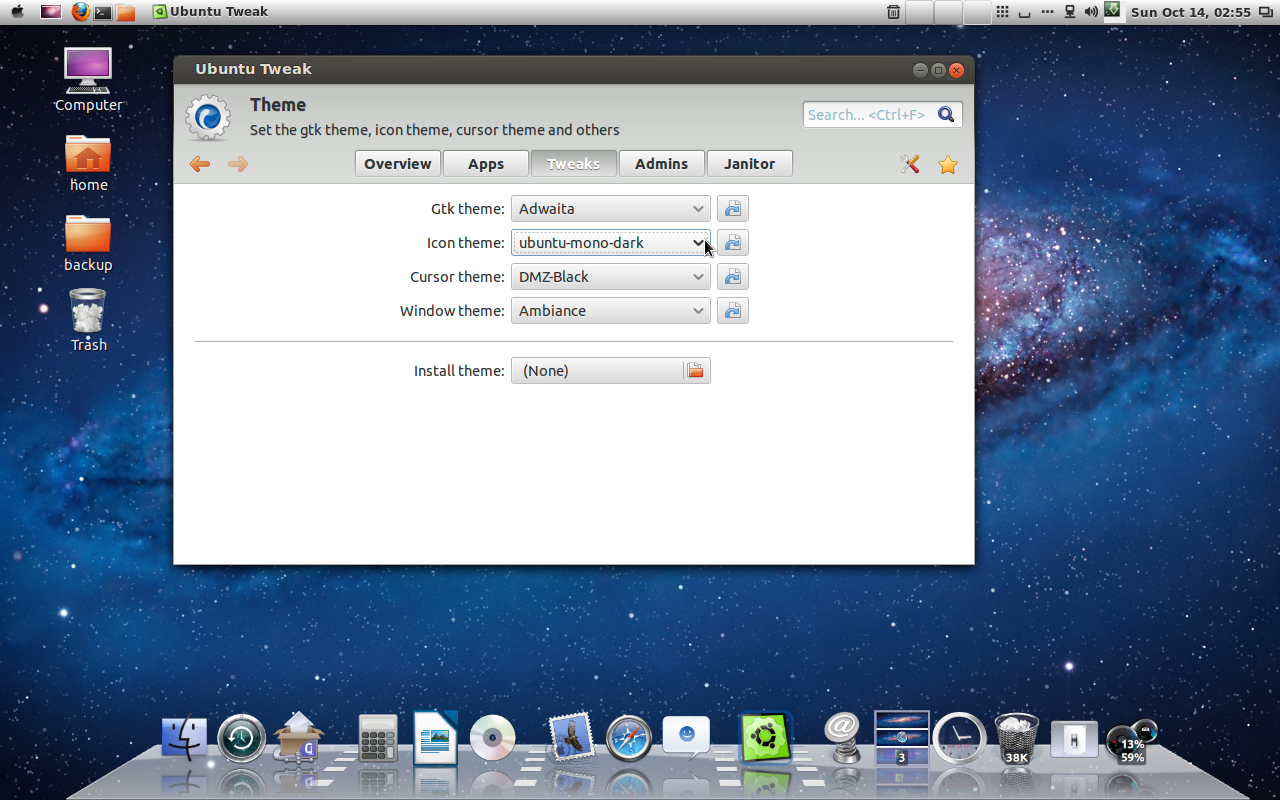
install Ubuntu-tweak tool
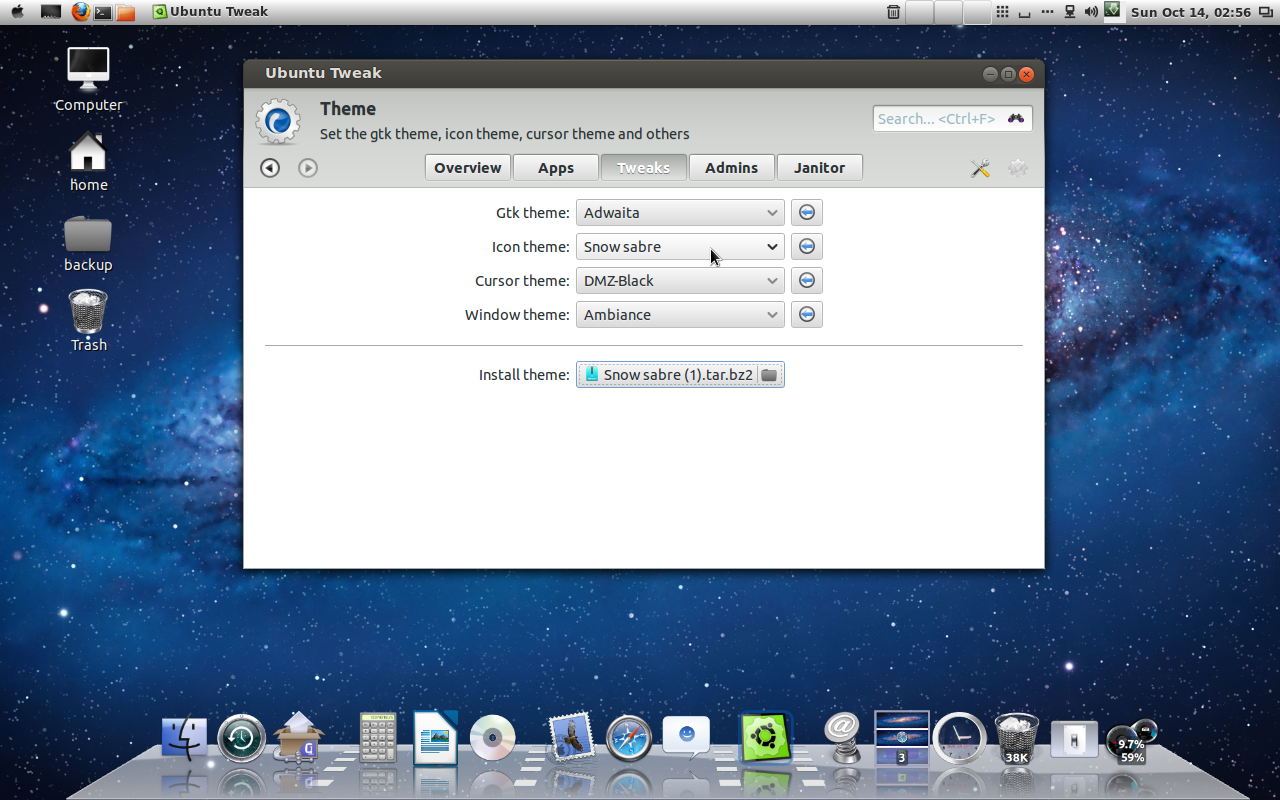
then download icon theme called snow sabre from this link Click to download snow sabre icons
then install it using ubuntu tweak tool
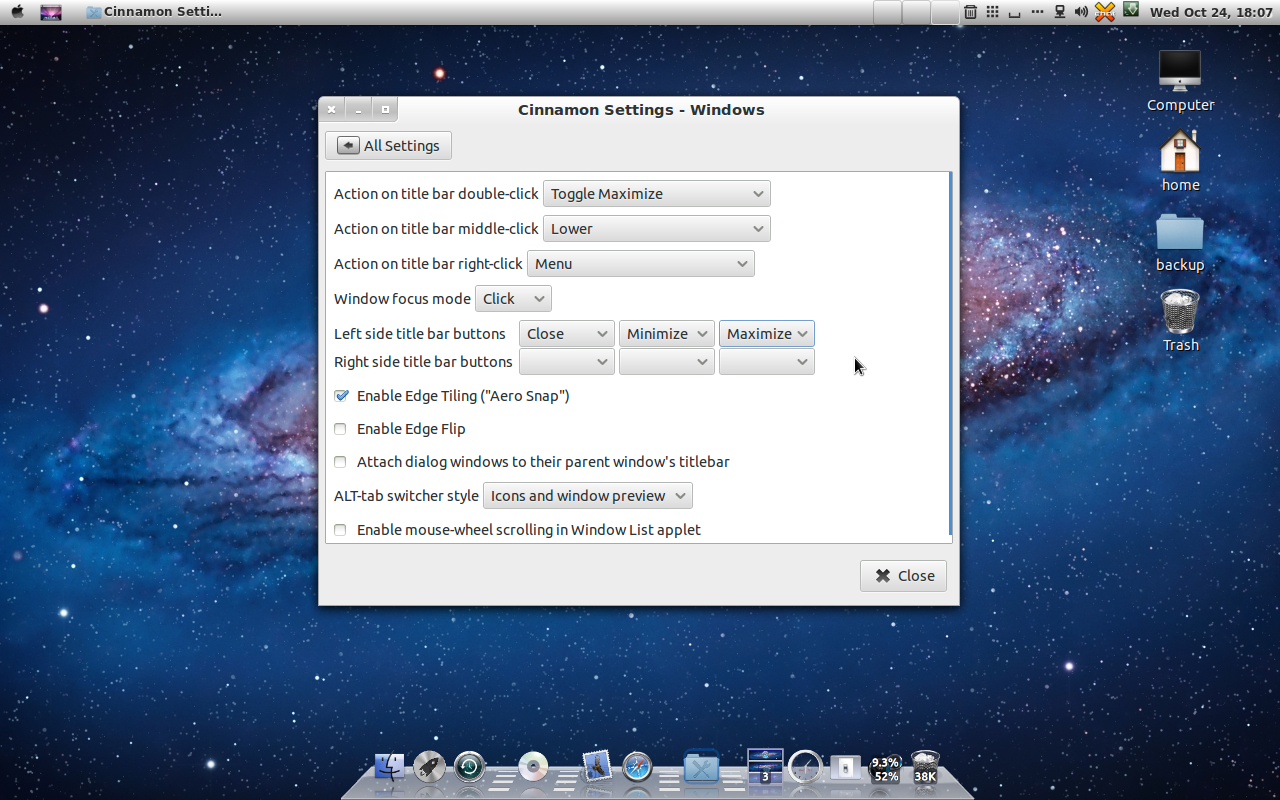
at last you need to move your windows buttons to left side for that
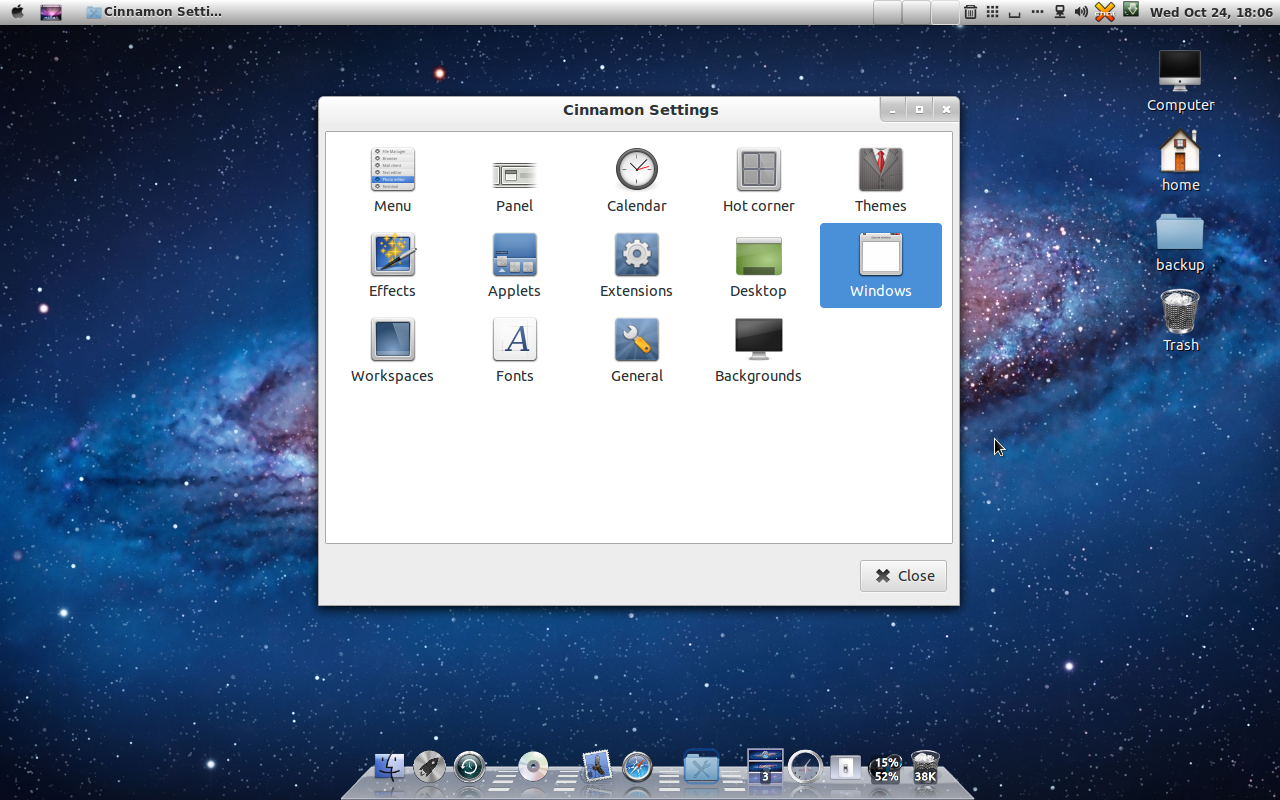
open cinnamon settings and windows
now rearrange buttons to left close , minimize , Maximize !
then if you want to customize your cairo dock shortcut applet to looks like
lauchpad applet ! follow this instructions
download this icon to picture folder in your home folder
click right click shortcut applet on cairo-dock > shortcuts > edit > icons tab and
rename shortcut to ( Launchpad ) then click on open button on image filename
select launchpad icon that you have download earlier ! done
now its time to decorate your desktop with Mac os x Lion or Mountain Lion HD Wallpapers
here my collection
Mac os x HD wallpaper Here
Some Selected Wallpapers ! click here
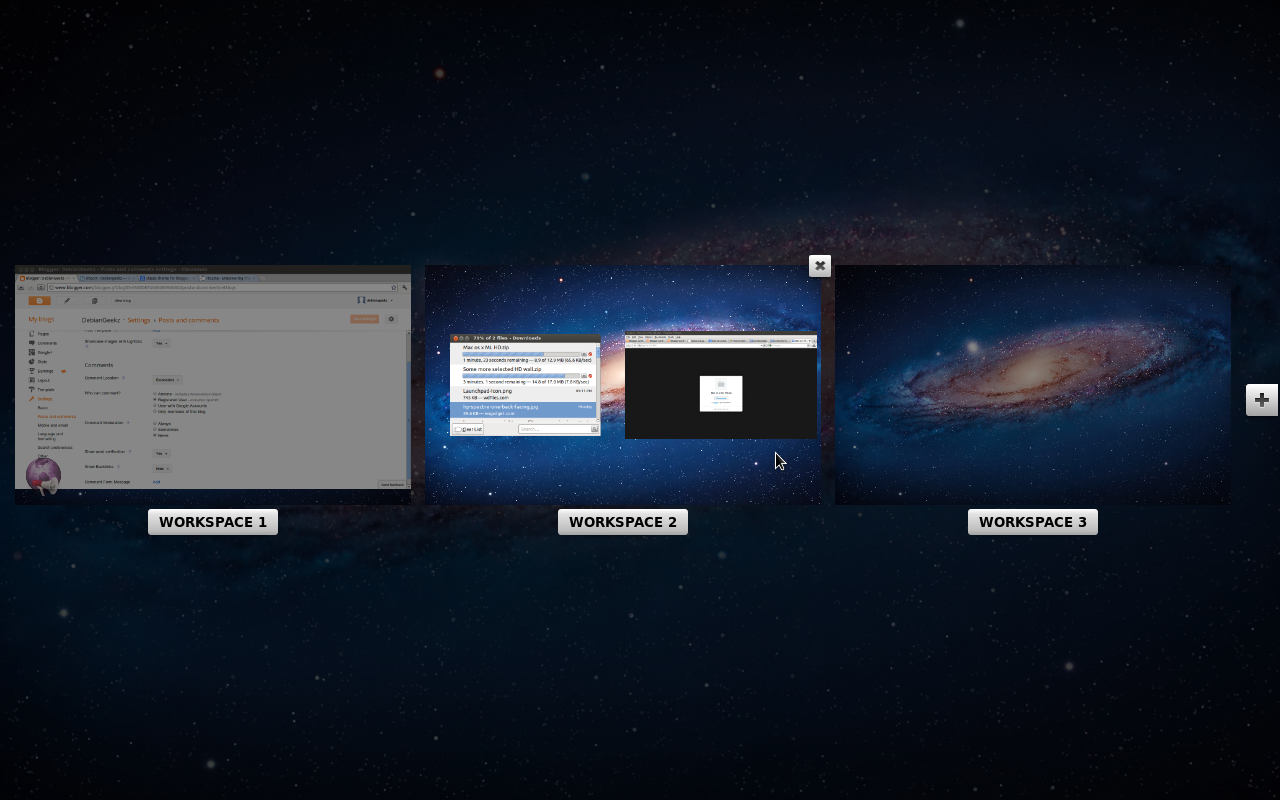
Here is my Mac looking desktop
Work spaces just like Mac os x Lion and Mountain Lion ! 🙂
Thanks for reading my blog ! share it , comment if you like the post thanks

How to switch (Customize ,Modify ) your Mac Dock to 2D & 3D
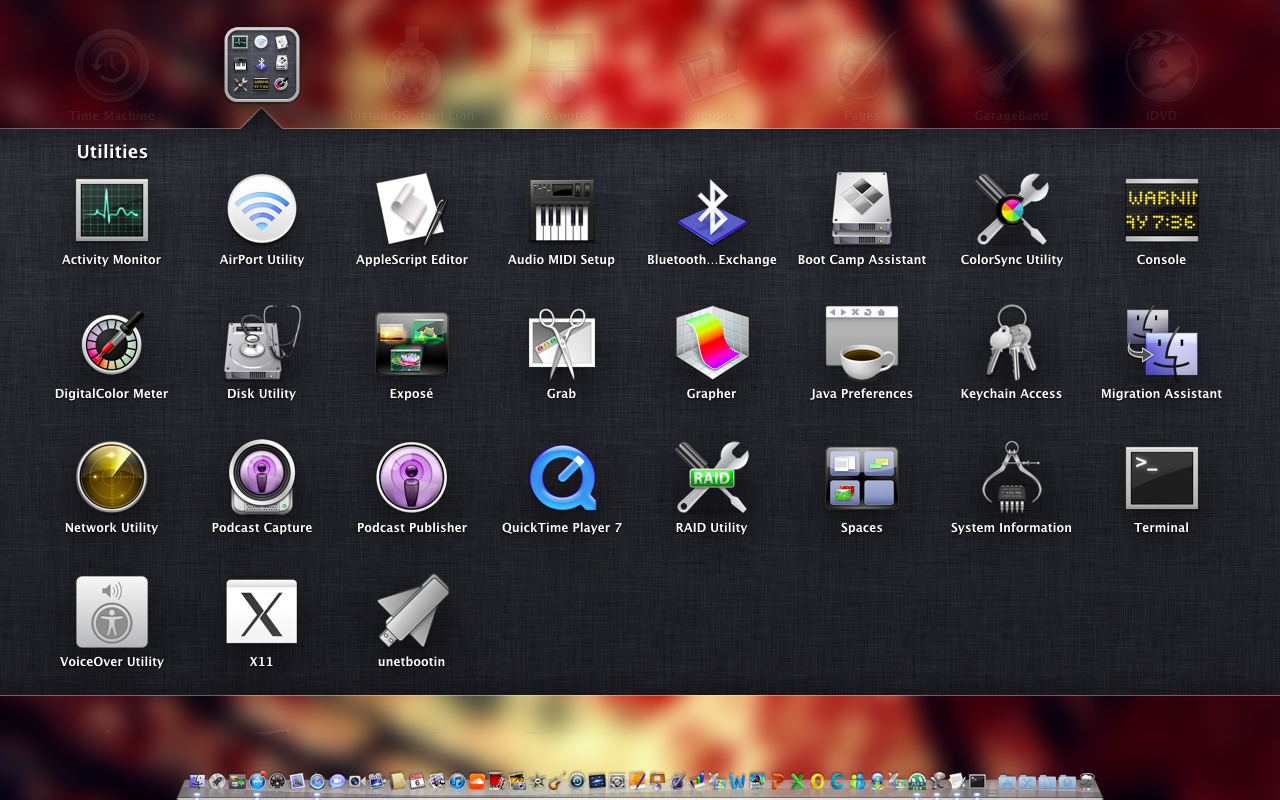
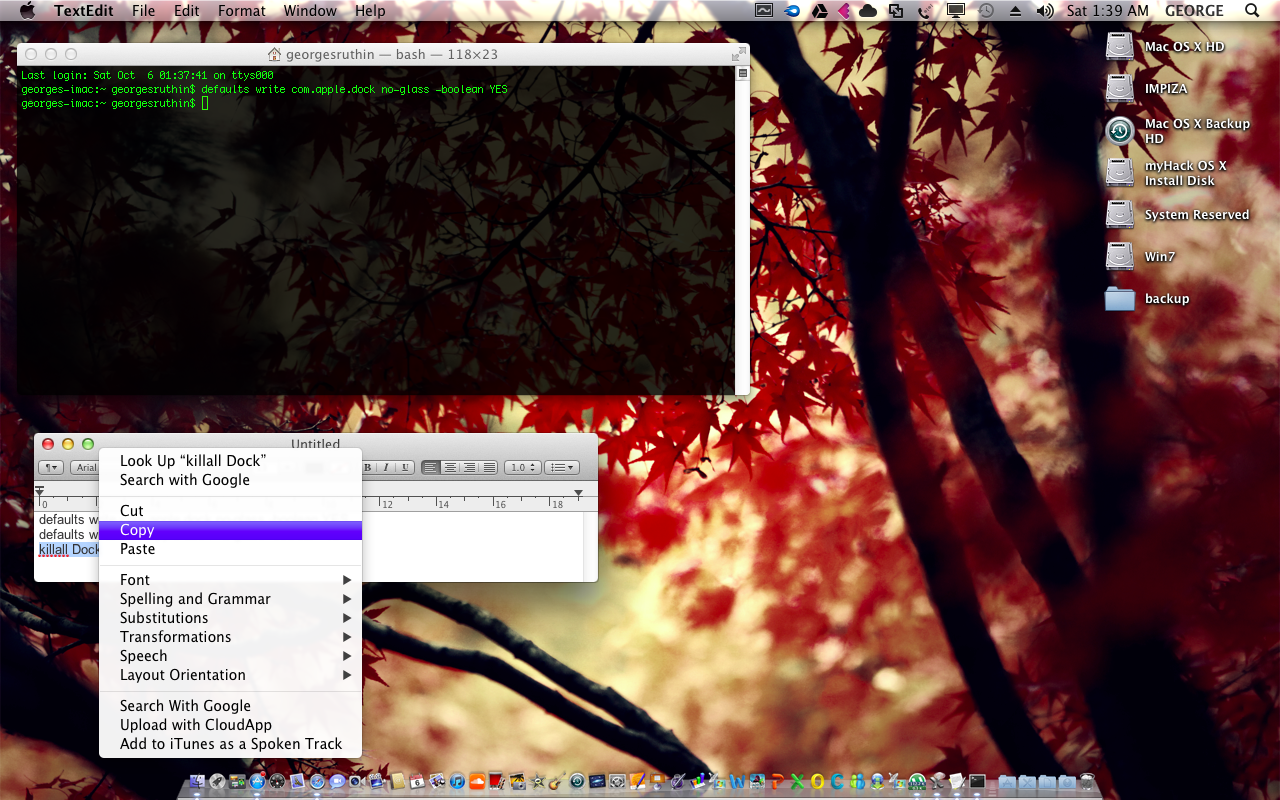
Open up your launchpad from Dock , Utilities folder , select terminal app !
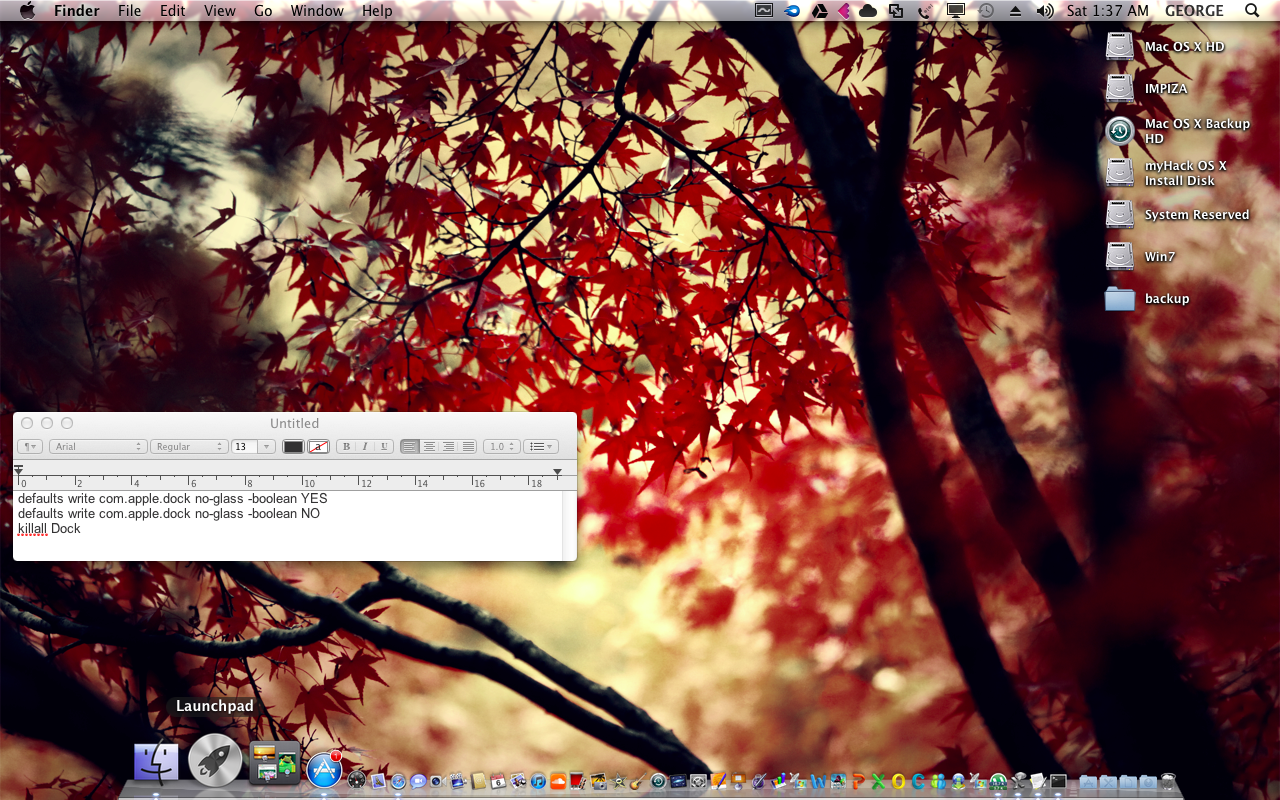
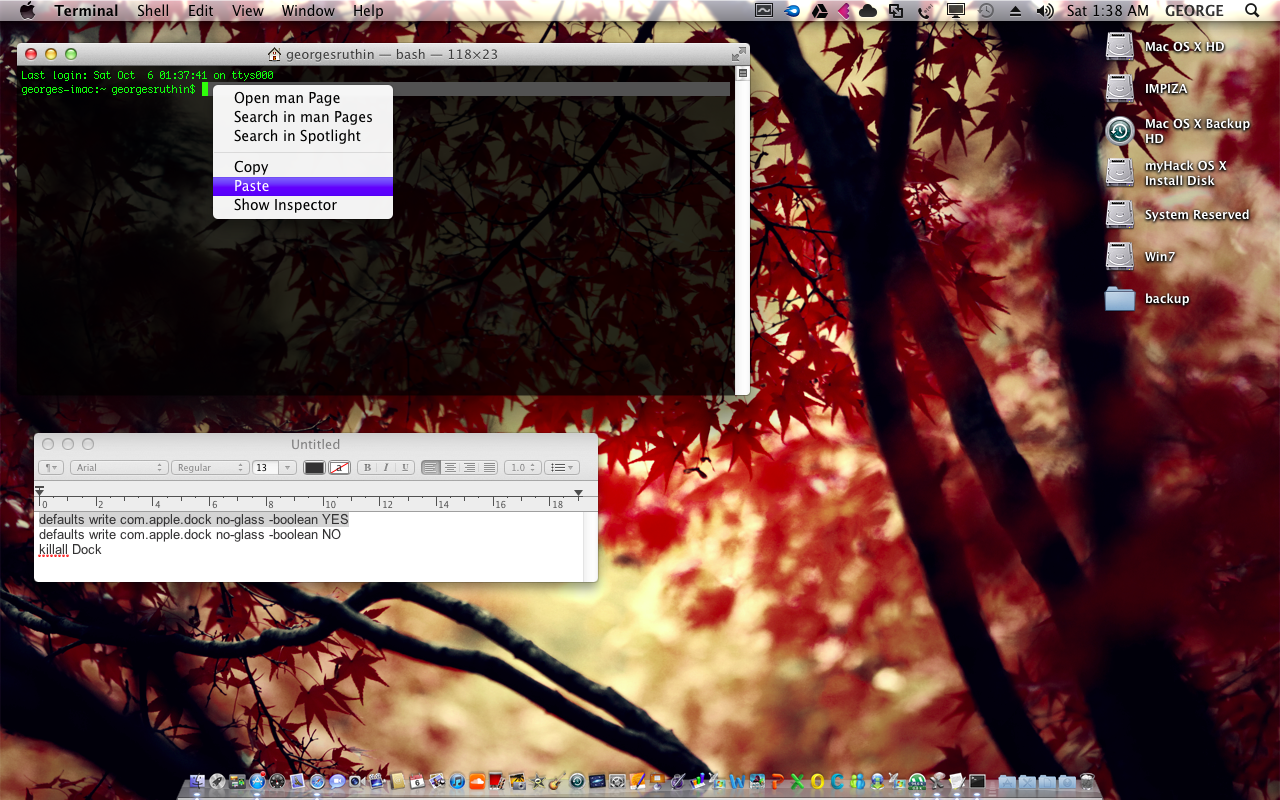
defaults write com.apple.dock no-glass -boolean YES
killall Dock
your 2D Dock is Ready 😀
defaults write com.apple.dock no-glass -boolean NO
Thank you For Reading my Article Plz Comment , Like me @ fb (hit like @ right corner fb box) , subscribe join my blog 🙂
How to install cinnamon Desktop Interface in ubuntu !
About cinnamon
The Linux Mint development team was initially unsure about the future of the distribution after the release of GNOME 3. Its new interface, GNOME Shell, did not fit the design goals the team had in mind for Linux Mint, but there were initially no available alternatives. Linux Mint 11 “Katya” was released in May 2011 with the final release of GNOME 2, but it was clear that a better solution was needed, as GNOME Panel was no longer being developed. Therefore, the team set out to improve GNOME Shell so that it would fit Linux Mint’s goals, and the result was the “Mint GNOME Shell Extensions” (MGSE). In the meantime, the MATE desktop environment was forked from GNOME 2. The Mint team decided to incorporate MATE into Linux Mint 12 “Lisa” alongside MGSE, to give users a choice whether to use the traditional GNOME 2 desktop or the GNOME 3-based MGSE.
Unfortunately, MGSE fell short of expectations. Since GNOME Shell was going in a different direction than the Mint developers had in mind, it was clear that MGSE was not viable in the long run. In response to this problem, GNOME Shell was forked to create the Cinnamon project, allowing the Linux Mint developers better control over the development process and to implement their own vision of the GNOME interface for use in future releases of Linux Mint. The project was publicly announced on 2 January 2012 on the Linux Mint blog.!
Features
- Desktop effects, including animations and transition effects;
- A movable panel equipped with a main menu, launchers, a window list and the system tray;
- Various extensions;
- Applets that appear on the panel
- Overview with functions similar to that in GNOME Shell; and
- Settings editor for easy customization. It can customize:
- The panel
- The calendar
- Themes
- Desktop effects
- Applets
- Extensions
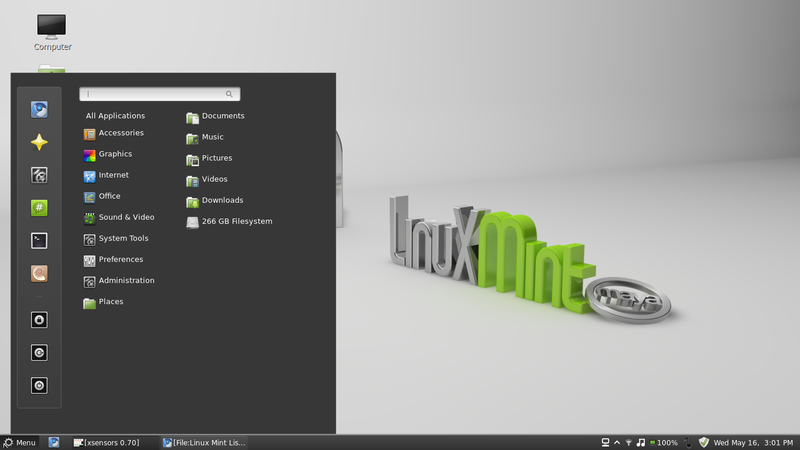
a screen shot of cinnamon desktop interface !
All you needed is 3 commands lines
internet
latest version of Ubuntu
terminal
So lets begin
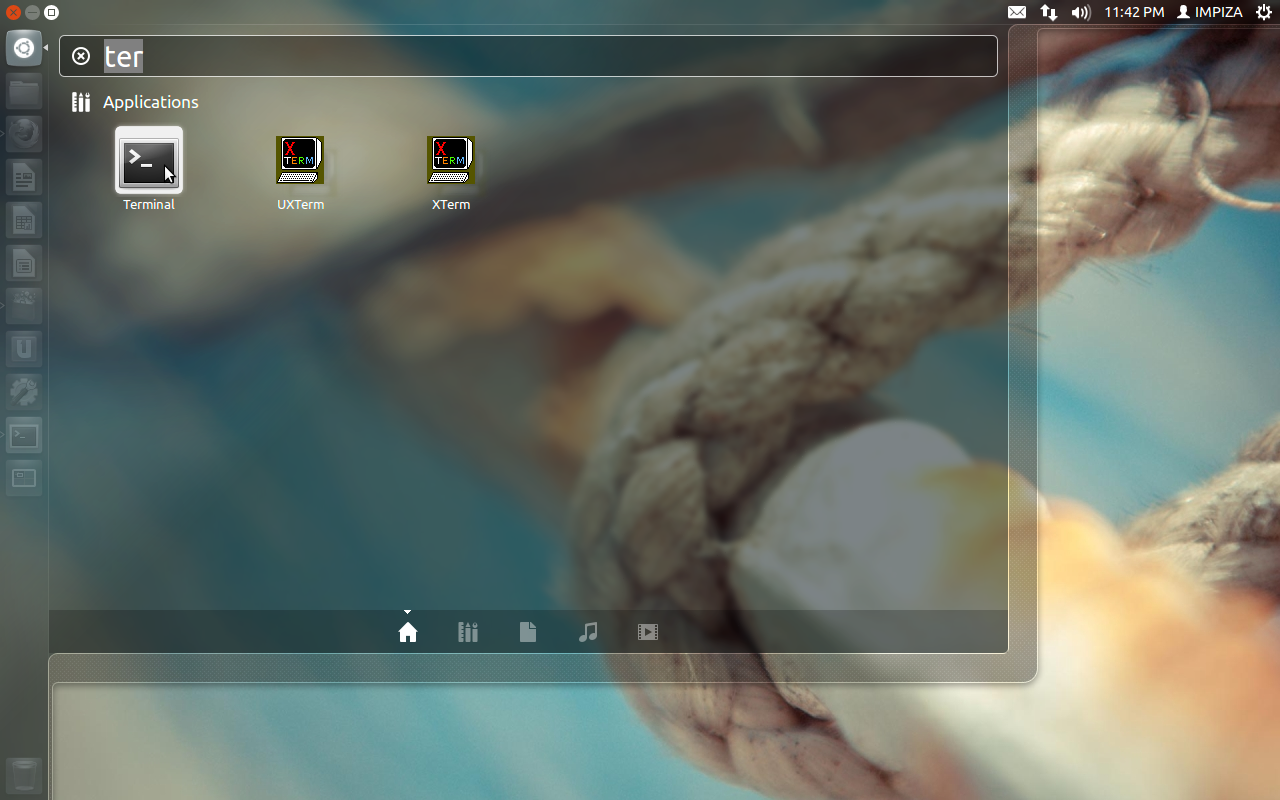
open up your terminal in Dash Home in Ubuntu
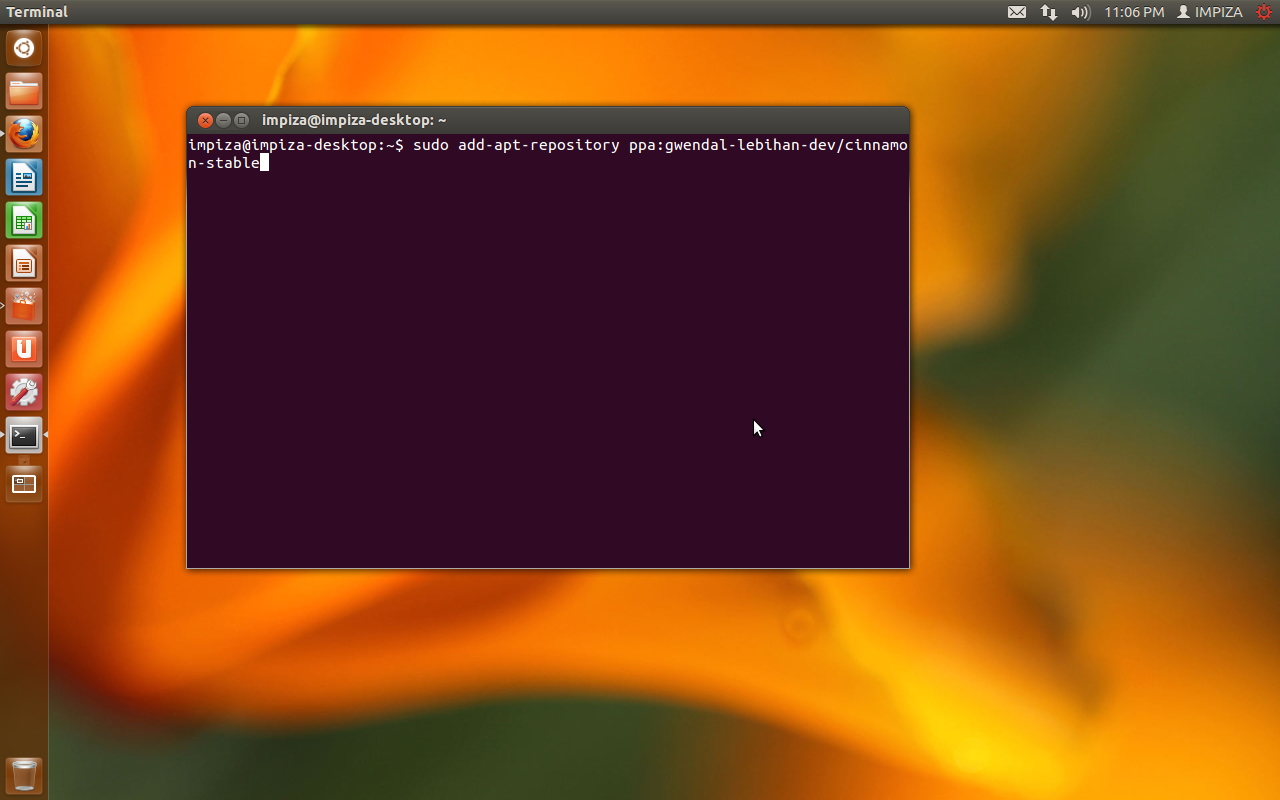
then paste this terminal command in terminal
sudo add-apt-repository ppa:gwendal-lebihan-dev/cinnamon-stable
hit Enter
it will ask you for your administrator password
enter it * “you cant see password for some security reasons “
then
paste this command in terminal
sudo apt-get update
this will update your repository
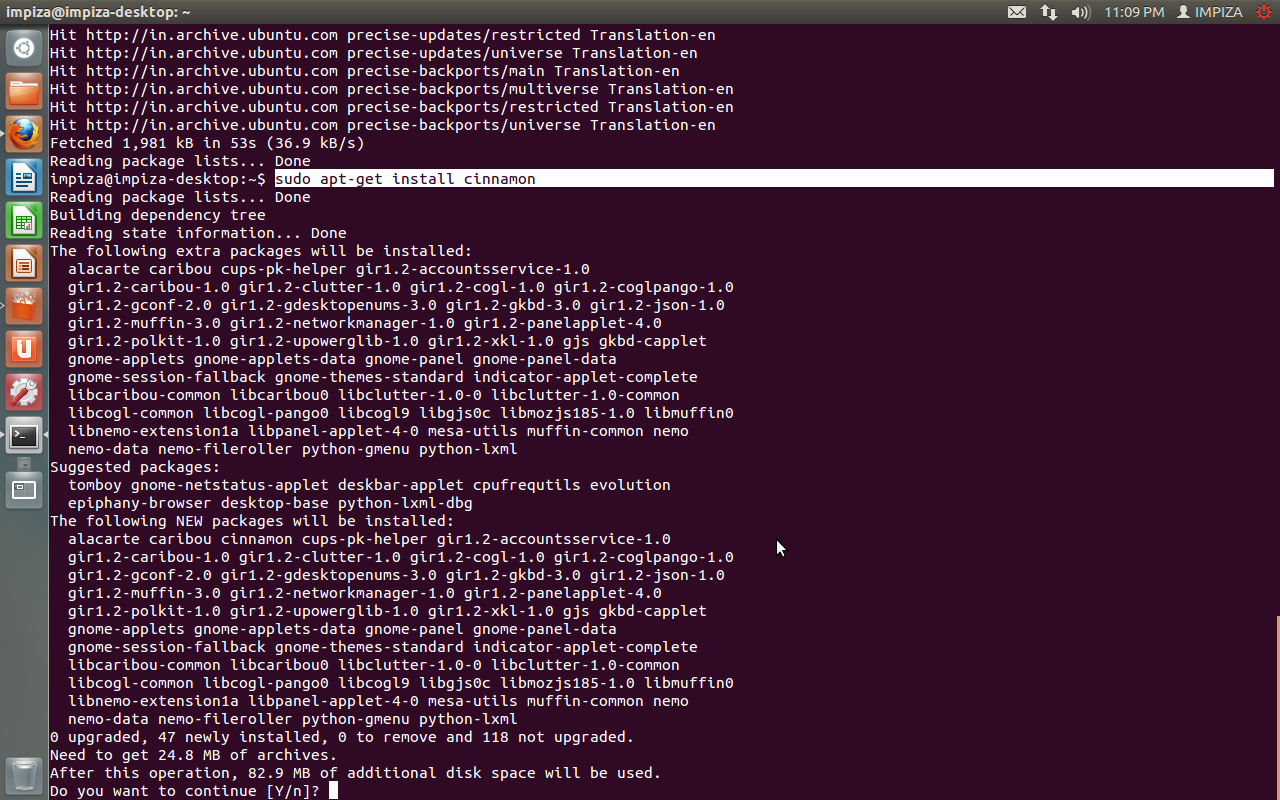
then to install cinnamon type this commands to terminal
sudo apt-get install cinnamon
hit enter
enter password
hit enter
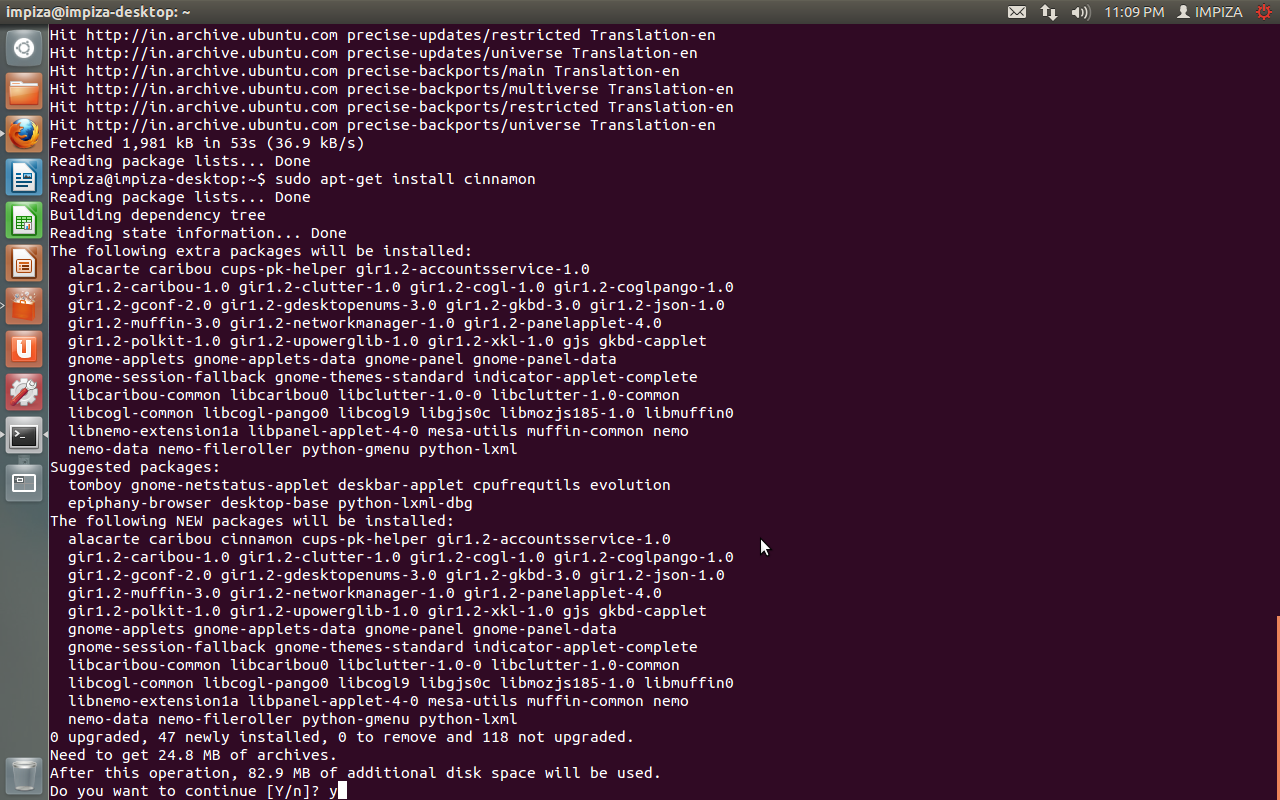
press y to confirm
hit enter
now restart you pc
after restart when you login in to your user account
select user session to cinnamon
Here it is !!!!!!!!!!!!!!!!!!!!!!!!!!!!!!!!!!!!!! 🙂