iPhone4_Chameleon_Theme
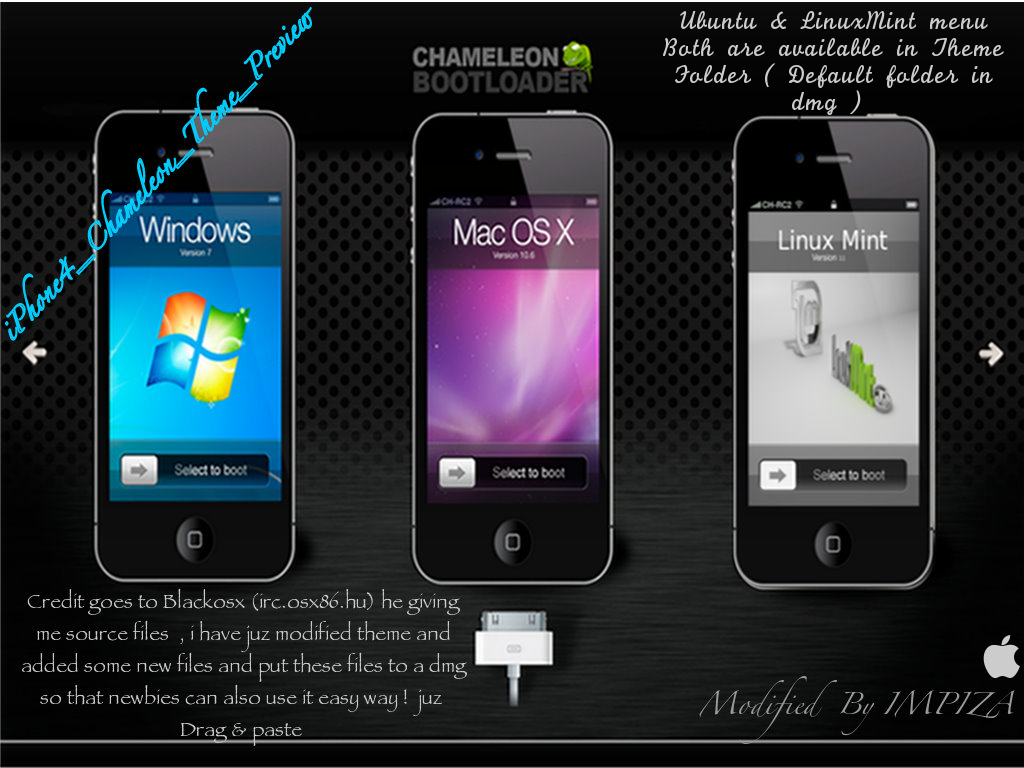 |
| iPhone4_Chameleon_Theme_preview |
Thank you.
Downloads below.


|
| iPhone4_Chameleon_Theme_preview |
Thank you.
Downloads below.
ArtistX is a free live GNU/Linux DVD which turns a common computer into a full multimedia production studio.
It is based on Ubuntu GNU/Linux and contains nearly all the available free audio, 2D and 3D graphics, and video software for the GNU/Linux computing platform. It doesn’t need to be installed, and boots directly into a running system without touching hard drives. The files produced with ArtistX can be easily stored on USB devices or CD/DVD medium while it is running. If you want to install it please take a look to our documentation to the ArtistX Installation Manual (Live DVD section).
After many years of continuous development and ten versions, the ArtistX 1.1 Multimedia Studio on a DVD is finally here.
It’s an Ubuntu 11.04 based live DVD that turns a common computer into a full multimedia production studio: “ArtistX 1.1 is created with the Remastersys software for live DVDs and includes the 2.6.38 Linux kernel, GNOME 2.32 and KDE 4.6, Compiz Fusion and about 2500 free multimedia software packages, nearly everything that exists for the GNU/Linux operating system organized in the Gnome menu. Main features: based on Ubuntu 11.04 “Natty Narwhal” with all updates (from April 2011), Compiz for 3D desktop effects; most of GNU/Linux multimedia packages and the very easy Ubiquity installer. Screenshots here: http://www.artistx.org/site3/gallery/12.html
Main features
Based on Ubuntu Natty (11.04)
Kernel 2.6.38 Compiz Fusion for 3D Desktop effects
Most of Ubuntu Multimedia packages
Gnome 2.32 and Kde 4.6
Ubiquity Installer
A partial list of software included in the DVD:
2D Graphic Software: Gimp, Inkscape, Nip2, Krita, Synfig, Rawstudio, Skencil, Hugin.
3D Graphic softwares: Blender, Wings3D, K3D.
Video softwares: Cinelerra, Openshot, Kino, Openmovieeditor, Kdenlive, Pitivi, Avidemux, Devede, and many others.
Video and Music players: Mplayer, Videolan, Xine, Kaffeine, Kmplayer, LastFM and many others.
Music software: PD and externals, Rosegarden, Ardour, TerminatorX, Cecilia/Csound.
If you want to contribute and submit bugs/errors/suggestions please write to [email protected]
A huge thanks to our hosting service Midphase: it just works.
 Now on to the fine print… =P
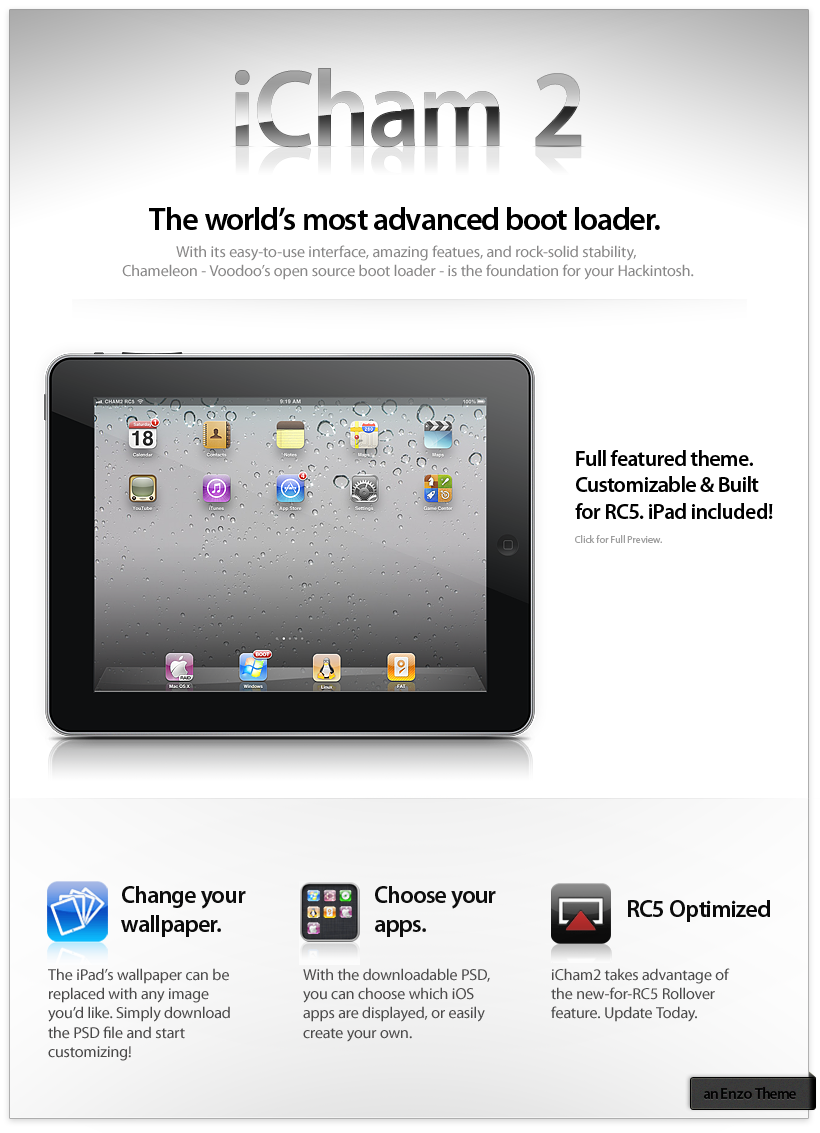
I always thought iOS lent itself nicely to a simple Cham theme, just needed a frame, and that’s where the iPad came in. Came together easily after that, though the hardest part (By Far) is having to adjust for the various bugs/quirks Chameleon has. Once finished, I couldn’t help but mimic typical Apple advertising. 
Technical Notes
-Theme was designed for 1920×1200 and cropped for 1680×1050. 1366×768 required a resize of the iPad and devices.
-Icons are adjusted to look as close to the mockup as possible in the options screen. Some effects look exaggerated because of this in the first/countdown screen.
-By Default, the theme uses an invisble/hidden font_small, so you will not be able to see your partition names. If you need the functionality, there is an alternate font_small included. The obligatory Ubuntu alternate is also included.
-PSD is 1920×1200. Resizing will be necessary for your resolution if you’d like to customize it. The PSD was simplified so it can be easier to use, hopefully it’s all you’d need. It’s easy to drop in a wallpaper between the Default one, and the Shadowing layer. It’s then simply a matter of resizing the wallpaper to your preference. The App icon template isn’t much more complicated than that either. I whipped up an example Firefox app icon. Guides are also included for convenience.
-Theme is RC5 designed, but works with any version of Cham 2. You will see a red arrow in older versions of Cham2 to indicate a selection.
Thank you.
Downloads below.


 or

