Create a private tab
To create a private tab, select Tabs and Windows > New Private Tab from the menu. Alternatively, right-click the tab bar and select “New Private Tab” from the context menu.
Close a private tab
Close a private tab in the same way as a normal tab. To close all the private tabs you have open at once, right-click a tab and select “Close All Private Tabs” or use the Ctrl+Shift+Q keyboard shortcut.
Private windows
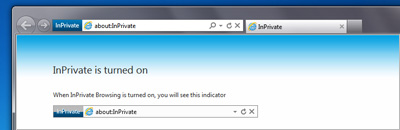
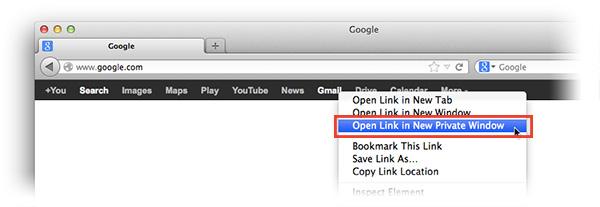
If you prefer to use separate windows when browsing, rather than tabs, you can create a private window by selecting Tabs and Windows > New Private Window. Closing the window removes all traces of your browsing.
*A closed private tab or window cannot be recovered from the “Closed Tabs” drop-down on the right side of the tab bar.
While private tabs or windows do not leave any record of the websites you visit, if you deliberately save data, for example, if you save a bookmark, or download a file, it will still be visible after the tab is closed.
Delete private data
If you are not using the private browsing functionality, you can still protect your privacy by configuring Opera to clear the history and cache or other type of private data when you close the browser. To do this, go to Opera > Preferences…. Click the ‘Privacy & security’ tab on the left sidebar. Under ‘Privacy’ click the Clear Browsing Data… button. From the dialog, you can check-select what you would like to delete (browsing history, download history, cookies, cache, or passwords) and how far back in time you would like to do so.
Disable or clear data from the password manager
If you use the password manager to save your passwords, you may want to disable it when sharing a computer or using a public one. Go to Opera > Preferences…. Click the ‘Privacy & security’ tab on the left sidebar. Under ‘Passwords’ untick the Offer to save passwords I enter on the web checkbox.
If you use the password manager to save your personal data for auto-completion in online forms, you can clear this information by clicking the Manage saved passwords button. From the dialog, you can search for passwords and tell Opera to forget information by hovering over an entry and click the ‘X’ that appears to the right.