Select Page

Some Security Softwares

Most organizations use several types of network-based
and host-based :


security software to detect malicious activity, protect systems and data, and support incident response efforts. Accordingly, security software is a major source of computer security log data. Common types of network-based and host-based security software include the following 

Network Quarantine Servers : Some organizations check each remote host’s security posture before allowing it to join the network. This is often done through a network quarantine server and agents placed on each host. Hosts that do not respond to the server’s checks or that fail the checks are quarantined on a separate virtual local area network segment. Network quarantine servers log information about the status of checks, including which hosts were quarantined and for what reasons.

Routers : Routers may be configured to permit or block certain types of network traffic based on a policy. Routers that block traffic are usually configured to log only the most basic characteristics of blocked activity.

Web Proxies : Web proxies are intermediate hosts through which Web sites are accessed. Web proxies make Web page requests on behalf of users, and they cache copies of retrieved Web pages to make additional accesses to those pages more efficient. Web proxies can also be used to restrict Web access and to add a layer of protection between Web clients and Web servers. Web proxies often keep a record of all URLs accessed through them.

Vulnerability Management Software : Vulnerability management software, which includes patch management software and vulnerability assessment software, typically logs the patch installation history and vulnerability status of each host, which includes known vulnerabilities and missing software updates.5 Vulnerability management software may also record additional information about hosts’ configurations. Vulnerability management software typically runs occasionally, not continuously, and is likely to generate large batches of log entries.

Remote Access Software : Remote access is often granted and secured through virtual private networking (VPN). VPN systems typically log successful and failed login attempts, as well as the dates and times each user connected and disconnected, and the amount of data sent and received in each user session. VPN systems that support granular access control, such as many Secure Sockets Layer (SSL) VPNs, may log detailed information about the use of resources.

Antimalware Software : The most common form of antimalware software is antivirus software, which typically records all instances of detected malware, file and system disinfection attempts, and file quarantines. 3 Additionally, antivirus software might also record when malware scans were performed and when antivirus signature or software updates occurred. Antispyware software and other types of antimalware software (e.g., rootkit detectors) are also common sources of security information.

Intrusion Detection and Intrusion Prevention Systems : Intrusion detection and intrusion prevention systems record detailed information on suspicious behavior and detected attacks, as well as any actions intrusion prevention systems performed to stop malicious activity in progress. Some intrusion detection systems, such as file integrity checking software, run periodically instead of continuously, so they generate log entries in batches instead of on an ongoing basis.

Firewalls : Like routers, firewalls permit or block activity based on a policy; however, firewalls use much more sophisticated methods to examine network traffic.6 Firewalls can also track the state of network traffic and perform content inspection. Firewalls tend to have more complex policies and generate more detailed logs of activity than routers.

Authentication Servers : Authentication servers, including directory servers and single sign-on servers, typically log each authentication attempt, including its origin, username, success or failure, and date and time.
 

credits : wikipedia

HP SPP(Service Pack for Proliant) “2014.09” Released

HP SPP(Service Pack for Proliant)  “2014.09” Released

HP SPP Page go here www.hp.com/go/spp


HP Service Pack for ProLiant (SPP) is a comprehensive systems software and firmware update solution, which is delivered as a single ISO image. This solution uses HP Smart Update Manager (HP SUM) as the deployment tool and is tested on all HP ProLiant Gen9, Gen8 and earlier servers as defined in the Service Pack for ProLiant Server Support Guide found at www.hp.com/go/spp/documentation.  

This is the 3rd release in the this year , you can find details of previous versions here SPP 2014.06.0  , SPP 2014.02.0(B) , with the release of then Gen9 Proliant servers , there is a new version of “SPP” Service Pack for Proliant available , 2014.06.0 & 2014.02.0(B) were the old release this year , previous year release was SPP 2013.9(C).

Important Notes:
  • This release no longer supports Red Hat Enterprise Linux 5
  • This release no longer supports ProLiant G5 and earlier platforms
Release Summary:
  • Added new support for the following HP ProLiant servers:
    •   HP BL460c Gen9
    •   HP DL380 Gen9
    •   HP DL360 Gen9
    •   HP ML350 Gen9
    •   HP DL180 Gen9
    •   HP DL160 Gen9
    •   HP XL230a Gen9
  • Added support for new HP ProLiant options
  • Includes VMware driver support
  • Provides operating system support for Red Hat Enterprise Linux 7 and vSphere 5.5 U2
  • Contains HP Smart Update Manager v7.1.0
     

See the HP Service Pack for ProLiant Release Notes for more information. See the HP Service Pack for ProLiant Server Support Guide for information on supported servers.  

Support 
HP supports each SPP version for 12 months from the release date. Customers may choose to update to the current SPP from a previous SPP version. This is acceptable as long as the earlier version is within current version’s 12 month support period. This means that customers may directly update their SPP by skipping intermediate releases within the 12 month support period. See the table in the Compatibility section for details on the components contained in earlier SPPs that can migrate to this SPP.
The end of a support period can be determined by the version number of the release. For example, if SPP 2014.02.0 is currently installed, support for it would end the last day of February, 2015. This is based on version 2014=year, 02= month, 0=full release id number. Sometimes it is necessary to release an SPP with a version that would have less than 12 months of support per the information noted above. In these cases, use the table below to determine support periods:
Supported Operating Systems 
The following operating systems are supported for system software and firmware support:
  • Microsoft Windows Server 2012 R2
  • Microsoft Windows Server 2012 – All Editions
  • Microsoft Windows Server 2012 Essentials
  • Microsoft Windows Server 2008 R2
  • Microsoft Windows Server 2008 R2 Foundation Edition
  • Microsoft Windows HPC Server 2008 R2
  • Microsoft Windows Server 2008 x64 – All Editions
  • Microsoft Windows Server 2008 x64 – Server Edition
  • Microsoft Windows Server 2008 x64 – Server Core Edition
  • Microsoft Windows Server 2008 W32 – All Editions
  • Microsoft Windows Server 2008 W32 – Server Edition
  • Microsoft Windows Server 2008 W32 – Server Core Edition
  • Microsoft Windows Server 2008 Foundation Edition
  • Red Hat Enterprise Linux 7 Server 
  • Red Hat Enterprise Linux 6 Server (x86-64)
  • Red Hat Enterprise Linux 6 Server (x86)
  • SUSE LINUX Enterprise Server 11 (AMD64/EM64T)
  • SUSE LINUX Enterprise Server 11 (x86)
  • VMware vSphere 5.5 U1, 5.5 U2
  • VMware vSphere 5.1 U1, 5.1 U2
  • VMware ESXi 5.0 U2, 5.0 U3

Deployment Instructions  Follow these steps to install the components found on this SPP:

  • Download the SPP 2014.09.0.iso file from the SPP download page, www.hp.com/go/spp/download 


  • Determine how to access the data on the ISO – bootable USB key, mounted ISO, mounted DVD, etc. Use the appropriate tool to obtain the ISO in the desired format.

The HP USB Key Utility for Windows version 1.7.0.0 or later should be to put this SPP on a bootable USB key and is also found on the SPP ISO.

Remember, to download the software you have to log in on the HP website and have a valid support agreement or serial number from a applicable device supported by this SPP.

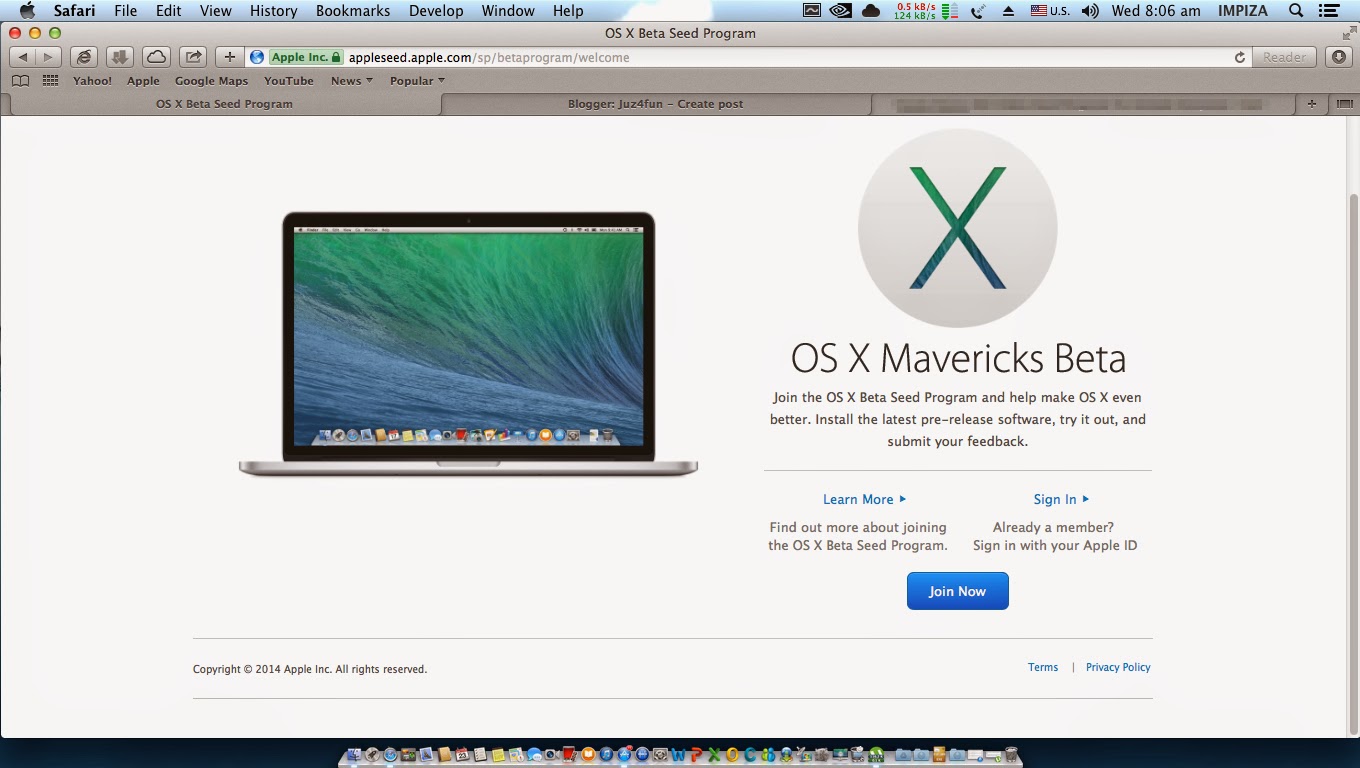
Apple Opens OS X Beta Seed Program to Every one if you are not even Developer

Apple Starts opened up its OS X Mavericks beta testing program to everyone not just developers …
you can download the latest OS X beta seeds.

To join the program all you have to do is visit the OS X beta Seed Program page , accept the confidentiality agreement, and you will get a Beta Access Utility for you Mac(download and install it) that will give you access to all pre-release versions of OS X via Mac App Store Update panel.

Installing beta Access Utility 

by this way you can access beta release , 
“Always remember to backup you current working apps before update”
enjoy…………..

How to download Expert One e-certificates , card from HP Partner Portal

for new Method scroll down 

Certified as an HP Professional ! want to download e-certificates ?

And you don’t know what to do that ? 

just follow the steps in the post 
first you need to go to  HP partner portal (google will give your link ) for asia pacific gateway  click this link select your country type your user id and password 

 click train and certify 

click benefits portal 
select e-Certificates & ID cards 

There you go …… now you can download your both certificates and id card 


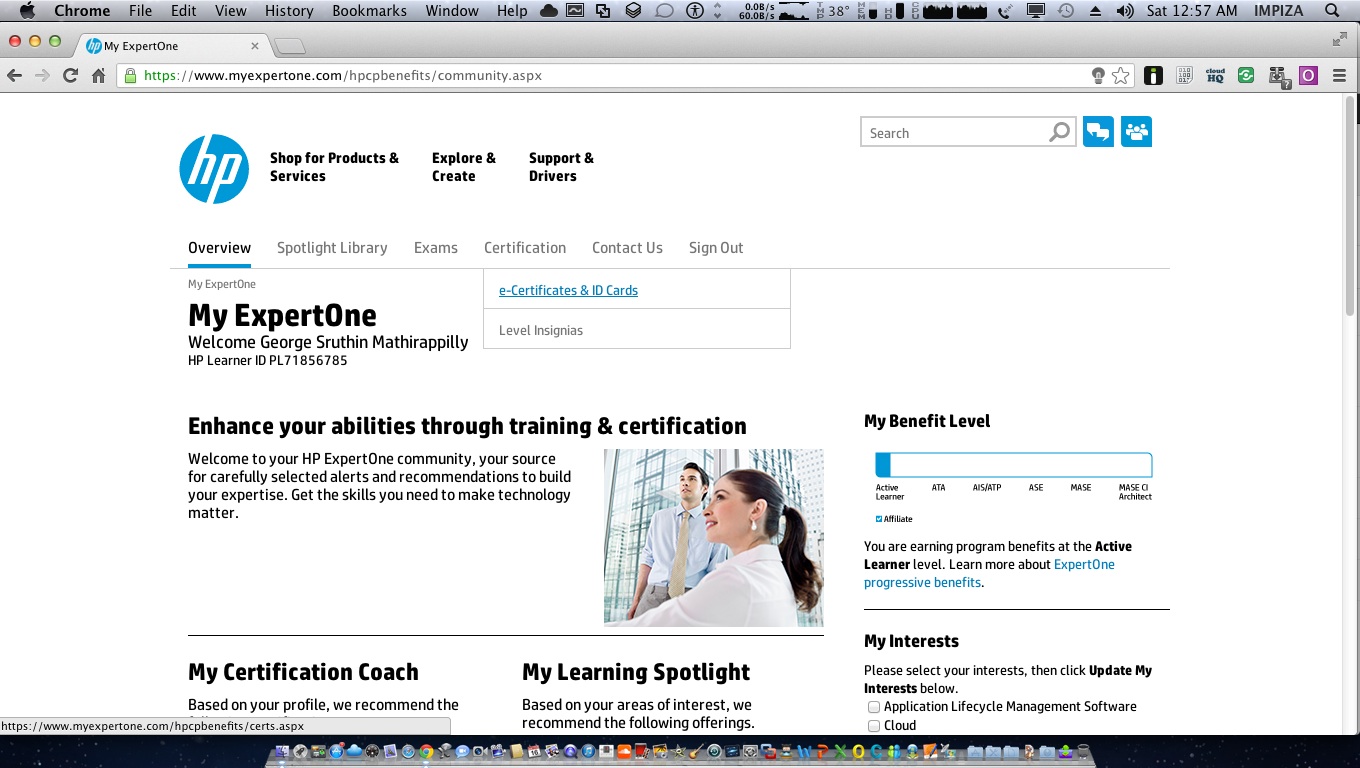
# new Method 


login to HP Expertone partner portal using your partner id 


then click on Certification tab and Click on “e-Certificates & id card “
Scroll down 
Scroll down 
enjoy 


so here is your certificate from me for successfully completing how to download ExpertOne certificate 


 LOL…

                                                              enjoy 

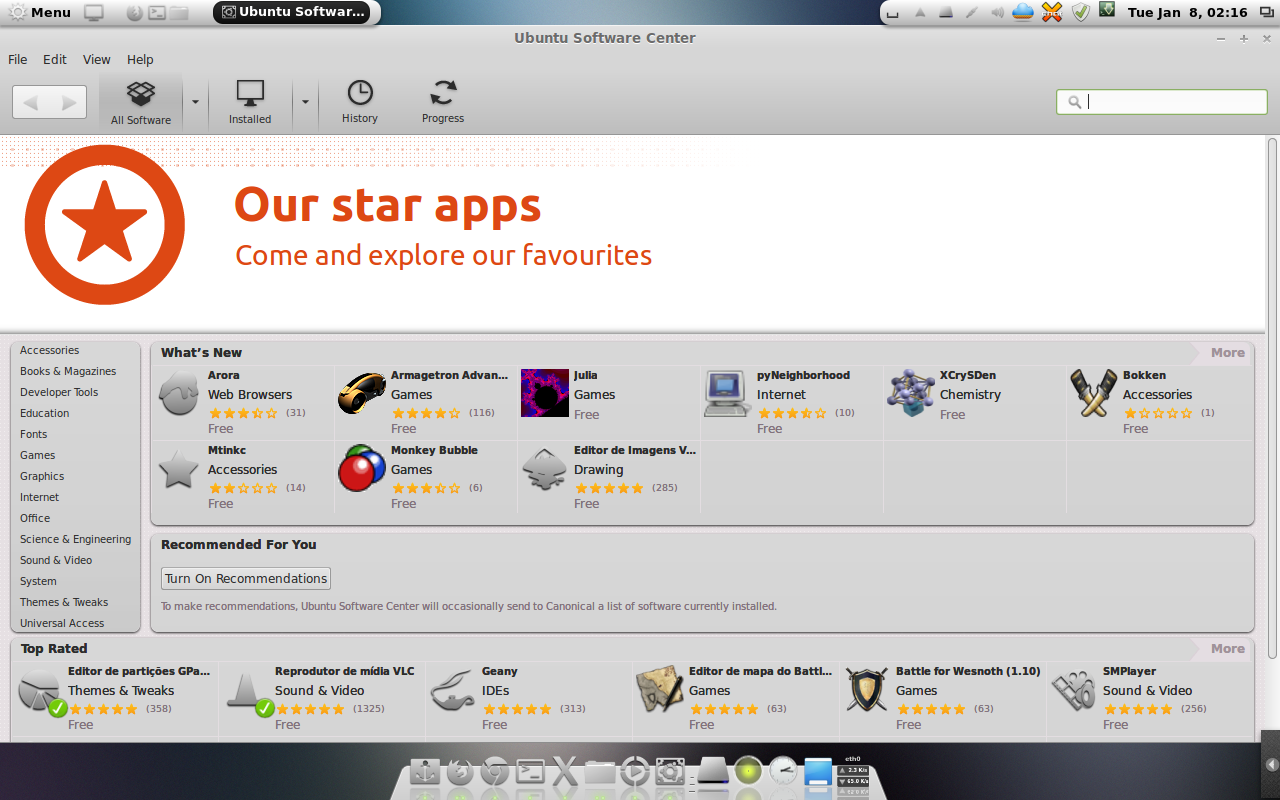
How to install & fix Ubuntu software-center error in LInuxmint

How to fix Ubuntu software-center error  Linux Mint 

There are some problem showing after installing ubuntu software-center in Linuxmint so how to fix this o_O ? i am going to show you how to fix this !

first you need to install Ubuntu software-center

  • for that open up your terminal
  • type following commands 

   
 sudo apt-get install software-center 

then it will ask you for permission

press y and press enter

it will take some time

and after that it will end up with some error msg like this

 
correct gamma=(0/100000)
Setting up humanity-icon-theme (0.6.1) ...
Setting up software-center-aptdaemon-plugins (0.1.5) ...
Setting up oneconf (0.2.9.1) ...
Setting up software-center (5.4.1.3) ...
ERROR:root:DebFileApplication import
Traceback (most recent call last):
File "/usr/share/software-center/softwarecenter/db/__init__.py", line 4, in
from debfile import DebFileApplication, DebFileOpenError
File "/usr/share/software-center/softwarecenter/db/debfile.py", line 25, in
from softwarecenter.db.application import Application, AppDetails
File "/usr/share/software-center/softwarecenter/db/application.py", line 27, in
import softwarecenter.distro
File "/usr/share/software-center/softwarecenter/distro/__init__.py", line 197, in
distro_instance = _get_distro()
File "/usr/share/software-center/softwarecenter/distro/__init__.py", line 172, in _get_distro
module = __import__(distro_module_name, globals(), locals(), [], -1)
ImportError: No module named linuxmint
Traceback (most recent call last):
File "/usr/sbin/update-software-center", line 38, in
from softwarecenter.db.update import rebuild_database
File "/usr/share/software-center/softwarecenter/db/update.py", line 33, in
from softwarecenter.backend.scagent import SoftwareCenterAgent
File "/usr/share/software-center/softwarecenter/backend/scagent.py", line 28, in
from softwarecenter.distro import get_distro, get_current_arch
File "/usr/share/software-center/softwarecenter/distro/__init__.py", line 197, in
distro_instance = _get_distro()
File "/usr/share/software-center/softwarecenter/distro/__init__.py", line 172, in _get_distro
module = __import__(distro_module_name, globals(), locals(), [], -1)
ImportError: No module named linuxmint 

or showing appcrash (Ubuntu software-center has closed unexpectedly)

its installed in your pc but you cant start it because software-center will crash

now you need to follow some steps to fix this problem

, let’s do a little bit of coding 😀

  • open /usr/share/software-center/softwarecenter/distro as root (dont do any thing foolishness because you cant undo )
  •  if you cant find LinuxMint.py in there then download it from below link 

  • then rename LinuxMint.py to linuxmint.py (just lowercase)
  •  open it and edit line 36, change LinuxMint to linuxmint

  •  rename debian.pyc to Debian.pyc

  •  open  _init_.py
  •  change the value in line 170
  •  change it from capitalize to lower

  • if you try to run it, it will show error because it cant find it’s xapian, so just get xapian files, unzip then and paste then in ( download link below )

    /var/cache/software-center/

                              
now you can enjoy your Ubuntu software-center in linuxmint

Pin It on Pinterest