
Passwords are still one of the easiest ways for attackers to gain access to online accounts. Unfortunately, many people still reuse the same password across multiple websites or store passwords in places that are not designed for secure password management.
As the number of online accounts continues to grow, remembering a different strong password for every service becomes difficult. This is where password managers can help.
I personally use Bitwarden to manage my passwords. However, regardless of which password manager you choose, there are some important security best practices you should follow.
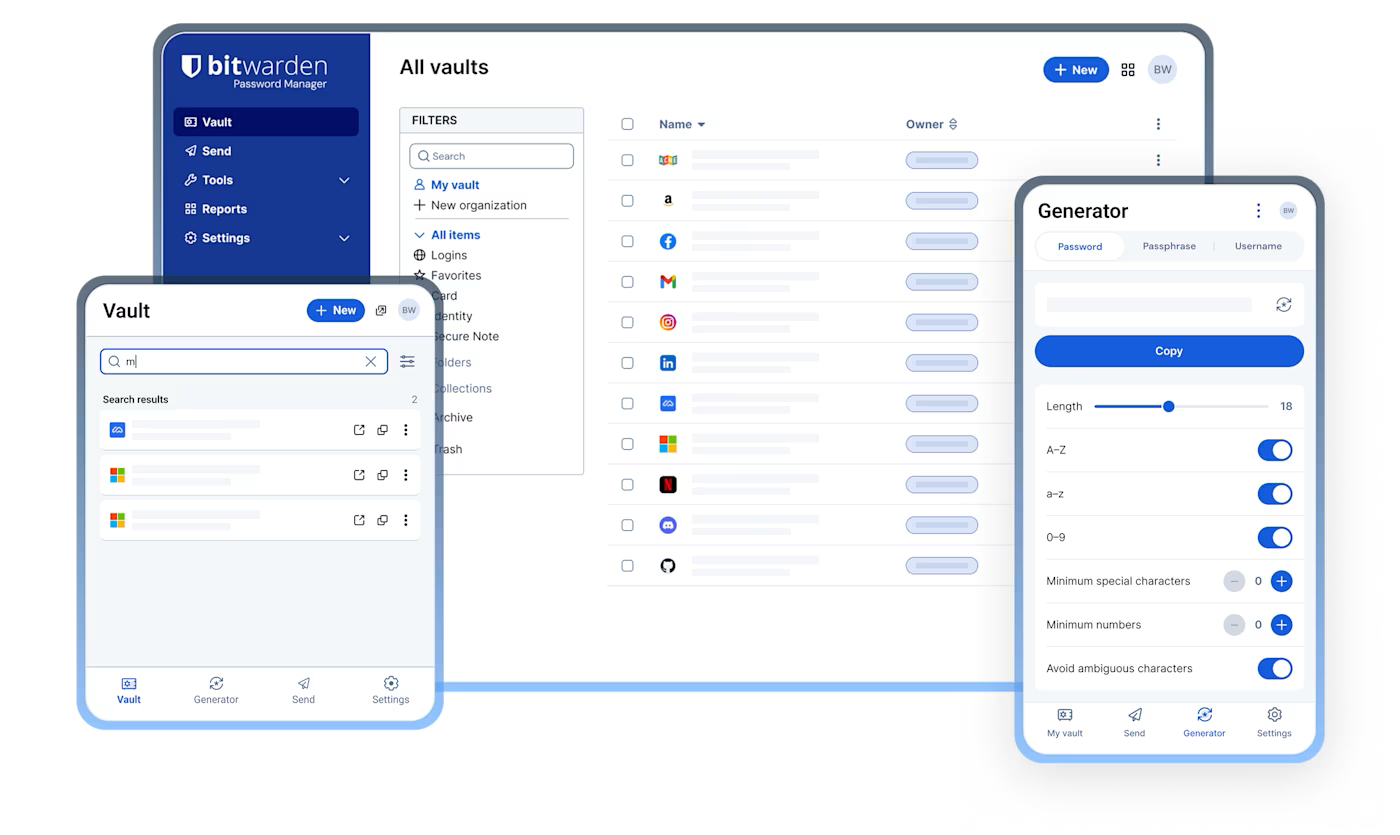
Are Password Managers Safe?
Generally, yes. Reputable password managers use encryption and security controls to protect your stored credentials.
However, a password manager is not a replacement for good security practices. Your master password, devices, and account recovery methods still need to be protected.
In other words, a password manager can improve your security significantly, but only when it is used correctly.
1. Use a Strong and Unique Master Password
Your master password protects your password vault, so it is one of the most important passwords you will ever create.
Therefore, make it:
- Long and difficult to guess
- Unique
- Easy for you to remember
- Never reused on another website
A long passphrase made from several unrelated words can be easier to remember while still providing strong security.
Never use your password manager's master password anywhere else.
2. Never Reuse Passwords
One of the biggest advantages of a password manager is the ability to create a unique password for every account.
For example, your email, banking, social media, and work accounts should all have different passwords.
Why is this important?
If one website suffers a data breach and your password is exposed, attackers may try the same password on other services.
Therefore, one account should have one unique password.
3. Don't Save Passwords in Your Browser
Modern browsers offer to save passwords, which is convenient. However, storing all your credentials directly in your browser may not provide the same level of password-management features and control as a dedicated password manager.
Instead, use a reputable password manager to centralize your credentials and manage them securely.
For example, rather than saving passwords in Chrome, Edge, or Firefox, you can store them in your dedicated password manager.
This also makes it easier to manage passwords across different browsers and devices.
4. Enable Multi-Factor Authentication
A strong password is important, but Multi-Factor Authentication (MFA) provides another layer of protection.
Whenever possible, enable MFA for:
- Your password manager
- Email accounts
- Banking accounts
- Social media
- Cloud services
- Business applications
As a result, even if someone obtains your password, they may still be unable to access your account.
For your password manager itself, consider using a strong second factor such as an authenticator application or security key when supported.
5. Never Share Your Passwords
Your passwords should remain private.
Avoid sending passwords through:
- SMS
- Chat applications
- Screenshots
- Notes or documents
Even if you trust the recipient, sharing passwords increases the risk of accidental exposure.
If credentials must be shared for legitimate business reasons, use the secure sharing features provided by your password management solution rather than sending the password as plain text.
6. Don't Store Passwords in Plain Text
Avoid keeping passwords in:
- Notepad files
- Excel spreadsheets
- Word documents
- Text files
- Sticky notes
- Email drafts
Although these methods may seem convenient, they provide little protection if your device or account is compromised.
Instead, use a dedicated password manager designed to protect sensitive credentials.
7. Generate Strong Passwords
Don't create passwords manually whenever possible.
Instead, use your password manager's built-in password generator to create random and unique credentials.
For example:
K8!vQ2#pL9@xT7
You don't need to remember this password because your password manager does that for you.
Consequently, you can use stronger and more complex passwords without making your daily login process difficult.
8. Secure Your Password Manager Account
Your password manager itself must be protected carefully.
Therefore:
- Use a strong master password
- Enable MFA
- Keep recovery information secure
- Don't share your master password
- Keep your devices updated
- Lock your password manager when appropriate
Remember that your password manager is protecting many other accounts, so it deserves extra attention.
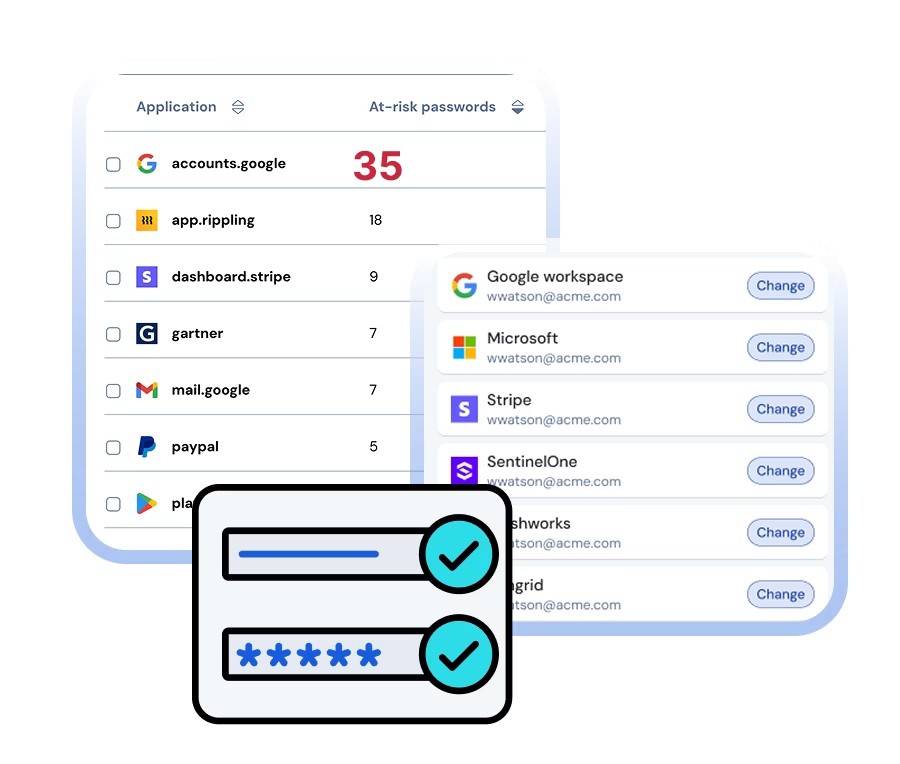
9. Regularly Review Your Passwords
Finally, don't simply save passwords and forget about them.
Periodically review your password vault and:
- Remove unused accounts
- Replace weak passwords
- Change reused passwords
- Check for compromised credentials
- Review important account security settings
In addition, prioritize critical accounts such as email, banking, cloud storage, and business systems.
Final Thoughts
Password managers are not completely risk-free. However, they are generally much safer than reusing passwords, storing them in plain-text files, or using simple passwords that are easy to guess.
The most important thing is to use them correctly.
Use a strong and unique master password, generate a different password for every account, avoid saving credentials directly in your browser, enable MFA, and never share your passwords.
I use Bitwarden as part of my own password security strategy. Nevertheless, the same principles apply regardless of which reputable password manager you choose.
Ultimately, good password security is not about remembering more passwords. It's about making every password unique, difficult to guess, and properly protected.